How do I use the date selectors?
Date selectors are used throughout nCino Incentive Compensation to filter or set specific dates and date ranges. This article details how to use them effectively.
Payroll Period Selector
This selector allows users to quickly select a payroll period close to the current payroll period. By default, this date selector shows the previous month to date.

-
Past Pay: Click to look at the prior payroll period. Clicking multiple times will continue going to prior payroll periods.
-
This Pay: Selected by default. Click to look at this payroll period.
-
Future Pay: Click to look at the future payroll period. Clicking multiple times will continue going to future payroll periods.
-
[Start Date]: Start date of the date range currently displayed. When using the buttons, this is filled automatically. Click to open a calendar tool to choose a specific date. See Calendar Tool.
-
[End Date]: End date of the date range currently displayed. When using the buttons, this is filled automatically. Click to open a calendar selector to choose a specific date. See Calendar Tool.
NOTE: When using the Start Date and End Date fields, selecting a specific date will make the Past Pay and Future Pay buttons unavailable until This Pay is clicked again.
Date Range Selector

This selector allows users to quickly select a date range for the page.
-
Prev: Previous calendar month.
-
MTD: Current month to date.
-
QTD: Current quarter to date.
-
1m: Past month.
-
3m: Past 3 months.
-
6m: Past 6 months.
-
YTD: Current year to date.
-
1y: Past year.
-
[Start Date]: Start date of the date range currently displayed. When using the buttons, this is filled automatically. Click to open a calendar selector to choose a specific date. See Calendar Tool.
-
[End Date]: End date of the date range currently displayed. When using the buttons, this is filled automatically. Click to open a calendar selector to choose a specific date. See Calendar Tool.
Additional Items
Payroll Calendar Selector
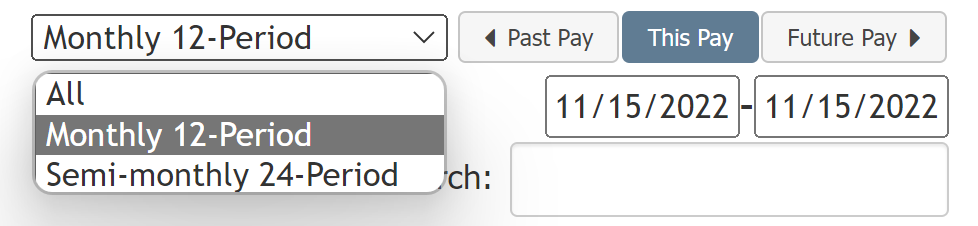
For companies that use multiple payroll calendars, this dropdown will be available on certain pages. To change the currently visible payroll calendar, click the name of the payroll calendar.
Calendar Tool
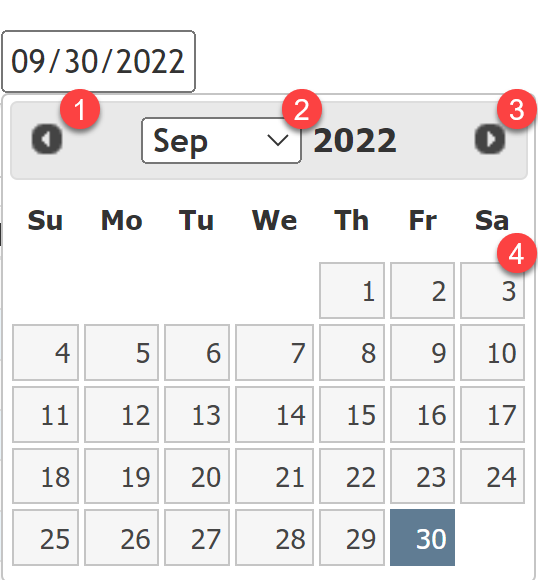
This tool allows users to navigate to and select a specific date.
-
Click to go back to prior month.
-
Click to select a month in the currently selected year.
-
Click to go forward to next month.
-
Days in currently selected month. Click a day to enter it into the field.