Lock Down & Unlock Payroll Periods
This article discusses the process of locking down and unlocking compensation calculations for payroll.
Overview
Each pay period has a corresponding Lock Down date that represents when loan records in nCino Incentive Compensation no longer receive updates from the LOS and compensation for the loans are no longer updated. Loans are locked so payroll can be finalized for processing.
- Loans cannot be locked down before the pay period’s Verification Due Date.
- Loans cannot be locked down after the pay period’s Payroll Date.
- If loans are not locked down by a payroll administrator, nCino Incentive Compensation automatically locks down loan records on the payroll period’s Pay Date.
How to Lock Down Compensation Calculations for Payroll
To lock down commissions:
- Click Payroll
- Click Corp Payroll Menu
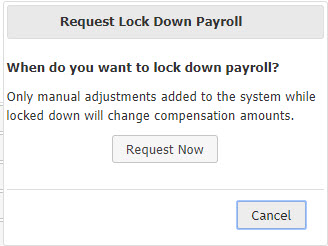
- Click Request Lock Down Payroll.
- Click Request Now to request payroll to be locked down. nCino Incentive Compensation will finish all schedule, override, and allocation recalculations. Ability to edit or add employee assignments, schedules, allocations, or overrides will be disabled at this time
- Click OK on the Success alert.
Once all calculations have completed and payroll is locked down, the Corporate Administration of Commission Compensations, Corporate Payroll menu will display, Unlock Pay Period. During the time that lock down is queued, nCino Incentive Compensation will display Pending: Lock Down Payroll. To cancel lock down,
- Click Pending: Lock Down Payroll
- Click Yes to cancel lock down request
- Click No to proceed with lock down request
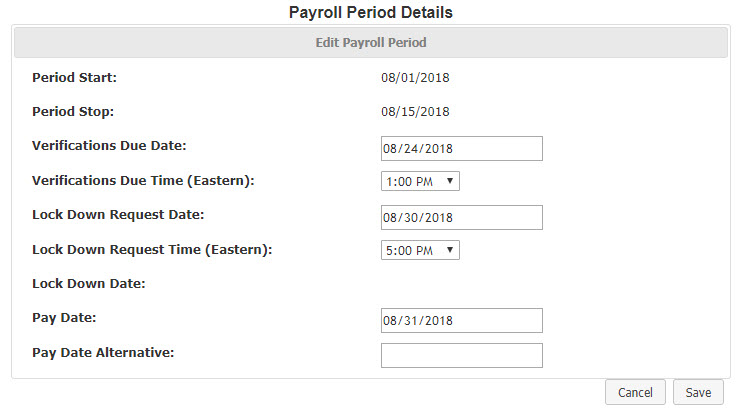
To view or add a lock down requests, those with Access Level: Executive can also go to the Payroll Periods report. The Lock Down Request column displays the date and time lock down was scheduled. To schedule lock down from this page,
- Click Edit by the desired payroll period
- Click Lock Down Request Date box to select to the lock down date
- Select the desired lock down time in the Lock Down Request Time (Eastern) box
How to Unlock Compensation Calculations for Payroll
NOTE: Payrolls can only be unlocked between the verification due date and the pay date. The option to unlock the payroll period after its pay date will no longer be available.
To unlock down commissions,
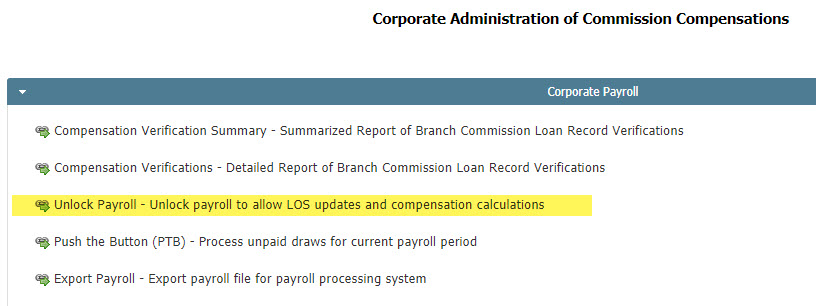
- From the nCino Incentive Compensation menu under Manage Corp, click Payroll.
- From the Corporate Administration of Commission Compensations page, click Corporate Payroll.
- Click Unlock Pay Period
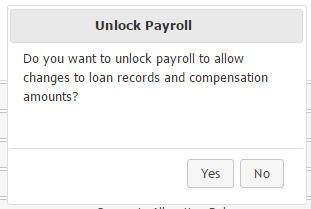
- From the Unlock Payroll pop-up message, click Yes. Otherwise, click No to keep loan records locked.
Once complete, the Corporate Administration of Commission Compensations, Corporate Payroll menu will display, Lock Down Payroll.
For more information about the payroll process in nCino Incentive Compensation, see the article Payroll Key Terms.