Menu for Sub-Branch Access Level Users
This article details the nCino Incentive Compensation menu that users with an Access Level of "Sub-branch" see.Logo
Clicking your company logo will take you to your company's nCino Incentive Compensation home page.
Payroll
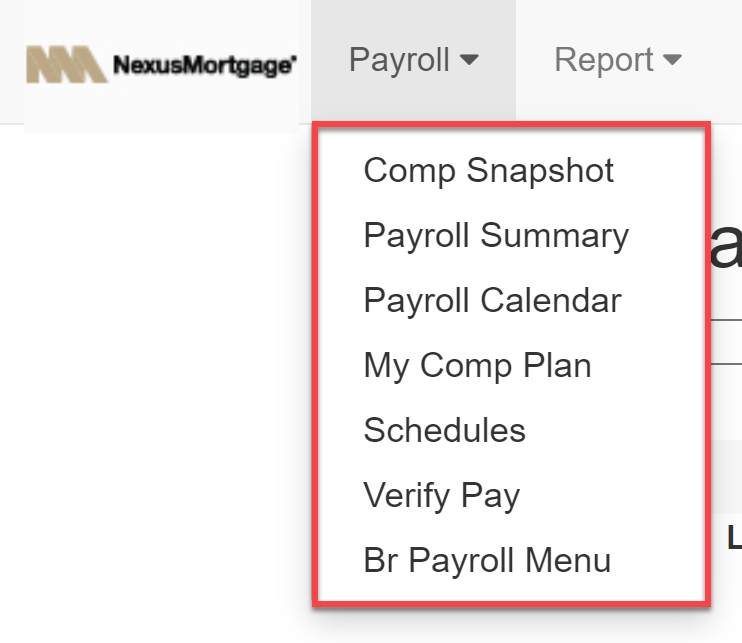
The Payroll menu contains the following items:
- Comp Snapshot: View the current status of your compensation for this pay period.
- Payroll Summary: View a complete breakdown of your compensation for this pay period.
- Payroll Calendar: View a visual calendar of key dates for each payroll period.
- My Comp Plan: View your assigned compensation plan.
- Schedules: View a list of all schedules.
- Verify Pay: View and verify your pay for this payroll period. Appears if your company is using the Verify Pay feature.
- Br Payroll Menu: View the Branch payroll menu. There, you can manage your branch’s payroll.
Report
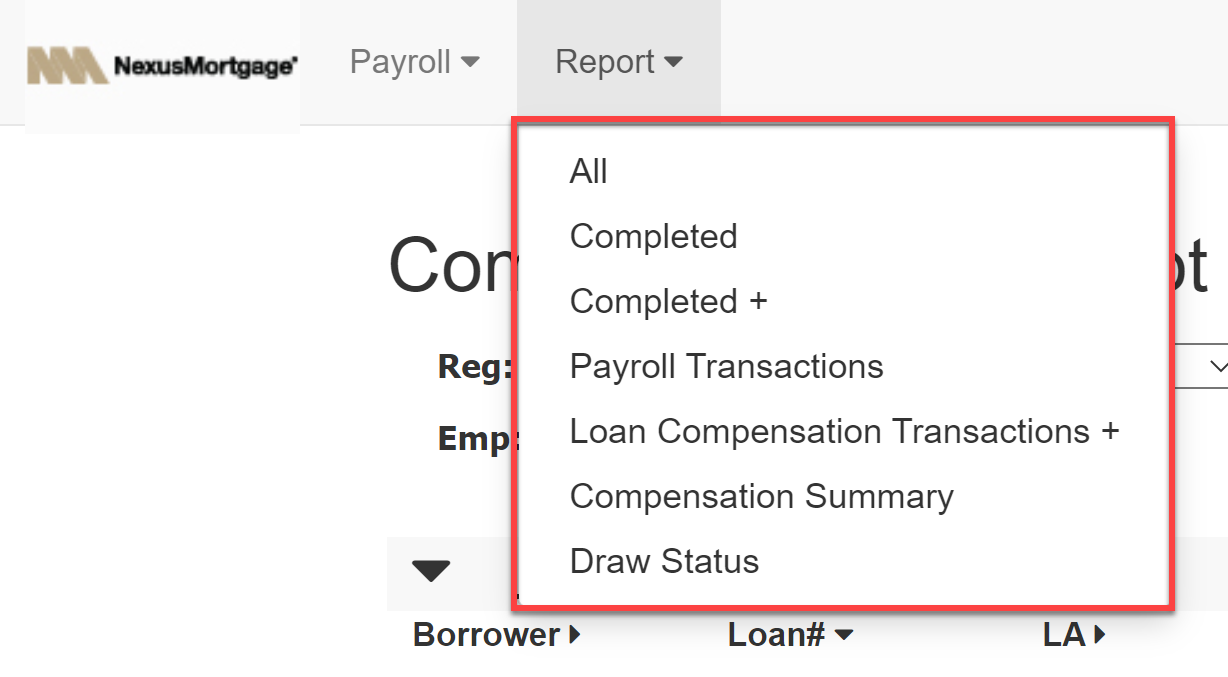
The Report menu contains the following items:
- All: View a list of all available reports.
- Completed: View a list of completed loans.
- Completed +: View a hierarchy-based report of compensation for completed loans.
- Payroll Transactions: View a list of all transactions for this pay period.
- Loan Compensation Transactions +: View a hierarchy-based report of compensation transactions.
- Compensation Summary: View a summary of all compensation for the current payroll period.
- Draw Status: View the status of your draws for this pay period.
Icons

The nCino Incentive Compensation menu contains the following icons:
- Magnifying Glass(
 ): Open the site search. This allows you to search for loans, employees, or branches.
 - Book(
 ): Go to the company directory. This allows you to see lists of all regions, branches, or employees in your company
 - Person(
 ): Go to your employee details page.
 - Gear(
 ): Open the Settings menu. The settings menu includes the following options:
- Impersonate: View nCino Incentive Compensation from the perspective of another user.
- Change Password: Change your current password.
- Log Out: Log out of your account.
- Chain Links(
 ): Access useful external links. Available if set up by your company.
 - Question Mark(
 ): View the Knowledge Base article related to the current page.
 - Download Icon(
 ): Export data from the report.