Region Details
This page describes the function of the Region Detail pages that are used to enter or edit the details of a region.
To access the Region Directory report,
- From the nCino Incentive Compensation menu, click the directory icon(
 ).
). - Click the "Region" tab.
- Click the linked Region to view the Region Details.
To edit a region, click “Edit" on the corresponding region row. Then, click “Edit" on the Region Details page. Fill out the below information
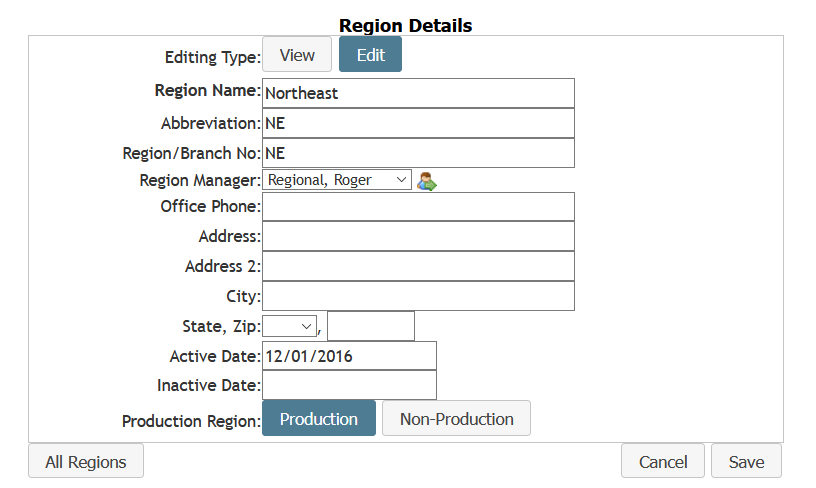
- Region Name: Enter the name of the Region.
- Abbreviation: Enter the Abbreviated Name of the Region.
- Region/Branch No.: Enter the Region Number.
- Region Manager: Enter the Region Manager assigned to the Branch.
- Office Phone: Enter the office phone number for the Region.
- Address: Enter the address of the Region office.
- Address 2: If more space is need for the address, use this field.
- City: Enter the city where the Region is located.
- State, Zip: Enter the State and Zip Code where the Region office is located.
- Active Date: Enter the Date the Region becomes Active.
- Inactive Date: Enter the Date the Region becomes Inactive (when applicable).
- Production Region: If Region is a Production Region, click on “Production . If not, a Production Region click on “Non-Production .
Once completed, click at the bottom of the page.
To return to the Region Directory, click on All Regions. Click Cancel to return to the previous page without saving.