Note: Schedules and Allocations were retired in March 2025. For more information, refer to Schedule and Allocation Retirement Next Steps.
Branch Compensation Schedule Defaults
The Branch Compensation Schedule Defaults report is a tool for viewing the default compensation schedules per branch.
Minimum Compensation Access Level Required: Executive
Access the Report
To access this report,
- From the nCino Incentive Compensation menu, click Report ▼.
- Click All.
- Click Compensation Plans.
- Click the Branch Compensation Schedule Defaults" report.
Read the Report
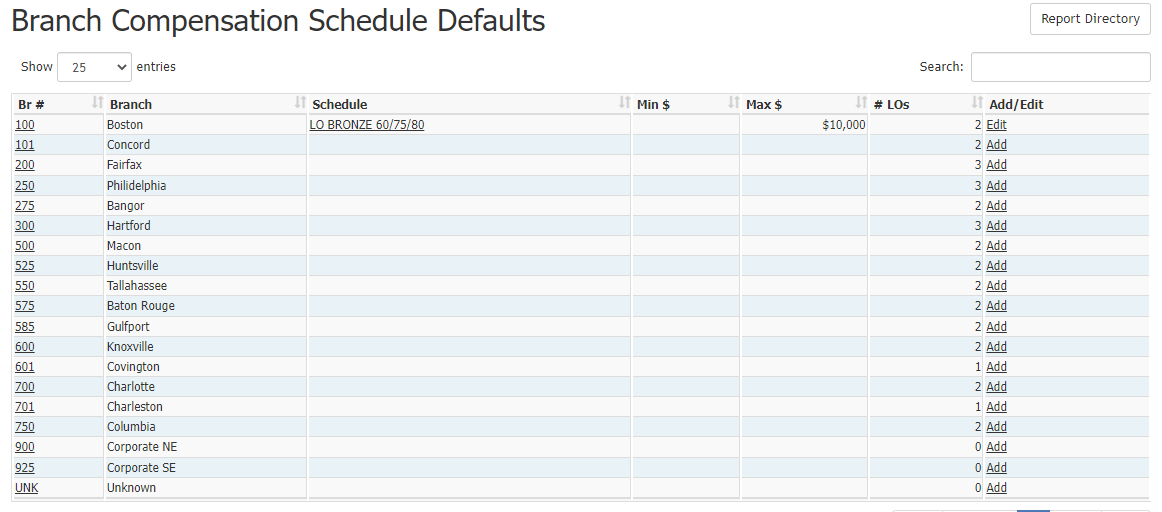
This report includes the following columns:
- Br #: Branch number.
- Branch: Branch’s full name.
- Schedule: Schedule set to that be that branch’s default.
- Min $: Minimum amount the schedule pays per pay period.
- Max $: Maximum amount the schedule pays per pay period.
- # LOs: Number of Loan Officers assigned to the default schedule.
- Add / Edit: Link to the page to add or edit default schedules.
Update Defaults
To add or update a branch's default schedule:
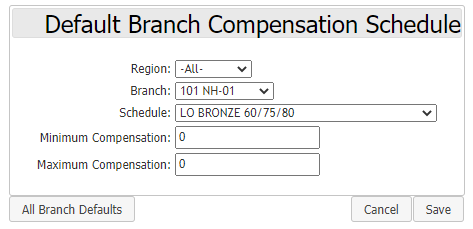
- To the right of the branch, click the link under Add/Edit. This will take you to the update screen (see image below).
- Make sure the correct branch is selected. If you need to change the branch selected, use the Region dropdown to filter by Region, and the Branch dropdown to select the branch.
- Select the Schedule to set as default using the Schedule dropdown.
- If the schedule assignment should have a minimum and/or maximum per pay period, enter those amounts in the Minimum and Maximum fields.
- Click Save to save the default settings. They will appear in the report.
Exporting the Report
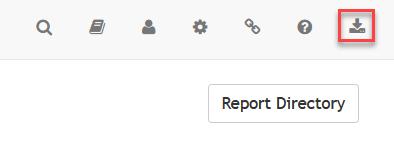
To export this page, click the export icon.
This export includes all following columns available in the online version.