Re-activate Terminated Employee Accounts
This articles describes how an administrator can re-enable accounts for employees who were once terminated in nCino Incentive Compensation (sometimes called "re-hires" or "rehires").
Reset the Profile
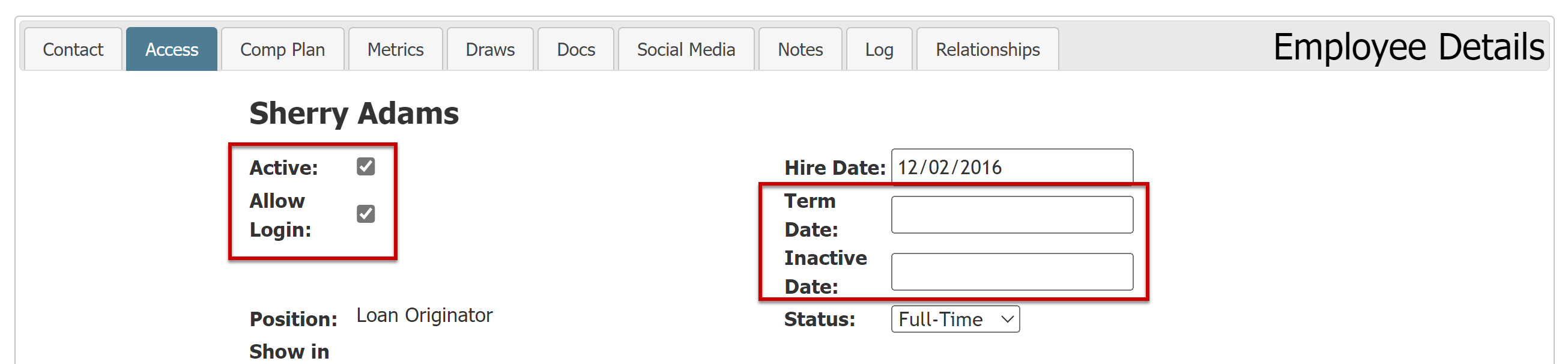
Ensure the following items are marked and up to date on the returning employee's profile:
- Enable:
- Active
- Allow Login
- Active
- Remove dates from:
- Term Date
- Inactive Date
- Term Date
Reset Login Information
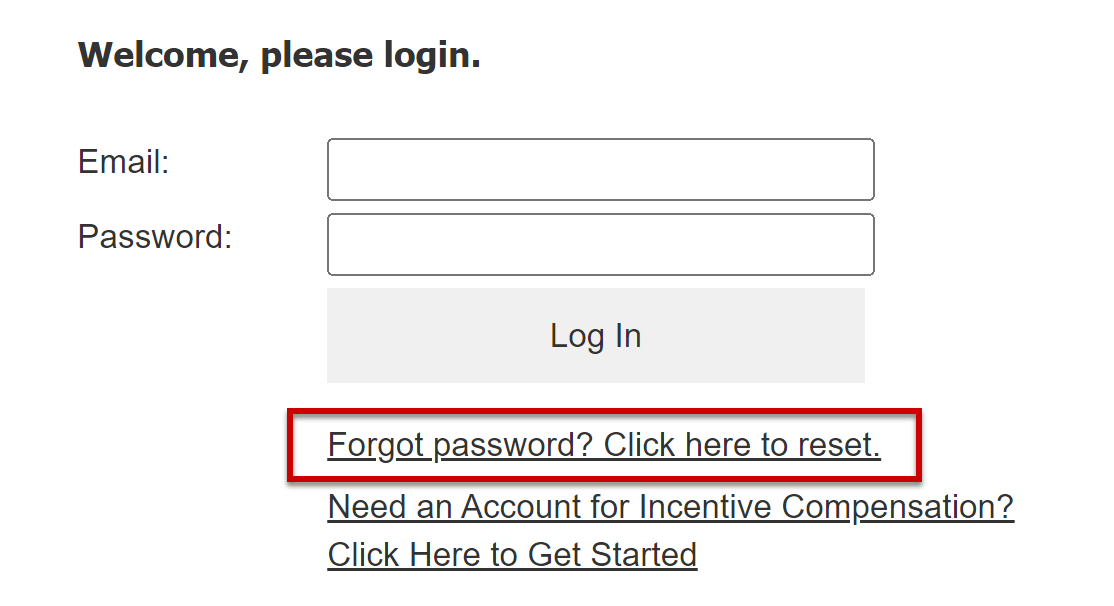
Have the returning employee use the Forgot Password button to set their password before they can log in.
Employees need to enter the primary email address tied to their nCino Incentive Compensation account.
Incentive Plan Assignments
Ensure you assign and update incentive plans based on the employee's re-hire date and updated pay structure.
Note: The Loan Eligibility Date (LED) of incentive plan assignments should be on or after the employee's re-hire date.
Draws and Auto Draws
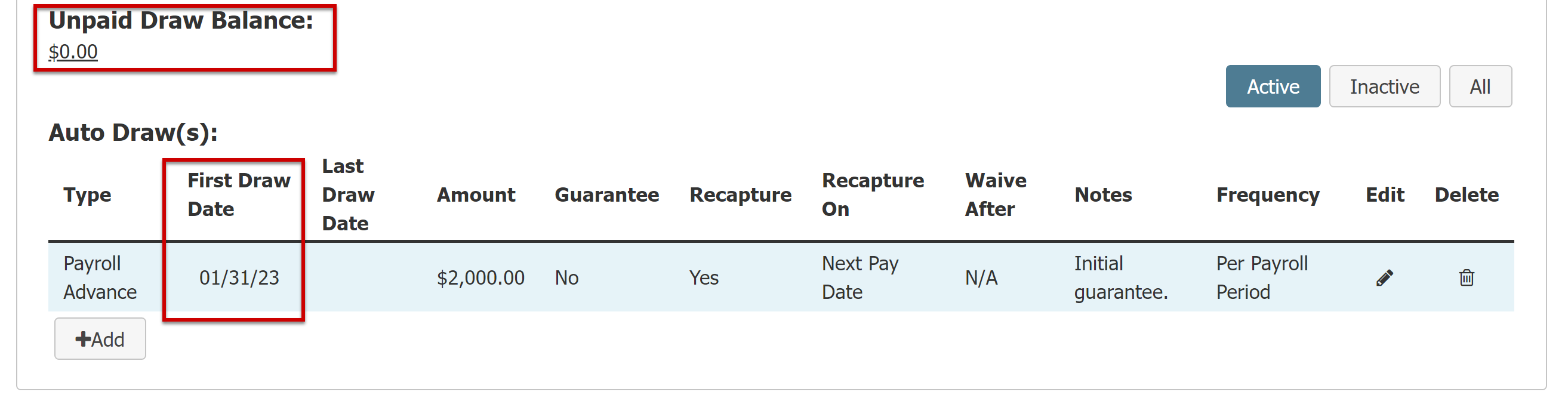
Ensure the returning employee has the following in their draws section:
- Unpaid Draw Balance set correctly.
- The system does not update the employee unpaid draw balance at employee termination. If you would like the returning employee to start with no unpaid balance, you will need to waive the draws causing the balance.
See: How do you waive a draw?
- The system does not update the employee unpaid draw balance at employee termination. If you would like the returning employee to start with no unpaid balance, you will need to waive the draws causing the balance.
- Auto Draws assigned and updated First Draw Date.
- Ensure that you assign relevant auto draws and have new First Draw Dates that correspond to the employee's return date.
See also: