Terminate Employees in nCino Incentive Compensation
In nCino Incentive Compensation employees can be terminated based on integration data or manual termination. This begins the termination process, which will cause assigned plans and auto draws to inactivate and pay based on their termination rules (sometimes called "term rules").
Note: By default, terminated employees will still appear in report filter dropdowns for 120 days after their termination date. After this date, they will no longer be included in most report filters. Terminated employee pay will still be visible in payroll reports like the Payroll Transactions report.
Termination Overview
Overview of the termination process in nCino Incentive Compensation:
-
Either an admin manually enters the employee termination date, or the integration process brings it in from the LOS.
-
The employee receives pay based on the termination rules set on their plans and auto draws.
-
Plans and auto draws automatically inactivate once the employee no longer receives pay from them.
-
120 days after termination, the employee no longer appears in the report filter dropdowns for most reports.
After an employee has been terminated, you can make the employee temporarily available in reports using the Show in Employee Filters checkbox on their employee details page. When selected for terminated employees, this will automatically deselect after the current work week.
Manual Employee Termination Process
To manually terminate an employee in nCino Incentive Compensation:
-
Navigate to the employee's Employee Details page.
-
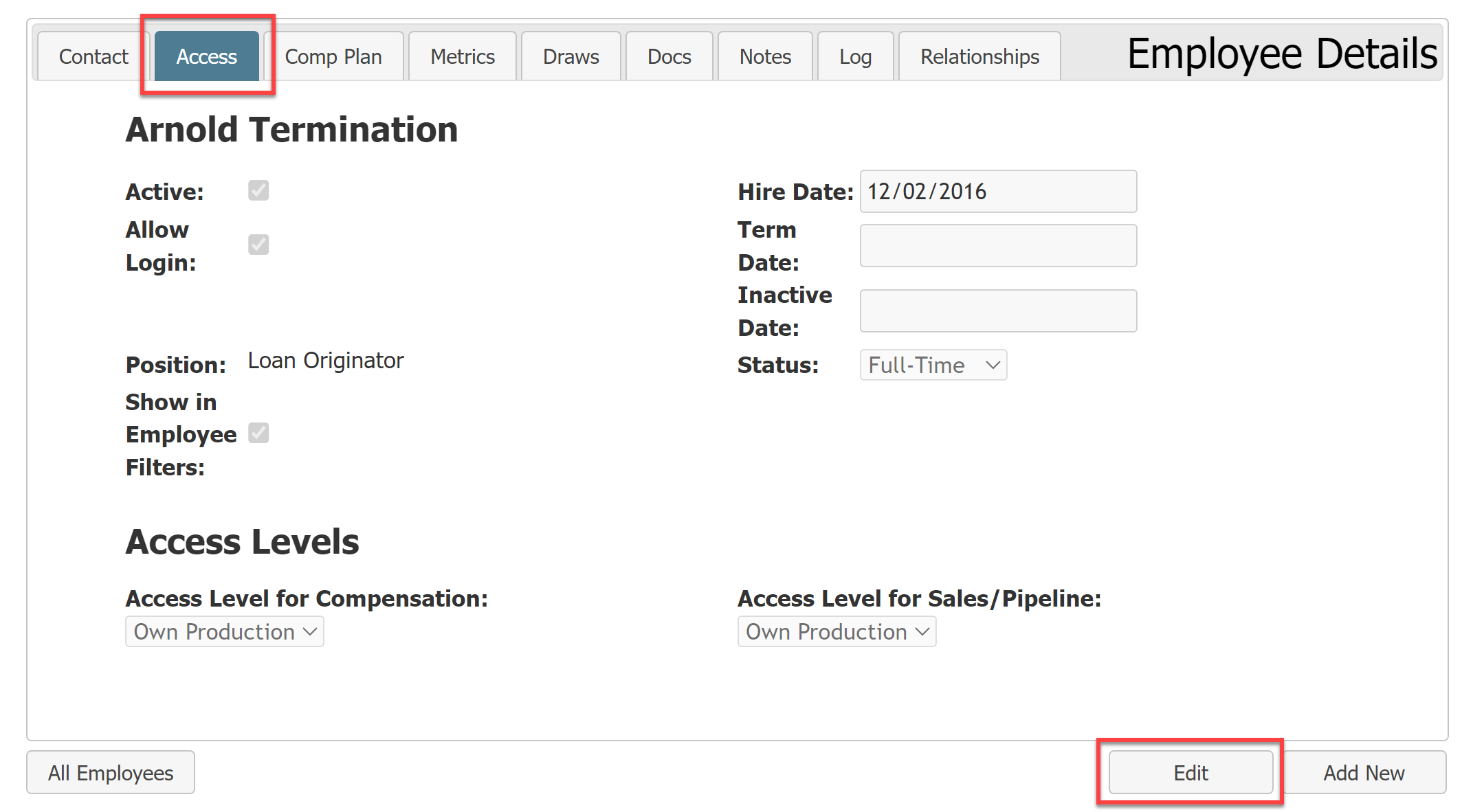
Click the Access tab.
-
Below the details box, click the Edit button.
-
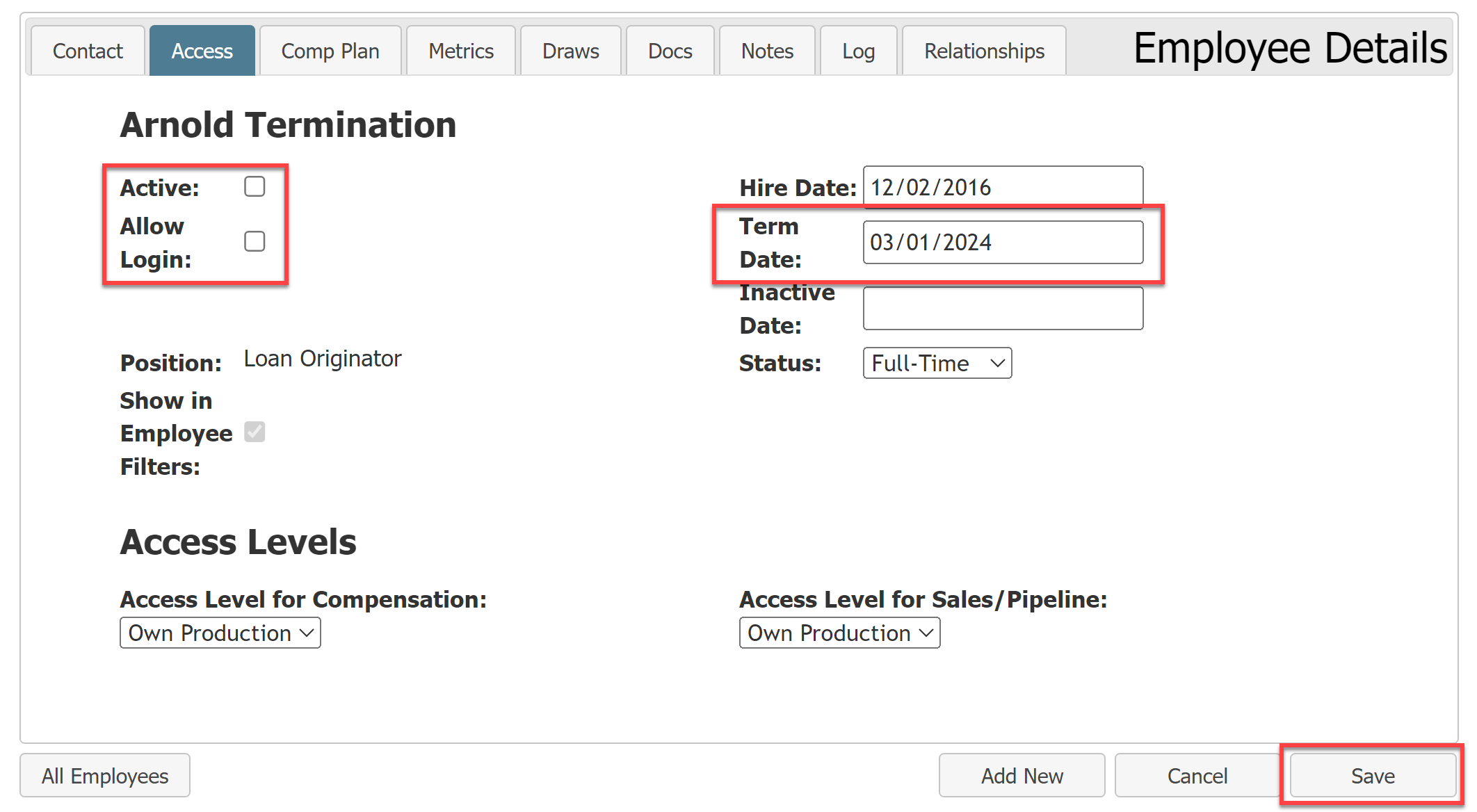
Deselect the following checkboxes: Active, Allow Login.
-
If you have term rules that should take effect, enter the employee's Term Date. This will cause term rules to take effect, and nCino Incentive Compensation will automatically fill in the Inactive Date based on the term rule after the plan stops paying. If an Inactive Date is manually entered, the system will not change the entered date.
-
If you do not have term rules, or do not want the term rules to apply, ONLY enter the Inactive Date. If you are using the Term Date, nCino Incentive Compensation will automatically update this based on the term rule.
-
When you're done, click Save.
Termination Rules
Termination rules determine how individual compensation plans and auto draws calculate pay for employees who have been terminated.
For more information on term rules, refer to Understand Termination Rules.
Incentive Plan Termination Rules
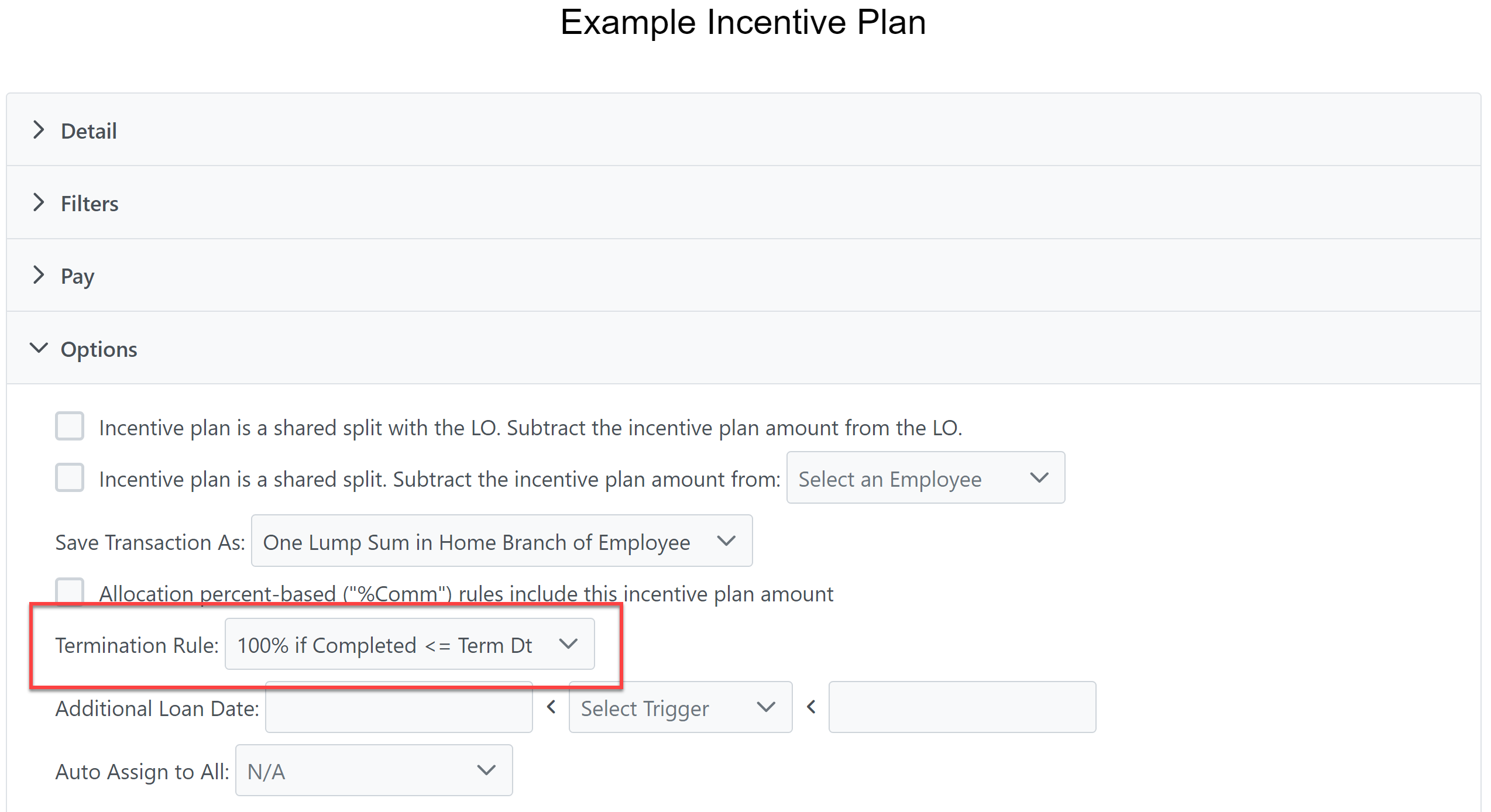
Incentive plans have their term rules set on a per-plan level. Admins can set the term rule for the plan in the Options section.
For more information on building incentive plans, refer to Create or Edit Incentive Plans.
Auto Draws and Termination Rules
The "Termed Employees (all) - Auto Draws" company parameter determines how Auto Draws and term rules interact.
If set to 0: Auto Draws never automatically inactivate.
If set to 1 or higher: Auto Draws automatically inactivate that many days after the employee's termination date.
If you would like to change your company parameters, please contact https://incentivehelp.ncino.com/hc/en-us.
For more information on Auto Draws, refer to Build Auto Draws.

See Also: