Employee Details - Overview
The Employee Details page shows information about a specific employee, including their contact information, compensation plans, access levels, draws, and more.
Contact Tab
Employee's contact information, as provided by the LOS, HRIS, or entered manually. Admins can edit this page from the Edit button.
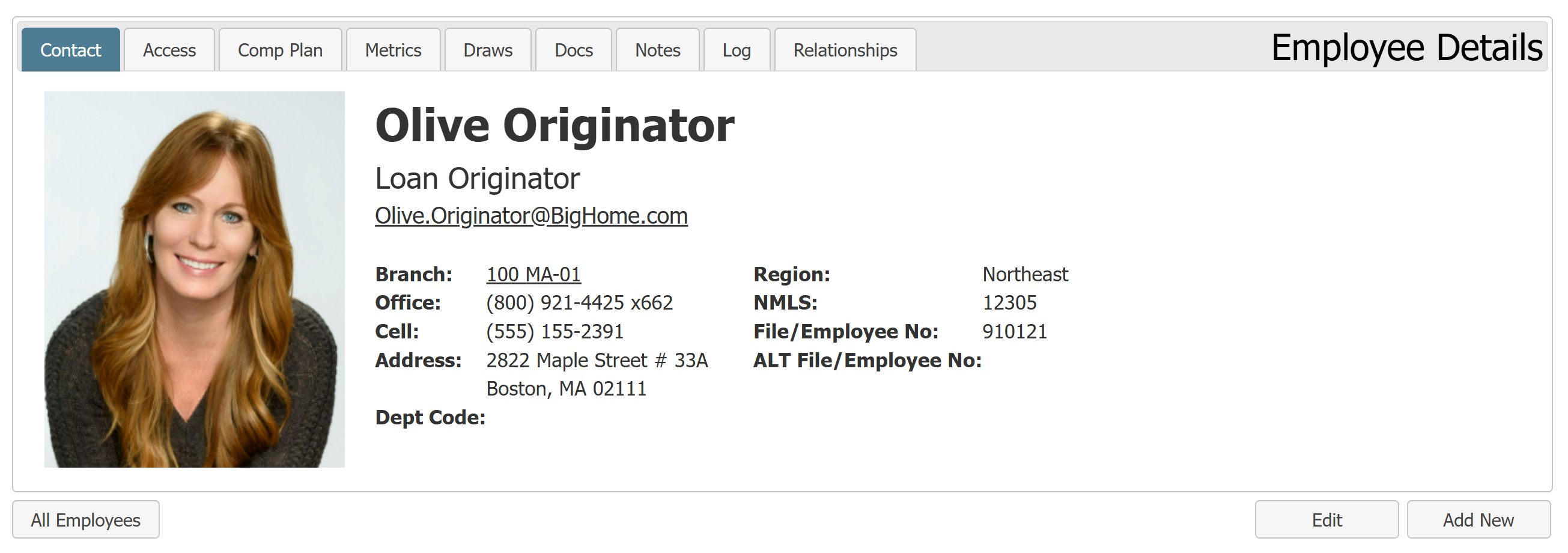
 List of all editable fields:
-
First Name (Given): Legal first name.
-
First Name (Preferred): Preferred first name. Initially populates with legal first name.
-
Middle Name / Initial: Middle name or initial.
-
Last Name: Last name.
-
Short Name: Shortened version of the employee's name. Defaults to Last Name, First Initial.
-
Branch: Employee's assigned branch.
-
Address: First line of address.
-
Address 2: Second line of address.
-
City: Name of city.
-
State: Abbreviation of state.
-
ZIP Code: ZIP Code for address.
-
FLSA Status: Exempt or not exempt from FLSA protections.
-
Photo (.jpg): Photo of the employee. Must be in the .jpg format.
-
File / Employee No: Employee number. The system uses this to match employee to a loan file
-
ALT File / Employee No: (Optional) Alternate employee number.
-
Primary Email (Login): Email employee uses to log in to nCino Incentive Compensation for companies not using SSO. The system uses this to match employee to a loan file
-
ALT Email: (Optional) Secondary email. The system uses this to match employee to a loan file.
-
Job Title: Employee's job title.
-
NMLS: Licensing file number.
-
Dept Code: Employee's department code.
-
Office: Office phone number.
-
Extension: Office extension number.
-
Cell: Cell phone number.
-
Fax: Fax number.
-
Pay Category: Whether the employee is paid hourly or on a salary basis.
Access Tab
Information about the employee's ability to access certain areas in the site, and key dates for the employee. Admins can click the Edit button to edit this page
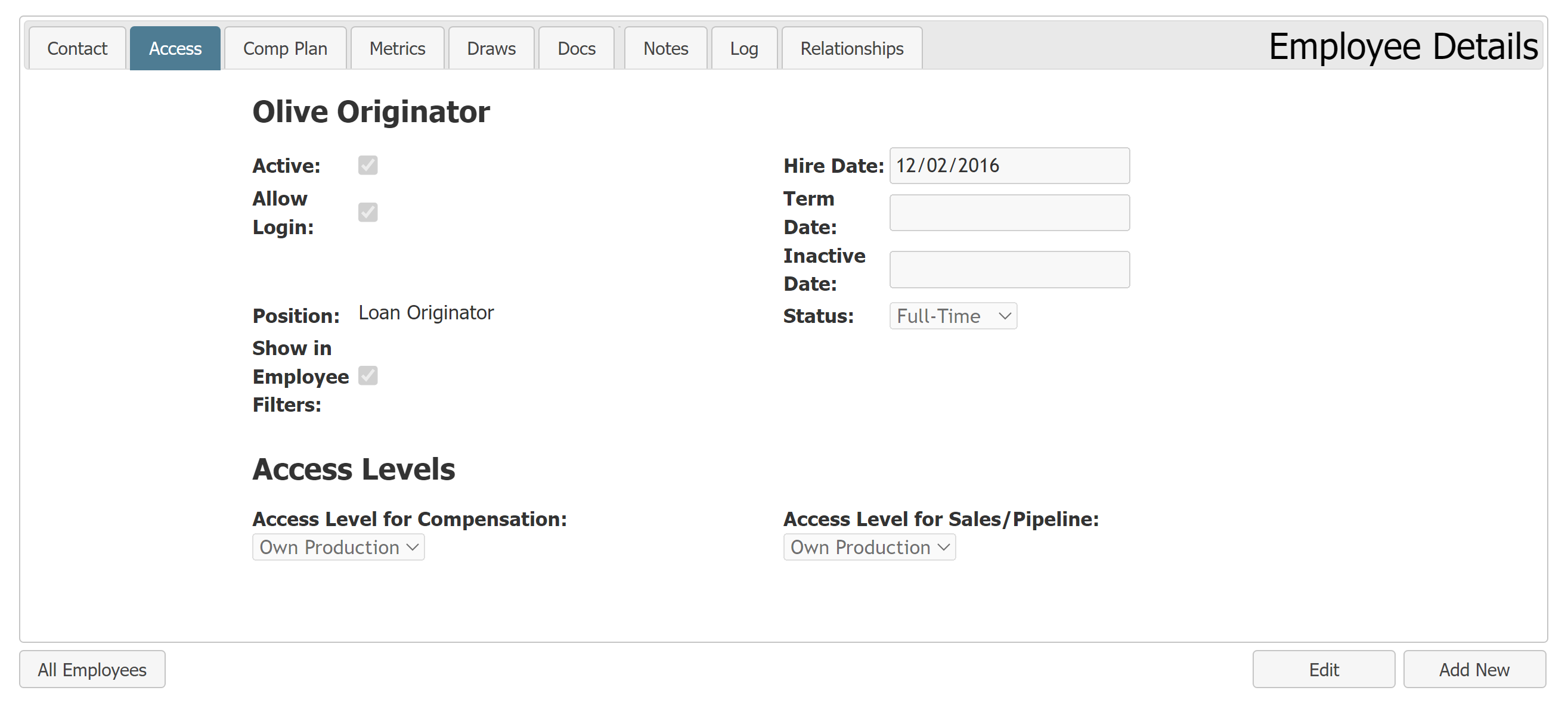
Access Tab Details
- Active: The employee is active within nCino Incentive Compensation when checked.
-
Allow Login: The employee is able to log in to nCino Incentive Compensation when checked.
-
Admin: (Only available when Access Level for Compensation is "Executive") When checked, the employee is able to add, edit, or delete certain information in nCino Incentive Compensation. For more information, see Understand the Admin Checkbox.
-
Position: Employee's nCino Incentive Compensation position. Relates to default access level, headcount role, and visibility in draw tools.
-
Show in Employee Filters: When checked, the employee is visible in Region, Branch, and Employee filters on reports. Always selected while the employee is active. If the employee is terminated, this automatically deselects over the weekend.
-
Hire Date: Employee's hire date.
-
Term Date: Employee's termination date. The system uses this date and the termination rule associated with the employee's compensation plan to end date any active plans. For more information, see Understand Termination Rules.
-
Inactive Date: Employee's inactive date. This is when the employee is no longer marked active in nCino Incentive Compensation. When using termination rules, nCino Incentive Compensation calculates this date based on the term rule to end date compensation plans. If you are not using term rules, you are required to enter an inactivation date.
-
Status: Employee's status within the company. Can be Full-Time, Part-Time, Contractor, or N/A.
-
Access Level Section: For more information, see Access Levels Explained.
-
Access Level for Compensation: Level of compensation information the employee can see.
-
[Same-level Access Checkbox]: (Only visible if Access Level for Compensation is higher than "Own Production") Determines if this employee can see compensation information for others who are at the same access level and in the same branch, master branch, or region.
-
-
Access Level for Sales/Pipeline: Level of sales information this employee can see.
-
Comp Plan Tab
Overview of the employee's compensation plan.
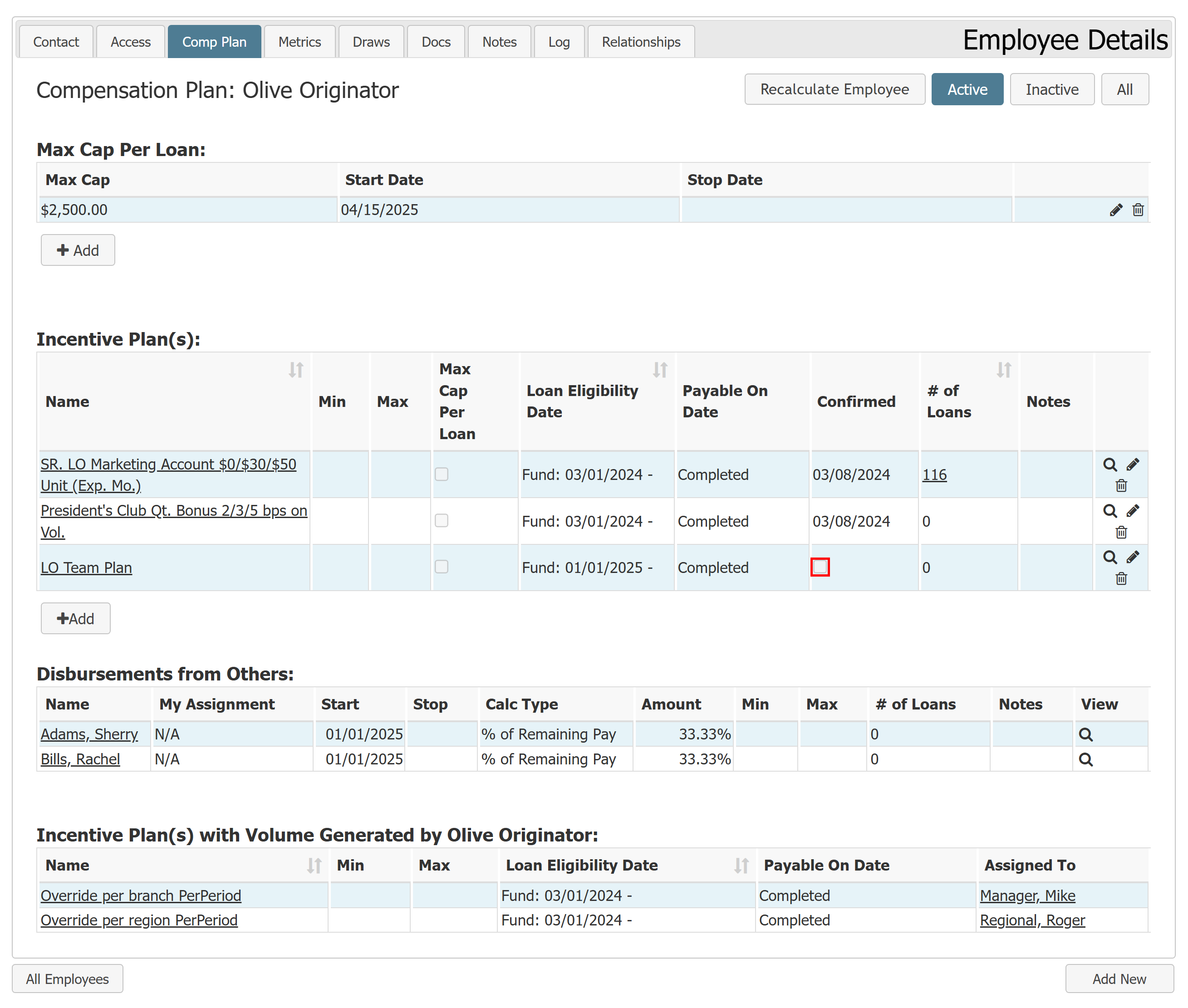
Buttons in the tab include:
-
Recalculate Employee: Tool to recalculate this employee's pay. For more information, see Use Manual Calculation Tools.
-
Active: Click to show active compensation plan elements. Selected by default.
-
Inactive: Click to show inactive compensation plan elements.
-
All: Click to show both active and inactive compensation plan elements.
Max Cap Per Loan:
List of employee maximum caps per loan and when each is active. Only one max cap per loan can be active at a time. For more information, refer to Employee Level Loan Compensation Max Cap.
Max Cap Per Loan Details
-
Max Cap: Maximum account the employee can earn per loan.
-
Start Date: Date the max cap first applied.
-
Stop Date: Date the max cap no longer applies.
-
[Pencil Icon](
 ): Click to edit the max cap.
 -
[Trash Can Icon](
 ): Click to delete the max cap. A max cap can only be deleted
 -
+Add: Button below the table. Click to add a max cap.
Incentive Plan(s):
List of incentive plans assigned to the employee.
Incentive Plan Grid Details
- Name: Incentive plan name. Click to view incentive plan details.
-
Min: Minimum amount the incentive plan is required to pay per transaction. Click to view the min/max details.
-
Max: Maximum amount the incentive plan pays per transaction. Click to view the min/max details.
-
Max Cap Per Loan: Determines if this plan counts toward the maximum cap per loan set in the section above.
-
Loan Eligibility Date: Loans must reach this milestone on or after this date to be eligible for pay.
-
Payable On Date: Loans must reach this milestone in order to pay the employee.
-
Confirmed: Date the incentive plan was confirmed by the employee. If not confirmed, this shows an empty check box instead.
-
# of Loans: Number of loans this incentive plan has calculated for this employee. Click to view the list of loans.
-
Notes: Notes entered into the assignment.
-
[Magnifying Glass Icon] (
 ): Click to view incentive plan details.
 -
[Pencil Icon] (
): Click to edit the assignment to enter an inactivation date, edit the min/max, or add notes. -
[Trash Can Icon] (
): Click to remove the assignment. Can only be removed if there are no loans that have paid compensation in a past payroll period with this plan. If this paid the employee in the past, the assignment must be inactivated instead of deleted. -
+ Add Button: On bottom left of grid. Click to assign an incentive plan to the employee.
Disbursements From Others:
List of disbursements that others are paying to this employee.
Disbursements From Others Details
-
Name: Employee disbursing to this employee. Click to view their employee details.
-
My Assignment: This employee's assignment required for the disbursement to pay them.
-
Start: Disbursement start date.
-
Stop: Disbursement stop date.
-
Calc Type: How the disbursement pay is calculated.
-
Amount: Disbursement amount.
-
Min: Minimum dollar amount the disbursement pays per transaction.
-
Max: Maximum dollar amount the disbursement pays per transaction.
-
# of Loans: Number of loans where this disbursement has paid. Click to view a list of loans.
-
Notes: Disbursement notes.
-
View: Click to view the assignment for this disbursement.
Incentive Plan(s) with Volume Generated by [Employee Name]:
User must have an access level of Sub-branch or higher to see this section. Plans only appear in this section if this employee has production that qualifies for the plan.
Incentive Plan(s) with Volume Generated By Details
- Name: Incentive plan's name. Click to view incentive plan details.
-
Min: Minimum amount the incentive plan pays per transaction. Click to view the min/max details.
-
Max: The maximum amount the incentive plan pays per transaction. Click to view the min/max details.
-
Loan Eligibility Date: Loans must reach this milestone on or after this date to be eligible for pay.
-
Payable On Date: Loans must reach this milestone in order to pay the assigned employee.
-
Assigned To: Employee the plan is assigned to. Click to view that employee's Employee Details page.
Metrics Tab
This tab lists all employee metrics assigned to the employee.
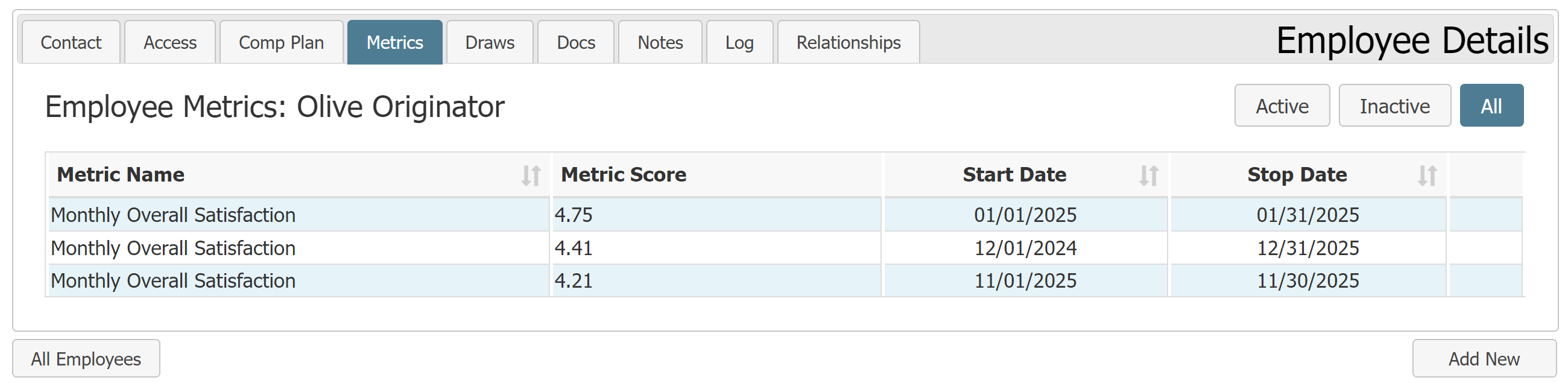
Buttons in the tab include:
-
Active: Click to show active employee metrics. Selected by default.
-
Inactive: Click to show inactive employee metrics.
-
All: Click to show both active and inactive employee metrics.
Metrics Tab Details
-
Metric Name: Name of the metric.
-
Metric Score: Metric's score for the listed time period.
-
Start Date: Date the metric began calculation.
-
Stop Date: Date the metric calculation ends. This is the last day the system uses the metrics for the employee's pay calculation.
Draws Tab
Shows details about the outstanding draw balance, and auto draws assigned to the employee.
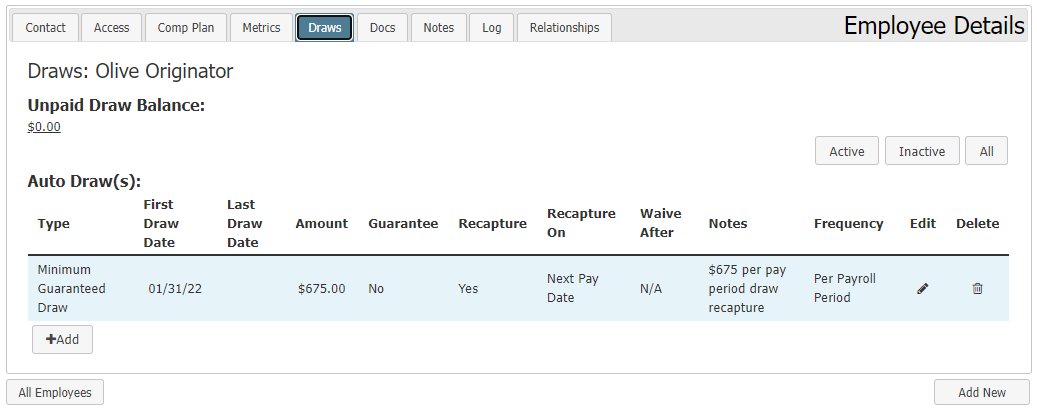
Unpaid Draw Balance
Click the unpaid draw balance to go to the "Employee Draws Unpaid" report for that employee to see the draw balance details.
Buttons in the tab include:
-
Active: Click to show active employee auto draws. Selected by default.
-
Inactive: Click to show inactive employee auto draws.
-
All: Click to show both active and inactive employee auto draws.
Auto Draw(s)
Auto Draw Details
-
Type: Auto draw type.
-
First Draw Date: Auto draw's first draw date.
-
Last Draw Date: Auto draw's last draw date.
-
Amount: Dollar amount of the auto draw.
-
Guarantee: Whether or not the auto draw is a guarantee.
-
Recapture: Whether or not the draw transactions created by the auto draw can be recaptured.
-
Recapture On: When draw transactions created by the auto draw are first eligible for recapture.
-
Waive After: When transactions created by this auto draw can be waived.
-
Notes: Notes entered on the auto draw.
-
Frequency: How often the auto draw creates draw transactions.
-
Edit (
): Click to edit the auto draw. -
Delete (
): Click to delete the auto draw. -
+ Add Button: Click to add a new auto draw for the employee.
Docs Tab
Employee's stored documents.
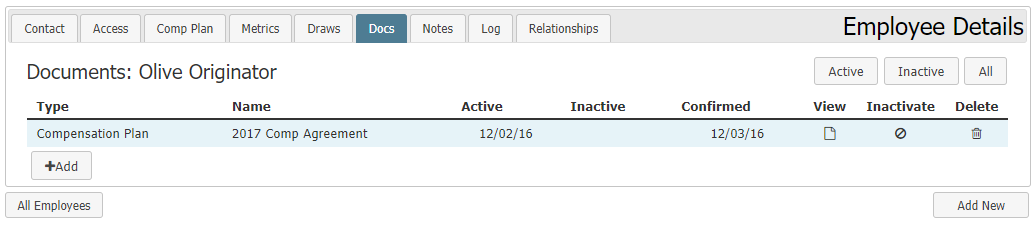
Buttons in the tab include:
-
Active: Click to show active documents. Selected by default.
-
Inactive: Click to show inactive documents.
-
All: Click to show both active and inactive documents.
Documents Details
-
Type: Document type.
-
Name: Name of the document.
-
Active: Date the document became active.
-
Inactive: Date the document became inactive.
-
Confirmed: Date the employee confirmed the document.
-
View (
 ): Click to view the document.
 -
Inactivate (
 ): Click to inactivate the document by entering its inactive date.
 -
Delete (
): Click to delete the document. -
+ Add Button: Click to add a new document for the employee.
Note Tab
Notes about the employee. This tab is only visible if the current user has an access level of Executive.
Log Tab
List of items entered or changed on the employee record. This tab is visible if the current user has an access level of Sub-Branch or higher.
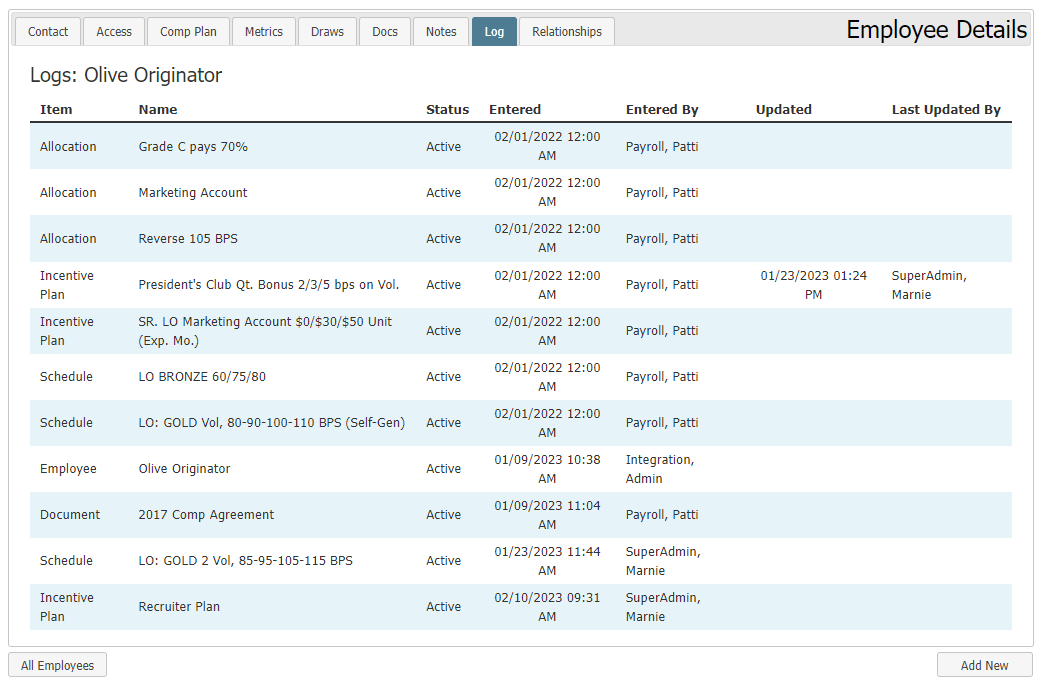
Log Details
-
Item: Changed or updated Item.
-
Name: Name of the item.
-
Status: Item's current status.
-
Entered: Date and time of the change.
-
Entered By: User who entered the change.
-
Updated: Date and time of the item update.
-
Last Updated By: User who last updated the item.
Relationships Tab
Information about employee relationships.
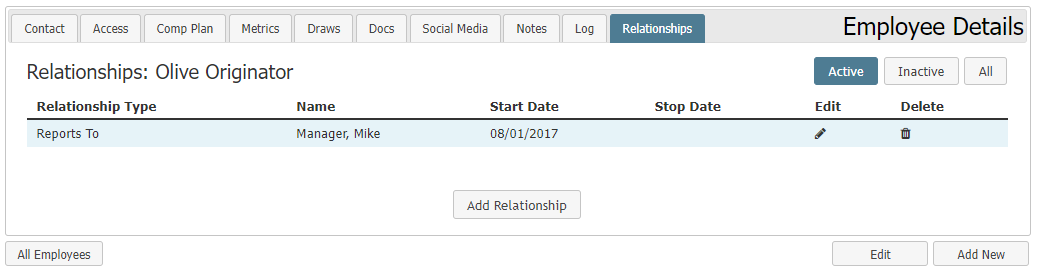
Buttons in the tab include:
-
Active: Click to show active employee relationships. Selected by default.
-
Inactive: Click to show inactive employee relationships.
-
All: Click to show both active and inactive employee relationships.
Relationship Details
- Relationship Type: Employee's professional relationship with the other person.
-
Name: Name of the employee with the relationship.
-
Start Date: Date the relationship began.
-
Stop Date: Date the relationship ended.
-
Edit (
): Click to edit relationship details. -
Delete (
): Click to delete the relationship. -
Add Relationship Button: Click to add a new relationship.
See Also: