Compensation Snapshot
The Compensation Snapshot (or "Comp Snapshot") provides an overview of all of an employee's compensation for a specific pay period. The ability to view additional employee compensation snapshots depends on your access level.
The compensation information presented here is similar to a paystub, but the Comp Snapshot will not show base pay, taxes, or deductions for benefits. For additional pay information (such as items typically included in a W-2 / w2), or official paystubs, reach out to your payroll provider.
Minimum Compensation Access Level Required: Own Production
Access the Comp Snapshot
To access the Comp Snapshot:
-
From the nCino Incentive Compensation menu, click Payroll ▼.
-
From the dropdown menu, click Comp Snapshot.
Read the Comp Snapshot
This tool includes the following display options:
-
Region, Branch, and Employee Filtering Tool: Used to filter the information on the report. For information on using this tool, refer to How do I filter reports?. This tool is only visible if you have access to view others' compensation.
-
Payroll Period Selector: Used to select the payroll period shown on the report. For information on using this tool, refer to How do I use the date selectors?.
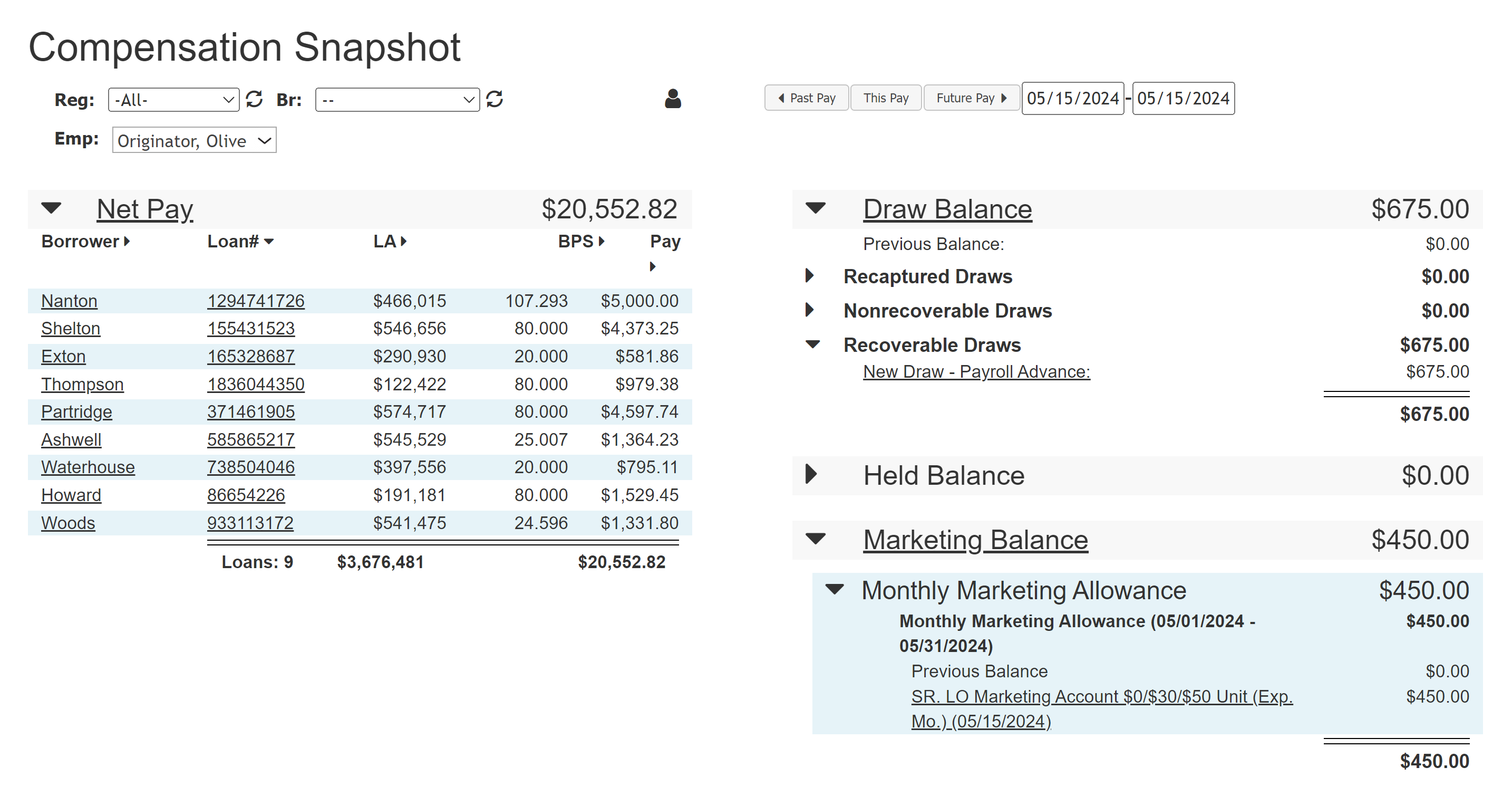
The Comp Snapshot has separate sections for each of the different transaction types. Each of the sections can be collapsed or expanded by clicking their section header.
Net Pay
The Net Pay section details pay from compensation plans.
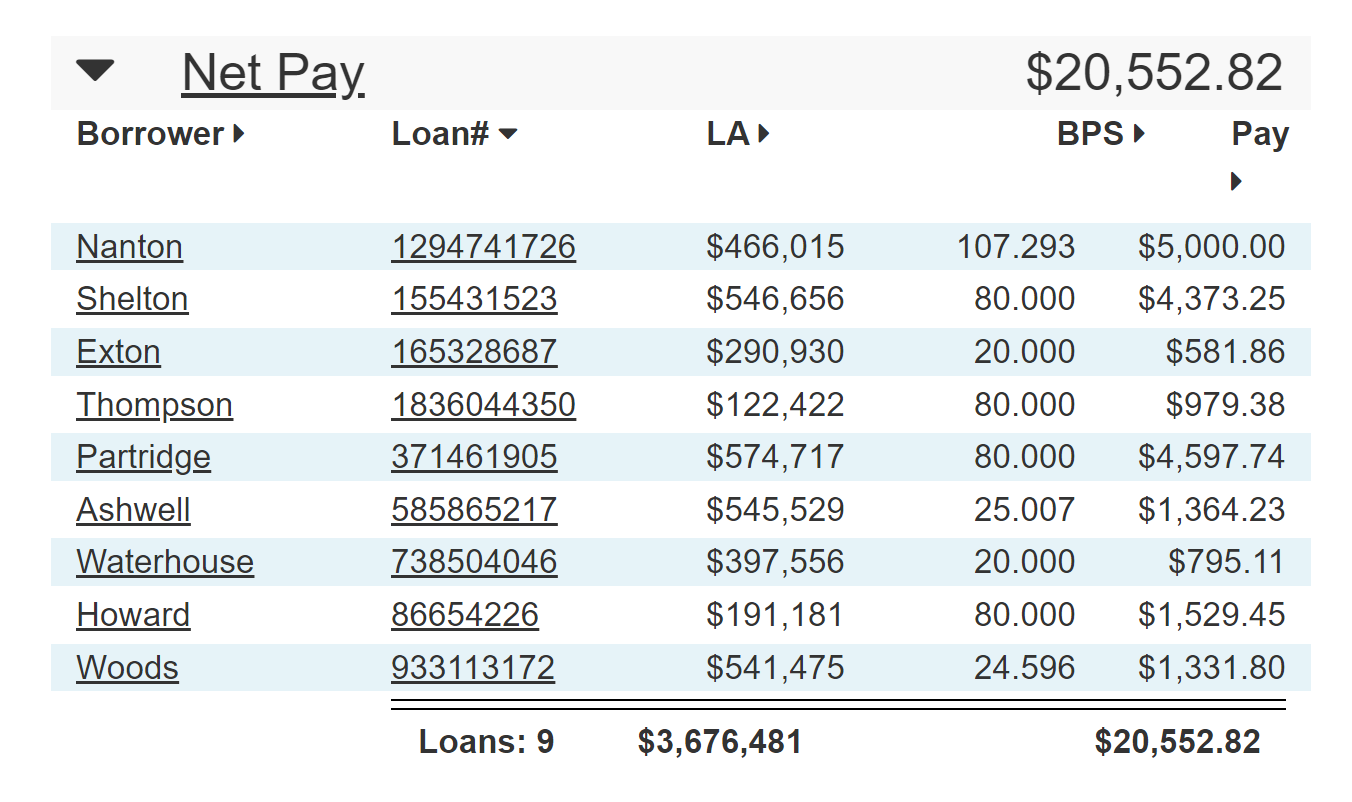
Click the Net Pay header text to view the Compensation Snapshot Summary Report for the employee.
The dollar amount in the header represents the employee's overall net pay for the period.
This section includes the following columns of data for each loan the employee is receiving pay for:
-
Borrower: Borrower's last name. Click to view loan details.
-
Loan#: Loan number. Click to view loan details.
-
LA: Loan amount in dollars.
-
BPS: Employee pay in BPS.
-
Pay: Employee pay in dollars.
If a transaction is not related to a loan, the borrower field will instead have the name of the transaction's source. This includes draw recapture transactions. Click the transaction name to view its Transaction Details page. If enabled in your nCino Incentive Compensation site, this can include any listed notes for the transaction. Mouse over the notes to see the complete notes text.
Draw Balance
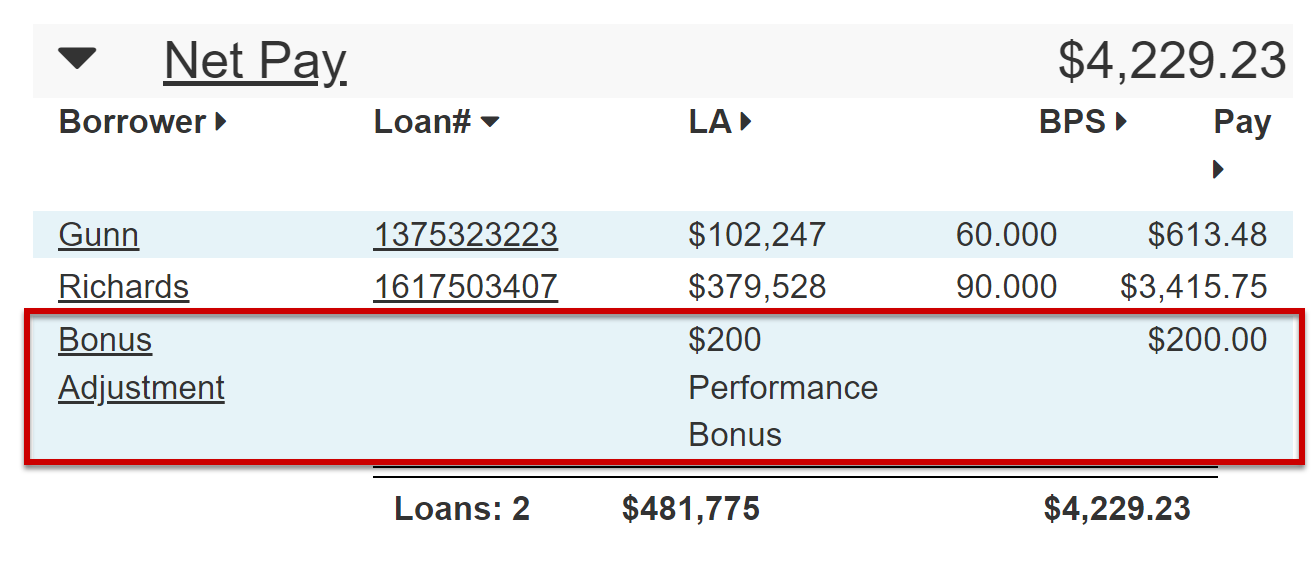
The Draw Balance section details the employee's current draw status and how it changed compared to the prior period.
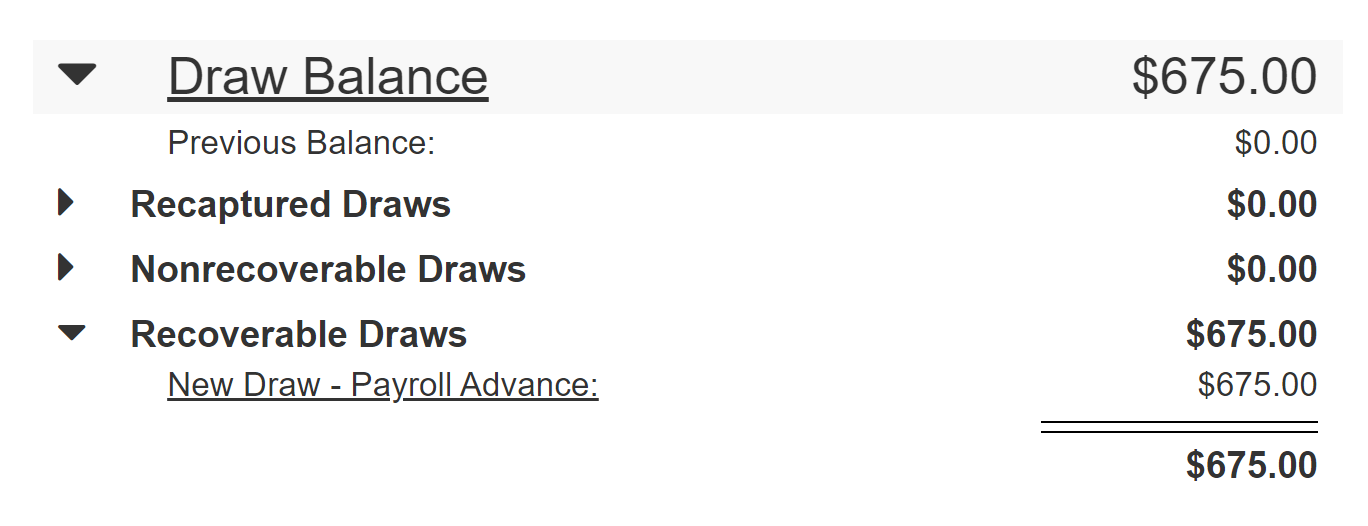
Click the Draw Balance header text to view the Employee Draws Unpaid Report. The dollar amount in the header represents the employee's current outstanding draw balance.
This section includes the following subsections:
-
Previous Balance: Employee's draw balance in the prior payroll period.
-
Recaptured Draws: Dollar amount of draws recaptured this payroll period. Click to expand and view a list of recaptured draws.
-
Nonrecoverable Draws: Dollar amount of nonrecoverable draws posted this payroll period. Click to expand and view a list of nonrecoverable draws.
-
Recoverable Draws: Dollar amount of recoverable draws posted this payroll period.
Held Balance
Note: This section is only visible if your company uses the Held Pay feature. For more information, refer to Understand Held Pay.
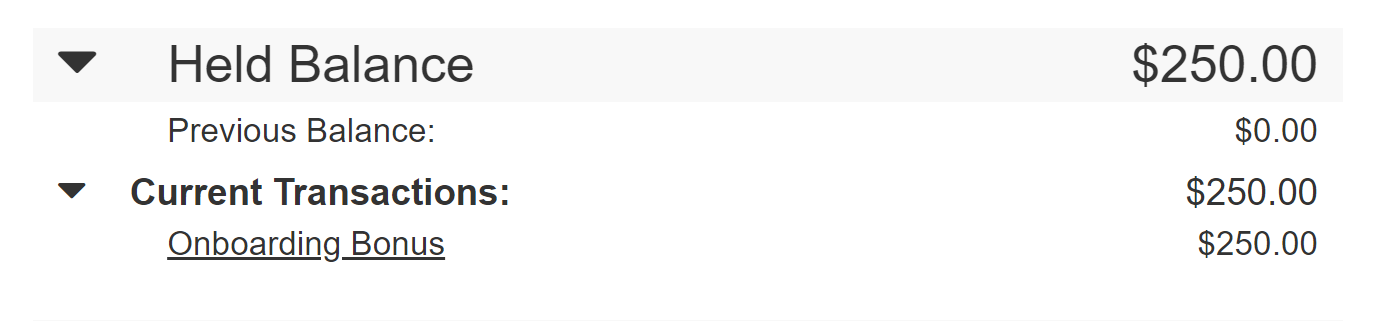
Click the Held Balance header text to view the Held Pay Transactions - Active report. The dollar amount in the header represents the employee's current outstanding held balance.
This section includes the following subsections:
-
Previous Balance: Employee's held pay balance in the prior payroll period.
-
Current Transactions: Dollar amount of held pay posted this payroll period. Click to expand and view a list of held pay transactions.
Marketing Balance
Note: This section is only visible if your company uses the Marketing Accounts feature. For more information, refer to Understand Marketing Accounts.
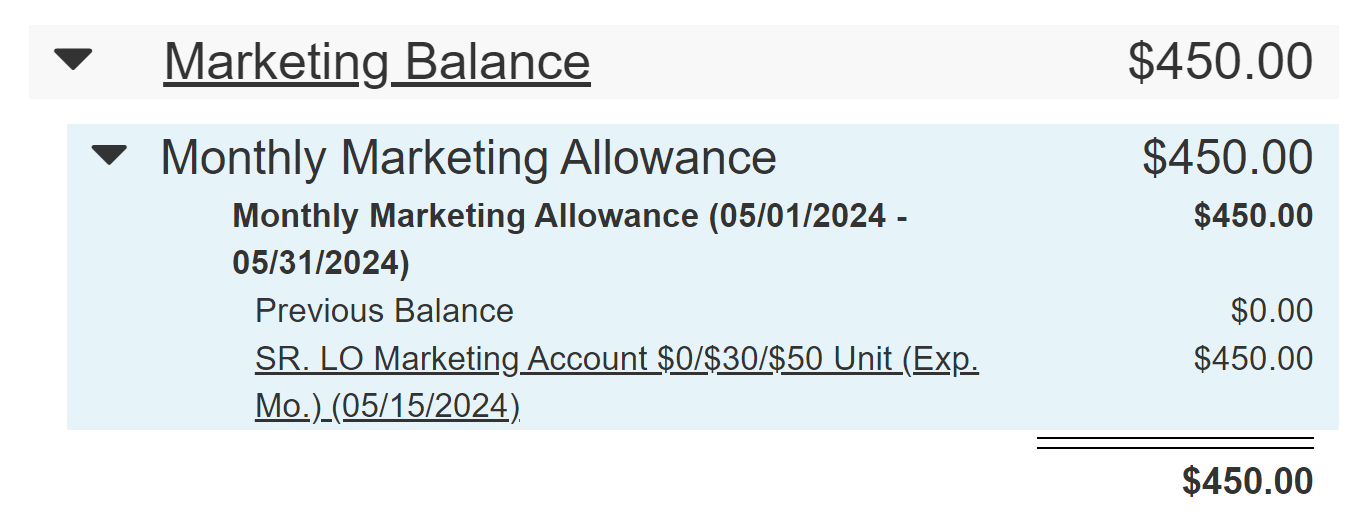
Click the Marketing Balance header text to view Marketing Account Balance Details Report. The dollar amount in the header represents the employee's current outstanding marketing balance.
This section includes the following subsections:
-
Previous Balance: Employee's marketing balance in the prior payroll period.
-
Current Transactions: Dollar amount of marketing transactions pay posted this payroll period.
See Also: