Access Levels Explained
Access levels are the primary way that user permissions are controlled in nCino Incentive Compensation. This article outlines the different access levels, their consequences, and the additional access options available.
Access Level Descriptions
There are five major access levels available in nCino Incentive Compensation. Access levels can be set separately for compensation or sales / pipeline for each user.
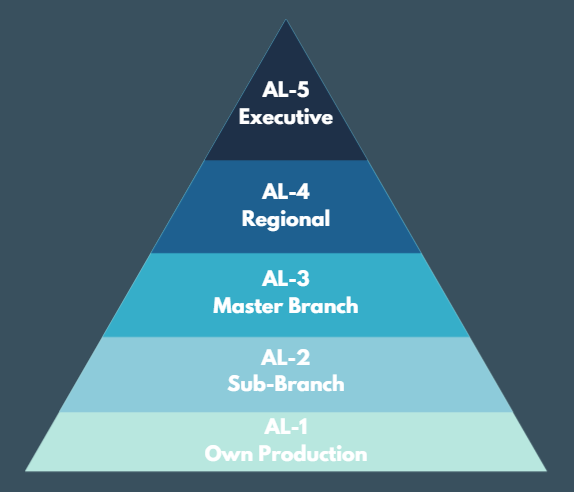
Access levels form a hierarchy of user permissions as shown below.
AL-5: Executive
AL-5: Executive allows the user to view all information in the company, regardless of region, branch, or assigned user. This access level is primarily used by payroll managers and C-suite employees.
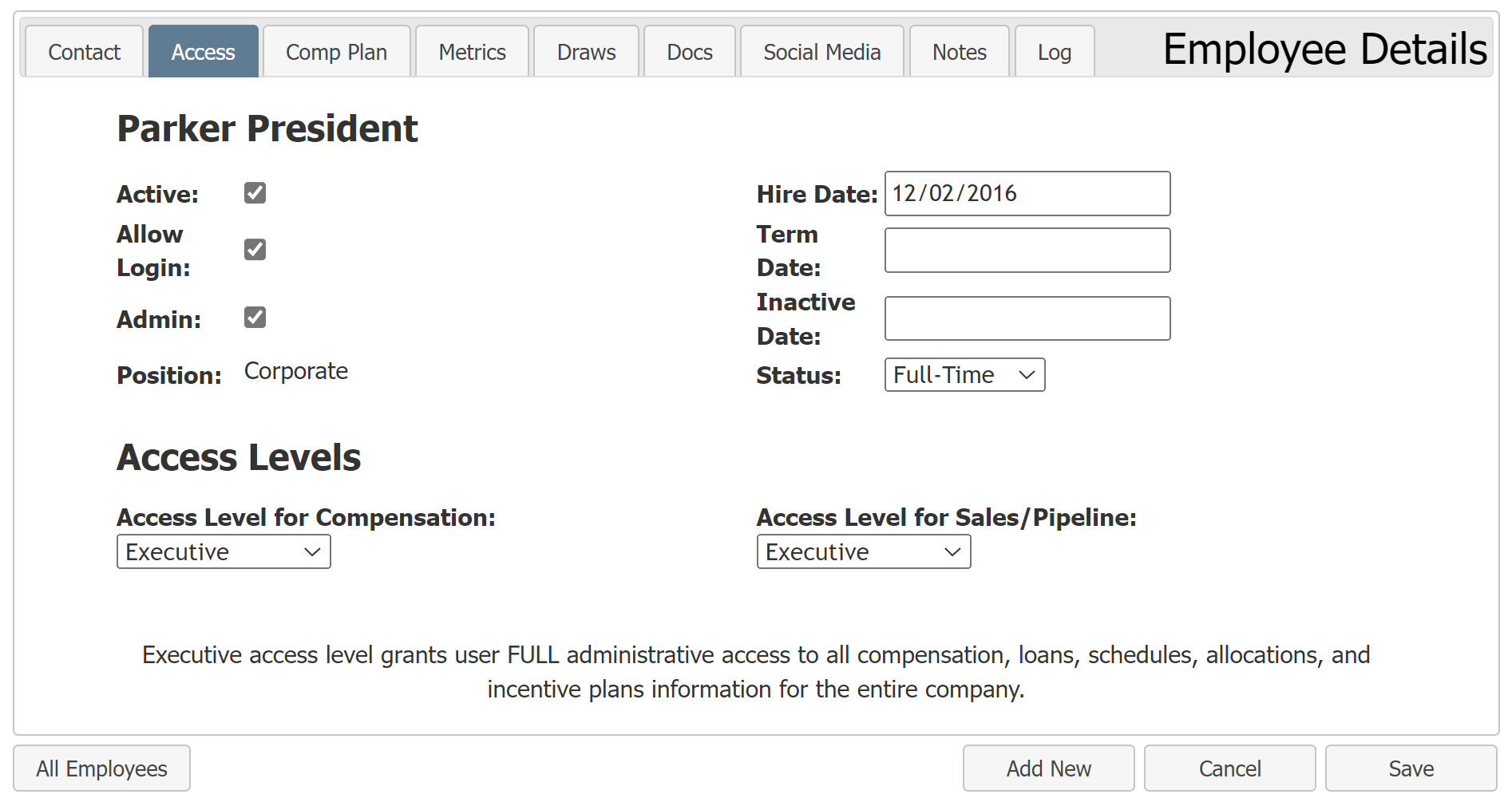
When this access level is chosen, the Admin checkbox becomes available. Setting the Admin checkbox allows the user to change compensation plan settings, employee data, and more. For more information on the Admin checkbox, refer to Additional Access Options.
AL-5 Use Case: President
For Big Home, Parker President has AL-5 access so that they can access all loans, compensation, and assignment information.
-
Executive Access Level For Compensation: This allows Parker to see compensation for all employees in the company. This includes all employees in all branches and regions.
-
Executive Access Level For Sales / Pipeline: This allows Parker to see all loans and loan detail information for production for the whole company.
-
Visible To: Parker’s compensation and loan information is only viewable by other AL-5 employees.
AL-4: Region
AL-4: Region allows the user to view information in their assigned region(s). This access level is primarily used by regional managers.
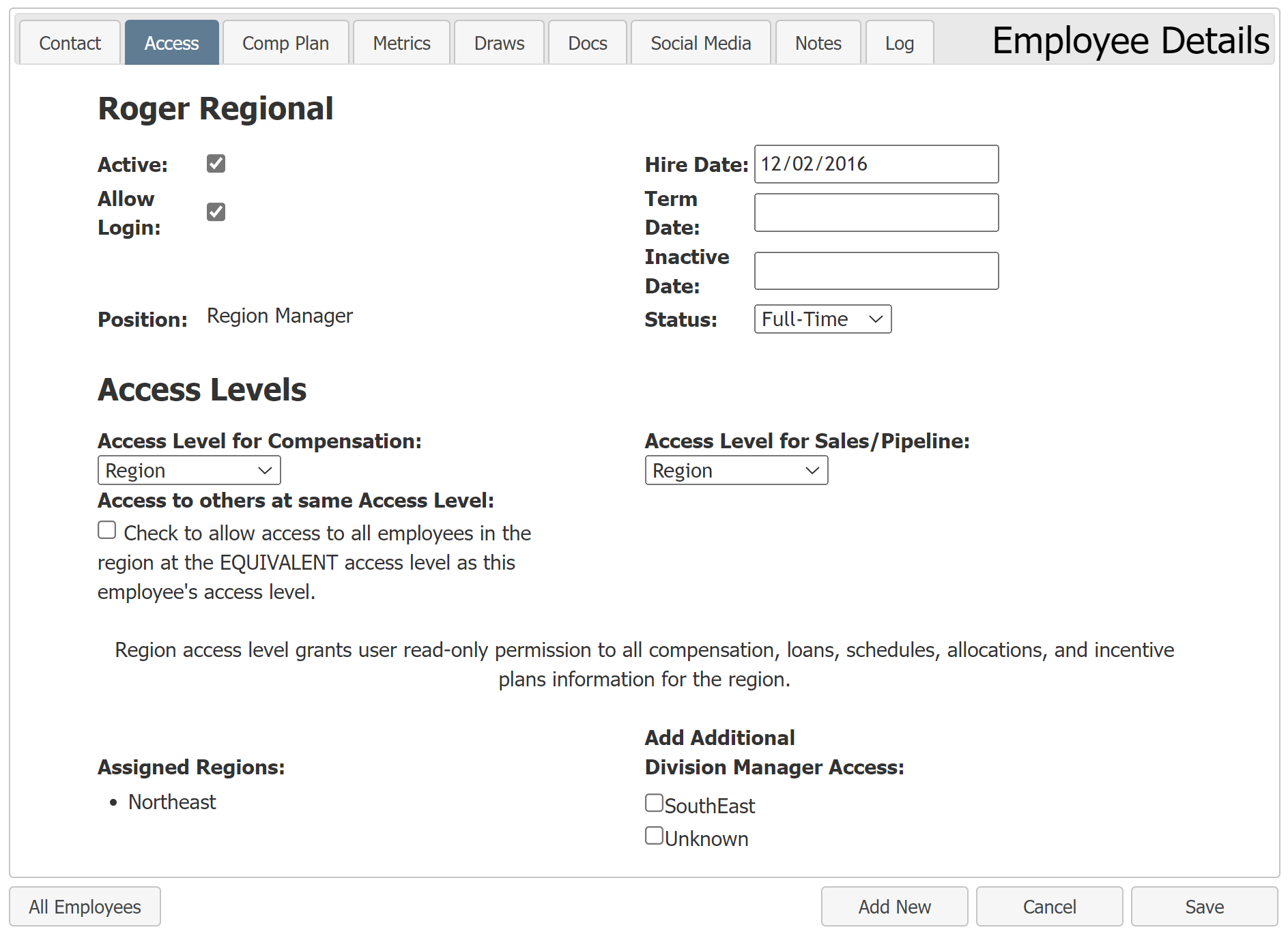
Region access level always gives the user access to their home region, but additional regions can be added under "Add Additional Division Manager Access".
This access level provides an option to access others in the region(s) with the same access level. For more information about this feature, see Additional Access Options.
AL-4 Use Case: Regional Manager
For Big Home, Roger Regional is the regional manager of the Northeast region only (his home region).
-
Region Access Level for Compensation: Roger is able to view compensation for all his assigned regions. In this case, he is able to see compensation for all employees in the Northeast region.
-
Region Access Level for Sales / Pipeline: Roger is able to view the pipeline for all of this assigned regions. In this case, he can see the pipeline for the Northeast region.
-
Visible To: Roger’s compensation and loan information are visible to AL-5s (such as Parker President), and AL-4s that have the “Access to others at the same Access Level” option set to true.
AL-3: Master Branch
AL-3: Master Branch allows the user to view information in their assigned branch(es) and any related sub branches. This access level is primarily used by Branch or Area Managers.
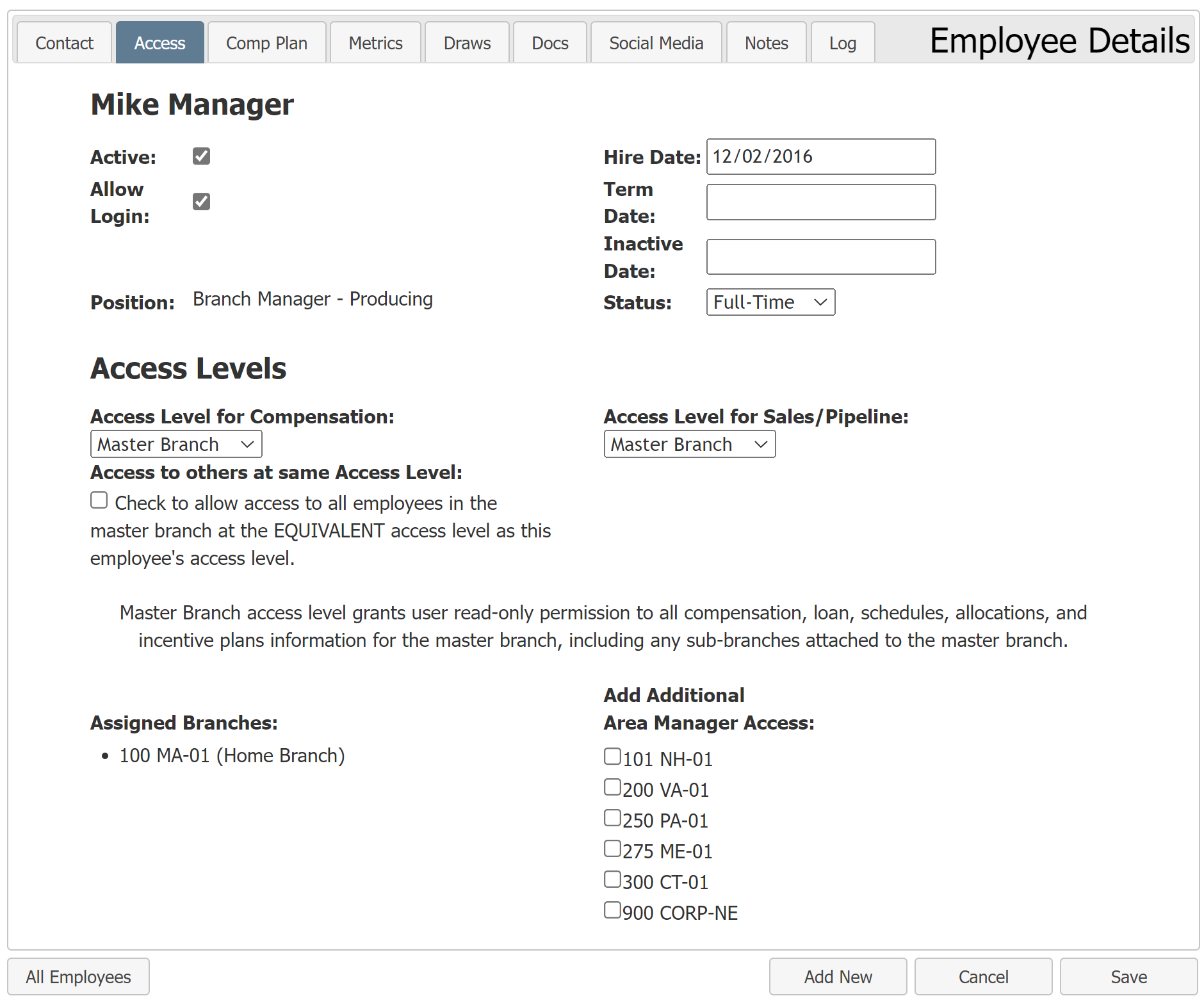
Master Branch access level always gives the user access to their home branch, but additional branches can be added under "Add Additional Area Manager Access". However, users cannot be assigned to branches that are outside of their home region (in a region different from their home branch).
This access level provides an option to access others in the branch(es) with the same access level. For more information about this feature, see Additional Access Options.
AL-3 Use Case: Area Manager
For Big Home, Mike Manager is the area manager of the MA-01 branch only (his home branch). Because he has Master Branch access, he can also view all sub branches of MA-01.
-
Master Branch Access Level for Compensation: Mike is able to view compensation for all his assigned branches and their sub branches. In this case, he is able to see compensation for all employees in the MA-01 branch and all sub branches of MA-01.
-
Master Branch Access Level for Sales / Pipeline: Mike is able to view the pipeline for all of his assigned branches. In this case, he can see the pipeline for the MA-01 branch and all sub branches of MA-01.
-
Visible To: Mike’s compensation and loan information are visible to AL-5s (such as Parker President), AL-4s assigned to his home region, and AL-3s that have the “Access to others at the same Access Level” option set to true.
AL-2: Sub-Branch
AL-2: Sub Branch allows the user to view all information in their home branch. This access level is primarily used by team leads or sales manager.
Sub Branch access level always gives the user access to their home branch.
This access level provides an option to access others in the branch with the same access level. For more information about this feature, see Additional Access Options.
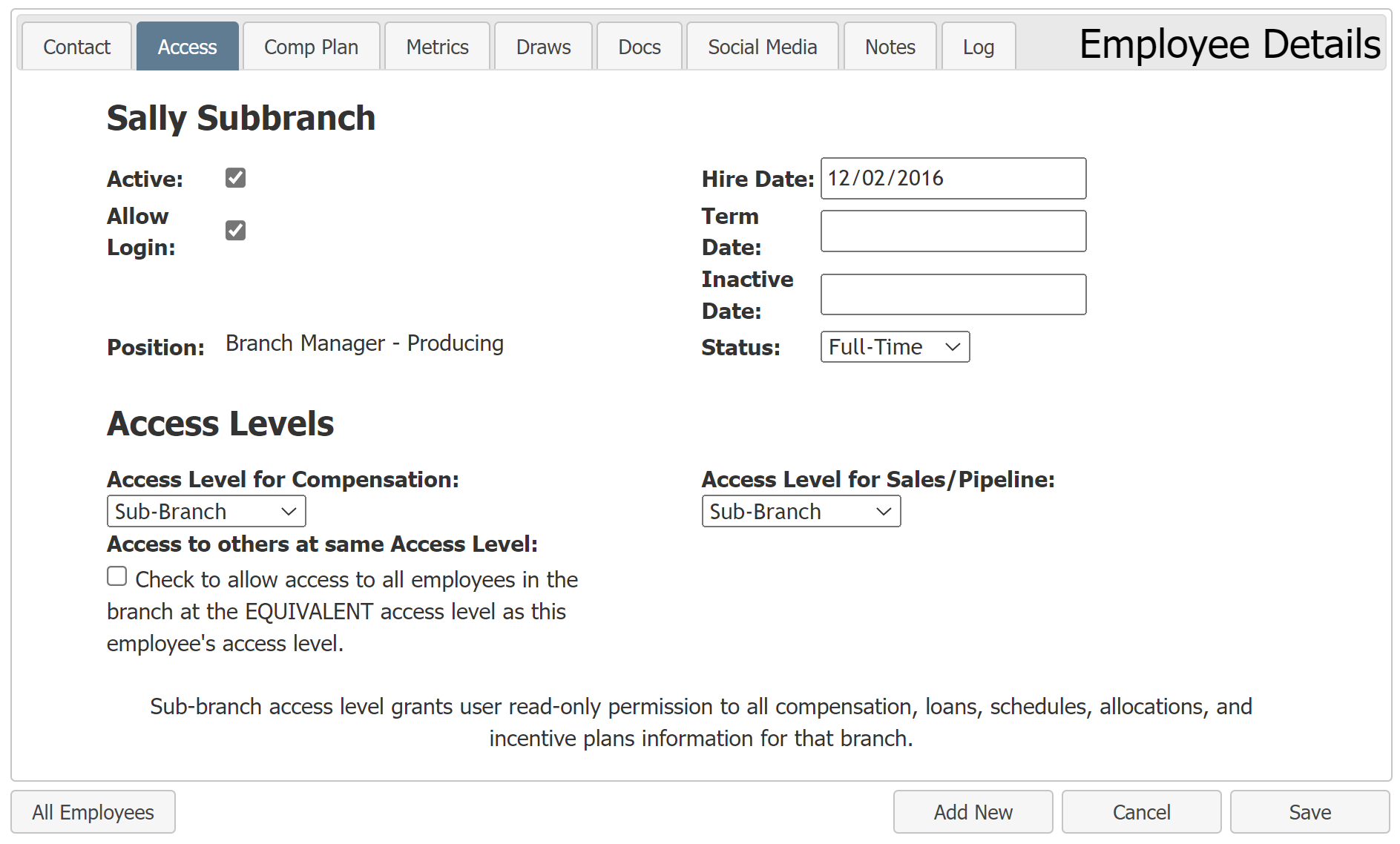
AL-2 Use Case: Branch Manager
For Big Home, Sally Subbranch is the branch manager of the NH-01 branch (her home branch). Because she has Sub Branch access, she can view all information in the NH-01 branch, and none of its sub branches.
-
Sub Branch Access Level for Compensation: Sally is able to view compensation for her home branch. In this case, she is able to see compensation for all employees in the NH-01 branch.
-
Sub Branch Access Level for Sales / Pipeline: Sally is able to view the pipeline for her home branch. In this case, she can see the pipeline for the NH-01 branch.
-
Visible To: Sally’s compensation and loan information are visible to AL-5s (such as Parker President), AL-4s assigned to her home region, AL-3s assigned to her home branch or a master branch of her home branch, and AL-2s that have the “Access to others at the same Access Level” option set to true.
AL-1: Own Production
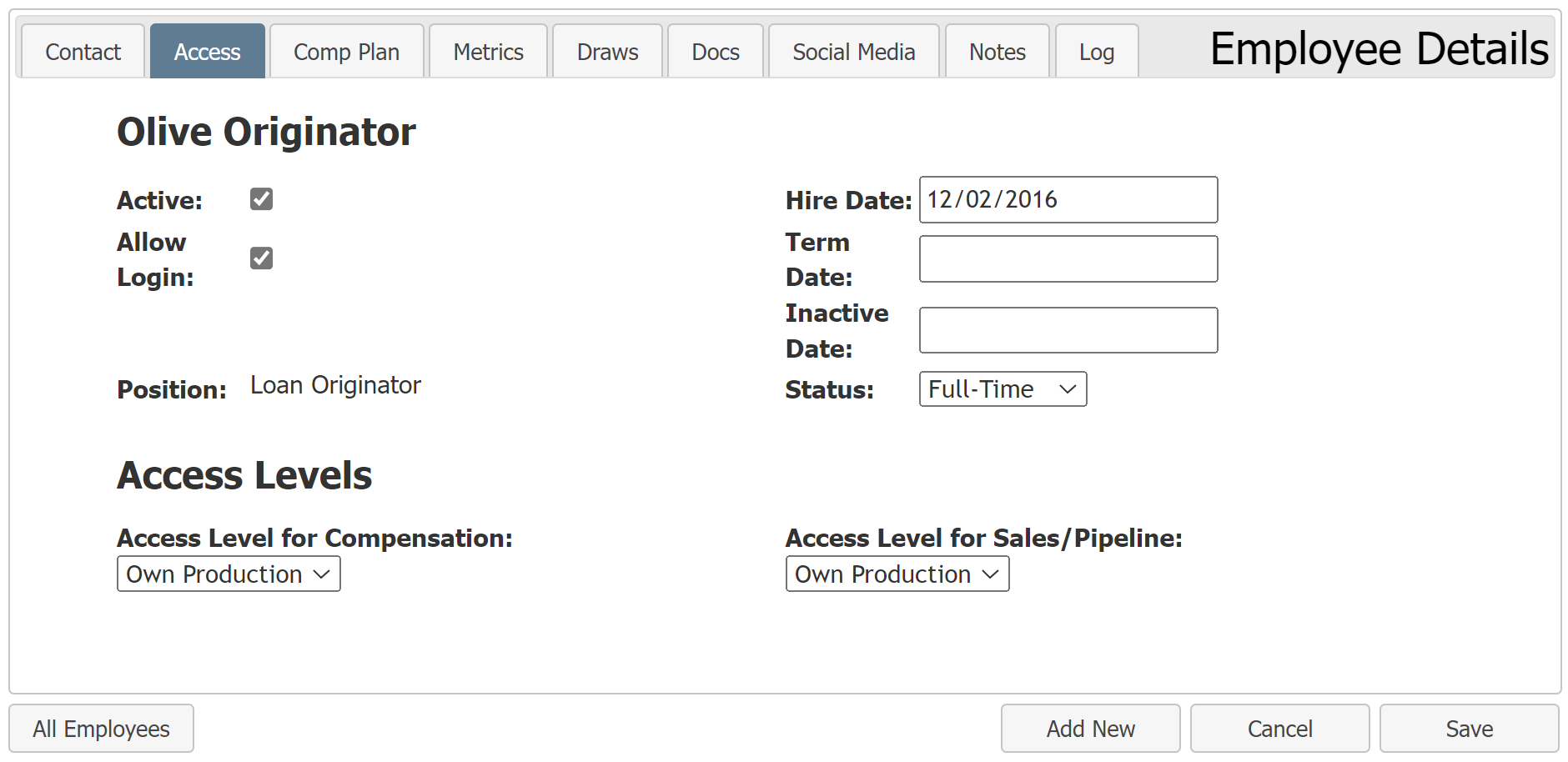
For Big Home, Olive Originator is a loan originator in the MA-01 branch (her home branch). Because she has Own Production access, she can view all her payroll information, and all loan information for loans she is assigned on.
-
Own Production Access Level for Compensation: Olive is able to view her compensation and payroll plan information.
-
Own Production Access Level for Sales / Pipeline: Olive is able to view the pipeline loans she is assigned to.
-
Visible To: Olive’s compensation and loan information are visible to AL-5s (such as Parker President), AL-4s assigned to her home region, AL-3s assigned to her home branch or a master branch of her home branch, and AL-2s assigned to her home branch.
Additional Access Options
Admin Checkbox
The Admin Checkbox determines whether or not an AL-5 user is able to add, edit, or delete certain information in nCino Incentive Compensation. If the Admin Checkbox is not marked for a user, they will only be able to view the information.
For more information on this feature, refer to the following article: Understand the Admin Checkbox.
View Same Access Level Checkbox
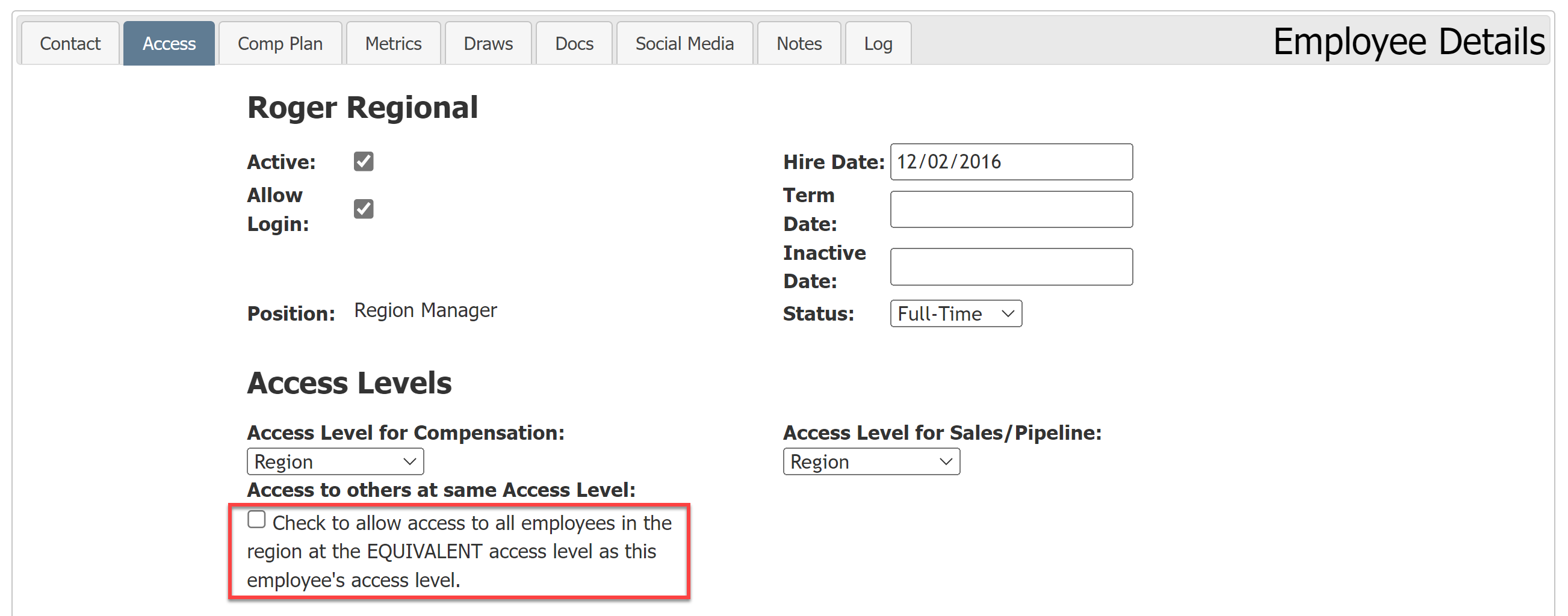
This option appears when a user is granted a Compensation access level of Region, Master Branch, or Sub Branch. When checked, it allows the user to access compensation information for all employees with the same access level in the relevant area (in the region if the user has the Region access level, in the master branch(es) if the user has the Master Branch access level, etc).
For example, an employee with Region access and this checkbox marked would be able to view compensation for all users in their region who have the same access level.
The image below shows what the checkbox looks like for a user with the Region access level.
See also: