Understand the Admin Checkbox
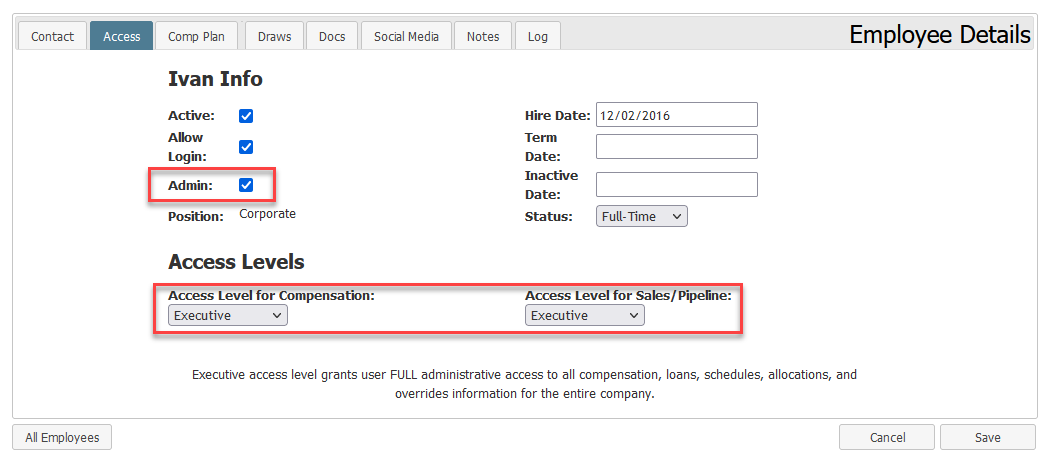
The Admin Checkbox is an item on the Employee Details page that allows clients to set whether an Executive-level user is able to add, edit, or delete items such as compensation plans, draws, and manual adjustments.
This article outlines how the Admin Checkbox works, and how to set it.
The Admin Checkbox is only visible for users with the Executive Access Level. The below items assume the user is already an Executive-level user.
With the Admin Checkbox checked:
- User can add or edit Branches and Employees
- User can add or edit Schedules, Allocations, or Overrides
- User can add or edit Draws and Auto Draws
- User can add or edit Manual Adjustments
- User can perform actions allowed to users with a lower access level
- i.e. If Manual Disbursements require a minimum access level of Master Branch, a non-Admin Executive-level user can still create Manual Disbursements.
With the Admin Checkbox unchecked:
- User CANNOT add or edit Branches and Employees
- User CANNOT add or edit Schedules, Allocations, or Overrides
- User CANNOT add or edit Draws, or Auto Draws
- User CANNOT add or edit Manual Adjustments
- User can perform actions allowed to users with a lower access level
NOTE: If the Company Parameter “Add Own Transactions is set to False, Admin users will not be able to enter or edit their own pay in the following nCino Incentive Compensation areas:
- Payroll Adjustments
- Manual Disbursements
- Draws
- Schedules, Allocations, and Overrides
If you would like to change this setting, please contact https://incentivehelp.ncino.com/hc/en-us.
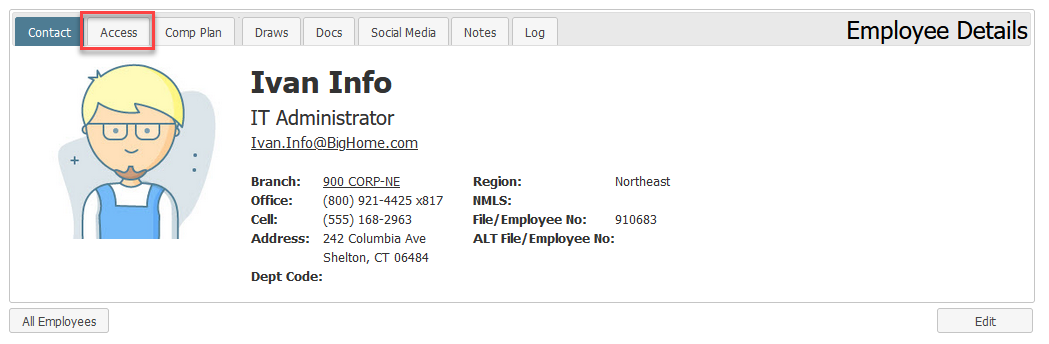
- Navigate to the Employee Details Page.
- Click the Access tab.
- In the bottom right, click the Edit button.
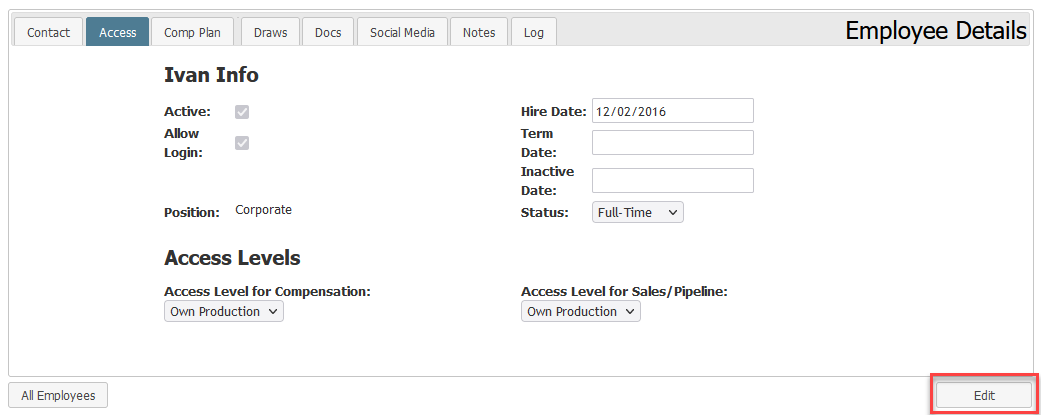
- Ensure that the user has their Access Level set to Executive. Otherwise, the Admin Checkbox will not appear.
- If you want the user to have add or edit permissions, check the checkbox. If you do NOT want the user to have add or edit permissions, make sure the checkbox is unchecked.
- Click the Save button.