Create or Edit Incentive Plans
This article is a detailed walkthrough for the process of creating or editing an incentive plan using the Incentive Plan Builder.
Minimum Compensation Access Level Required: Executive
Create a new Incentive Plan
To create a new incentive plan from the nCino Incentive Compensation menu, click:
-
Payroll ▼
-
+ New Incentive Plan
The rest of this article details the settings available in each section of the Incentive Plan Builder.
Detail
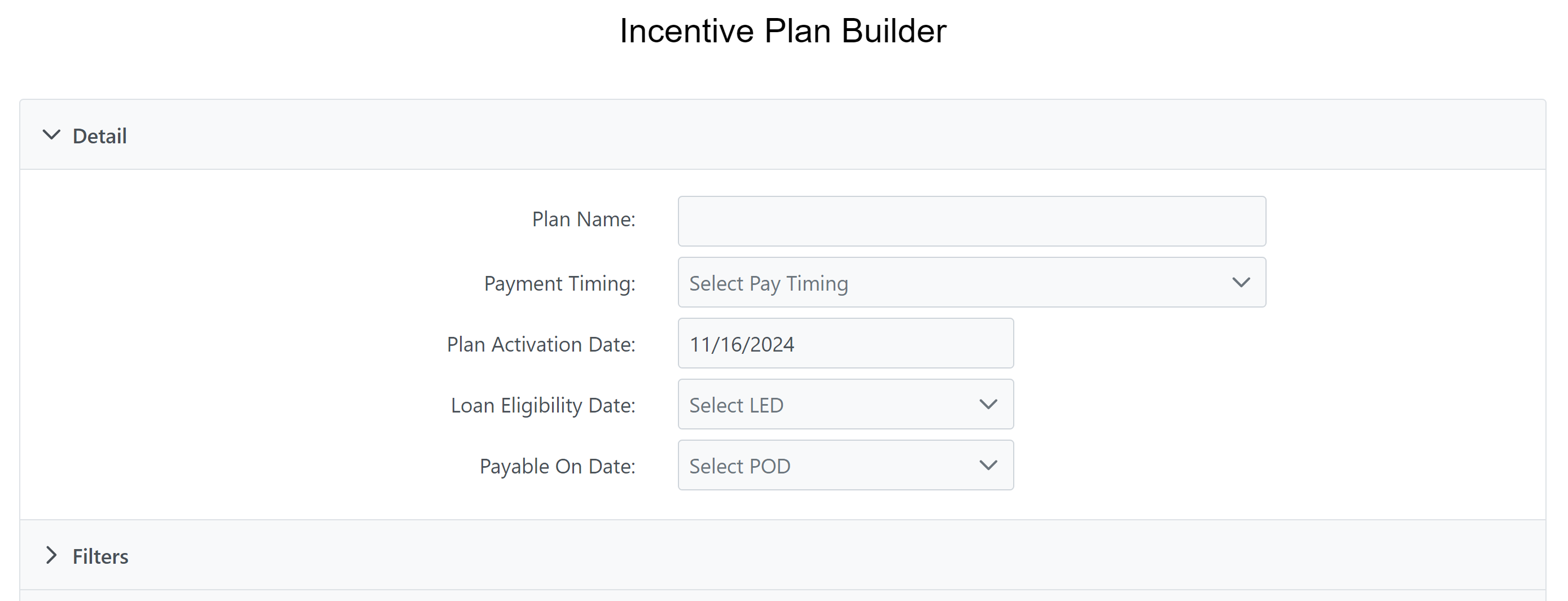
This section includes general details about the plan and the basics of how and when it calculates.
-
Plan Name: Enter the name for the plan. Plan names must be unique. You cannot enter the same name for multiple plans.
-
Payment Timing: Select the time period to consider for loan volume, and when the pay should be posted. For more information, refer to Understand Payment Timings.
-
Plan Activation Date: Date the plan activates. You can only assign active plans to users. Unrelated to the activation date for individual assignments.
-
Loan Eligibility Date: Milestone a loan must reach for the plan to consider it for pay calculation.
-
Payable On Date: Milestone a loan must reach before the plan pays compensation.
Filters
Filters determine which loans this plan uses for pay calculation, and how.
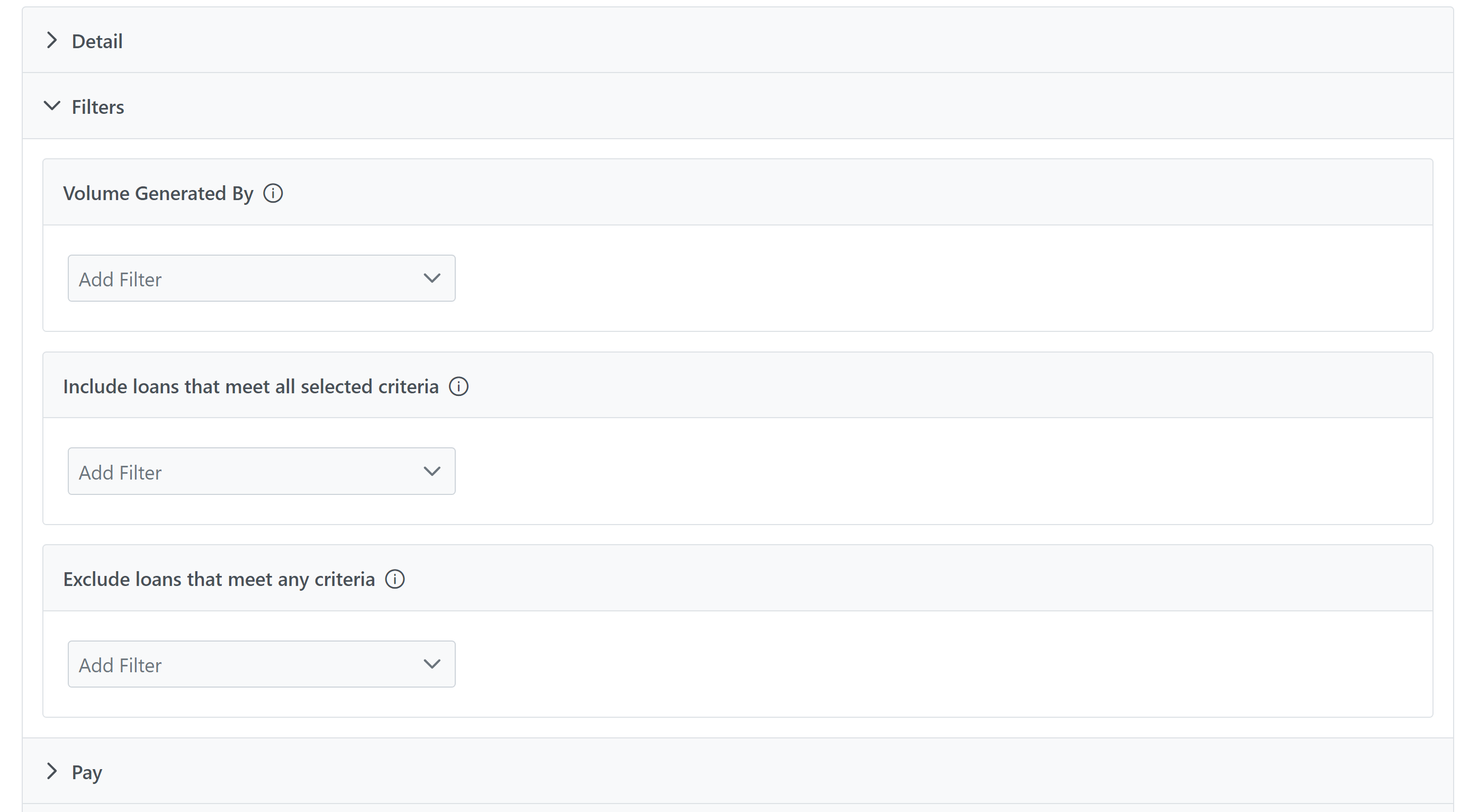
Filters use a three step process. Each subsection is one step in that process.
For a description of available filter options, refer to Incentive Plan Filter Options.
Volume Generated By
This is the first step of the filtering process. The system uses loans that meet any of the criteria selected here to build the initial pool of loans.
To add a filter:
-
Click the Add Filter dropdown menu.
-
Select the type of filter.
-
Add options as necessary.
-
You can select multiple options for the same filter item. When you select multiple options, there is an implied "Or" between them.
-
To remove a filter: Click the trash can button by the filter.
To remove a filter option: Click the X next to the filter option.
Example:
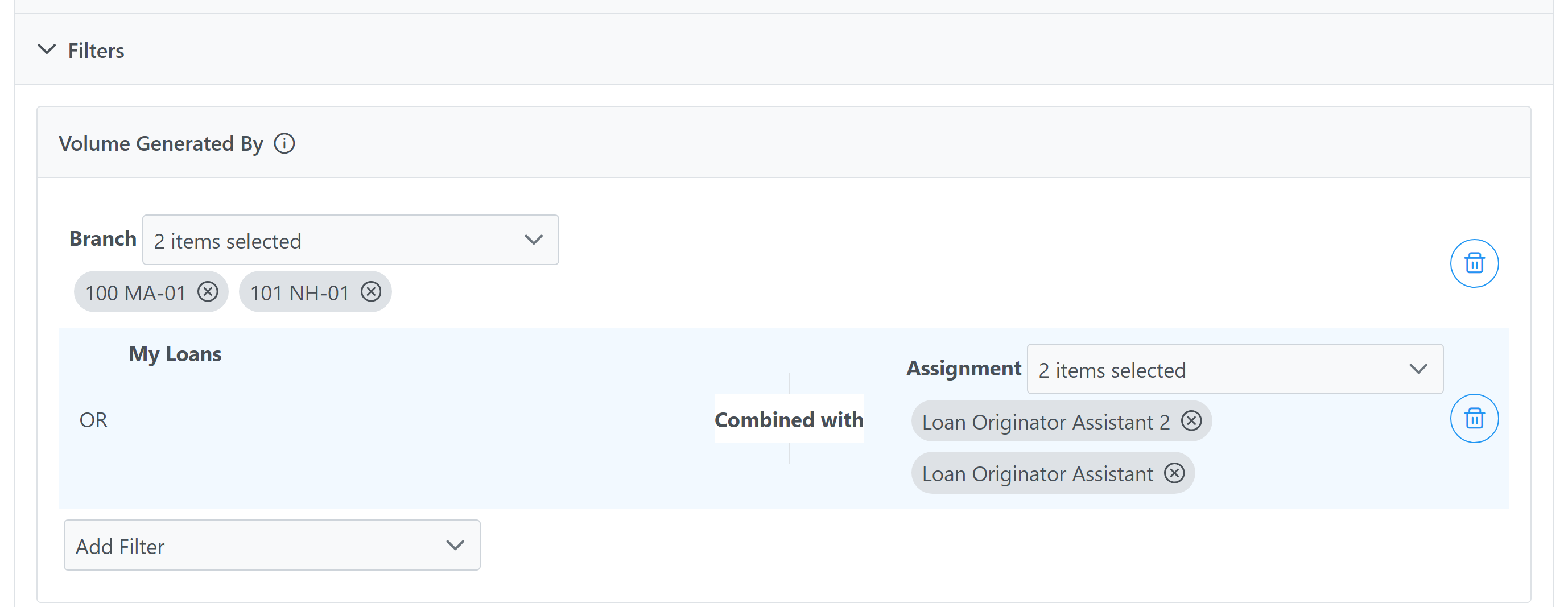
This example contains two items:
-
Volume generated by branch 100 MA-01 or 101 NH-01
-
My loans (the assigned employee) combined with Loan Originator Assistant (LOA) or LOA2. This means the employee must be assigned to one of the listed positions.
Include loans that meet all selected criteria
This is the second step of the filtering process. Here, the system starts with loans in the initial pool after the "Volume Generated By" step is complete. Then, only loans that meet ALL of the criteria selected in this step are included. Loans that don't meet one or more criteria are discarded from the pool.
To add a filter:
-
Click the Add Filter dropdown menu.
-
Select the type of filter.
-
Add options as necessary.
-
You can select multiple options for the same filter item. When you select multiple options, there is an implied "Or" between them.
-
To remove a filter: Click the trash can icon by the filter.
To remove a filter option: Click the X next to the filter option.
Example:
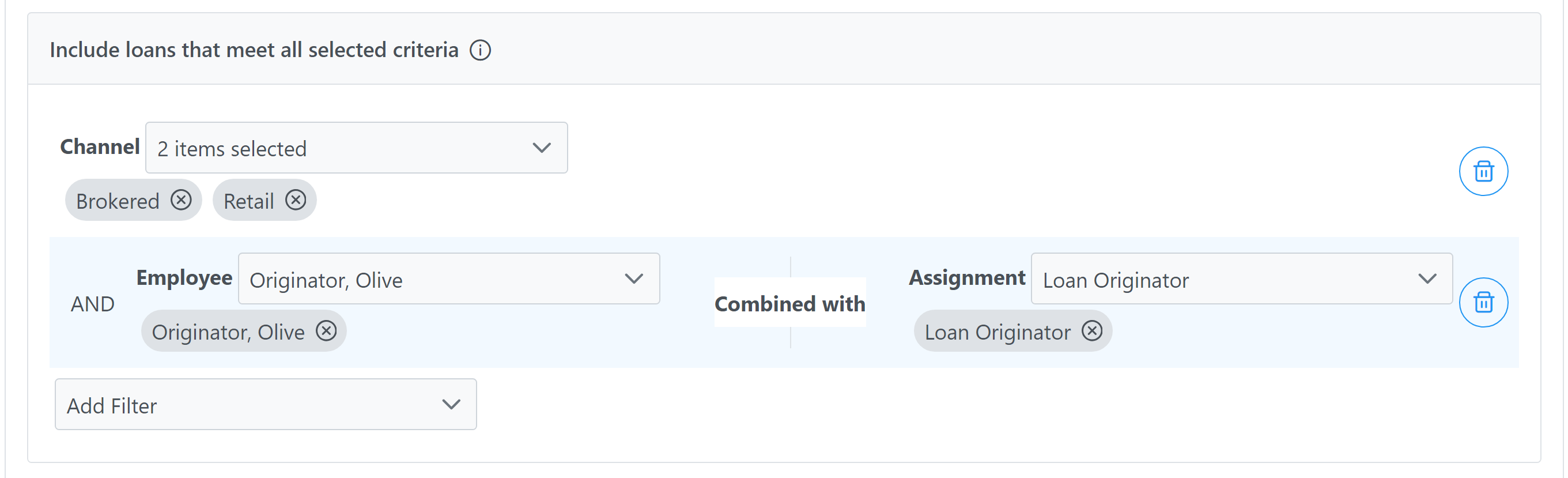
For the system to include a loan for calculation according to this example, it must meet ALL of the following criteria:
-
Loan must be in either the Retail or Brokered Channel.
-
Olive Originator must be assigned as Loan Originator.
Exclude loans that meet any criteria
This is the third step of the filtering process. Here, the system starts with loans in the pool after the "Include" step is complete, then it discard loans that meet ANY of the criteria selected from the calculation (compensation, tier units, tier volume, or some combination of the three).
To add a filter:
-
Click the Add Filter dropdown menu.
-
Select the type of filter.
-
Add options as necessary.
-
You can select multiple options for the same filter item. When you select multiple options, there is an implied "Or" between them.
-
-
Select what to exclude the matching loans from (compensation, tier units, tier volume, or some combination of the three).
To remove a filter: Click the trash can icon by the filter.
To remove a filter option: Click the X next to the filter option.
Example:
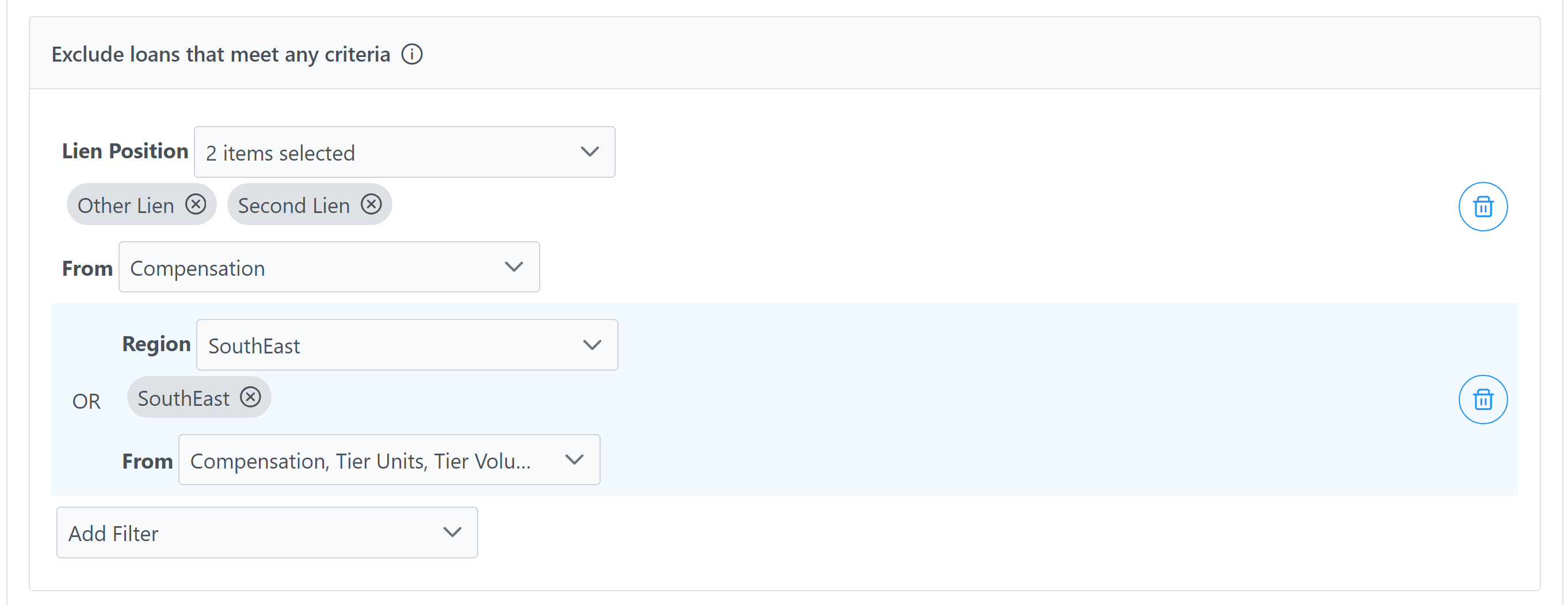
This example contains two items:
-
Exclude loans with a lien position of "Second Lien" or "Other Lien" from compensation calculations (the system still includes those loans when determining tier units and tier volume).
-
Exclude loans in the SouthEast region from calculations for compensation, tier units, and tier volume.
Pay
This section describes how pay is calculated for the assigned employee.
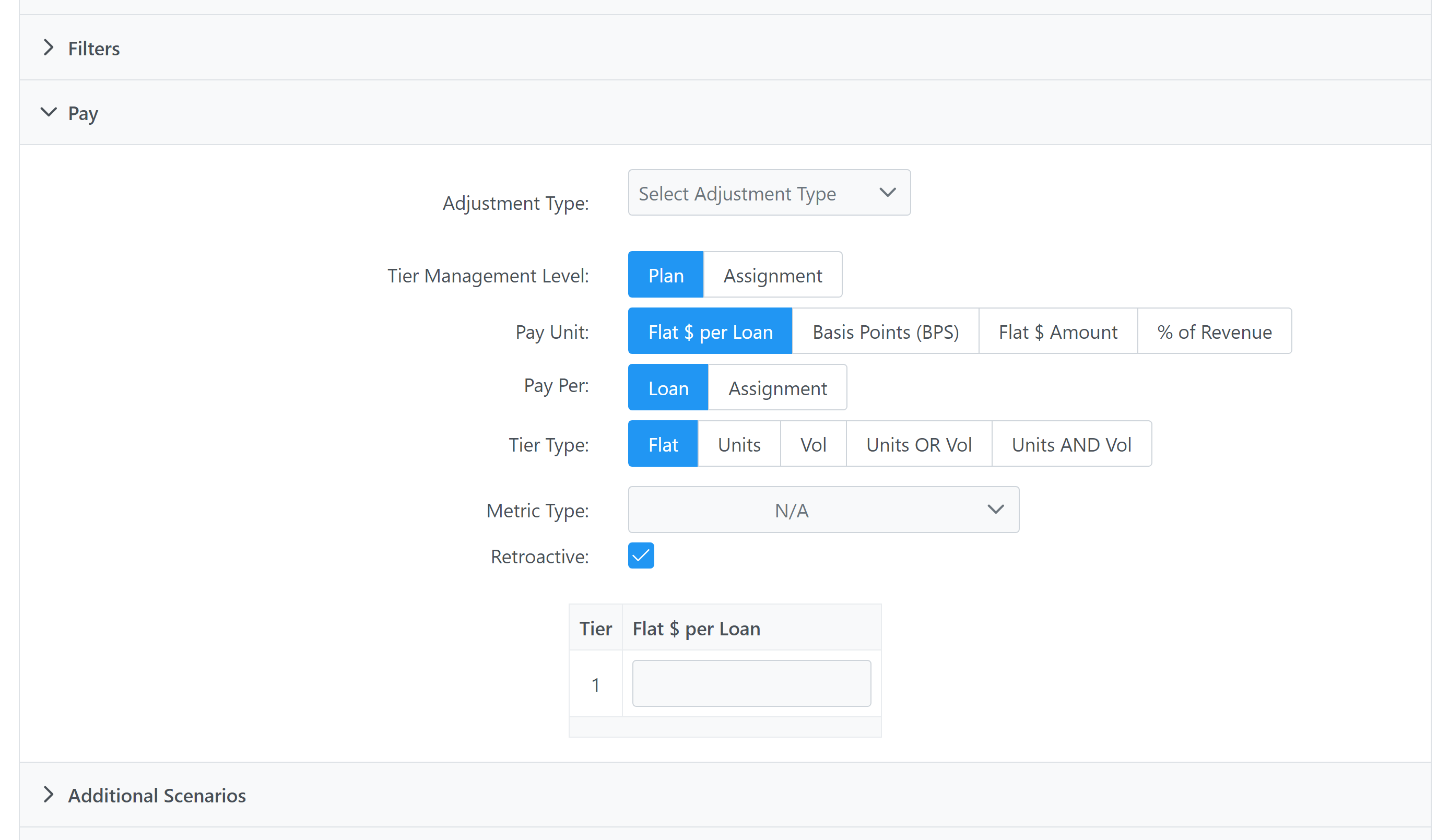
-
Adjustment Type: Adjustment type this incentive plan uses for this transaction. Determines how pay is represented on the payroll export.
-
Tier Management Level: Level that the pay tiers for the plan are managed on.
-
Plan: Pay tiers are managed per plan. Tiers cannot be modified when assigning to an employee.
-
Assignment: Pay tiers are managed per assignment. The Tier Levels section now represents "Default Tiers", which can be changed when you assign the plan to an employee.
-
-
Pay Unit: How the plan calculates pay.
-
Flat $ per Loan: A dollar amount paid for each qualifying loan.
-
Basis Points (BPS): A dollar amount equal to ((BPS * 0.0001) * Loan Volume) paid for each qualifying loan.
-
Flat $ Amount: When any number of loans qualify, the employee receives a set dollar amount.
-
% of Revenue: Pay is equal to the entered percent of revenue earned.
-
Note: This option is only available if the revenue feature is enabled for your nCino Incentive Compensation site. If you are interested in the revenue feature, reach out to https://incentivehelp.ncino.com/hc/en-us.
-
-
-
Pay Per: Whether the plan pays once per loan, or once per assignment (an employee assigned to a loan in multiple positions would be paid for each assignment).
-
Loan: Employee is paid once per loan they are listed on. If the employee is listed multiple times on one loan, they only get paid once.
-
Assignment: Employee is paid once per assignment. If the employee is listed multiple times on one loan, they get paid multiple times.
-
-
Tier Type: How the plan determines which tier to use when calculating pay.
-
Flat: Only one tier. If used with the "Flat $ Amount" pay unit detailed above, the plan always pays, regardless of volume or units.
-
Units: Tier level is determined by the number of units achieved within the chosen time period.
-
Vol: Tier level is determined by the total volume achieved within the chosen time period.
-
Units OR Vol: Tier level is determined by either units or volume achieved within the chosen time period. A least one must be met to qualify for a tier.
-
Units AND Vol: Tier level is determined by both units and volume achieved within the chosen time period. Both must be met to qualify for a tier.
-
-
Metric Type: Metrics are unique to each client. If you have metrics, some metrics can be selected from this dropdown. When selected, Incentive plan pay is based on the custom metric selected. If your company does not use metrics, this section is not visible.
-
When used, adds "Metric Score" column to the tiers section.
-
-
Retroactive: If the tier calculations are retroactive. When creating new plans, this is checked by default. This option is only relevant when the incentive plan has multiple tiers. Note: This option is not available for plans using a pay unit of "Flat $ Amount".
-
Retroactive Plan: When a loan reaches a higher tier, that tier is retroactively applied to all loans the the plan pays on.
-
Non-Retroactive Plan: When a loan reaches a higher tier, previous loans are not affected.
-
-
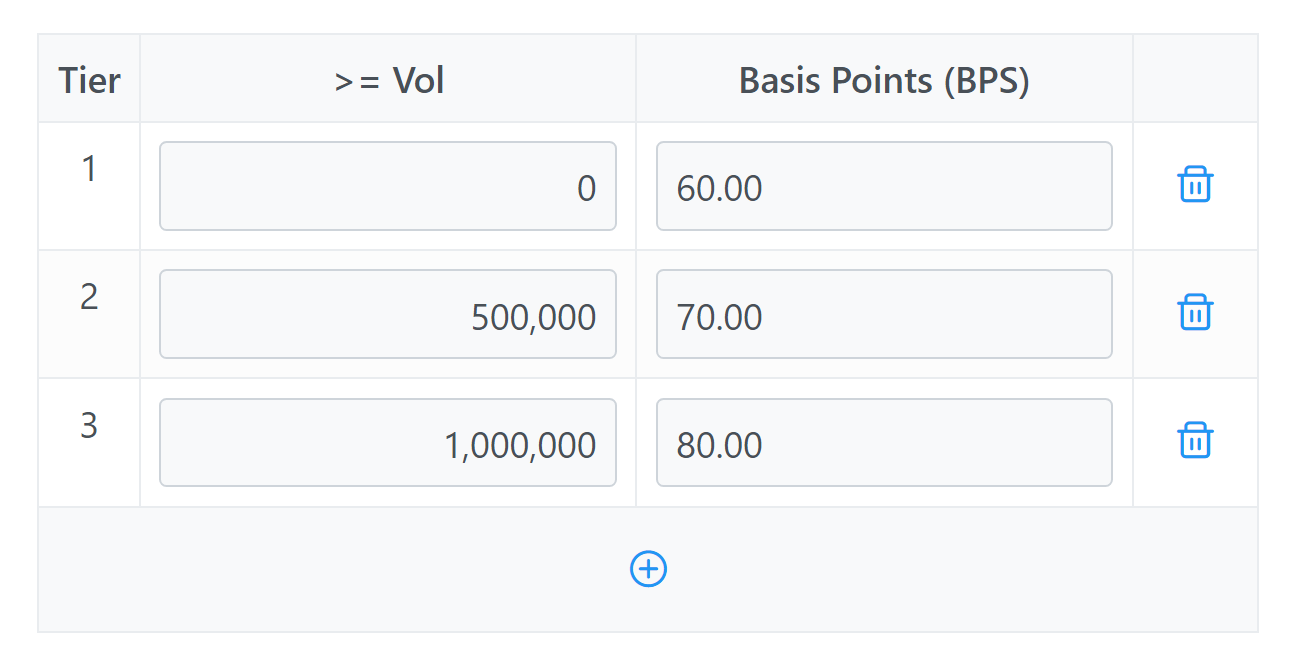
[Tier Levels and Pay Amounts]: Visual representation of the plan’s tiers and pay. Click the “+” button to make a new tier. Click the trash can button to delete a tier. Click a tier’s text fields to edit their values.
-
If the incentive plan is set to the "Assignment" Tier Management Level, then the tiers listed here are the defaults. Individual assignments may have different tier structures.
-
Additional Scenarios
This section describes how the incentive plan behaves if any of the described scenarios occur.
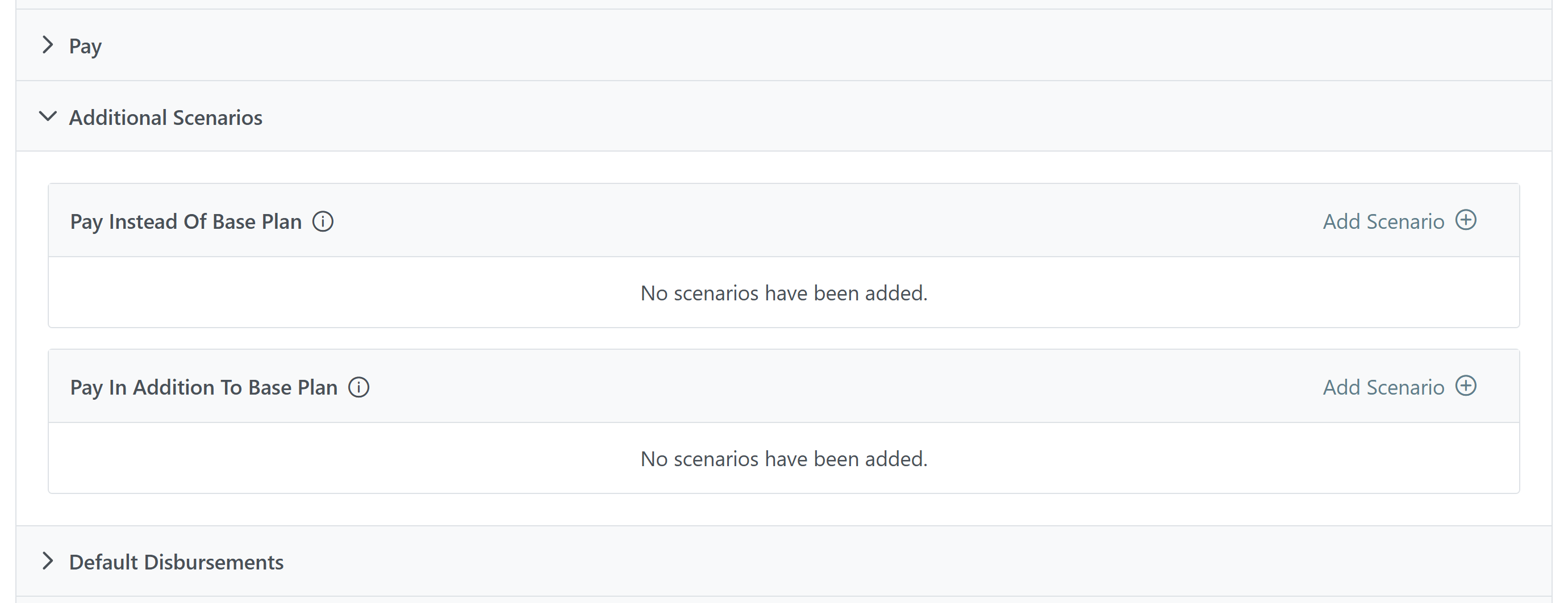
For details about how additional scenarios work, and how to create and edit additional scenarios, refer to Understand Additional Scenarios.
Pay Instead Of Base Plan
The system checks each of these scenarios from top to bottom, and if the loan qualifies for one, the system stops checking and replaces the base plan with that scenario. After the system checks all scenarios in this section, it checks the "In Addition To" section.
Pay In Addition To Base Plan
Each of the scenarios in this section that the loan qualifies for will add or subtract its pay to the base plan or the "Instead Of" scenario being used.
Default Disbursements
This section describes disbursements that are automatically added when this incentive plan is assigned to a user. These disbursements can then be edited before you save the assignment.
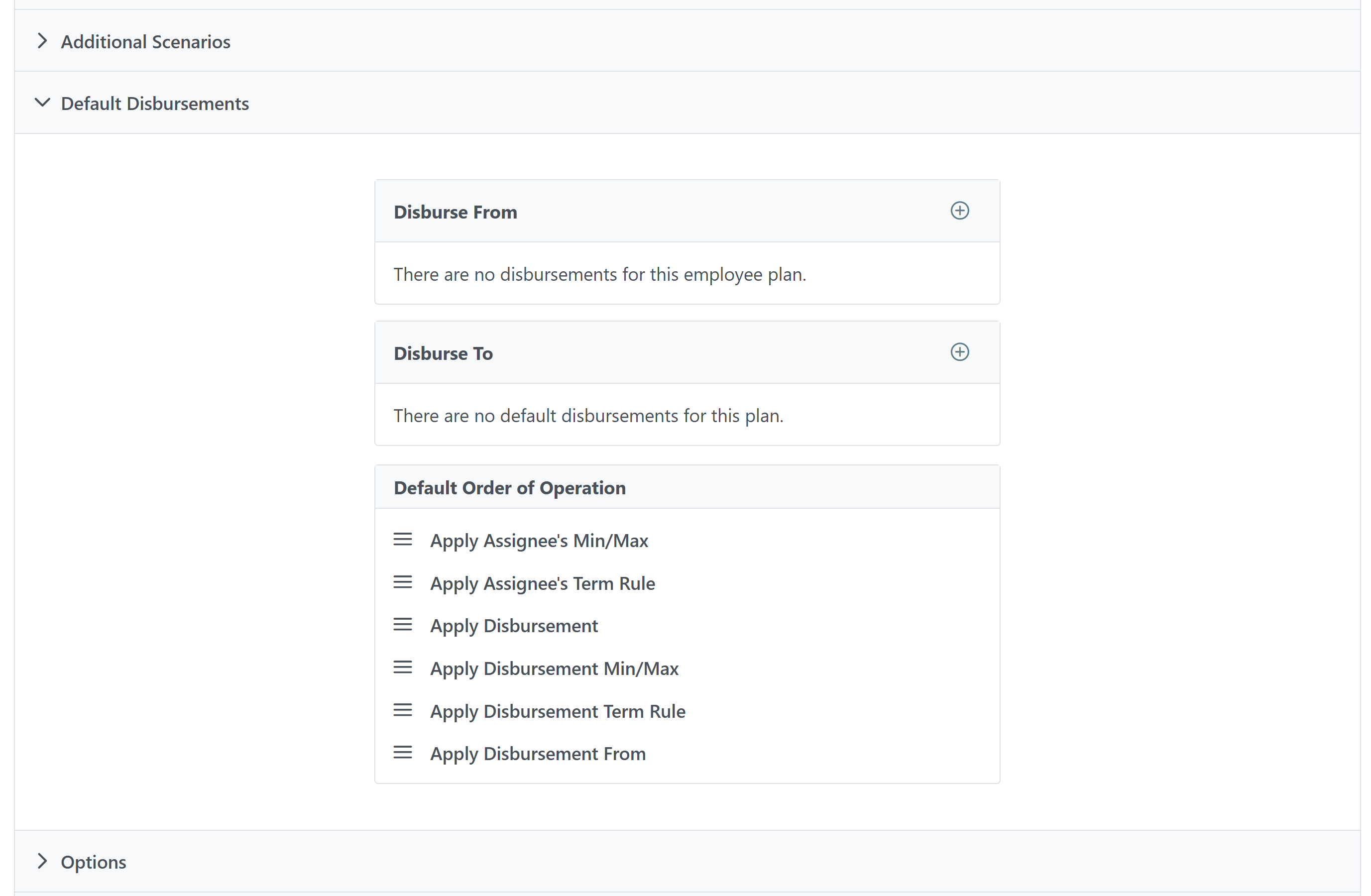
For details about how disbursements work, and how to create and edit disbursements, refer to Understand Disbursements.
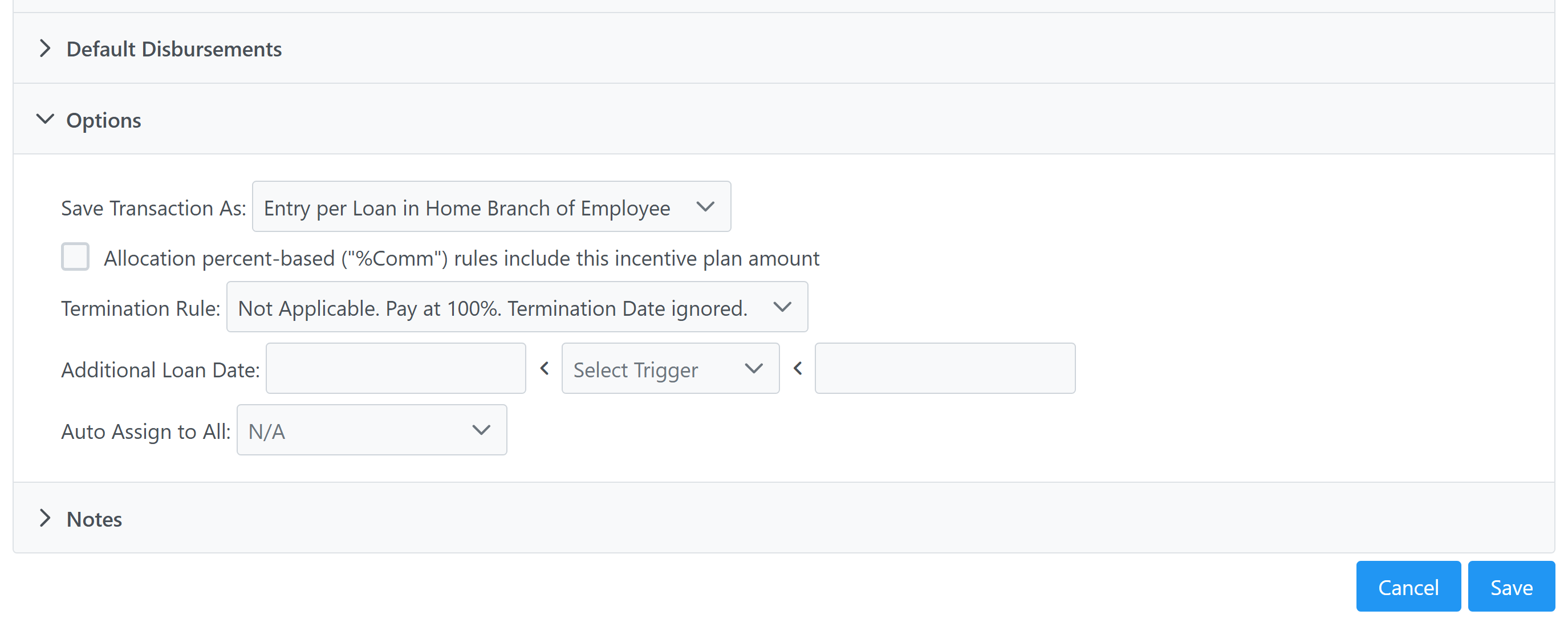
Options
Additional options that control how the plan works.
-
Save Transaction As: Determines how the transactions from this plan are saved. Options include:
-
Entry per Loan in Home Branch of Employee
-
Entry per Loan in Branch of Loan
-
One Lump Sum in Home Branch of Employee
-
Branch Lump Sum in Home Branch of Employee (Compensation will be lumped per source branch and posted to the employee's home branch.)
-
Branch Lump Sum in Branch of Loan (Compensation will be lumped per source branch and posted to that branch.)
-
-
Allocation percent-based ("%Comm") rules include this Incentive Plan amount: Allocations that calculate a percentage of commissions are included in this plan's calculations.
-
Note: As of March 2025, Allocations are retired. Users can no longer create, edit, or assign allocations. For more information, see Schedule and Allocation Retirement Next Steps.
-
-
Termination Rule: How the plan behaves when the assigned employee is terminated. For more information, see Understand Termination Rules.
-
Additional Loan Date: This option allows you to create an additional loan eligibility date (LED) trigger that the loan must also meet to qualify for this plan. The LED trigger is selected using the middle dropdown, and the date range is determined using the fields before it (the start date) and after it (the stop date). Combined, these represent an additional trigger that must occur within the selected date range for a loan to qualify for this plan. When using this option, a start date is required, but a stop date is optional. When the stop date is left blank, it represents an open-ended date range.
-
Auto Assign to All: Selecting one or more positions in this option automatically creates assignments for employees who have that position. This option uses nCino Incentive Compensation positions, which can be viewed or managed using the Employee Positions Mapping tool. For more information, see Use the Employee Positions Mapping Tool.
Notes
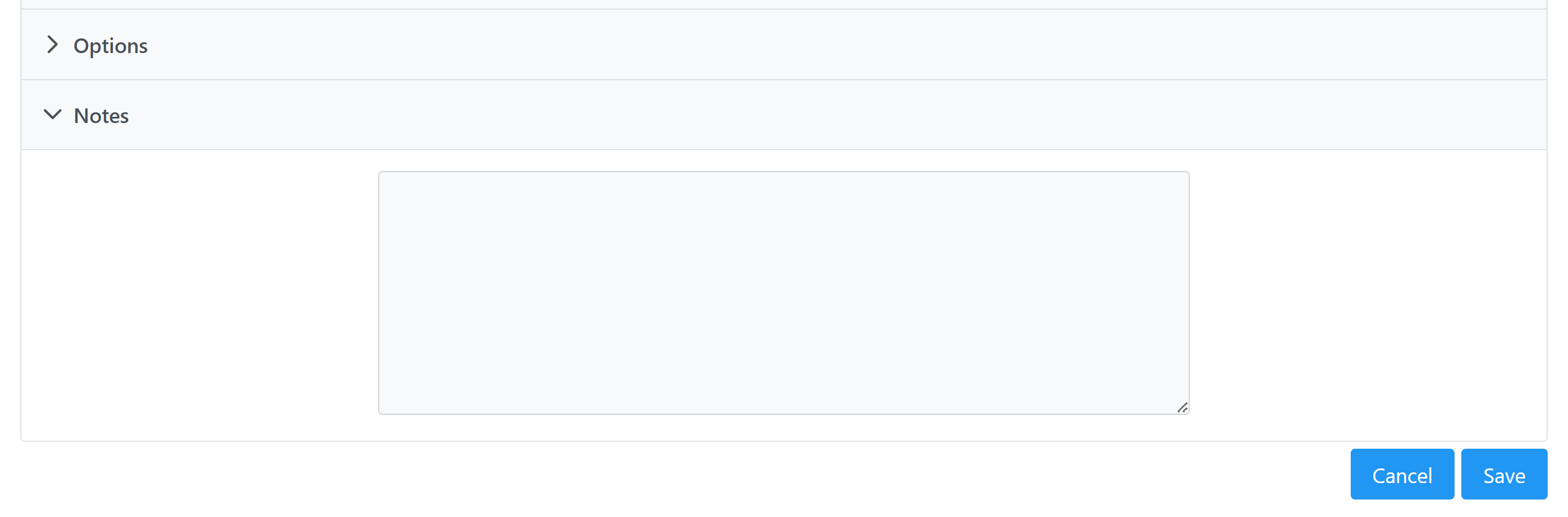
This section allows you to write notes in the plan. These do not affect how the plan works.
-
[Notes Field]: Freeform text field you can use to write notes or reminders on the plan.
After this section, click the Save button to save the incentive plan, or the Cancel button to return to the previous screen without saving.
Edit an Existing Incentive Plan
There are several ways to edit an existing incentive plan. These steps cover navigating from the list of all incentive plans.
-
From the nCino Incentive Compensation menu, click Payroll ▼ > Incentive Plans.
-
Click the incentive plan you want to edit.
-
On the incentive details page, click the Edit button.
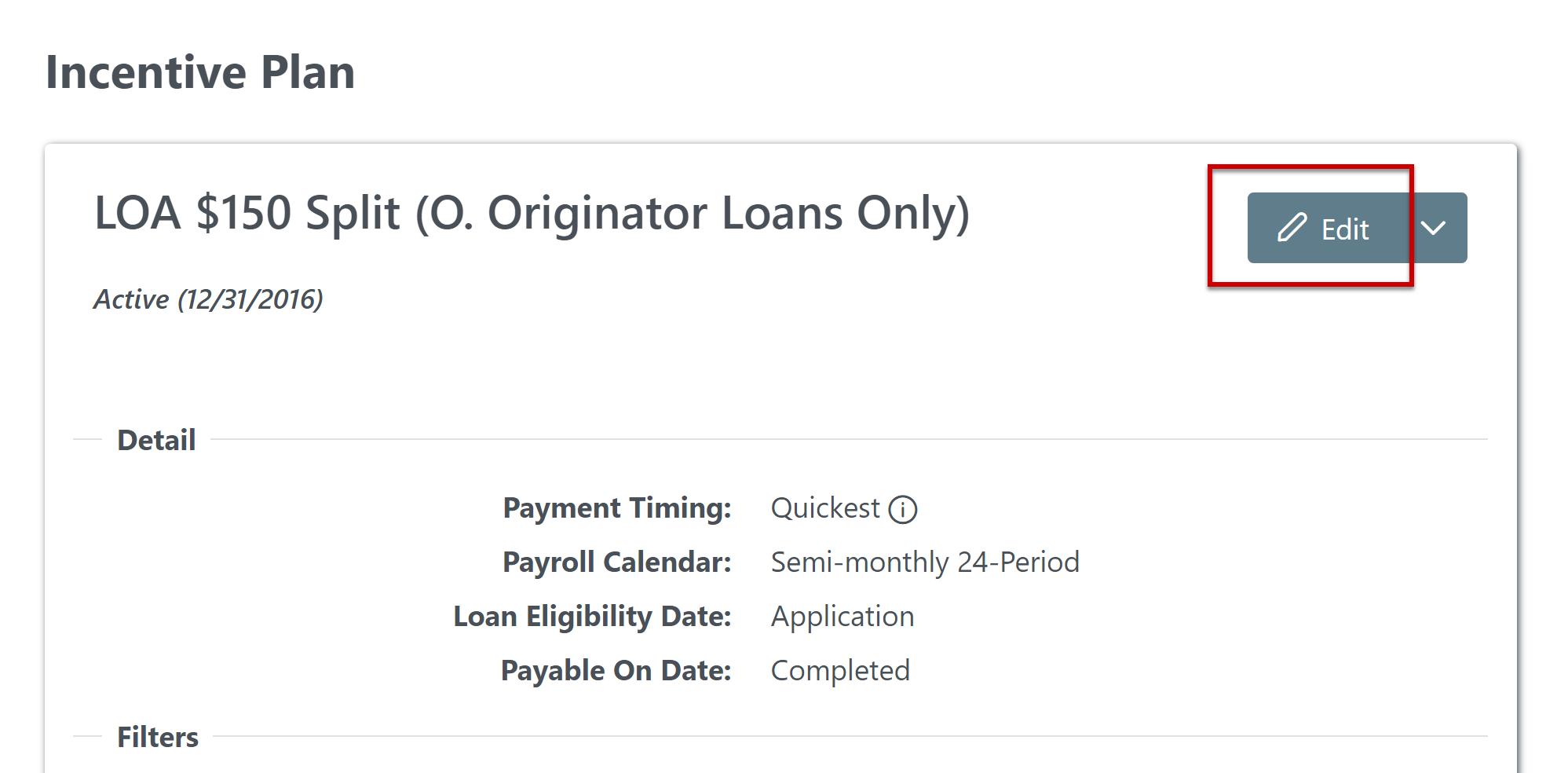
Editing an incentive plan uses the same options as when creating an incentive plan.
Editing an incentive plan causes it to "spin off" into a new plan if both of the following conditions are met:
-
The plan has transactions paid in a locked down pay period.
-
A field other than name, notes, or start date is changed.
Additional Options for Existing Plans
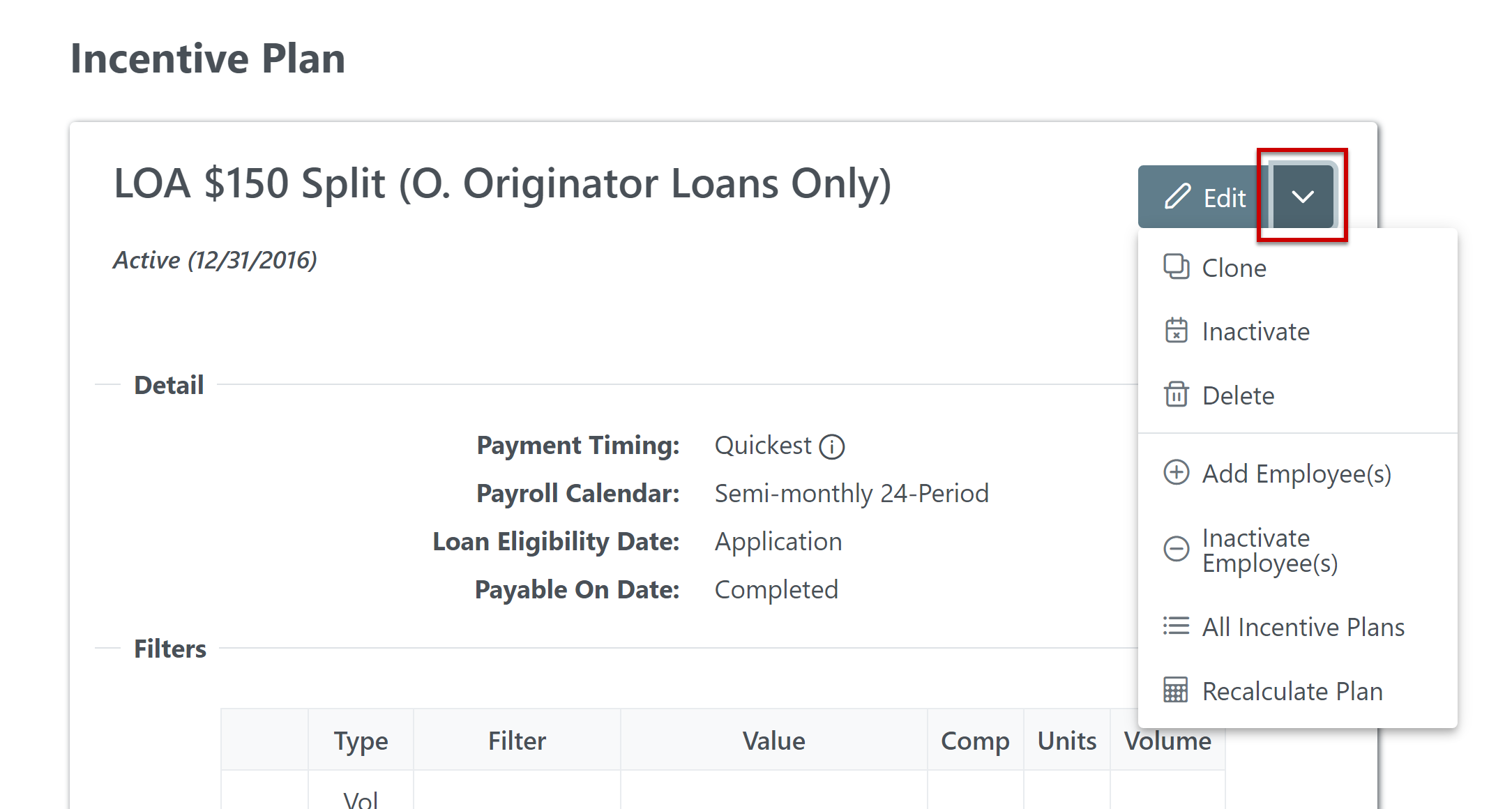
When you view an existing plan, additional options are available when you click the arrow next to the "Edit" button.
-
Clone: Create a new incentive plan using the settings of this plan. The new plan has the name of the old plan with "Copy of" added to the beginning. Users can edit the new plan to make changes to any of the settings.
-
Inactivate: Inactivate this incentive plan, making it no longer available to assign to users. This opens a tool to select a specific Stop Date for the plan. For more information on inactivating incentive plans, see Understand Incentive Plan Inactivation.
-
Checking the "Inactivate associated assignments" box inactivates all corresponding employee assignments associated with this plan.
-
If this is left unchecked, employees currently assigned to this plan remains assigned and continues to be credited or debited until their individual assignments are inactivated.
-
-
Delete: Delete the incentive plan entirely. This also deletes it from employee assignments. This option is only available if there is no pay associated with this plan in a locked-down payroll period.
-
Add Employee(s): Add employee assignments for this plan.
-
Inactivate Employee(s): Inactivate employee assignments for this plan.
-
All Incentive Plans: View a list of all incentive plans.
-
Recalculate Plan: Recalculate all assignments for this plan that are ongoing and unlocked.
See Also: