Use the Employee Positions Mapping Tool
The Employee Positions Mapping tool allows nCino Incentive Compensation administrators to manage the assignment of company job titles with nCino Incentive Compensation positions (the positions used in building compensation plans). Additionally, this tool allows admins to define which features are used by employees in those positions.
Minimum Compensation Access Level: Executive + Admin
Access the Employee Positions Mapping Tool
To access the Employee Positions Mapping tool from the nCino Incentive Compensation menu, click:
-
The Gear Icon(
 )
) -
System Admin
-
The Directory header
-
Employee Positions Mapping & Default Features Selection
Read the Job Title Table
This table includes the following filters / display options:
-
Filter by Incentive Compensation Position: Used to filter the table so that it only shows job titles that correspond to the selected Incentive Compensation Position.
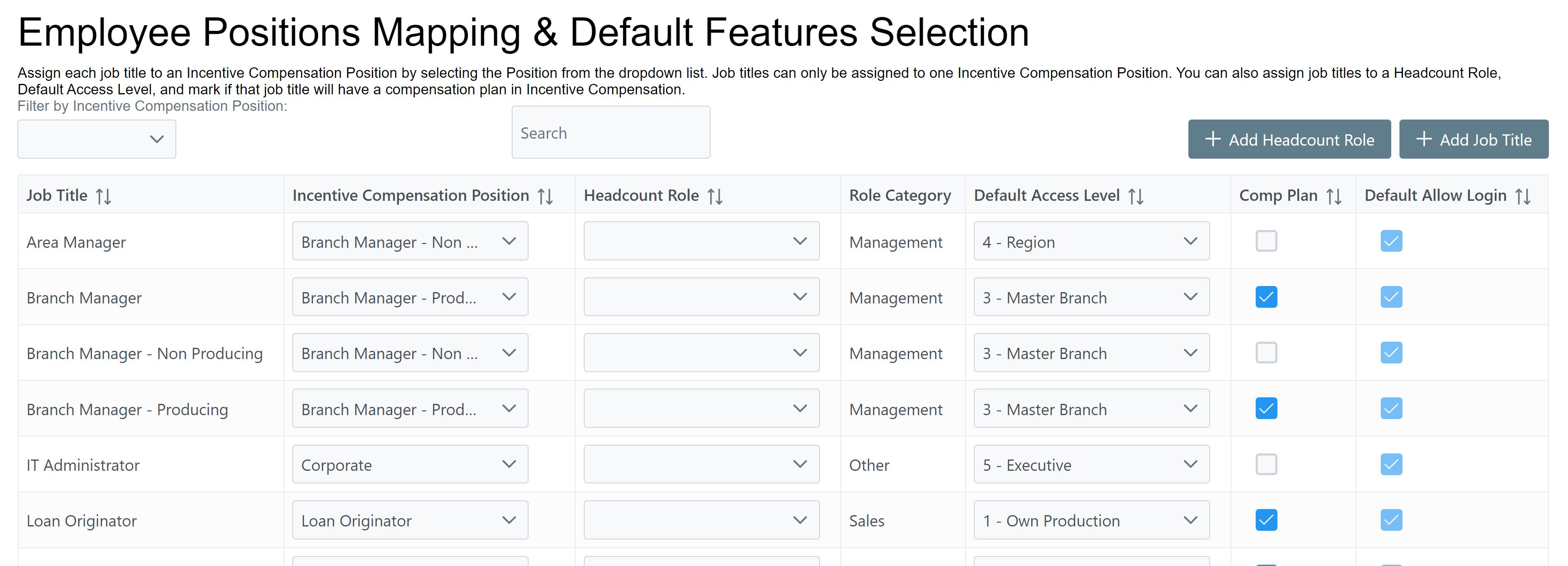
This report includes the following columns:
-
Job Title: Employee's job title. Brought in from LOS or added manually.
-
Incentive Compensation Position: Corresponds to job title. Click the dropdown menu to select a different position. You can only assign one Incentive Compensation position per job title.
-
Headcount Role: Role used to categorize nCino Incentive Compensation positions to more accurately report on employee headcount and role. Click the dropdown menu to select a headcount role for the job title. To add additional headcount roles, refer to Add Headcount Roles.
-
Role Category: Role category that corresponds to the headcount role. Defaults to "Other". Available categories are:
-
Sales
-
Operations
-
Marketing
-
Management
-
Corporate
-
Other
-
-
Default Access Level: Access level assigned to new users with that job title.
-
Comp Plan: Checkbox used to indicate whether or not an employee with the job title can have a compensation plan in nCino Incentive Compensation. If unmarked, the employee can not be selected when setting up Incentive Plans or Draws.
-
Default Allow Login: Checkbox used to indicate whether or not the "Allow Login" checkbox for new and returning employees are automatically checked. To modify this per-job title, the "Default Allow Login for New or Reactivated Employees" Company Parameter must be set to False.
Add Items
This page also allows admins to add job titles and headcount roles using the buttons at the top.
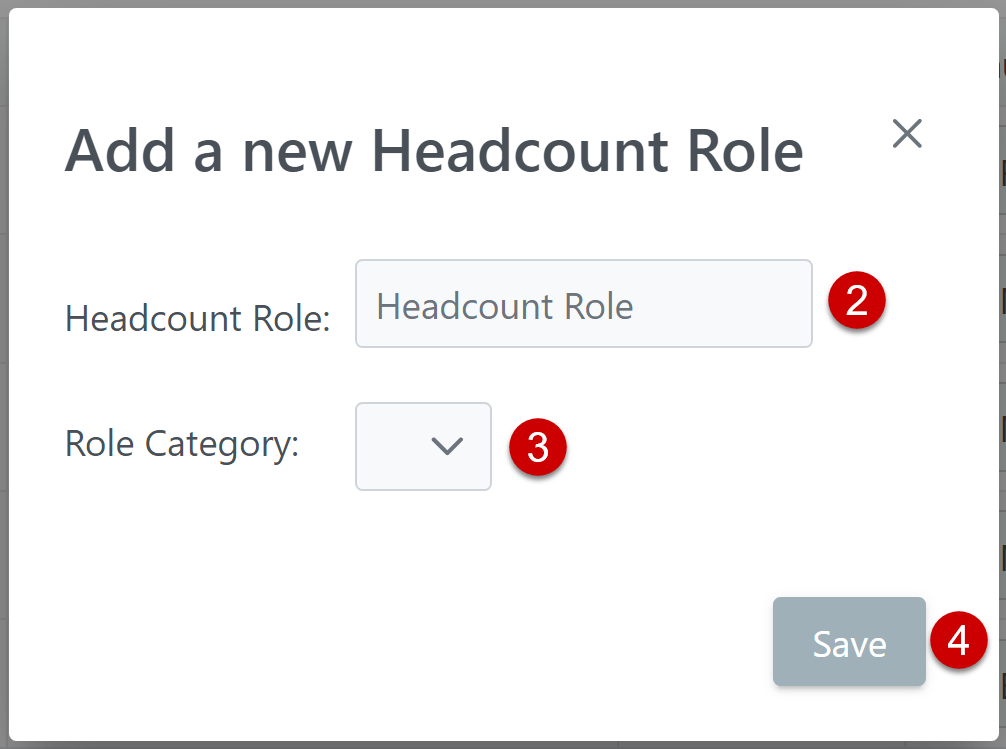
Add Headcount Roles
-
Click the + Add Headcount Role button.
-
Enter the name of the Headcount Role.
-
Select which Role Category that corresponds with the Headcount Role.
-
Click Save to add it to the list of Headcount Roles.
Add Job Titles
-
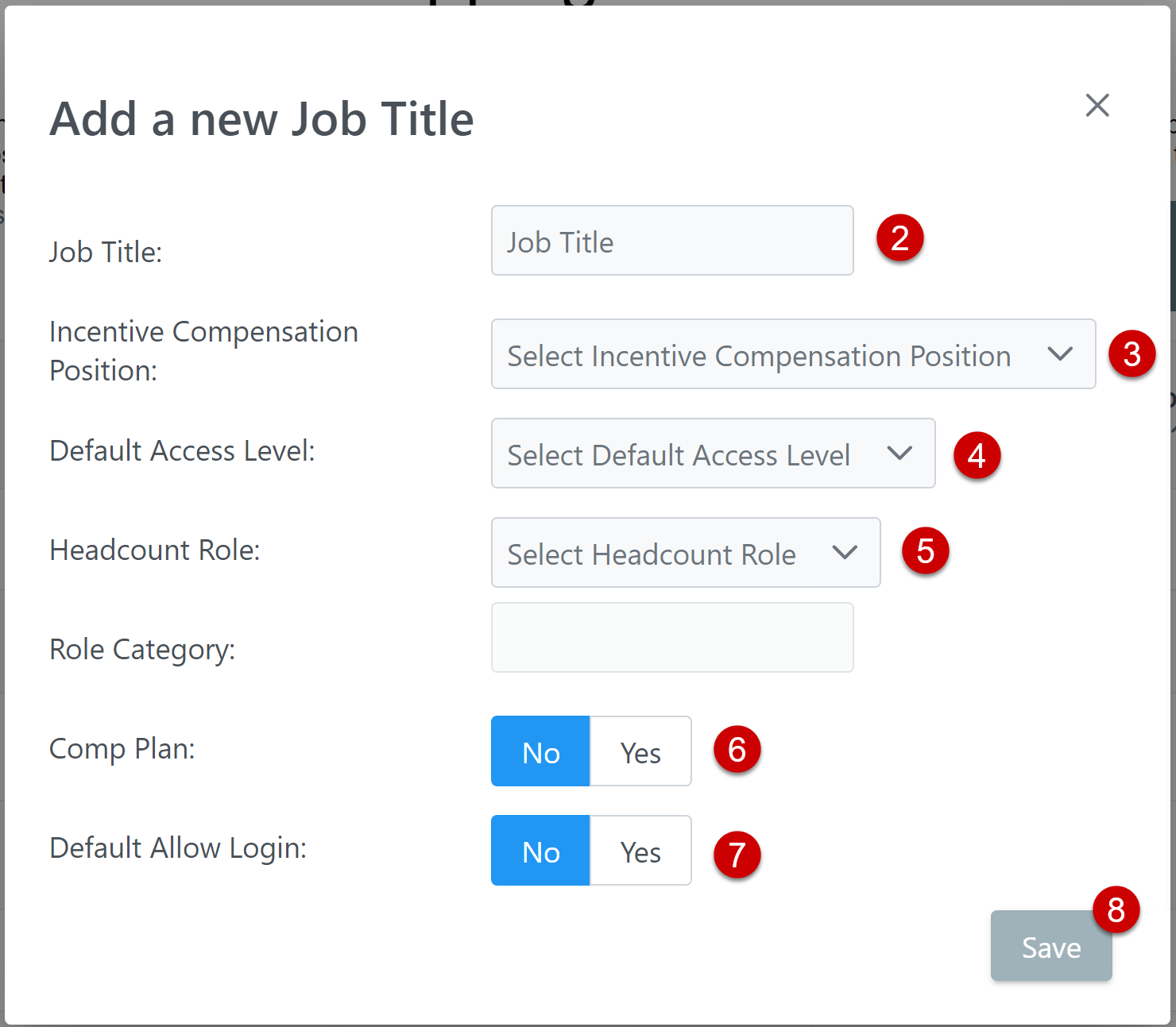
Click the + Add Job Title button.
-
Enter the name of the Job Title.
-
Select the corresponding Incentive Compensation Position.
-
Select the Default Access Level for employees with that Job Title.
-
Select the Headcount Role. The Role Category will automatically populate.
-
Click Yes on Comp Plan If employees with this Job Title will have compensation plans or draws in nCino Incentive Compensation.
-
Click Yes on Default Allow Login if employees with this job title should have their "Allow Login" option be on by default.
-
Click Save to add it to the list of job titles or click Cancel to return to the table without saving.
See Also: