Headcount Report
The Headcount Report provides detailed information on all employees. It can be used to analyze employee roles, positions, branches, and more.
Minimum Compensation Access Level Required: Executive
Accessing the Report
To access this report,
- From the nCino Incentive Compensation menu, click “Report ▼ .
- In that dropdown, click “All“.
- Click the “Payroll category header.
- Click the “Headcount Report“.
Reading the Report
NOTE: Salary data will only be present if your company uses the Salaries nCino Incentive Compensation feature. If you are interested in enabling this feature, please contact us at https://incentivehelp.ncino.com/hc/en-us.
This report includes the following display / filter tools:
-
Region, Branch, and Employee Filtering Tool: Used to filter the information on the report. For information on using this tool, refer to How do I filter reports?.
-
Payroll Period Selector: Used to select the payroll period shown on the report. For information on using this tool, refer to How do I use the date selectors?.
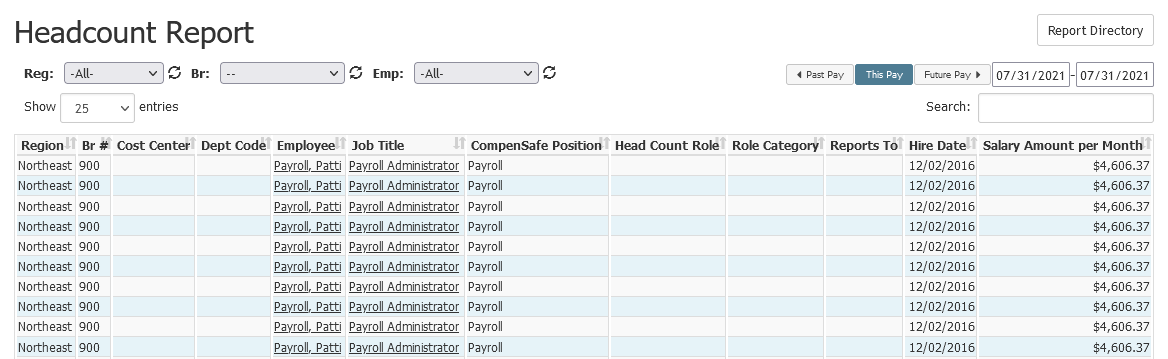
This report contains the following:
- Region: Employee’s region
- Br#: Employee’s branch
- Cost Center: GL Cost Center Code (located in the Branch setup)
- Dept Code: Department code (located in the Branch setup)
- Employee: Employee name
- Job Title: Employee position
- nCino Incentive Compensation Position: System position
- Head Count Role: Administrator-selected role associated with the Job Title. This is set using the Employee Positions and Mapping
- Role Category: Administrator-selected category of the head count role. Options include Sales, Operations, Corporate, Management, Marketing, and Other. This is set using the Employee Positions and Mapping
- Reports to: Employee’s direct supervisor. This is set on the Contact tab of the Employee Details This does not give access to view employee’s compensation information.
- Hire Date: The date the employee was hired
- Salary Amount per Month: Employee's monthly salary in dollars
For more information on setting the Head Count and Role Category, read Use the Employee Positions Mapping Tool. For more information on setting the employee’s supervisor, read Employee Details - Overview.
Exporting the Report
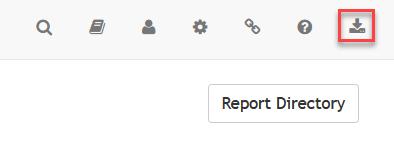
To export this page, click the export icon.
This export includes the following columns in addition to the columns that are in the online version.
- Emp #: Employee number of the employee
- Reports to Emp #: Employee number of the employee this user reports to.
- Notes: Notes regarding the employee
See also: