Understand Disbursements
Disbursements are a tool within nCino Incentive Compensation that modifies how Incentive Plans behave. This can include deducting their value from some other pay or splitting the Incentive Plan pay out to multiple people. This article details how to use this tool.
Note: The Disbursements feature is only available for use with Incentive Plans.
Overview
Disbursements are a means of modifying the pay from an Incentive Plan. This can include deducting the pay amount from others, splitting the pay amount to others, or some combination of the two.
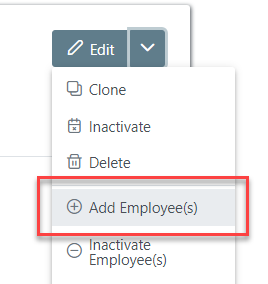
Admins can set up Disbursements when they assign an Incentive Plan to an employee.
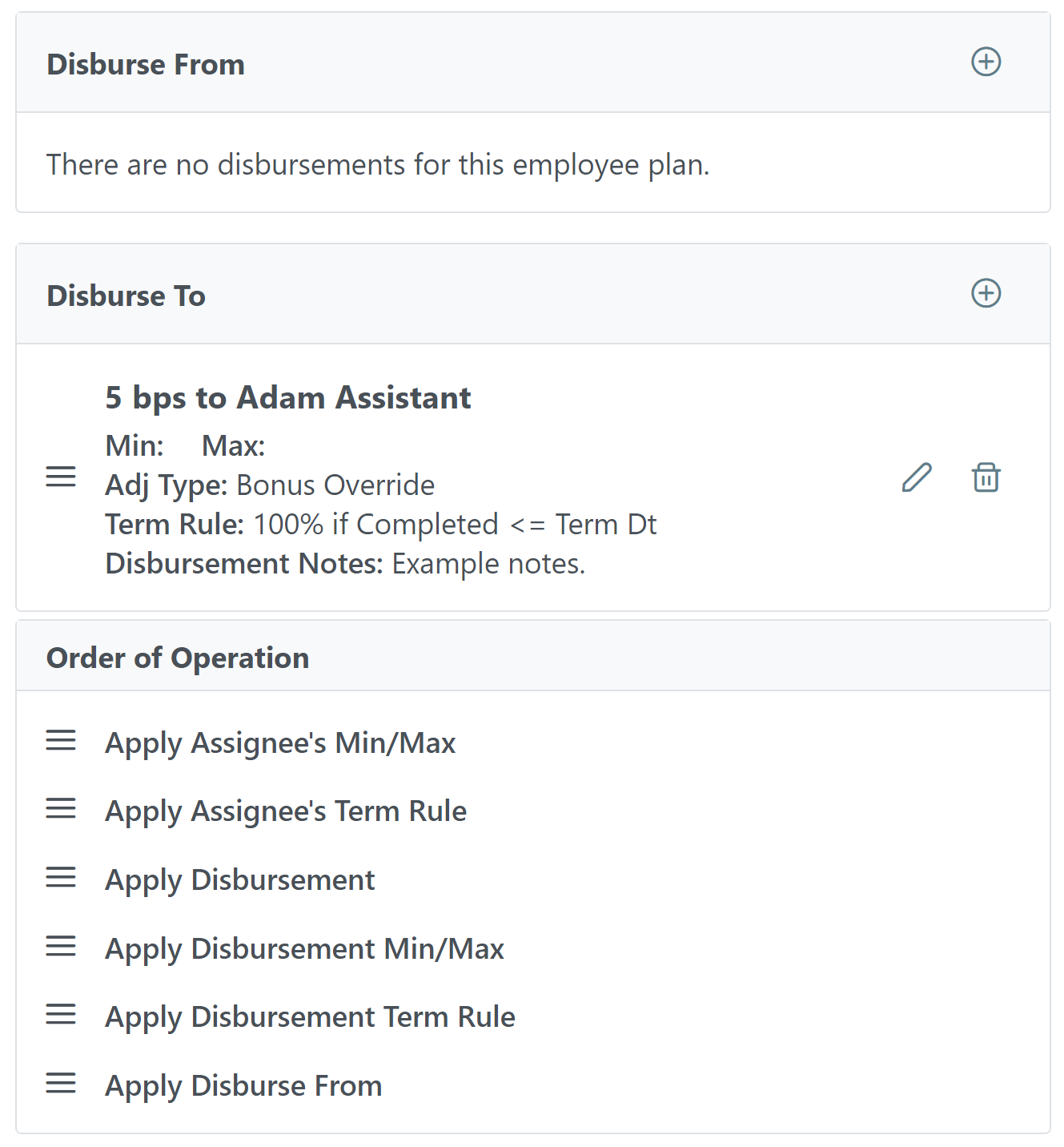
The disbursements tool consists of two main sections: "Disburse From" and "Disburse To". Within each of these sections, admins can create and order multiple items. Additionally, there is a "Order of Operation" tool that admins can use to customize the order of calculations for the Incentive Plan and its disbursements.
Build Disbursements
Admins can build Disbursements when they assign an Incentive Plan to an employee. You can use the three available sections to create individual disbursements for the plan assignment.
Disburse From
This section allows you to select which employees contribute money to the disbursement of pay from the Incentive Plan, and how much they contribute.
-
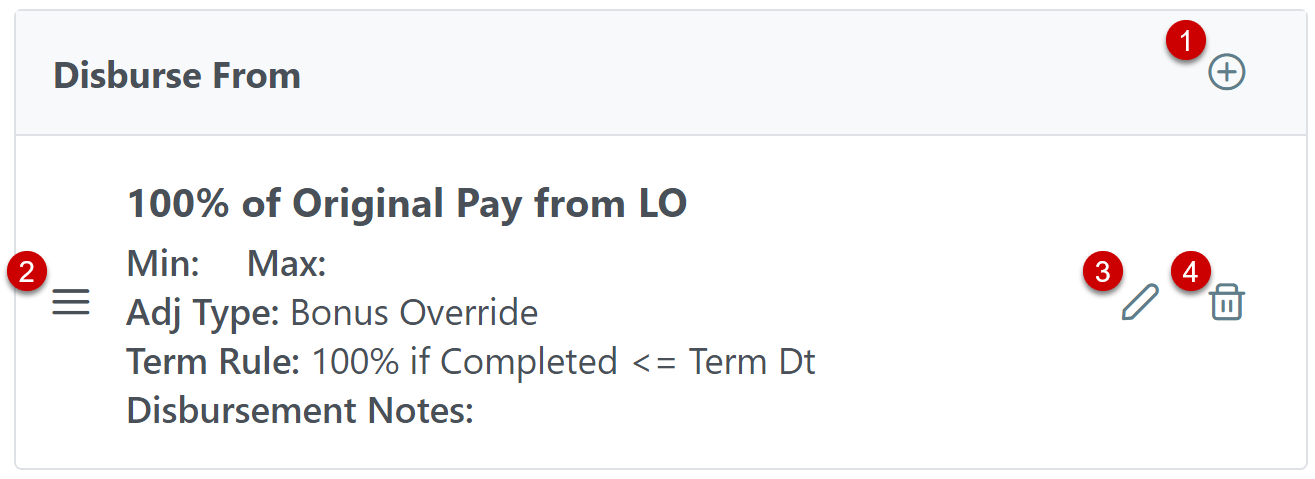
Add(1): Use the plus icon (
 ) to add a new item.
 -
Re-Order Items(2): Click the icon (
 ) to the left of an item and drag it up or down to move it in the calculation order.
 -
Edit(3): Click the pencil icon (
 ) to edit an existing item.
 -
Delete(4): Click the trash can icon (
 ) to delete an item.
Note: When you select the "Incentive Plan is a shared split with the LO" option in the Incentive Plan Builder, the system automatically creates a Disburse From entry each time the plan is assigned to an employee. If you uncheck the option, the system does not automatically remove Disbursements from any assignments. Those must be removed manually.
Add or Edit Options
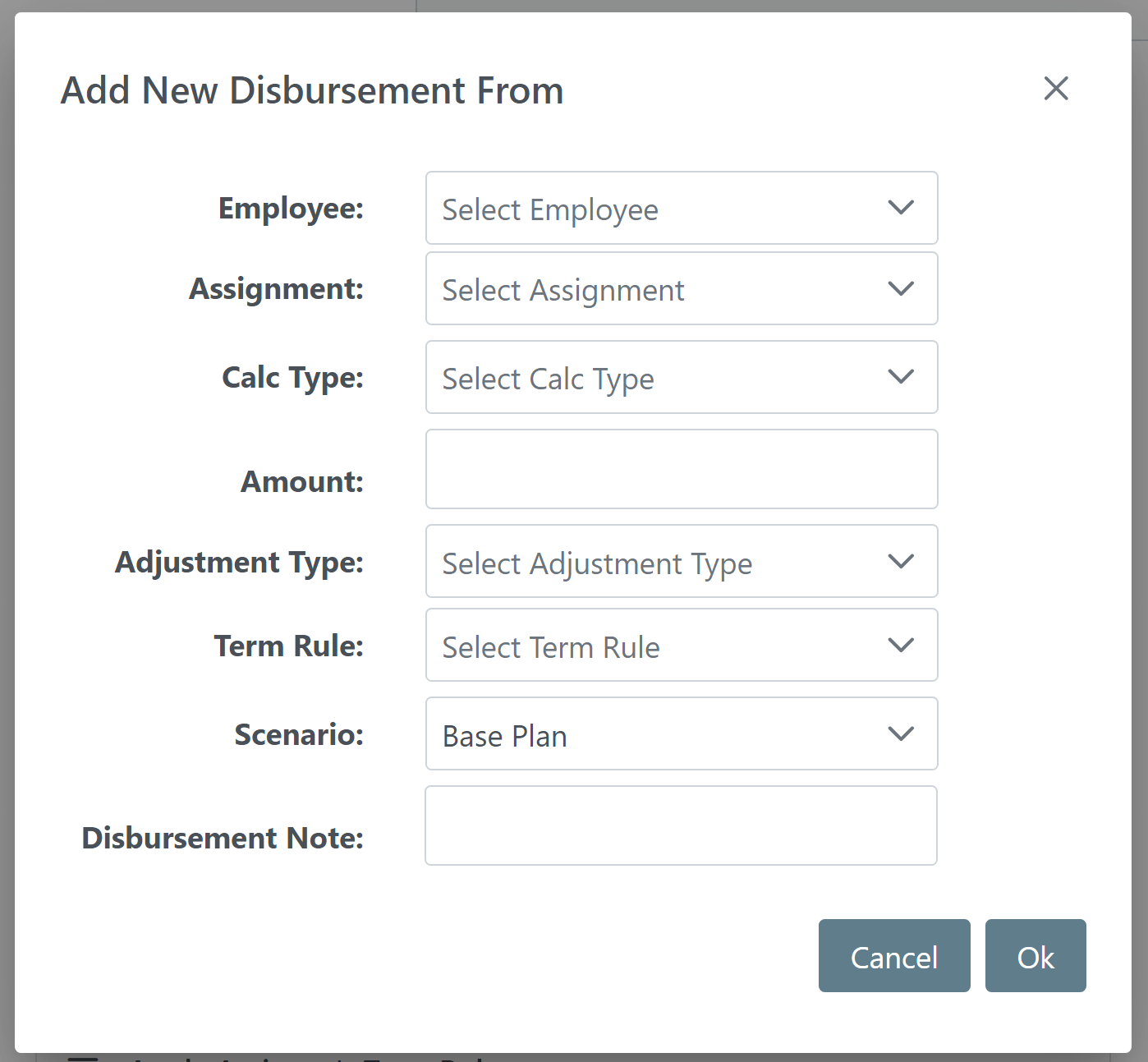
- Disburse From Target: Either an Employee, Assignment, or a combination of the two must be selected. Selecting a combination of the two means the selected employee must be assigned to the selected assignment on a loan in order to be disbursed from.
Employee: Employee to disburse from.
Assignment: Loan assignment to disburse from.
-
Calc Type: How the system calculates the Disburse From amount.
-
Options: Flat $ Per Loan, Basis Points (BPS), % of Remaining Pay, % of Original Pay
-
"% of Remaining Pay" calculates based on the pay remaining once the system reaches this item in the ordered list of disbursements, while "% of Original Pay" calculates based on the initial pay amount for the Incentive Plan.
-
-
Amount: Numerical value for the amount to disburse from the employee. Unit depends on the "Calc Type" chosen.
-
Adjustment Type: Adjustment type the transaction posts as.
-
Term Rule: Termination Rule that applies if the user being disbursed from is sterminated.
-
Scenario: Which scenarios should include this disbursement. The default is all scenarios selected.
-
Disbursement Note: Note for the disbursement. This does not affect the calculations.
Disburse To
This section allows you to select which employees (or the company) receive the disbursement, and how much is disbursed.
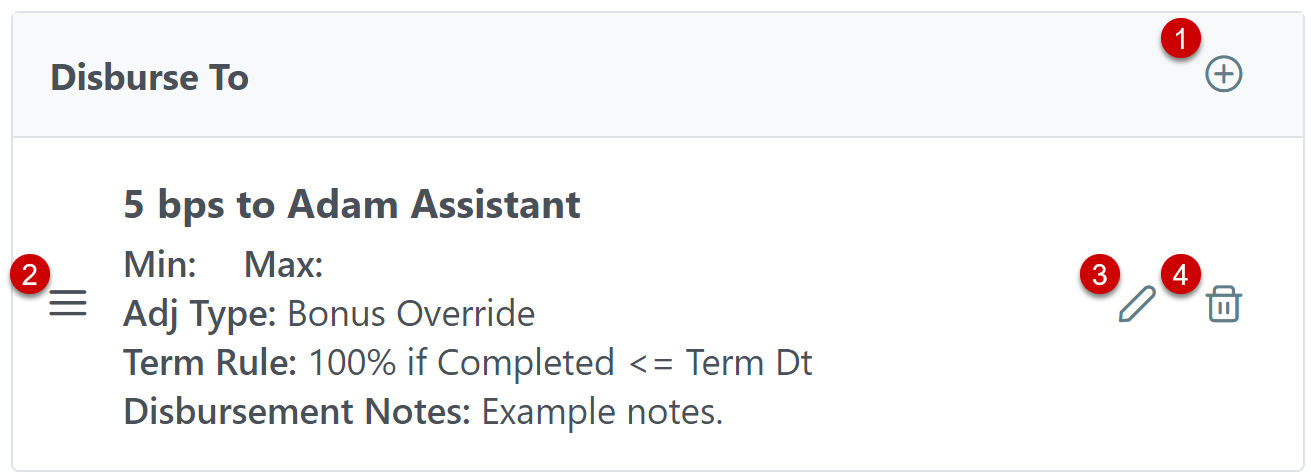
- Add : Use the plus icon () to add a new item.
- Re-Order Items: Click the icon () to the left of an item and drag it up or down to move it in the calculation order.
- Edit: Click the pencil icon (
 ) to edit an existing item.
 -
Delete: Click the trash can icon (
) to delete an item.
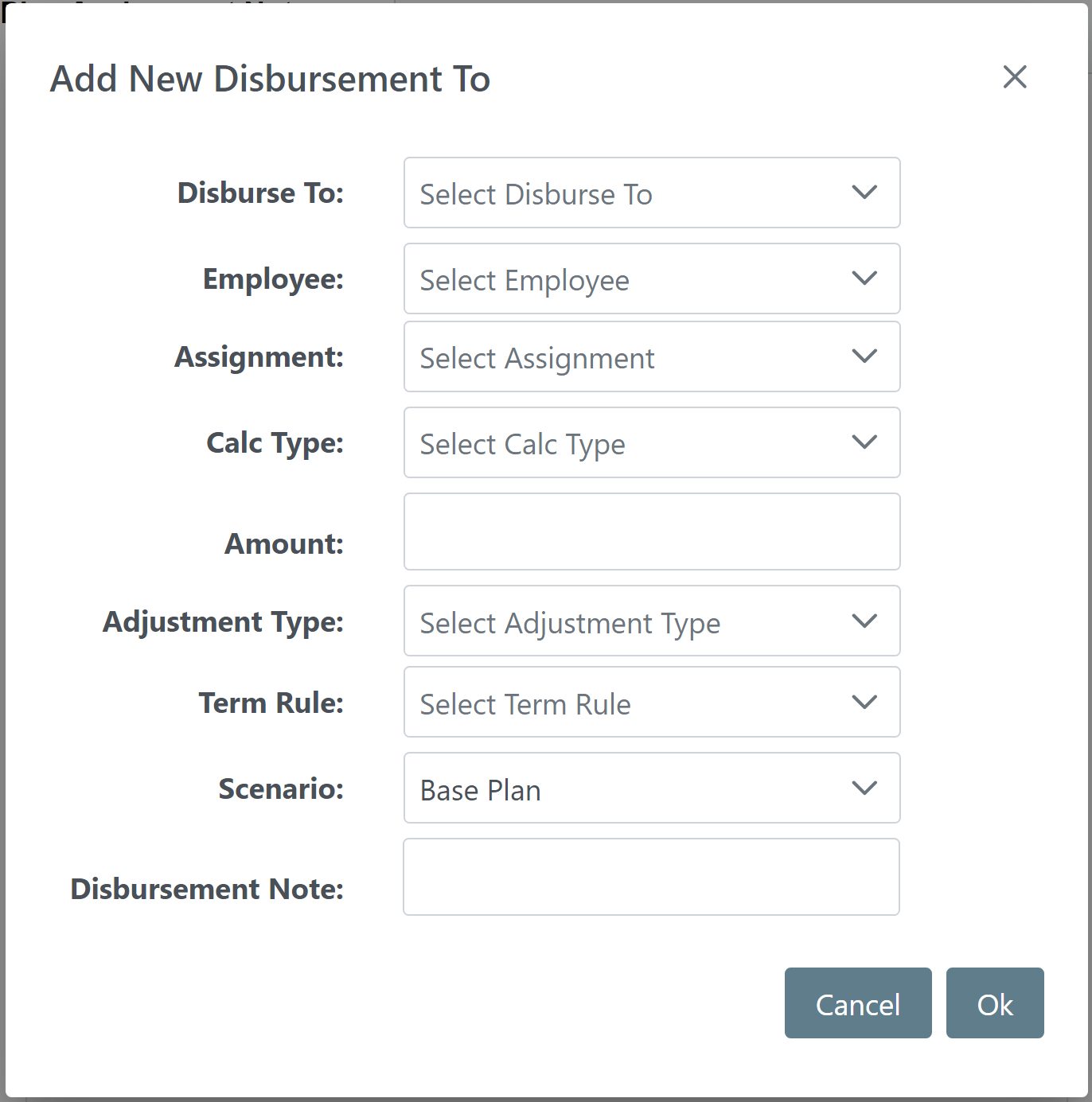
Add or Edit Options:
-
Disburse To: Whether the disbursement goes to an employee or to the company. This option is only available in the "Disburse To" section because pay comes from the company by default.
-
Note: If disbursing to an employee, either an Employee, Assignment, or a combination of the two must be selected. Selecting a combination of the two means the selected employee must be assigned to the selected assignment on a loan in order to receive the disbursement.
-
-
Employee: Employee who receives the disbursement. If disbursing to the company, this is optional and represents an employee that must be on the loan for this disbursement to apply.
-
Assignment: Loan assignment to disburse to. If disbursing to the company, this is optional and represents a loan assignment that must be on the loan for this disbursement to apply.
- Calc Type: How the system calculates the transaction amount.
Options: Flat $ Per Loan, Basis Points (BPS), % of Remaining Pay, % of Original Pay, % of Eligible Pay on Another Plan
If an option other than "Flat $ Per Loan" is selected, "Min" and "Max" fields will appear to set minimum and maximum dollar amounts for the transaction.
"% of Remaining Pay" calculates based on the pay remaining once the system reaches this item in the in the ordered list of disbursements.
"% of Original Pay" calculates based on the initial pay amount for the Incentive Plan.
"% of Eligible Pay on Another Plan" calculates based on pay from Incentive Plans that are marked as "Eligible to receive pay from another plan's disbursement" in their Options section. This Calc Type is only available when disbursing to the company.
-
Amount: Amount to disburse to the employee or company. Unit depends on the "Calc Type" chosen.
- Adjustment Type: Adjustment type the transaction posts as.
-
Term Rule: Termination Rule that applies if the user being disbursed to is terminated.
- Scenario: Which scenarios should include this disbursement. The default is all scenarios selected plan's default scenario is listed as "Base Plan".
-
Disbursement Note: Note for the disbursement. This does not affect the calculations.
Disbursement Order of Operations
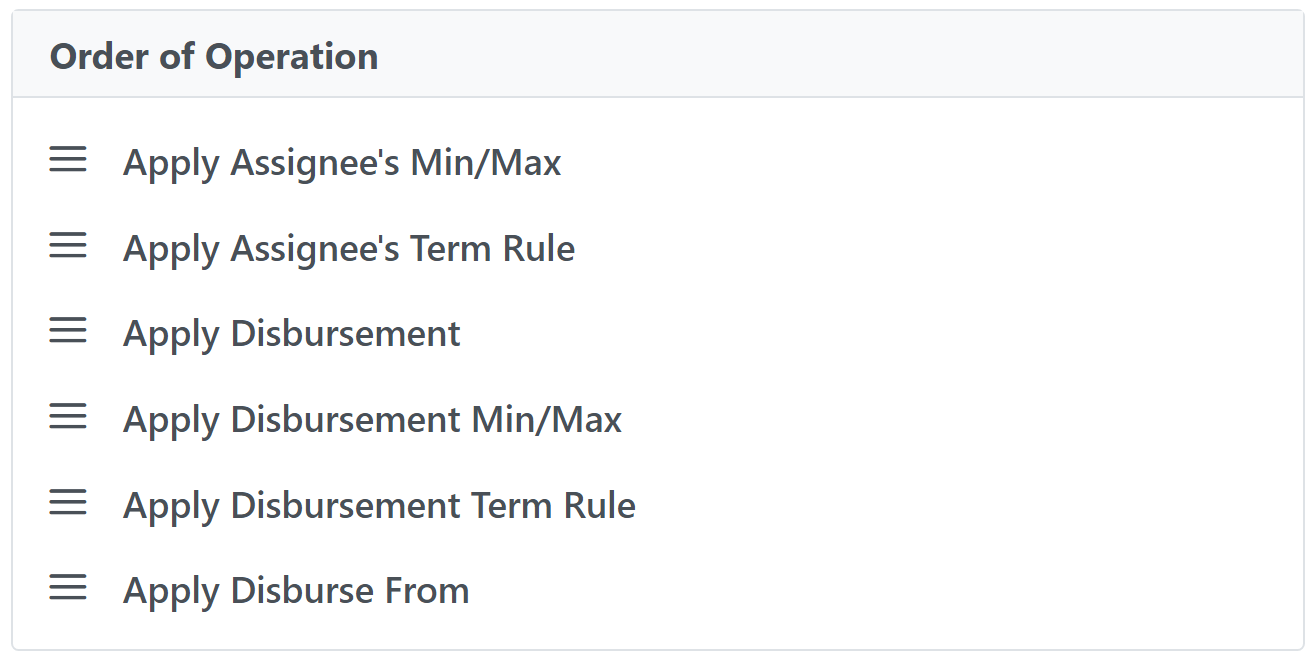
This section allows you to configure the order in which disbursement pay is calculated. By default, disbursements calculate in the order shown below. This order can be re-arranged if you click and drag the icon () in the same line as the item. The order of operations is especially important for disbursements that use "% of Remaining Pay".
Note: If the Incentive Plan has "Pay In Addition To Base Plan" additional scenarios on it, they are at the start of this list by default.
Examples
All disbursement examples assume a base LO plan where the LO is paid 100 BPS per loan with no minimum or maximum & the term rule won't apply. The plan has no additional scenarios. The example loan is worth $250,000.
Example 1: Basic Disbursement Setup
Olive is an LO working alongside Pam, a Processor, and Adam, an LOA. Olive's Incentive Plan has the following disbursements to split some of her compensation with her teammates: 5 BPS to Pam, and 20% of the Original Pay to Adam with a maximum of $5,000.
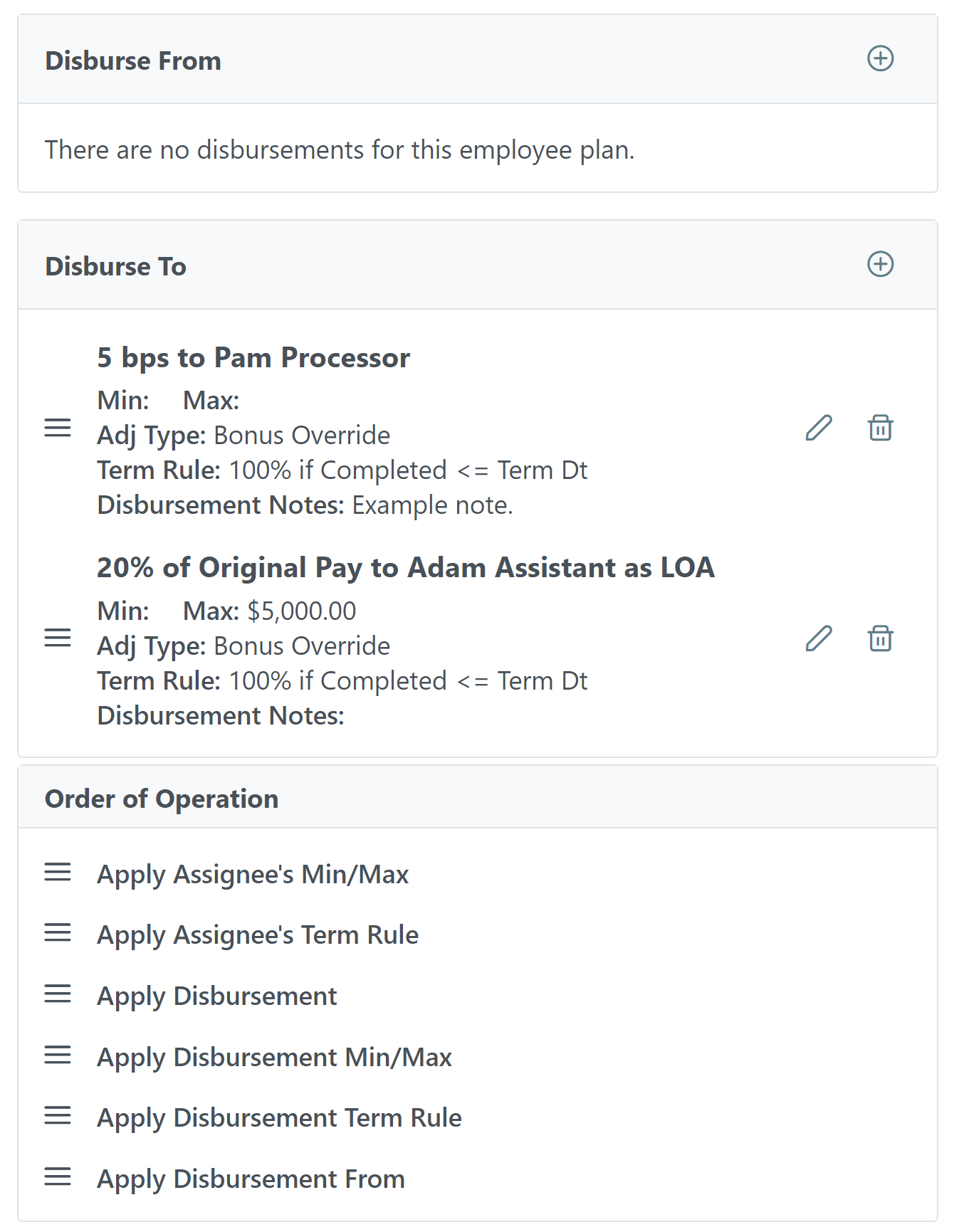
Based on the example plan and loan, this is how the pay calculation would work:
-
Olive receives 100 BPS of a $250,000 loan: $2,500.
-
Pam receives 5 BPS of a $250,000 loan, deducted from Olive: $125.
-
Adam receives 20% of Olive's original pay, deducted from Olive: $500.
The final pay amounts are:
-
Olive: $1,875
-
Pam: $125
-
Adam: $500
Example 2: Multi-Plan Disbursement Setup
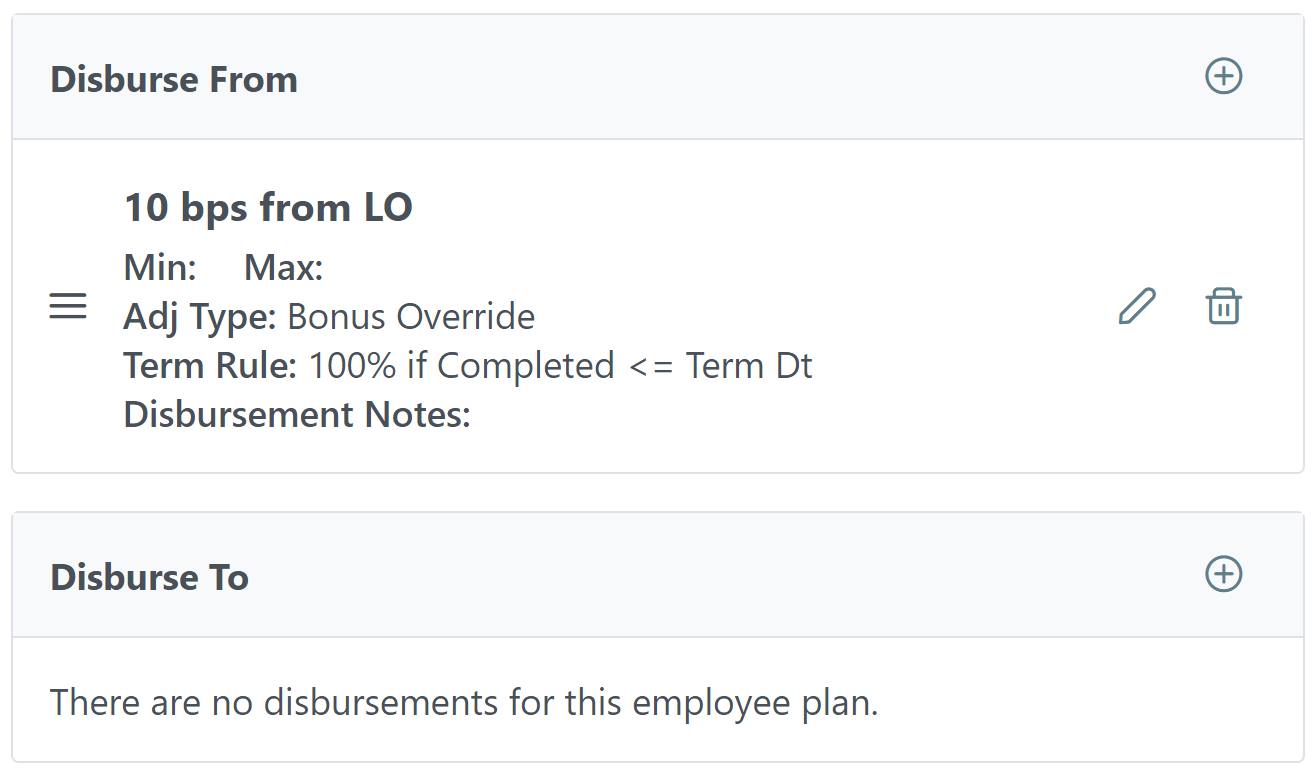
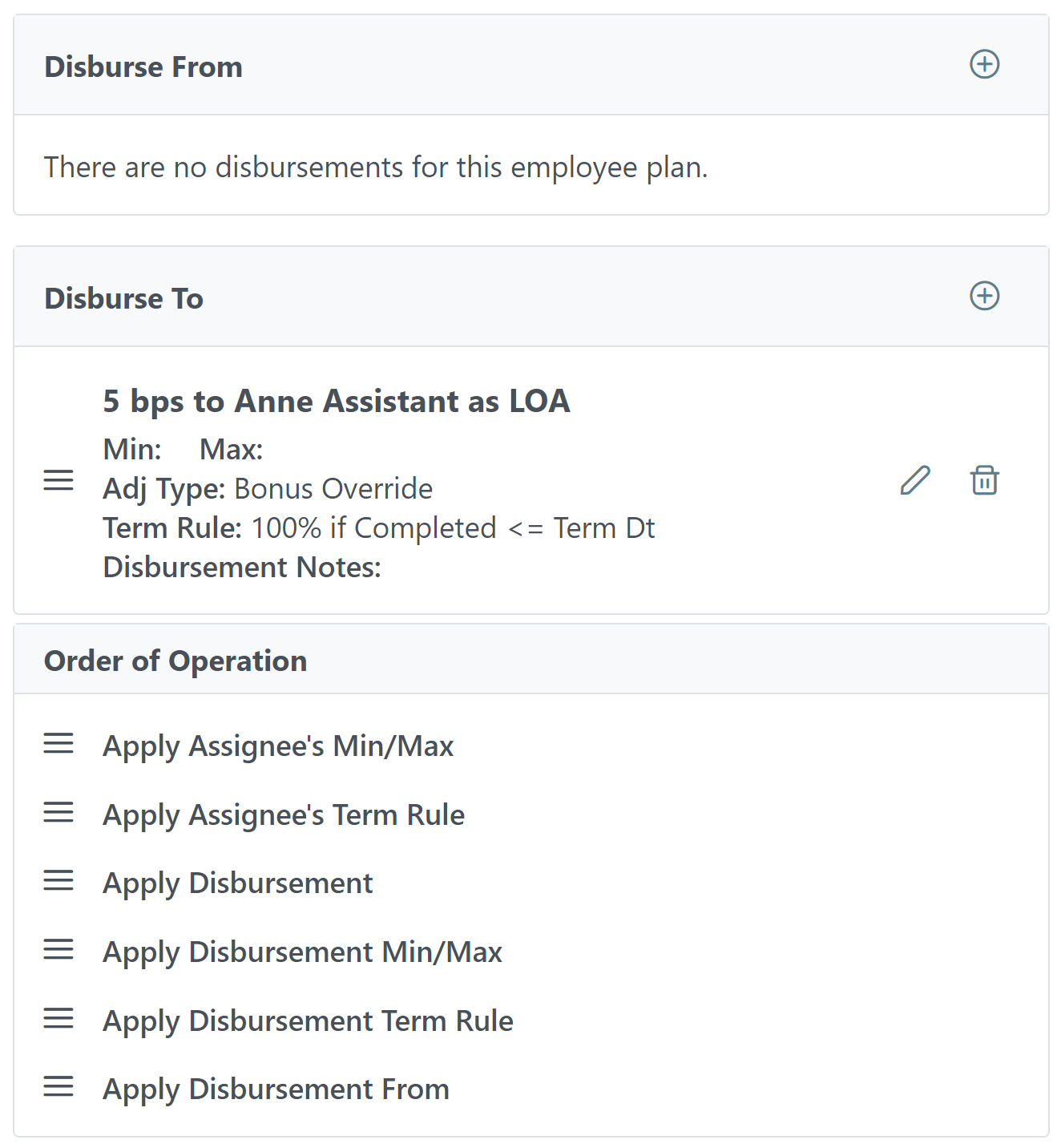
Anne is an LOA who receives 10 BPS from the LO when she assists on a loan. However, when she works with Letitia as the LO, she receives an additional 5 BPS. This can be set up using disbursements in Anne's plan and Letitia's plan.
Anne's plan is a 10 BPS setup with the following disbursements so that her pay is deducted from the LO's pay:
Letitia's plan is a 100 BPS plan with the following disbursement so that Anne receives the additional 5 BPS when working with her:
Assuming an example loan of $250,000 that Letitia and Anne both worked on, pay would calculate as follows:
-
Letitia's receives 100 BPS of $250,000 for her plan: $2,500.
-
Also from Letitia's plan, Anne receives 5 BPS of $250,000, deducted from Letitia: $125.
-
Per Anne's plan, she receives 10 BPS of $250,000, deducted from the LO: $250.
The final pay amounts are:
-
Letitia: $2,125
-
Anne: $375
Example 3: Custom Calculation Order Setup
Lanee is an LO at a company that requires an administration fee be paid for each loan. However, this fee should be deducted BEFORE applying the maximum cap to ensure that she can receive the full amount of her max cap. A disbursement can be created and the calculation order modified on her 100 BPS standard plan to calculate this pay.
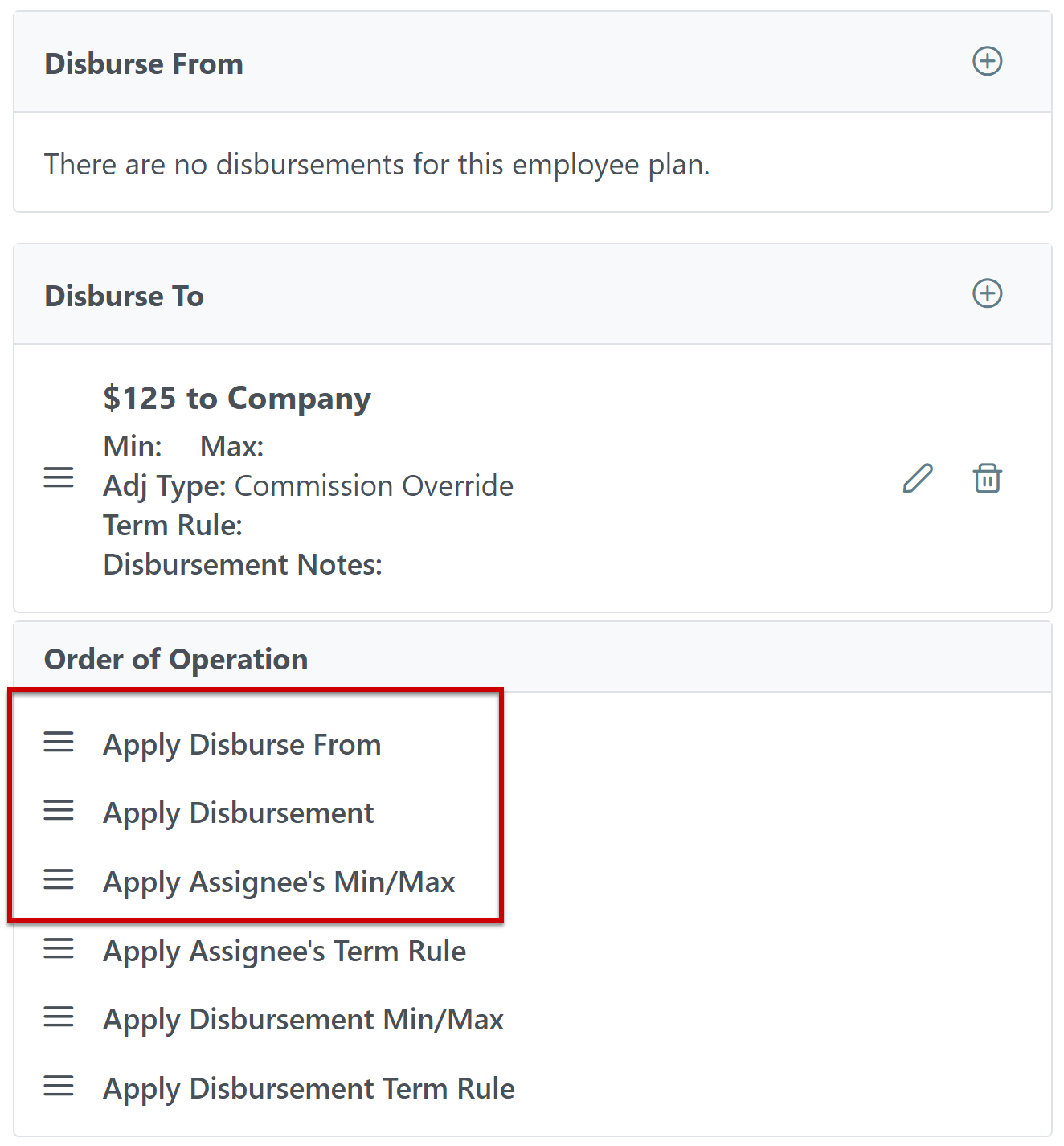
Assume Lanee has a per-paydate maximum of $5,000 and is receiving $4,000 prior to the example loan (of $250,000). This is how pay would calculate for that loan:
-
Lanee receives 100 BPS of the $250,000 loan: $2,500. This bumps her total pay for the period to $6,500.
-
The desk fee disbursement of $125 is applied, deducting that amount from her pay for this loan. This moves her total pay to $6,375.
-
The max cap is applied, capping Lanee's total pay at $5,000.
The final pay amounts for this payroll period are:
-
Lanee: $5,000.
-
Paid to Company (Desk Fee): $125 per loan.
See Also: