Understand Additional Scenarios
Additional Scenarios represent types of loans that may modify or replace the base pay of an Incentive Plan. This article details how to set up Additional Scenarios, and how to effectively use them.
Overview
Additional Scenarios are built onto Incentive Plans, and are activated when a loan matches specific Include conditions. Once a loan matches the conditions, the base plan's pay is replaced or modified.
Build Additional Scenarios
Admins can build Additional Scenarios as part of any Incentive Plan. If the plan's tiers are managed at the assignment level, the tiers of any Additional Scenarios can also be changed per assignment.
To build an Additional Scenario on an Incentive Plan:
-
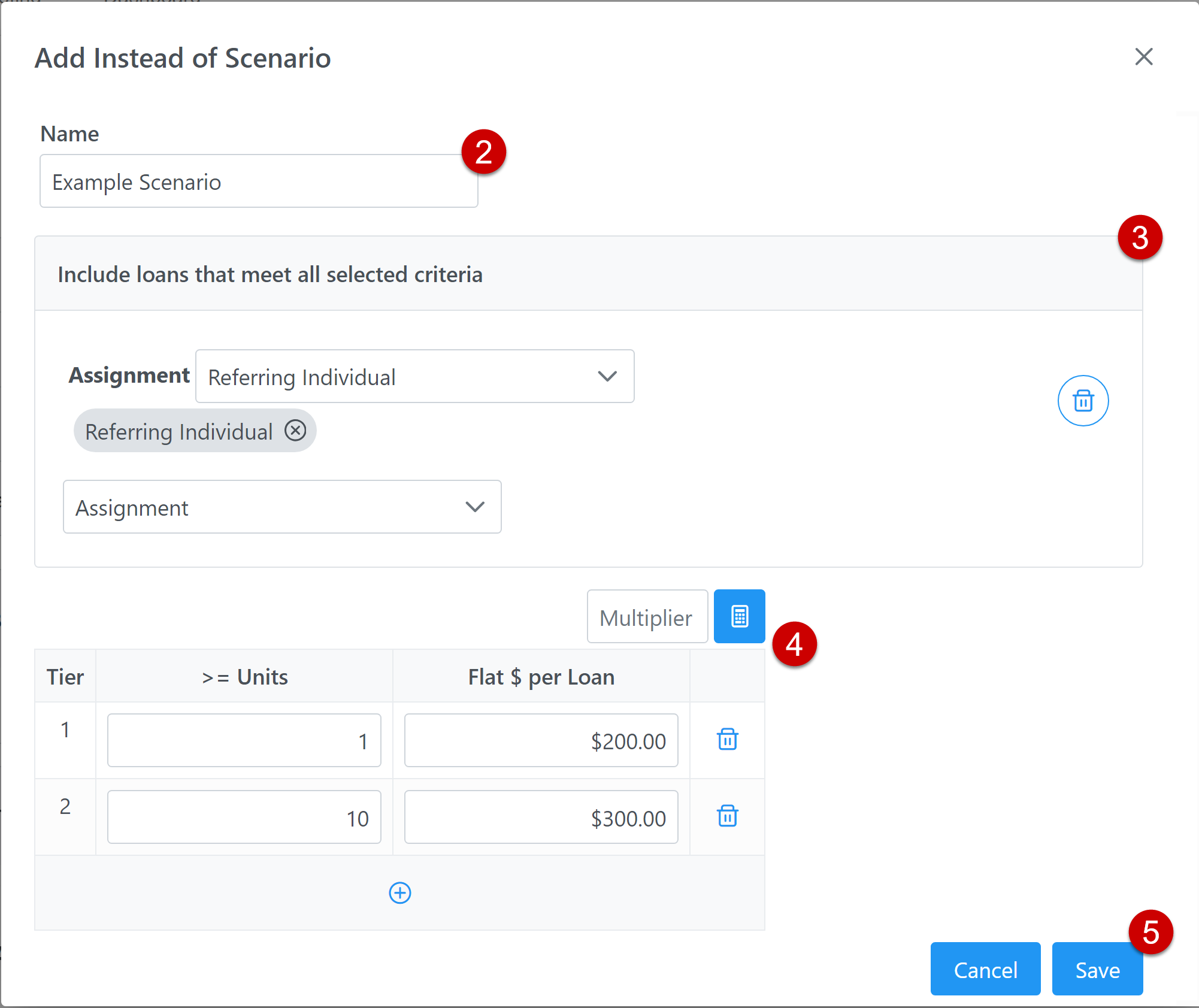
In the Additional Scenarios section, click the Add Scenario button in either the Pay Instead of Base Plan or Pay In Addition To Base Plan subsection.
-
In the window that appears, enter a descriptive, unique name for the scenario.
-
Use the Include section to specify what qualities a loan must have for this scenario to apply.
Note: This Include section applies after everything in the Filter section of the base plan has applied. The Include section on the Additional Scenario only looks at loans that would qualify for the base plan.
- Enter the pay structure for the Additional Scenario. You can update tiers manually, or enter a value into the multiplier and click the calculator button to multiply all tier values by the entered amount.
- Click Save.
Edit Additional Scenarios
Existing Additional Scenarios can be edited on an Incentive Plan, or on an Employee Incentive Plan if the tiers are managed at the assignment level.
On Incentive Plan
-
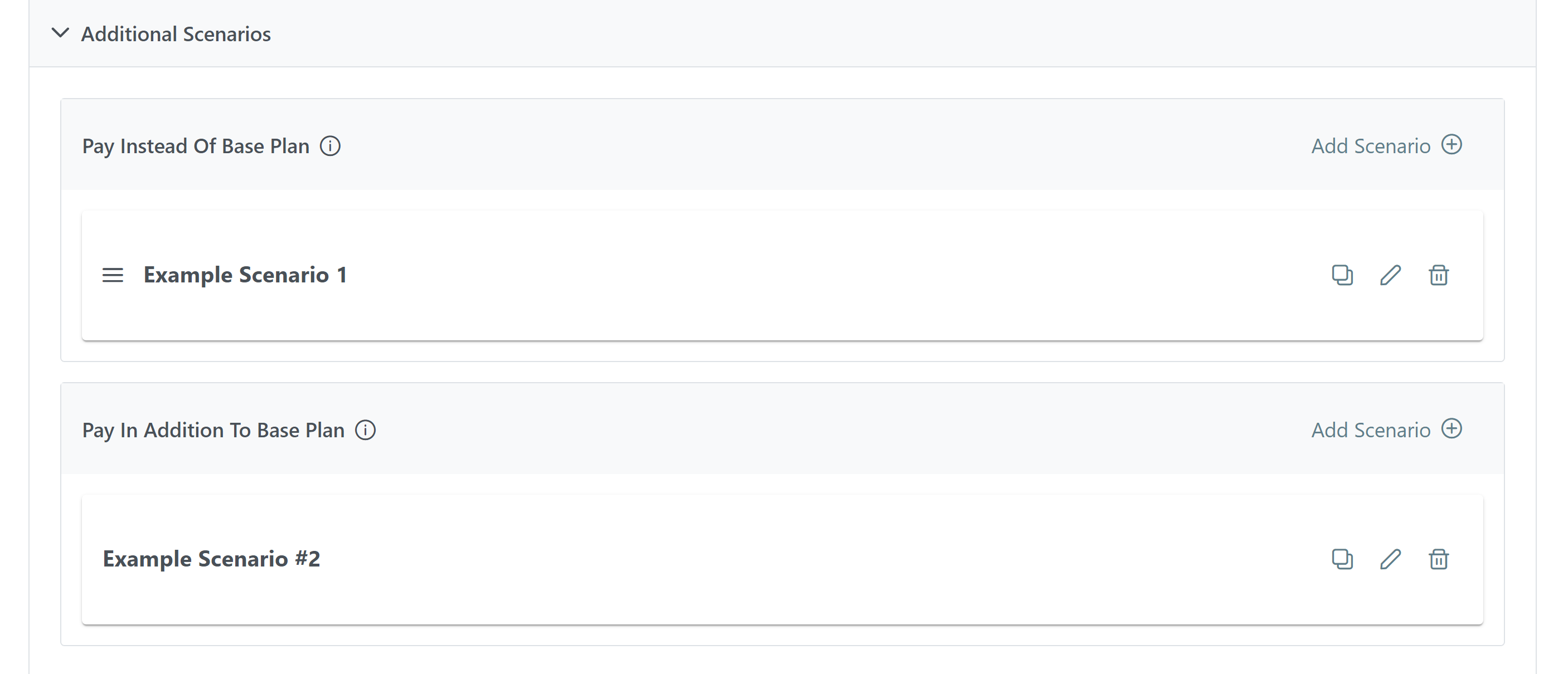
To copy an Additional Scenario, click the copy icon (
 )
) -
To edit an Additional Scenario, click the pencil icon (
 ).
). -
To remove an Additional Scenario, click the trash can icon (
 ).
). -
To change the order of "Instead Of" Additional Scenarios, click and drag the corresponding move icon (
 ) for the scenario. For more information on the calculation order, refer to Additional Scenarios Calculation Process.
On Employee Incentive Plan Assignment
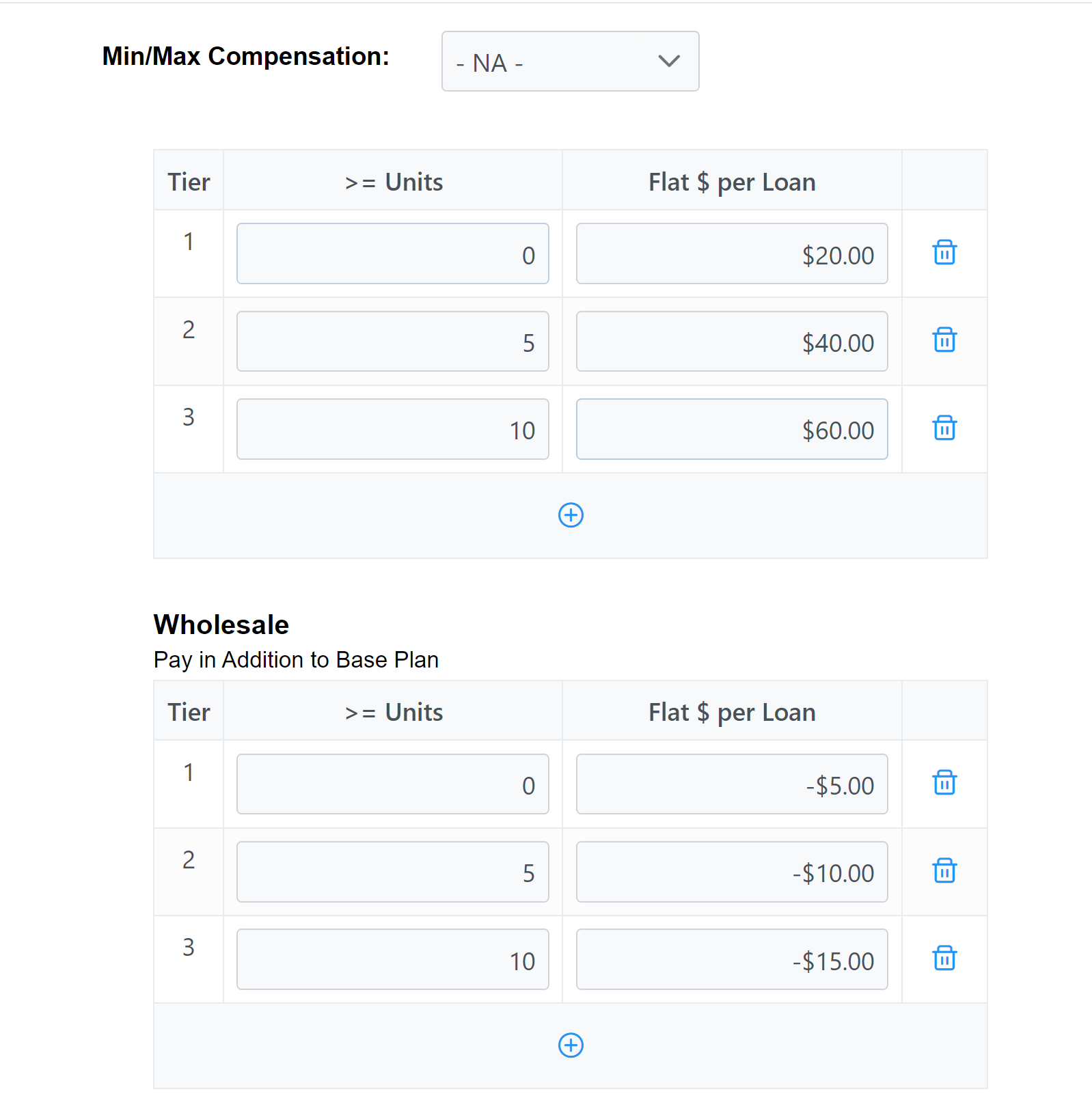
If the tiers on an Incentive Plan are managed at the assignment level, you can edit the tiers of any Additional Scenario on the plan the same way you can edit tiers of the base plan.
Additional Scenarios Calculation Process
-
The base plan's filters apply and a loan is considered if it matches.
-
The base plan's tier structure and pay are calculated.
-
The system checks "Pay Instead of Base Plan" Additional Scenarios.
-
The system checks the loan against all "Instead of" Additional Scenarios in order from top-to-bottom.
-
The first "Instead of" scenario that matches is used for calculation. Any later "Instead of" scenarios are skipped.
-
-
The system checks "Pay In Addition to Base Plan" Additional Scenarios.
-
The system checks the loan against all "In Addition To" Scenarios.
-
All "In Addition To" scenarios are applied. None are skipped.
-
Best Practices
-
Make the base plan's filters as broad as possible, then use Additional Scenarios to replace or modify the base pay depending on the type of loan. This will allow you to cover pay for a variety of loans using a single Incentive Plan.
-
Build replacement scenarios so that loans can never qualify for more than one of them. This makes it easier to manage and troubleshoot plans.
See Also: