Understand Incentive Plans
This article provides an overview of incentive plans. This includes what they are, how they are used, and how to access them.
Introduction to Incentive Plans
Incentive plans are the most flexible compensation plan element in nCino Incentive Compensation. Administrators can use them to pay on both an employee's own production, or on the production of others. There is no limit on how many incentive plans can apply to an employee for a single loan.
Incentive plans can pay a flat amount of dollars or BPS, or an amount based on a tier structure where the tier reached is determined by loan production for the period, metrics, or some combination of the two. Incentive Plans can have a default tier structure, and the tiers can be edited when assigned to an employee. Incentive plans can filter which loans are considered for compensation, whether they count toward units or volume used for tier calculation or, any combination of the three.
Incentive Plan Uses
Because of the versatility of incentive plans, they are appropriate in a variety of scenarios.
Here are some example use cases for incentive plans:
-
Pay a Branch Manager a flat BPS amount on loans completed in their branch.
-
Pay an LOA a flat amount when an LO completes a loan. Deduct that pay from the LO.
-
Pay a Processor a flat bonus when they process a loan that matches a certain metric value.
View Incentive Plans
This section details how to view incentive plans assigned to you through your Employee Details page, and how to view a list of all available incentive plans.
View Your Incentive Plans
To view incentive plans that you are assigned to:
-
Click the Person icon (
 ) to go to your profile.
 -
Click the Comp Plan tab.
-
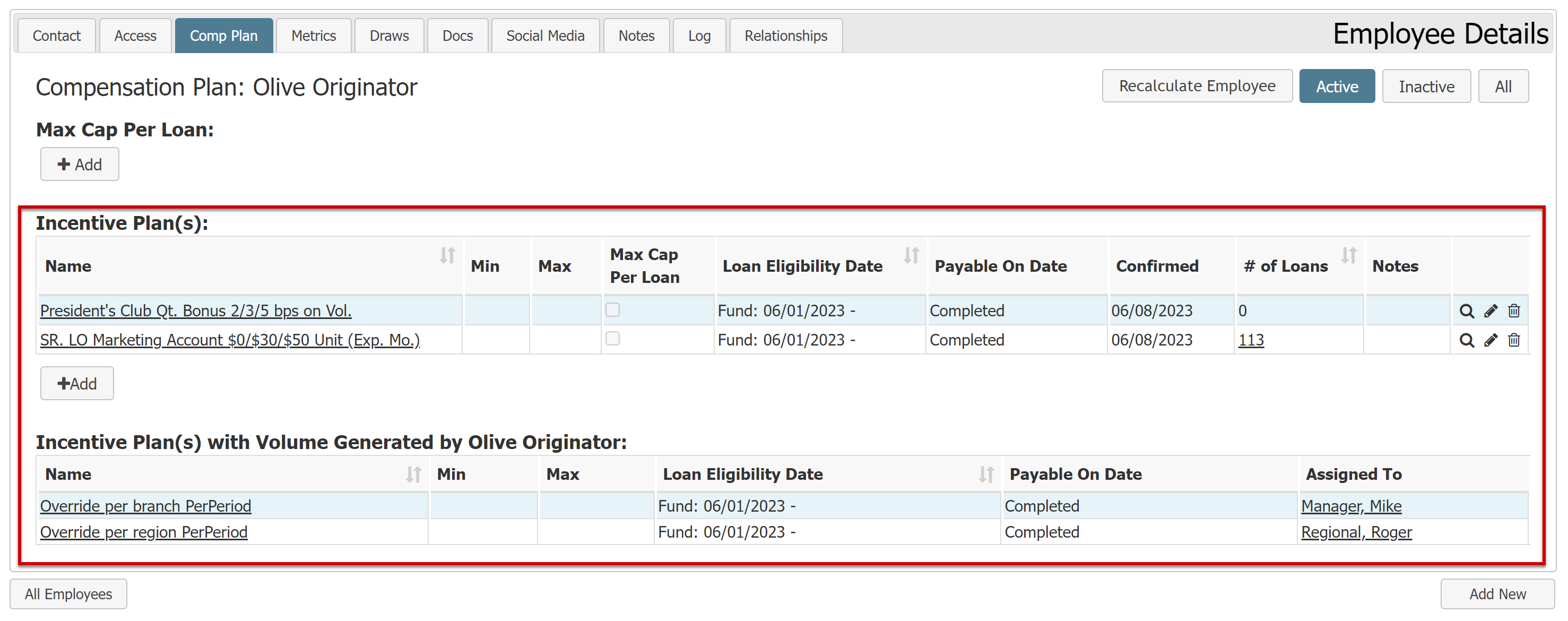
All incentive plans that you're assigned to are under the Incentive Plan(s) header. Depending on your access level, you might also see a section for incentive plans that factor in volume you generate.
View All Incentive Plans
Minimum Compensation Access Level required: Executive
To view a list of all incentive plans:
-
From the nCino Incentive Compensation menu, click Payroll ▼.
-
Click .Incentive Plans.
-
This will take you to a list of all active incentive plans.

View Individual Incentive Plan Page
Users can view an individual incentive plan by clicking the name of the plan on the list of available incentive plans.
Note: This page is different from an "Employee Incentive Plan" which describes the information about one user's plan assignment. The Incentive Plan page includes an outline of the incentive plan selected and the default tiers, if present.
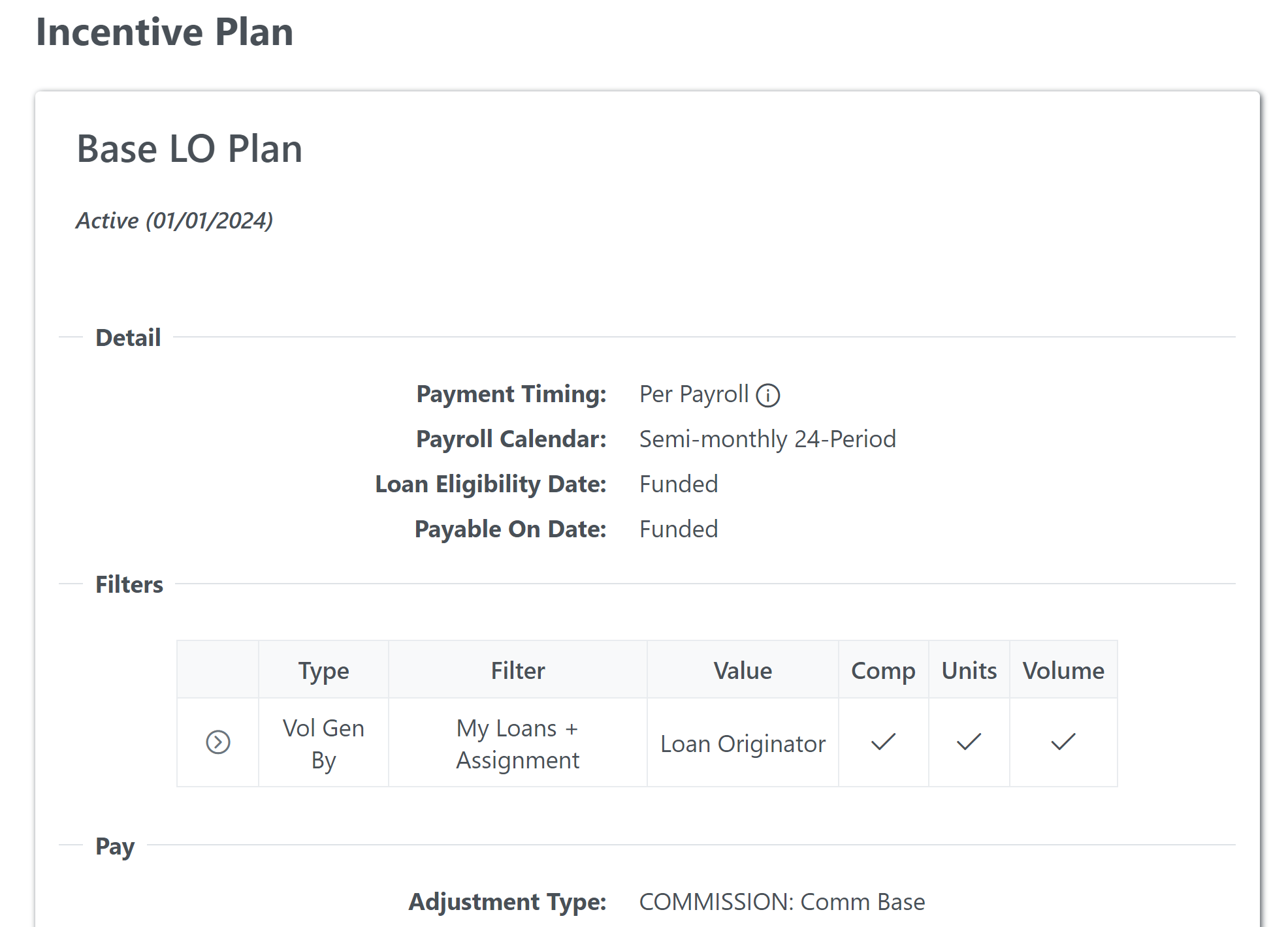
Admin users will have an Edit button with a dropdown menu available on the individual incentive plan view.
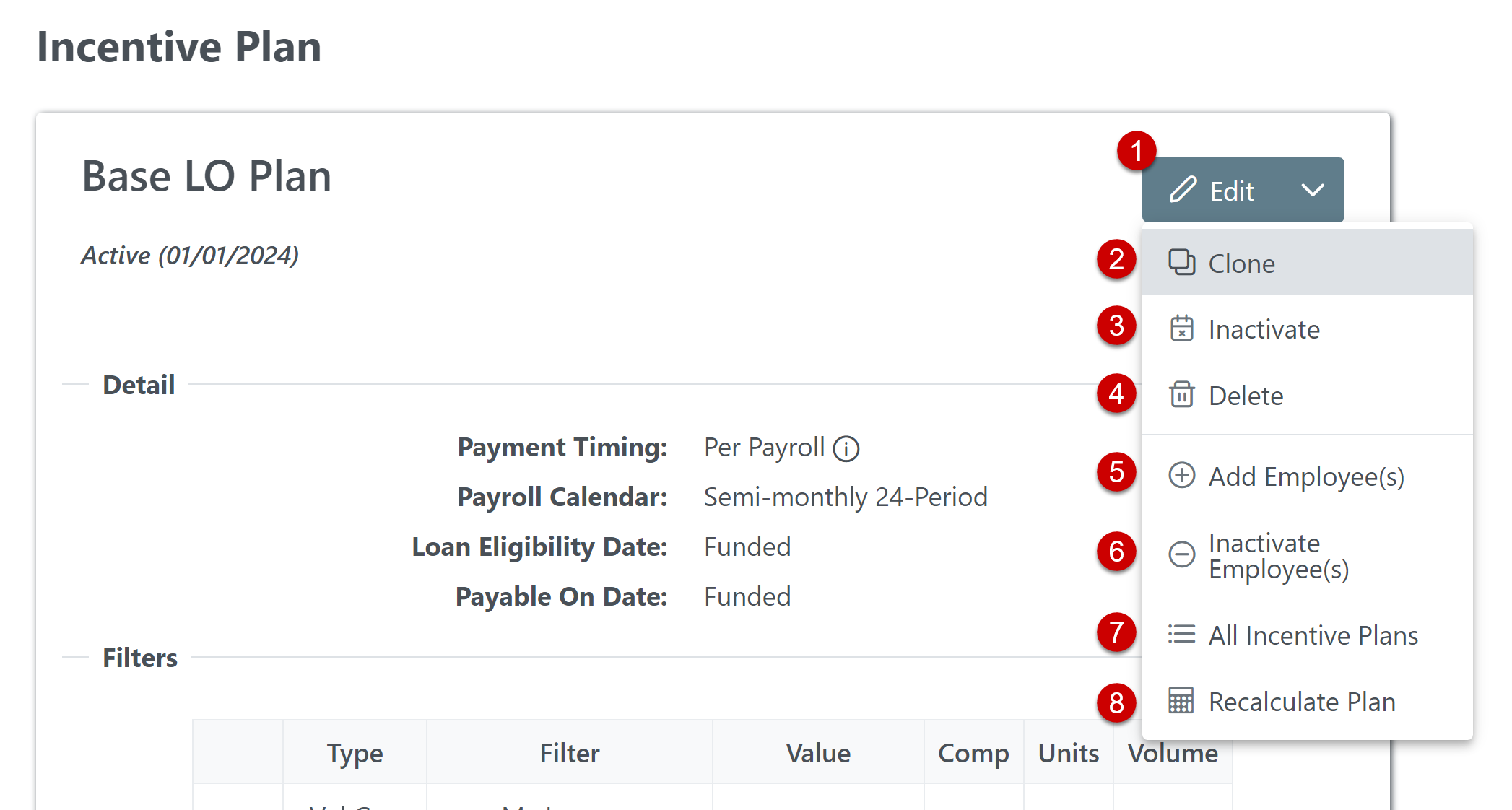
The Edit button has the following options:
-
Edit: Edit the incentive plan.
-
Clone: Create a copy of the incentive plan. The copy can be edited and saved separately.
-
Inactivate: Inactivate the incentive plan. A window appears asking for a stop date and matching loan eligibility stop date. From this window, admins can also inactivate all assignments of the incentive plan.
- Delete: Delete the incentive plan. This option will not be visible if an incentive plan has any transactions in a locked pay period.
- Add Employee(s): Assign one or more employees to the incentive plan. For more information, see Assign Incentive Plans to Employees.
- Inactivate Employee(s): Inactivate employee assignments. For more information, see Use the Inactivate Multiple Assignments Tool.
- All Incentive Plans: View the list of all incentive plans.
- Recalculate Plan: Recalculate all assignments of this plan for all payroll periods that are unlocked and ongoing.
The bottom section of the individual incentive plan page lists information about the plan itself.
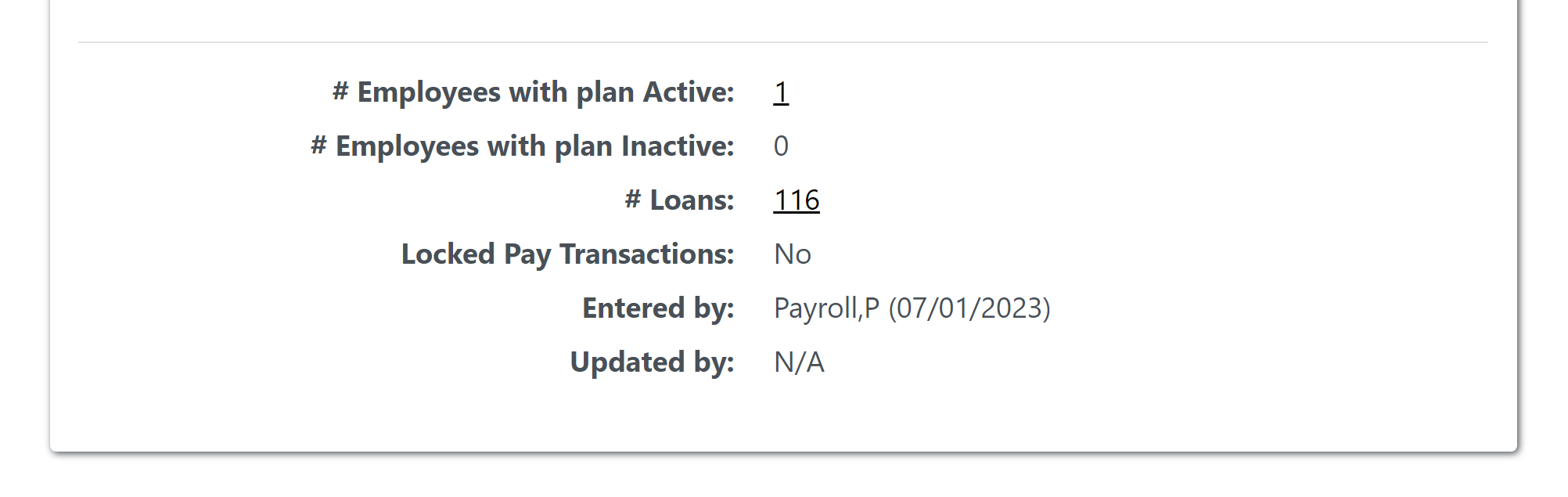
This includes the following information:
-
# Employees with plan Active: Number of employees with this plan actively assigned to them. Click to view a list of all employees with this plan assigned to them.
-
# Employees with plan Inactive: Number of employees with this plan assigned to them, but currently inactive. Click to view a list of all employees with this plan inactive.
-
# Loans: Number of loans that qualified for this plan. Click to view a list of these loans.
-
Locked Pay Transactions: Whether or not this plan has pay transactions in a locked payroll period. If this is "Yes", the plan cannot be deleted.
-
Entered by: User who entered the plan and when.
-
Updated by: User who last updated the plan, and when.
How Incentive Plans Work
Here is a brief description of how incentive plans calculate pay.
The system uses the options in the Filters section to determine which loans to consider:
-
Volume Generated By: This section determines the overall "pool" of loans the incentive plan will consider for compensation.
-
Include loans that meet all selected criteria: If there are any loan elements indicated in the Include section, ONLY loans that match the indicated criteria will be considered.
-
Exclude loans that meet any criteria: Loans that match any loan elements indicated in the Exclude section will be excluded from consideration. Each element indicated here contains the option to be excluded from compensation, tier units, tier volume, or some combination of the three.
Determine the pay amount based on those loans.
-
Check the tier level, if any. Tier settings exist on a per-assignment level, but plans can have default tier settings that apply to all assignments, or can be modified per assignment. This check is done based on the pool of applicable loans, including loans that are able to contribute to the tier level per the criteria set in the Include and Exclude filter sections.
-
Calculate the pay based on the tier level and the details in the Pay section for loans available for compensation.
-
At the end of the incentive plan's selected Payment Timing, add the payment to the employees compensation.
-
For more information, see Understand Payment Timings.
-
See also: