Assign Incentive Plans to Employees
This article details how to assign incentive plans to individual employees.
Access the Assign Incentive Plan Tool
There are two ways to access the Assign Incentive Plan Tool:
-
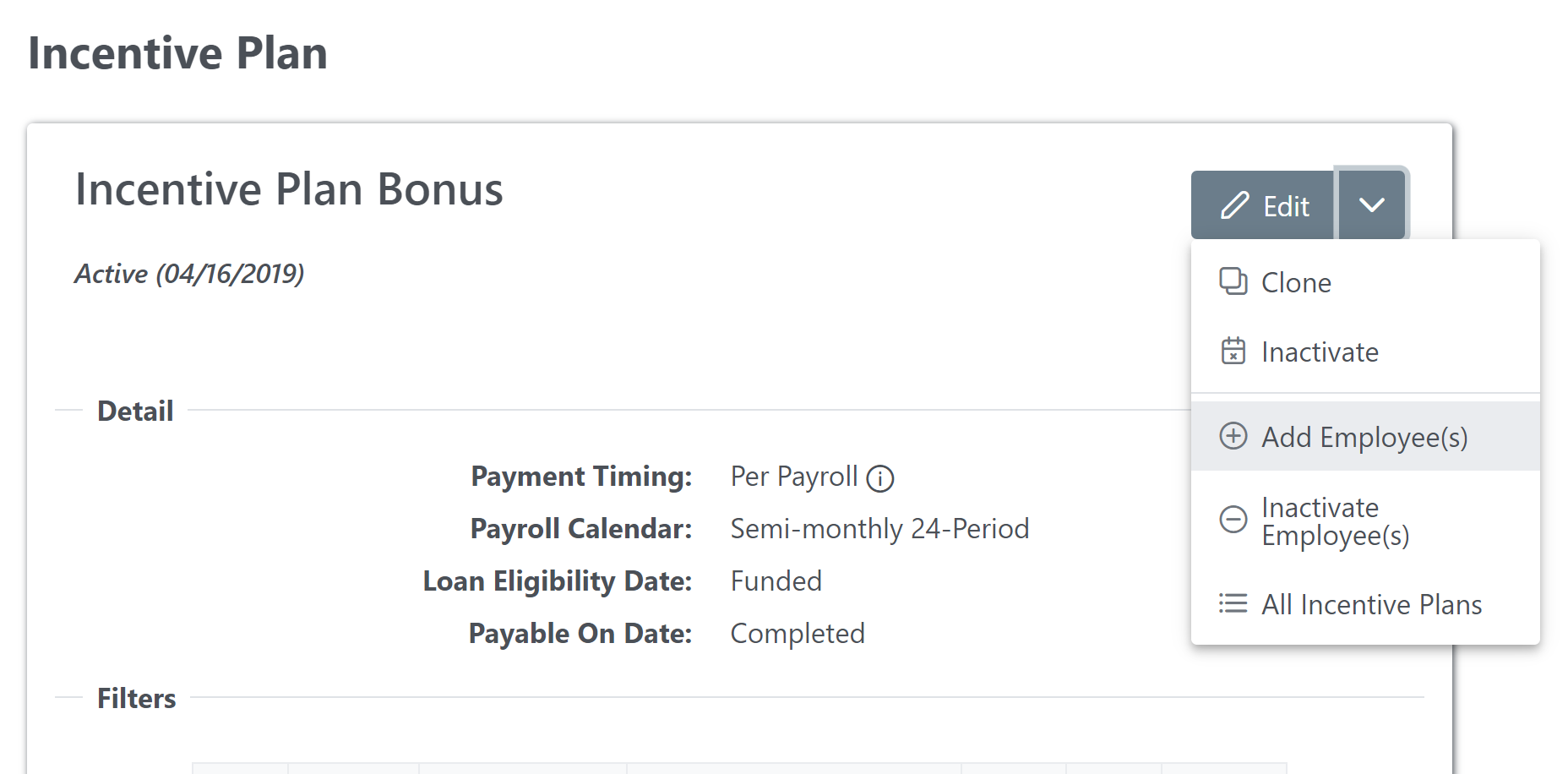
From the Incentive Plan, you can click the arrow next to the Edit button, then Add Employee(s).
-
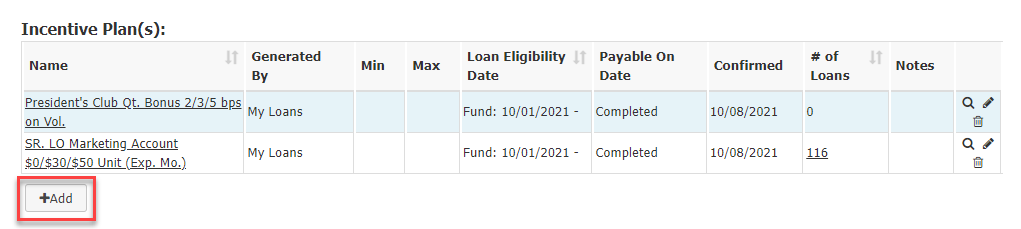
From the employee's Comp Plan tab, click the +Add button in the Incentive Plan(s) section.
Use the Employee Incentive Plan Assignment Tool
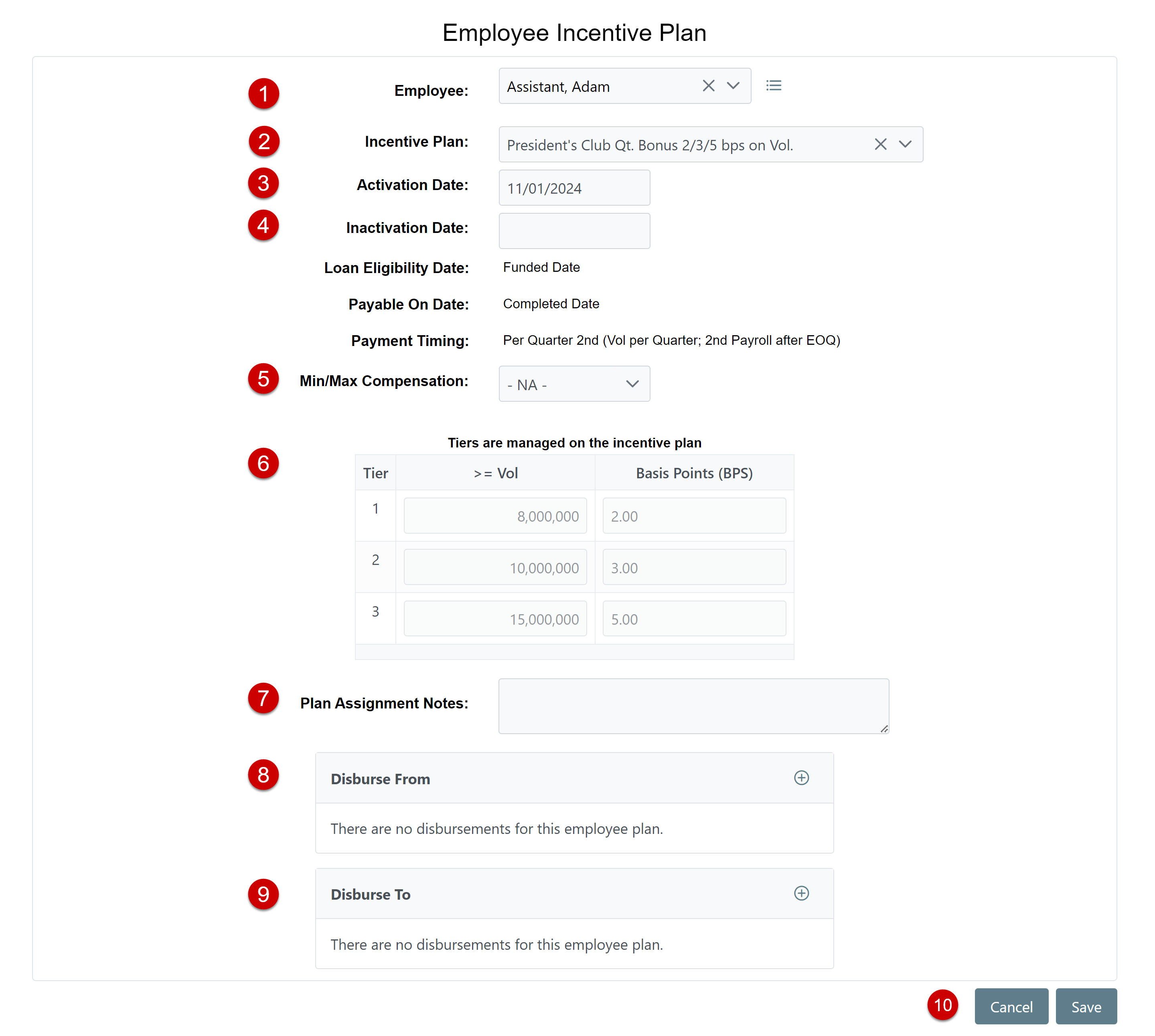
The Employee Incentive Plan assignment tool has the following sections:
-
Use the employee selector (1) to choose who to assign the incentive plan to. If you entered the assignment tool from an employee’s details page, this defaults to that employee.
-
Use the incentive plan selector (2) to choose which incentive plan to apply. If you entered the assignment tool from an incentive plan details page, this defaults to that incentive plan.
-
Enter the activation date (3). By default, this is today’s date.
-
(Optional) Enter the inactivation date (4).
-
If there should be minimum(s) or maximum(s) for this assignment, select its setup with the min/max tool (5). For more information, see Set Up Min/Max below.
-
Review and edit (if enabled) the scenarios and associated tiers (6). If tiers are managed per assignment, you can edit them here. For more information, see Set Per-Assignment Tiers below.
-
Enter any notes (7) for the assignment.
-
Enter any disbursements in the Disburse From (8) and Disburse To (9) sections. For more information on disbursements, refer to Understand Disbursements.
-
When complete, click Save(10) to save the assignment.
Set Up Min/Max
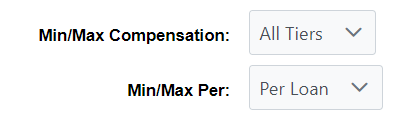
nCino Incentive Compensation includes a variety of minimum and maximum options when assigning incentive plans. When min/max are enabled, additional options appear. The two options are controlled by the following dropdowns:
-
Min/Max Compensation: Determines whether or not min/max is used.
-
– NA -: Not using min or max. The “Min/Max Per” drop down will not be visible.
-
All Tiers: The min/max applies the same to all tiers of the plan, and to all scenarios on the plan. This will make minimum and maximum fields visible.
-
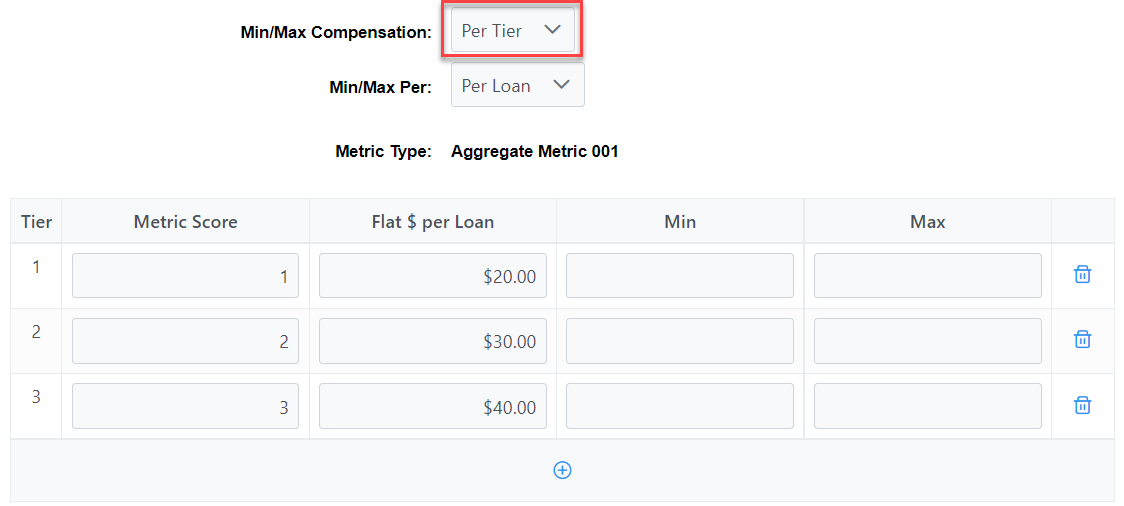
Per Tier: The min/max can be different for each individual tier (see image below). They can also be different for different scenarios.
-
-
Min/Max Per: What’s used in min/max calculations.
-
Per Loan: The min and/or max is determined on a per-loan basis.
-
Per Payment Timing: The min and max is applied to the total of all pay for this incentive plan within each pay period that the plan pays out.
-
Note: When creating or editing an incentive plan with a metric that is used to determine the tier level reached, you should NOT use the following options simultaneously:
-
Min/Max Compensation: Compensation Per Tier
-
Min/Max Per: Per Tier
Set Per-Assignment Tiers
The incentive plan assignment tool allows users to edit the tiers used in payment calculation for incentive plans that allow tiers to be managed at the per-assignment level. You can add, edit, and remove tiers when you assign plans.
If the plan includes additional scenarios, the tiers can also be set for each scenario.
-
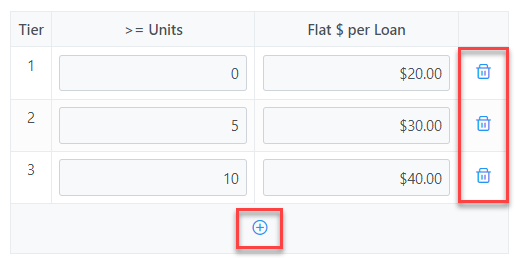
When assigning a plan that has tiers managed at the per-assignment level, the assignment initially shows the default tiers listed on the plan.
-
You can edit a tier by typing in a new value in one of its text boxes.
-
You can click the plus button (
 ) at the bottom of the tier list to add a new tier.
 -
You can click the trashcan (
 ) icon to the right of a tier to remove it.
See Also: