Use the Inactivate Multiple Assignments Tool
The Inactivate Multiple Assignments tool allows admins to inactivate compensation plan assignments for multiple users at once. This tool is useful when making large changes to your company's compensation structure.
Note: This tool is specifically for mass-inactivating assignments. Schedules, allocations, and incentive plans must be inactivated individually.
Overview
The Inactivate Multiple Assignments tool is available for Schedules, Allocations, and Incentive Plans. Admins can use this tool to inactivate several employees who are assigned the same Schedule, Allocation, or Incentive Plan. The tool functions the same regardless of what is being inactivated.
Access the Tool
From a Schedule
-
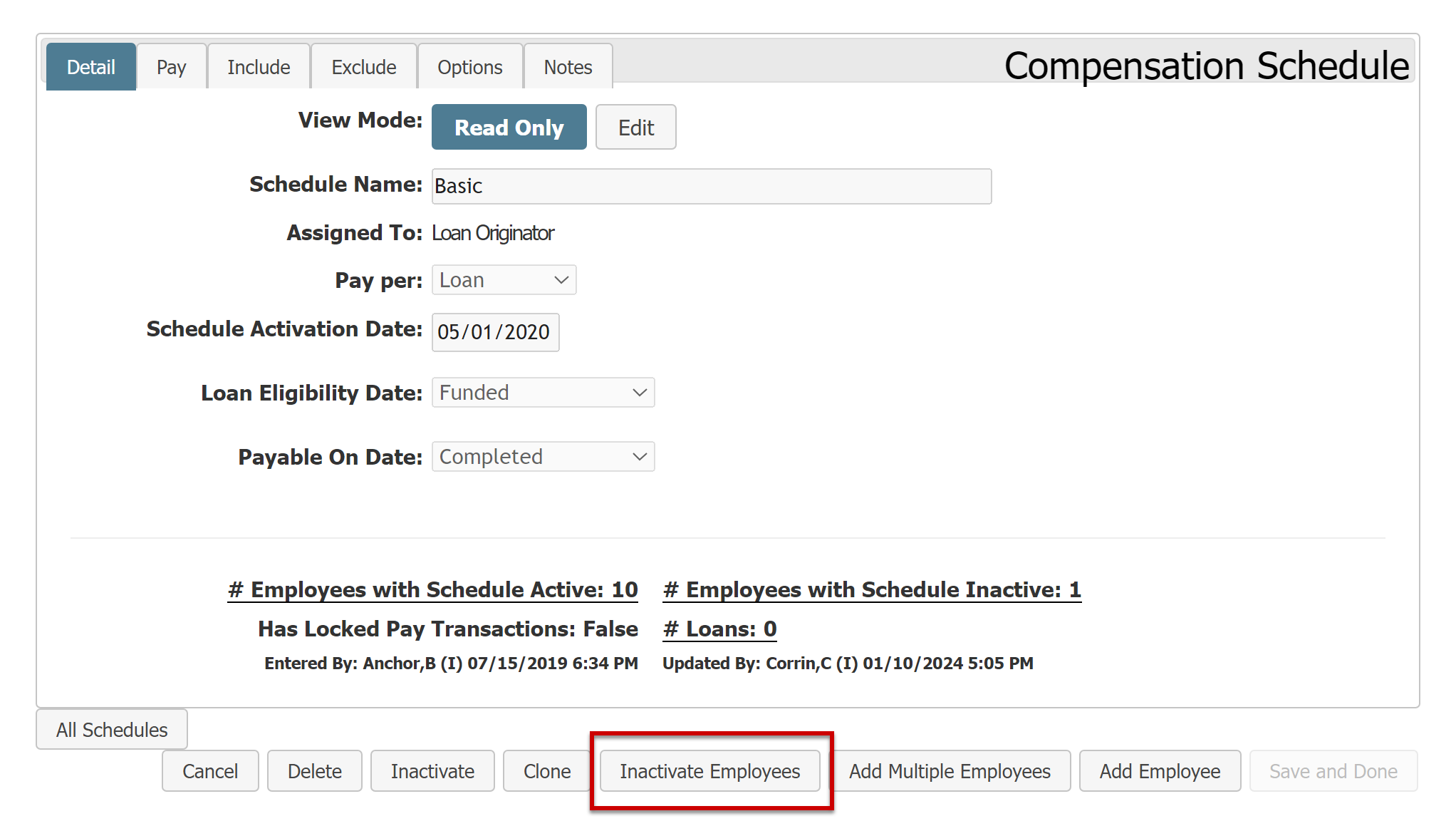
Navigate to the Schedule you want to mass inactivate.
-
Click Inactivate Employees.
From an Allocation Plan
-
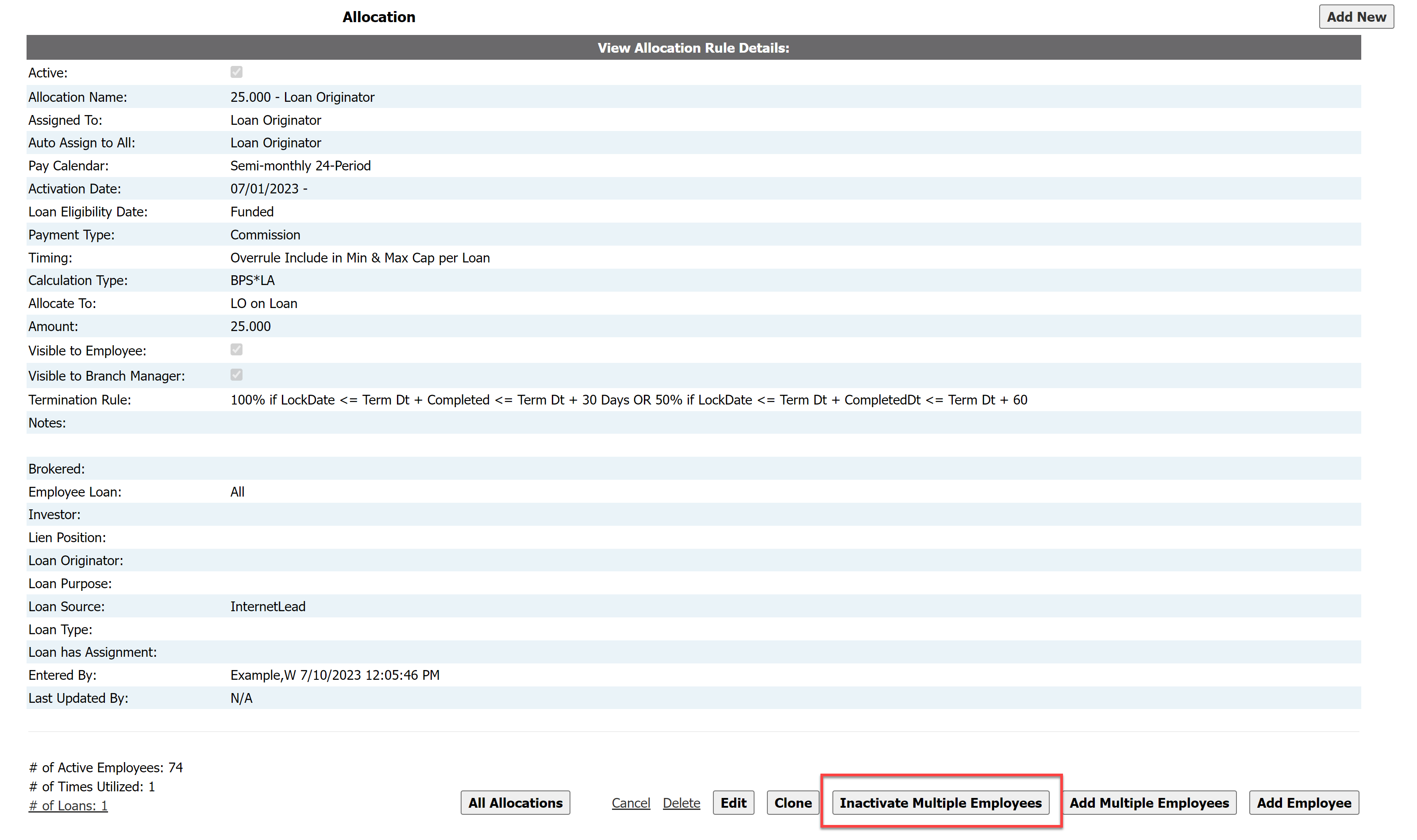
Navigate to the Allocation you want to mass inactivate.
-
Click Inactivate Multiple Employees
From an Incentive Plan
-
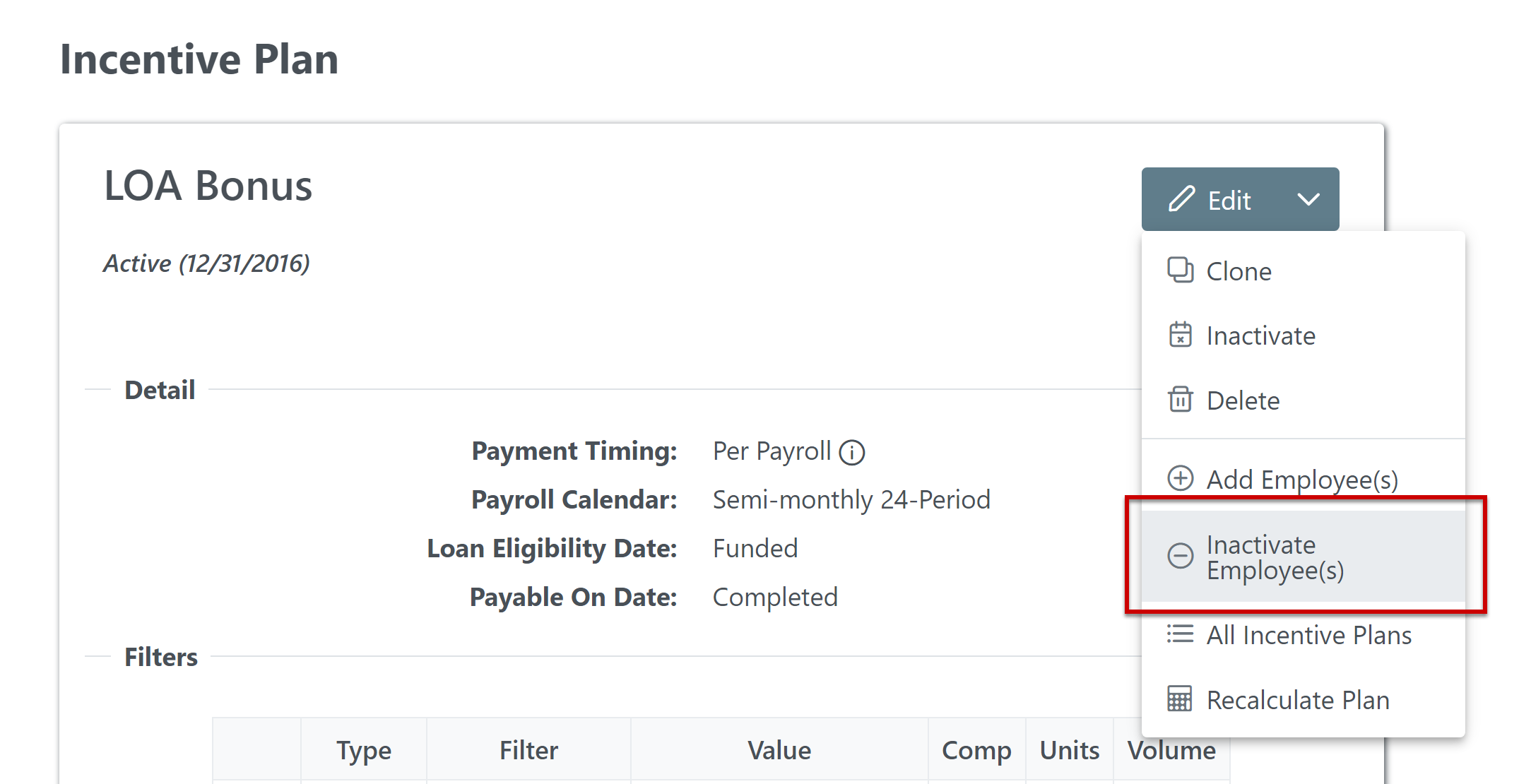
Navigate to the Incentive plan you want to mass inactivate.
-
Click the arrow next to the Edit button.
-
In the menu that appears, click Inactivate Employee(s).
Use the Tool
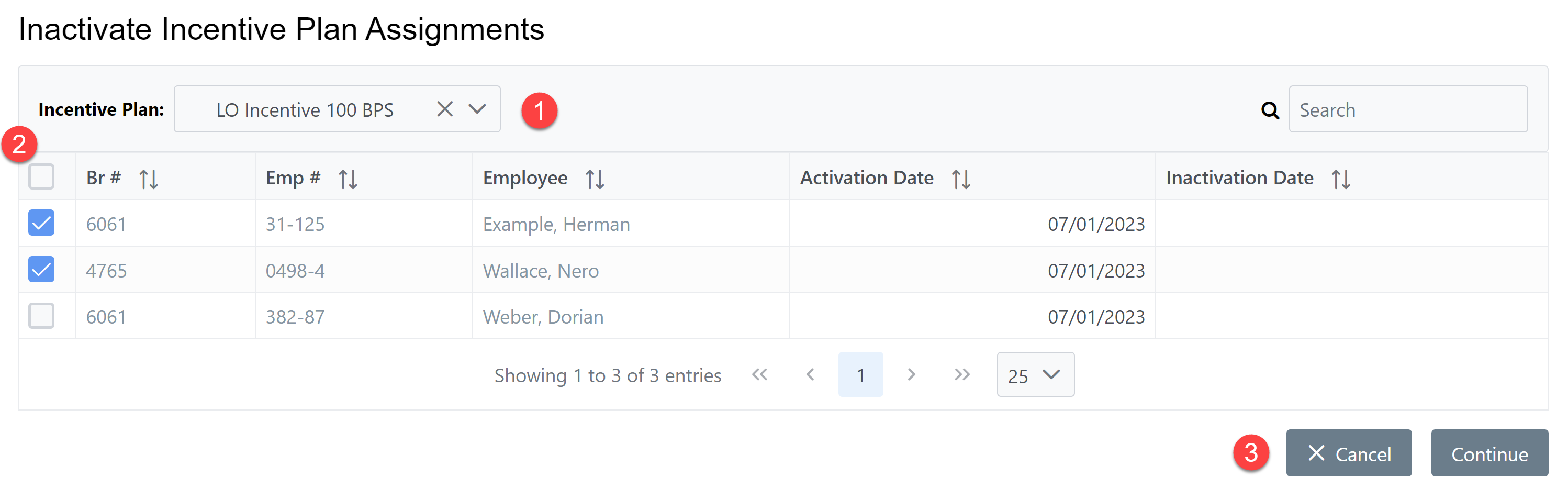
-
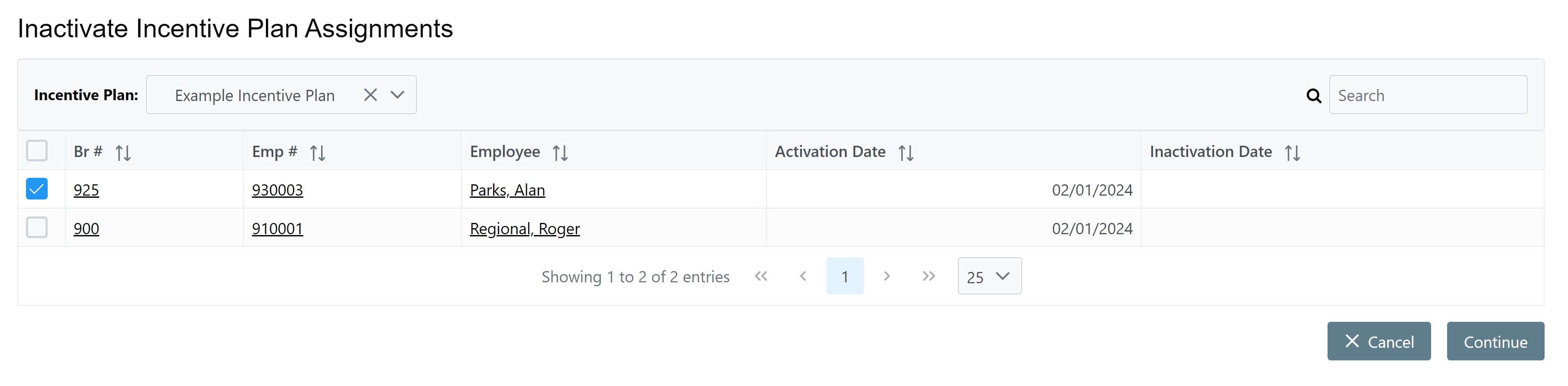
Ensure you've selected the correct item. If this is incorrect, you can click the dropdown menu to select a different item.
-
Mark the users with assignments that you want to inactivate. You can click the check box at the top of the column to select all assignments.
-
To continue mass inactivation, click Continue. To discard any changes, click Cancel.
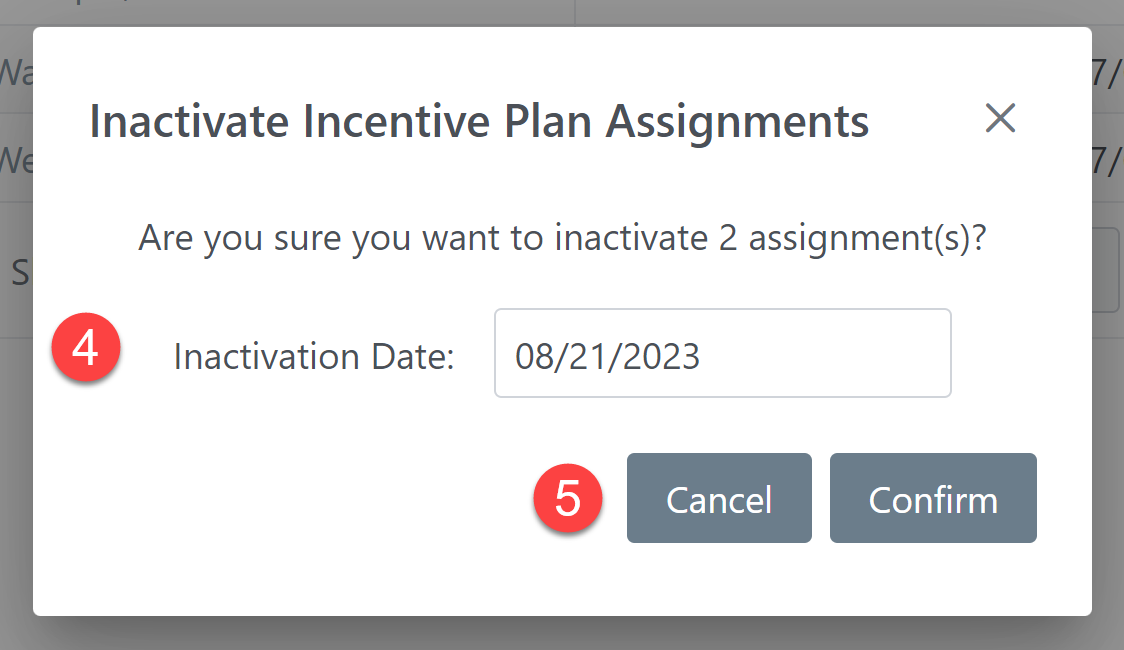
-
Confirm the inactivation date for the assignments. If you want to change the inactivation date, click the date box to select a new date.
-
To finish the mass inactivation, click Confirm. To go back to the assignment list, click Cancel.
See Also: