Use the Add Multiple Employees Tool
nCino Incentive Compensation allows users to assign Schedules and Allocations to multiple users at once using the " Add Multiple Employees' tool. This article outlines how to use the tool.
The Add Multiple Employees allows for setting minimums and maximums for ALL tiers. To use the per-tier minimum and/or maximum option, the employee must be assigned to the schedule individually.
NOTE: This tool only shows employees that have 2 or fewer schedules. Employees with 3 or more schedules will need to be assigned individually.
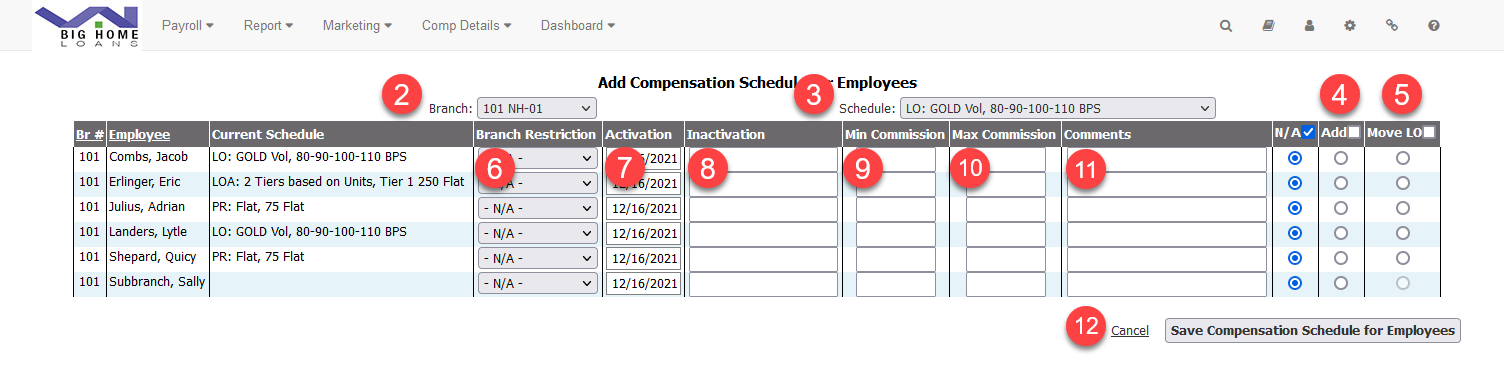
- At the bottom of the schedule you want to assign to multiple employees, click the Add Multiple Employees button.

- Branch: Set to “All to see all employees, or a specific branch for employees from that branch.
- Schedule: Name of schedule.
- Add Buttons: Click to add employee to the schedule.
- Move LO Buttons: Inactivates their current schedule and assigns the selected schedule to them.
- Branch Restriction: Restrict the plan to specifically paying for loans on the chosen branch.
- Activation Date: Start date for the schedule.
- Inactivation Date: End date for the schedule, can be left blank.
- Min Commission: For all tiers.
- Max Commission: For all tiers.
- Comments: Used for notes.
- Save Compensation Schedule for Employees: Click to save and assign; cancel to disregard.
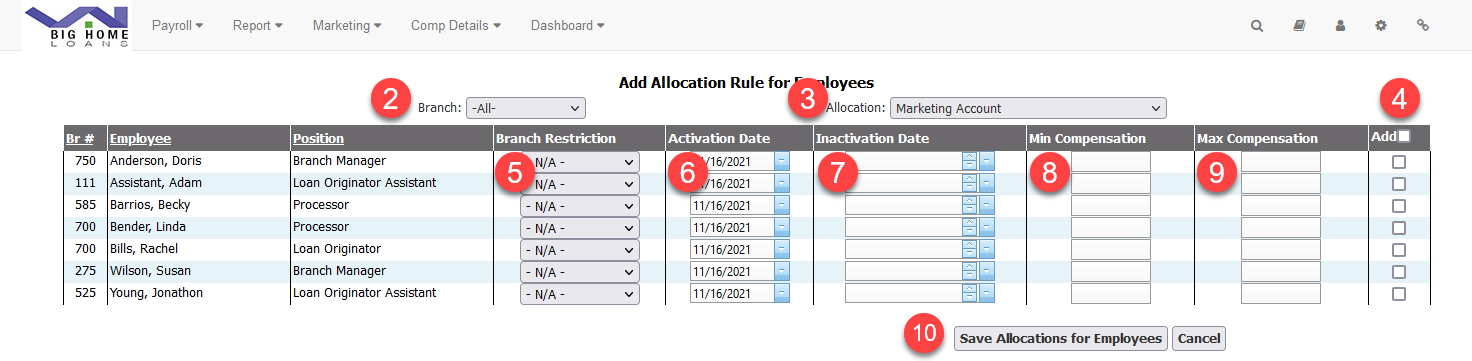
- At the bottom of the Allocation, click Add Multiple Employees.

- Branch: Set to “All to see all employees, or a specific branch for employees from that branch.
- Allocation: Name of allocation.
- Add Buttons: Click to add employee to allocation.
- Branch Restriction: Click to restrict the allocation to considering loans from a specific branch. Otherwise, leave as "-N/A-".
- Activation Date: Start date for allocation.
- Inactivation Date: End date for allocation. Can be left blank.
- Min Compensation: For all tiers.
- MaxCompensation: For all tiers.
- Save Allocations for Employees: Click to save and assign, cancel to disregard.