Note: Schedules and Allocations were retired in March 2025. For more information, refer to Schedule and Allocation Retirement Next Steps.
Understand Allocation Rules
This article discusses allocation rules in nCino Incentive Compensation. It reviews:
nCino Incentive Compensation calculates Allocation Rules for the current pay period every morning or on demand. An administrator can force a recalculation at any time from the Corp Payroll Menu. The Allocation Rules will stop calculating for the current pay period if the pay period is locked down.
Shared Split and Overrule allocations require an assigned schedule in order to activate. However, allocations that use Net Revenue or Outside Allocation do not require an assigned schedule.
NOTE: If you are creating or assigning an allocation that pays based on Commission %, you might need to recalculate that employee’s pay twice in order to see changes prior to lock down.
Creating A New Allocation Rule
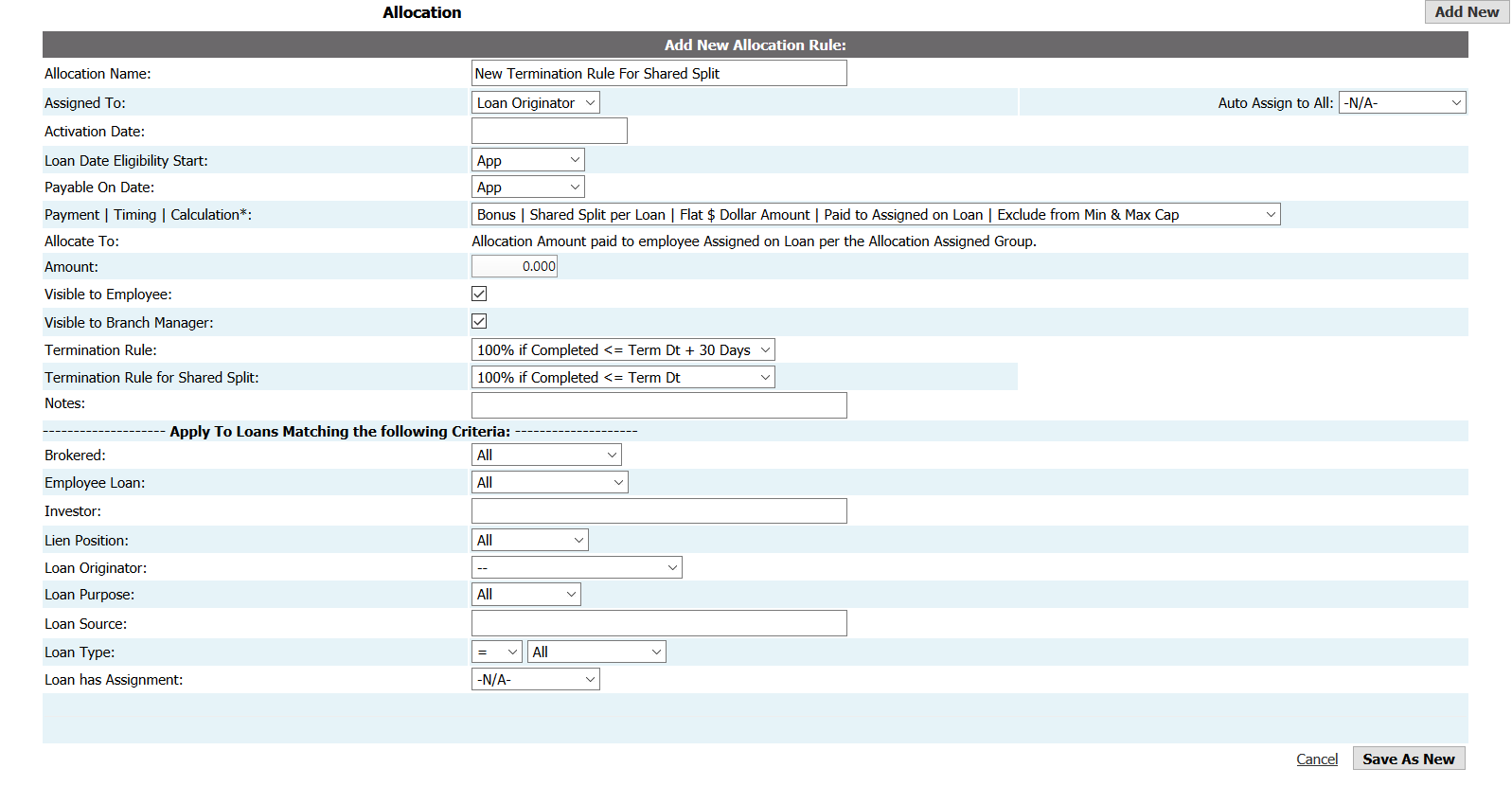
To create a new allocation rule in nCino Incentive Compensation,
From the Payroll menu, click + New Allocation.
On the Add New Allocation Rule page, create the new rule per agreed upon terms. The following information is required:Allocation name: Name to identify the allocation schedule
NOTE: To use the same name for an allocation the activation date must be different from the other allocation with the same name.
- Assigned To: Select assignment role from the dropdown list. This indicates when the allocation rule is activated for the employee assigned to a loan as the selected role.
- Auto Assign to All: Select an assignment role to have the allocation rule automatically assigned to all active employees in that role with an active compensation schedule. Otherwise, leave as -N/A- to manually assign the allocation to individual employees. In order for the “Auto Assign feature to run, the employee must have an active compensation schedule assigned to the same assignment role (LO, LOA, PR,…). If the employee does not have an active schedule, then the “Auto Assign feature will not run for the employee. Incentive Plans are not included in the assessment.
NOTE: Removal of the allocation can only be done at the individual employee level. For example, an allocation rule is created, with Processor selected in the Auto Assign to All field. The allocation will be assigned to all processors with an active compensation schedule. The next day, if the allocation is edited and changed from processors to loan originators, the allocation rule will be added to all loan originators' comp plans.
- Activation Date: Select date from the calendar.
NOTE: The active date for the allocation rule at the employee level will be the allocation’s start date or the employee’s activation date, whichever is later.
The active date for the allocation rule at the employee level will be the allocation's start date or the employee's activation date, whichever is later.
- Trigger Determining Eligibility: Select status from the dropdown list .
- Payment | Timing | Calculation*: Select the payment type, allocation timing, calculation type, recipient of allocation, and min/max cap from the dropdown list.
NOTE: For more information on Trigger Date Determining Eligibility, please read our Trigger Date Determining Eligibility article.
- Allocate To: This will be based on the Payment | Timing | Calculation* method selected above.
- If Paid to Assigned on Loan is selected, no action is necessary in this step. The allocation amount is credited to the role selected in the Assigned To field.
- If Paid to Specific Employee is selected, select employee from the dropdown list.
- If Paid to LO on Loan is selected, no action is necessary in this step. The allocation amount is paid to the assigned Loan Originator on the loan.
- If Paid to Processor on Loan is selected, no action is necessary. The allocation amount is paid to the assigned Processor on the loan.
- If Paid to Branch/Company is selected, no action is necessary in this step. The allocation amount is deducted from the LO’s commission and retained by the branch/company.
- Amount: Type amount of allocation. Actual amount allocated will auto generate based on the calculation type selected in Payment | Timing | Calculation*.
- Visible to Employee: Check the checkbox to make the allocation rule visible to the employee paying the allocation.
NOTE: The allocation rule is always visible to the employee receiving the allocation.
- Visible to Branch Manager: Check this checkbox to make allocation rule visible to the branch manager.
Notes: Text field for any notes or comments used for reference and reporting purposes only. - Termination Rule: Termination rules are automatically assigned when the Assigned to is chosen. For more information on termination rules, read Understand Termination Rules.
- N/A: Employee will be paid 100% of compensation if they are assigned to loan regardless of termination
- $0 if Completed > Term: If the loan is completed after the termination date, the employee will be paid $0. The employee will be paid 100% of compensation if the loan is completed on or prior to termination date.
- Y% if Completed <= Term + X: If the loan is completed within X days after the termination date, the employee will be paid Y% of compensation. After X days, the employee will be paid $0. The employee will be paid 100% of compensation if the loan is completed on or prior to termination date.
- Y% if Completed <= Term + X Else Y2% if Completed <= Term + X2: If the loan is completed within X days after the termination date, the employee will be paid Y% of compensation. If the loan is completed within X2 days after termination, the employee will be paid Y2% of compensation. After X2 days, the employee will be paid $0.
- Y% if <Milestone> <= Term & Completed <= Term + X: If the loan is through <Milestone> on or before the employee’s termination date and completed within X days after termination date, the employee will be paid Y% of compensation. After X days, the employee will be paid $0.
- Termination Rule for Shared Splits: This field assigns a termination rule for the Allocate To position.
To add limitations on when the allocation is paid out, specify in the Apply to Loans Matching the following Criteria field options. Default is set to All and unless noted, the allocation rule will pay out on all loans.
Brokered: Select All to have the allocation pay out on both brokered and non-brokered loans. To limit the allocation to only brokered loans, select Brokered Only. To limit the allocation to only non-brokered loans, select Non-Brokered Only.Employee Loan: Select All to have the allocation pay out on all loans, including employee loans. To limit the allocation to only non-employee loans, select Non-Employee Loan. To limit the allocation to only employee loans, select Employee Loan.
Investor: Text field allows you to restrict the allocation rule to pay only on loans with a specific investor. You can set the allocation rule to be based on an exact match, wildcard match, list of investors, not equal to a single investor, not equal to a list of investors, or left blank. If left blank, the allocation rule will pay out regardless of the loan’s investor.
- To have the allocation rule run when the Investor is an exact match, type the investor’s name in the text field exactly as it appears in the LOS. For example, type “ABC Company to have nCino Incentive Compensation only run the allocation rule on loans where the Investor equals ABC Company.
- To have the allocation rule run when the Investor matches anything starting with specific terms, also known as a wildcard match, type the term in the text field with an asterisk (*) at the beginning or end of the term. For example, type “ABC* to have nCino Incentive Compensation only run the allocation on loans where the Investor’s name starts with ABC. This can also be typed as “*ABC to capture loans where Investor’s name ends with ABC. For instance, the allocation will run on loans where the investor is ABC Company or ABC Inc., but would not run if the investor was The ABC Company. An asterisk can now also
- To have the allocation rule run for some but not all investors used by the company, you can add a comma separated list of the investor names in this field. Type the list of investors exactly as they appear in the LOS, with each investor separated by a comma (,). For example, type “ABC Company, XYZ Company, ABC Inc. to have nCino Incentive Compensation only run the allocation on loans where the Investor equals ABC Company, XYZ Company, or ABC Inc. If the investor on a loan is anything other than these three investors, then the allocation rule will not be applied.
- To have the allocation rule run when the Investor does not equal a specific investor, type the investor’s name in the text field exactly as it appears in the LOS preceeded by the less than and greater than sign (<>). For example, type “<>ABC Company to have nCino Incentive Compensation only run the allocation rule on loans where the investor is not ABC Company.
- To have the allocation rule run when the Investor does not equal a list of specific investors, type the investors names as a comma separated listed in the text field exactly as they appear in the LOS, preceeded by the less than and greater than sign (<>). For example, type “<>ABC Company, XYZ Company to have nCino Incentive Compensation only run the allocation rule on loans where the investor is not ABC Company or XYZ Company.
Lien Position: Select All to have the allocation rule pay on all loans regardless of lien position. To limit the allocation to only run for first liens, select 1st Lien Only. To limit the allocation to only run for second liens, select 2nd Lien Only.
Loan Originator:To limit the allocation rule to only pay on loans with a specific loan originator assigned on the loan, select the employee’s name from the dropdown list. Otherwise, leave as — to have the allocation rule run regardless of the loan’s LO.
Loan Purpose: Select All to have the allocation rule pay on all loans regardless of loan purpose. To limit the allocation to only run for a specific loan purpose, select the loan purpose from the dropdown list.
Loan Source: Text field allows you to restrict the allocation rule to pay only on loans with a specific loan source. You can set the allocation rule to be based on an exact match, wildcard match, list of loan sources, not equal to a single loan source, not equal to a list of loan sources, or left blank. If left blank, the allocation rule will pay out regardless of the loan’s loan source.- To have the allocation rule run when the Loan Source is an exact match, type the source’s name in the text field exactly as it appears in the LOS. For example, type “ABC Company to have nCino Incentive Compensation only run the allocation rule on loans where the Loan Source equals ABC Company.
- To have the allocation rule run when the Loan Source matches anything starting with specific terms, also known as a wildcard match, type the term in the text field with an asterisk (*) at the beginning or end of the term. For example, type “ABC* to have nCino Incentive Compensation only run the allocation on loans where the source’s name starts with ABC.This can also be typed as “*ABC to capture loans where the source’s name ends with ABC. For instance, the allocation will run on loans where the loan source is ABC Company or ABC Inc., but would not run if the loan source is The ABC Company.
- To have the allocation rule run for some but not all loan sources used by the company, you can add a comma seperated list of the source names in this field. Type the list of loan sources exactly as they appear in the LOS, with each source separated by a comma (,). For example, type “ABC Company, XYZ Company, ABC Inc. to have nCino Incentive Compensation only run the allocation on loans where the Loan Source equals ABC Company, XYZ Company, or ABC Inc. If the source on a loan is anything other than these three loan sources, then the allocation rule will not be applied.
- To have the allocation rule run when the Loan Source does not equal a specific loan source, type the source’s name in the text field exactly as it appears in the LOS preceeded by the less than and greater than sign (<>). For example, type “<>ABC Company to have nCino Incentive Compensation only run the allocation rule on loans where the loan source is not ABC Company.
- To have the allocation rule run when the Loan Source does not equal a list of specific loan sources, type the loan sources as a comma separated list in the text field exactly as they appear in the LOS, preceeded by the less than and greater than sign (<>). For example, type “<>ABC Company, XYZ Company to have nCino Incentive Compensation only run the allocation rule on loans where the loan source is not ABC Company or XYZ Company.
- To have the allocation rule run when the Loan Source does not equal a list of specific loan sources and that match anything starting or ending with specific terms, also known as a wildcard match type the source’s name in the text field exactly as it appears in the LOS preceded by the less than and greater than sign (<>) with an asterisk (*)at the beginning or end of the term. For example, type “<>*House Account to have nCino Incentive Compensation only run the allocation rule on loans where the loan source does not equal anything ending with House Account.
Loan Type: Select All to have the allocation rule pay on all loans regardless of loan type. To limit the allocation to only run for a specific loan type, select the loan type from the dropdown list.
- To have the allocation rule run when the Type is an exact match,set the adjacent dropdown to =. For example, set this to = to have nCino Incentive Compensation only run the allocation rule on loans where the Loan Type equals ABC Company.
- To have the allocation rule run when the Loan Type select <> from the dropdown. nCino Incentive Compensation will only run the allocation rule on loans where the loan source is not ABC Company or XYZ Company.
Loan has Assignment: To limit the allocation rule to only pay for loans with an employee tied to the loan in a specific assignment role, select the assignment role from the dropdown list. Otherwise, leave as " N/A-.
5. Click Save As New. If no errors are found, the allocation rule will be saved.
Edit an Allocation Rule
To edit an allocation rule,
- To edit an allocation rule,
- From the Payroll menu, click Allocations.
- From the Allocations page, click the allocation rule you want to edit.
- From the Allocation Rule Details page, click Edit.
- Make changes as needed. If the allocation rule has been used in a locked pay period, you will only be able to edit a limited number of fields. Once done making edits, click Save Changes.
- The Allocation Rule Details page will reopen and indicate the change with the message "The update was successful."
Inactivate an Allocation Rule
There are two ways to inactive an allocation rule in nCino Incentive Compensation. Your desired outcome dictates which method to use. To inactivate an allocation rule so it’s no longer available for assignment to new employees, see Allocation Rules – Inactivate. To inactivate an allocation rule and remove it from assigned employees, see Allocation Rules – Inactivate Only.
Allocation Rules – Inactivate
To inactivate an allocation rule so it's no longer available for assignment to new employees but remains assigned to current active employees,
- From the Allocations page, click the allocation rule you want to inactivate.
- From the Allocation Rule Details page, click Edit.
- In the Inactivation Date field, click the textbox to open the calendar. Click date of inactivation.
- Click Save Changes.
- The Allocation Rule Details page reopens to indicate the change with the message “The update was successful and states the designated inactivation date next to Activation Date.
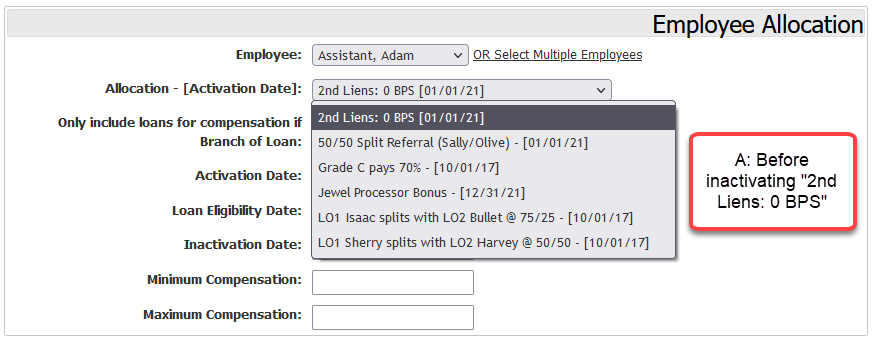
NOTE:This method does not remove the allocation rule from any employee(s) currently assigned to the allocation rule and active. The images below show active allocation rules available for assignment to employee before (A) and after (B) using this method.
Picture A:
Picture B:
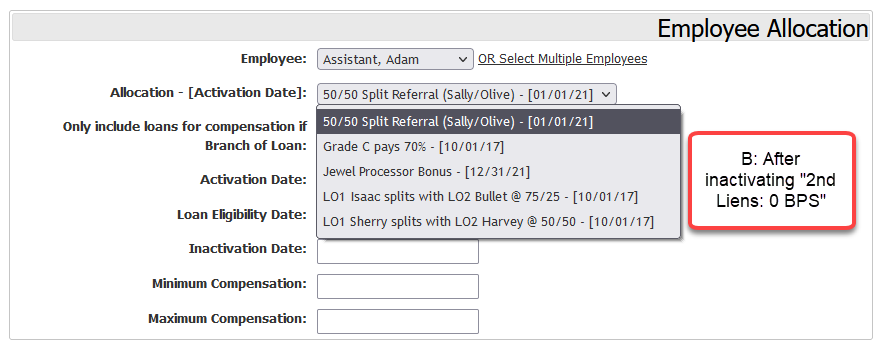
Notice in B, 2nd Liens: 0 bps is not listed as an allocation rule.
Allocation Rules – Inactivate Only
To inactivate an allocation rule and remove it from assigned employee(s),
From the Allocations page, click the allocation rule you want to inactivate.
From the Allocation Rule Details page, click Edit.
From the Edit Allocation Rule page, click Inactivate Only.
A warning message will appear. Click OK to confirm inactivation or Cancel to keep the allocation rule activated.
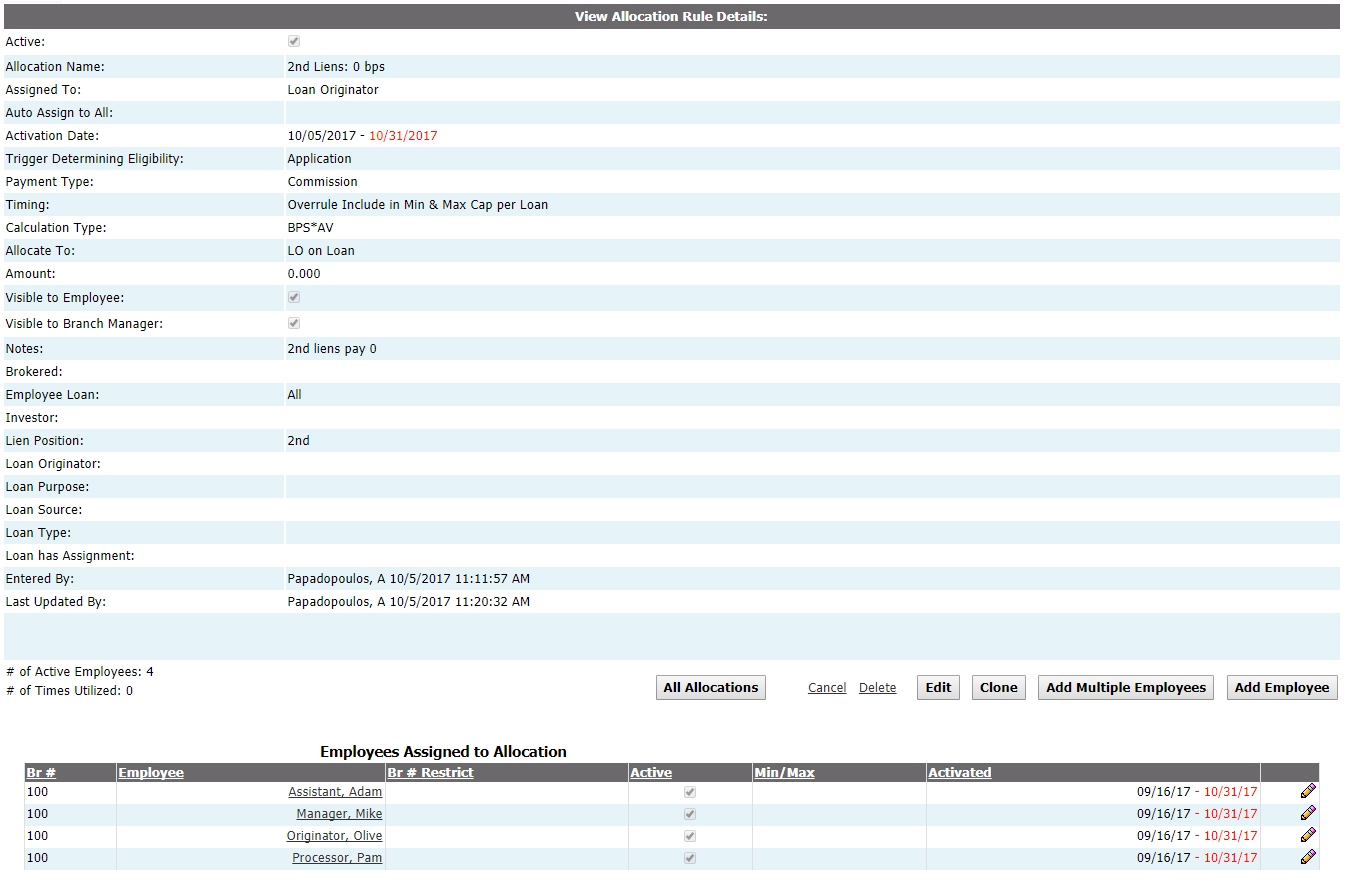
NOTE: The inactive date is automatically set and applied to all employees currently assigned to the allocation. See Picture C below for an example.
See also: