Note: Schedules and Allocations were retired in March 2025. For more information, refer to Schedule and Allocation Retirement Next Steps.
Assign an Allocation Plan to Employee(s)
This article outlines how to assign employees to allocation plans.
Minimum Compensation Access Level Required: Executive
Adding an Employee
- In the nCino Incentive Compensation Menu, click Payroll > Allocations.
- Click the allocation you want to assign to an employee.
- At the bottom of the allocation, click the Add Employee button.

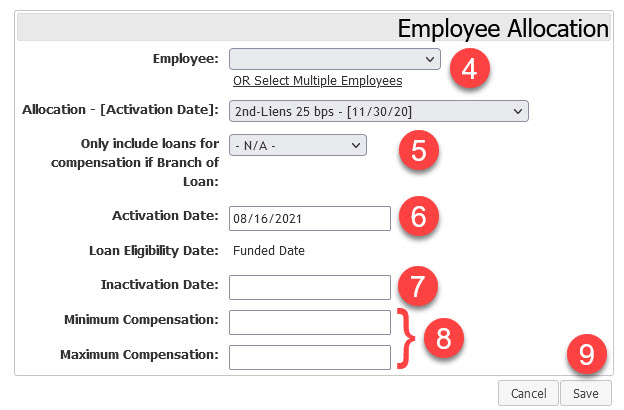
- Select the employee using the Employee dropdown.
- To only include loans from a specific branch for compensation, select that branch in the Only include loans" dropdown.
- Set the Activation Date of the assignment.
- If you know when the assignment should end, enter that date into the Inactivation Date field.
- If applicable, enter a Minimum and Maximum for this allocation per loan.
- When complete, click the Save button.
Adding Multiple Employees
- In the nCino Incentive Compensation Menu, click Payroll > Allocations.
- Click the allocation you want to assign to an employee.
- At the bottom of the allocation, click the Add Multiple Employees button.

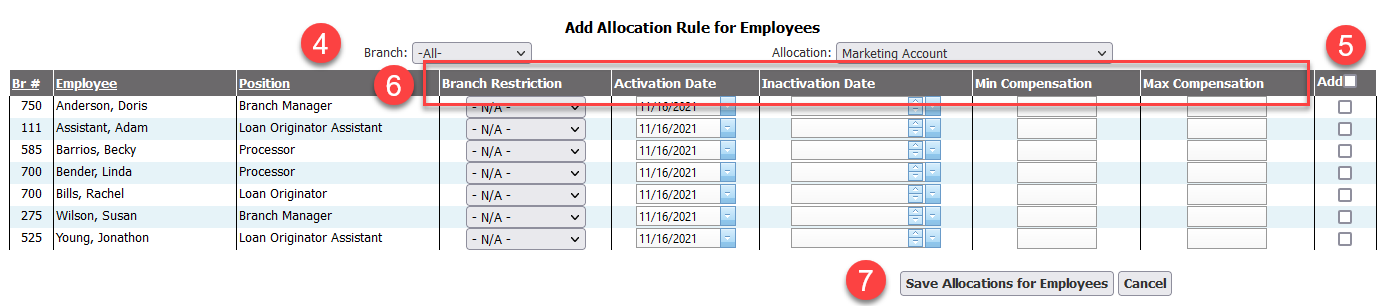
- Use the Branch dropdown to filter which branch to show employees from.
- Click the Add checkmark on the right of each employee to add.
- Set each employee’s Branch Restriction, Activation Date, Inactivation Date, and Min and Max as needed.
- When you’ve added and set employee assignment settings, click the Save Allocations forEmployees button at the bottom.
See also: