Note: Schedules and Allocations were retired in March 2025. For more information, refer to Schedule and Allocation Retirement Next Steps.
How do I create a new allocation rule?
To create a new allocation rule in nCino Incentive Compensation,
- On the nCino Incentive Compensation menu, click Payroll then + New Allocation.
- In the Add New Allocation Rule page, create the new rule per agreed upon terms. The following information is required:
Picture 1: Add New Allocation Rule in nCino Incentive Compensation
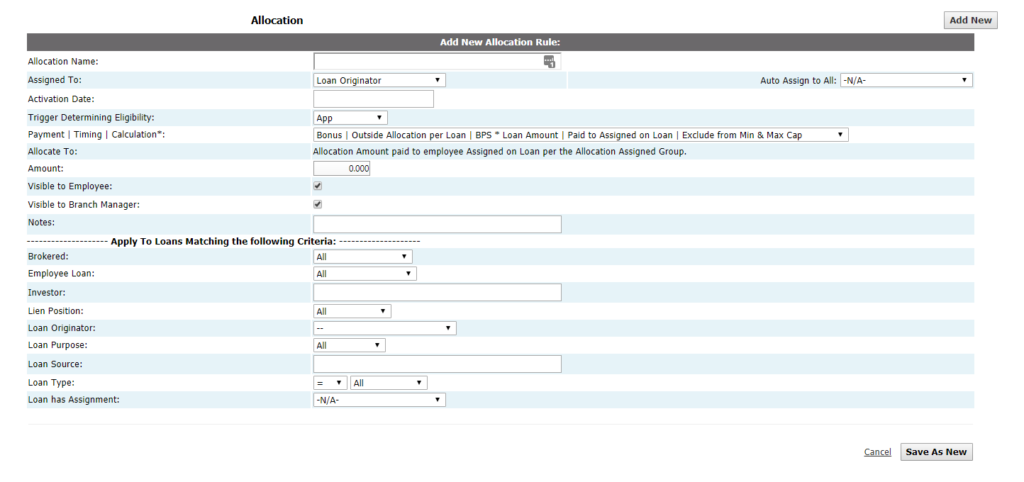
a. Allocation Name: Give rule a unique name.
b. Assigned To: Select role from the drop down list. This indicates when the allocation rule isactivated for any employee assigned to a loan with the role selected.
c. Activation Date: Click the box to select the new rule’s activation date from the calendar.
d. Trigger Date Determining Eligibility: From the drop down list, select milestone status on the loan nCino Incentive Compensation references to determine the compensation schedule.
e. Payment | Timing | Calculation*: From the drop down list, select the allocation option. Options are formatted by
Payment Type > Allocation Timing > Payment Calculation > Recipient of Allocation > Minimum/Maximum caps.
-
-
- Payment Type: Transaction is a bonus or commission.
- Allocation Timing: Shared split per loan, overrule or outside allocation per loan.
- Payment Calculation: Flat dollar amount or BPS multiplied by loan amount.
- Recipient of Allocation: see Allocate To below in step 3f.
- Minimum/Maximum caps: If Exclude from Min & Max Cap is selected, the allocation is excluded from any minimum and/or maximum limits. If Include in Min & Max Cap is selected, the allocation will run prior to minimums and maximums being calculated and in doing so, be included in any min/max limits. If Split After Min & Max Cap is selected. the allocation will run after the minimums and maximums are calculated.
-
f. Allocate To: This will be based on the Payment | Timing | Calculation* method selected in step 3e.
-
-
- If Paid to Assigned on Loan is selected, no action is necessary in this step. The allocation amount is credited to the role selected step 3b, Assigned To.
- If Paid to Specific Employee is selected, select employee from the drop down list. Allocation amount is credited to the selected employee.
- If Paid to LO on Loan is selected, no action is necessary in this step. The allocation amount is paid to the Loan Originator.
- If Paid to Branch/Company is selected, no action is necessary in this step. The allocation amount is deducted from the LO’s commission and retained by the branch/company.
- If Paid to Processor on Loan is selected, no action is necessary in this step. The allocation amount is paid to the loan processor.
-
g. Amount: Type amount of allocation. Actual amount allocated will auto generate based on the Payment | Timing | Calculation* method selected in step 3e.
h. Visible to Employee: Check box to make allocation rule visible to the employee paying the allocation.
i. Visible to Branch Manager: Check box to make allocation rule visible to the branch manager.
j. Auto Assign to All LO's: Check box to make a global allocation rule. If checked, the rule will automatically be assigned to all LO’s with at least one active compensation schedule.
k. Notes: Type additional notes or comments.
- To add limitations on when the allocation is paid out, specify below. Default is set to All and unless noted, the allocation rule will pay out on all loans.
a. Brokered: If Brokered is selected, allocation will only pay on Brokered loans. If Non-Brokered is selected, allocation will only on Non-Brokered loans.
b. Employee Loan: If Employee is selected, allocation will only pay on employee loans. If Non-Employee is selected, allocation will only pay on non-employee loans.
c. Investor: Type name of an investor to restrict the allocation rule to pay on only loans with designated investor.
d. Lien Position: If 1st Lien Only is selected, allocation will only pay on 1st lien loans. If 2nd Lien Only is selected, allocation will only pay on 2nd lien loans.
e. Loan Originator: Select name of a loan originator to limit the allocation from paying on only loans with specified employee assigned as loan originator on the loan.
f. Loan Purpose: Select option from drop down list to limit the allocation rule to only pay out on loans with designated purpose
g. Loan Source: Type loan source to limit the allocation rule to pay on only loans with specified loan source.
h. Loan Type: Select a loan type to limit the allocation rule to pay out only on the designated loan type.
i. Loan has Assignment: Select a loan assignment to limit the allocation rule to pay out only on the designated loan assignment type.
- To create the new allocation rule, click Save As New.
To learn more about allocation rules in nCino Incentive Compensation see Understand Allocation Rules.
Minimum Access Level " AL5 (Executive)