Note: Schedules and Allocations were retired in March 2025. For more information, refer to Schedule and Allocation Retirement Next Steps.
Assign Compensation Schedules to Employees
In nCino Incentive Compensation, Schedules are a common compensation plan element for employees assigned to loans. This article details how to assign a schedules to an employee.
Assigning Compensation Schedule to an Employee
There are two ways to assign a schedule to an employee:
- From the bottom of a schedule’s details page: Click Add Employee
- From an employee’s Comp Plan tab: Click +Add under the list of schedules.
For information on the "Add Multiple Employees" tool, refer to the following article: Use the Add Multiple Employees Tool.
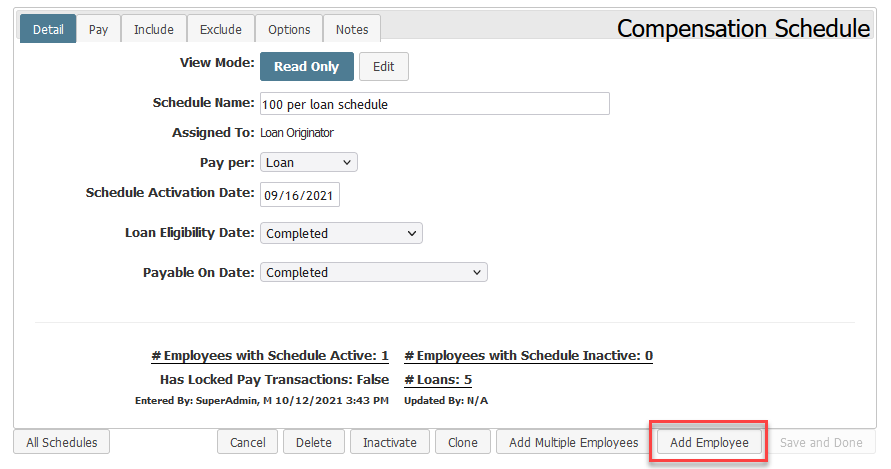
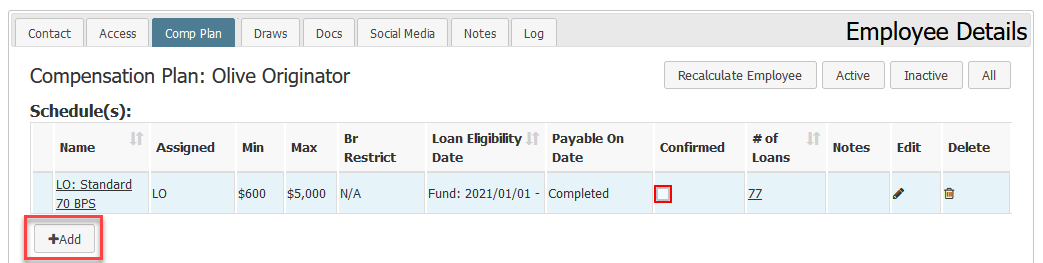
Assigning the Schedule:
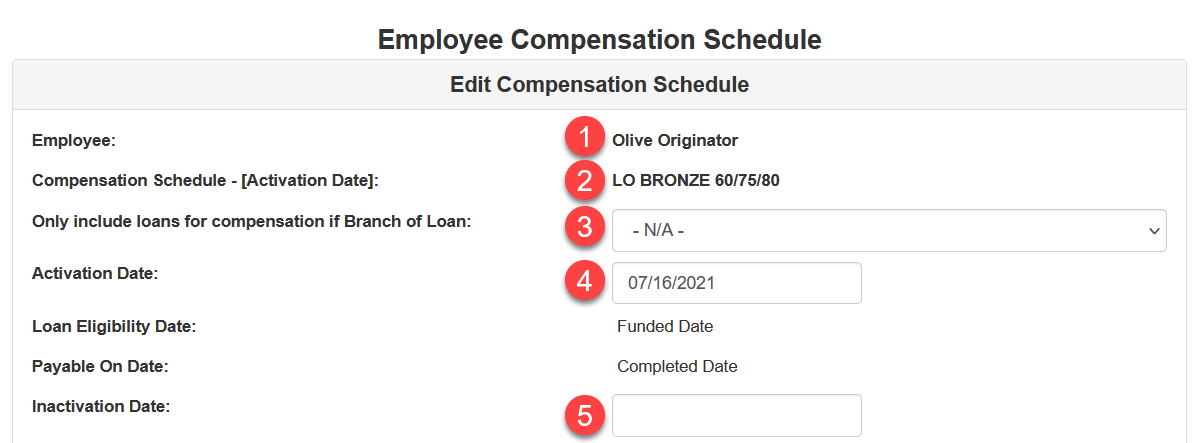
- In the dropdown next to "Employee", select the employee you are assigning the plan to. If you used an employee’s "+Add" then this will have that employee’s name here instead.
- Select the Compensation Schedule you want to assign. If you are assigning the schedule from the schedule details page, this will have the name of that schedule.
- If you are restricting this assignment to only consider loans from a specific branch, use the dropdown next to "Only include loans for compensation if Branch of Loan:" to select which branch should be included for compensation.
- Type, or use the calendar to select the assignment’s Activation Date. By default, this is set to the current payroll period’s start date.
- If you know when the schedule should end for this employee, type or use the calendar to select the assignment’s Inactivation Date. By default this is empty, meaning the assignment will never be inactivated. This can be changed later.
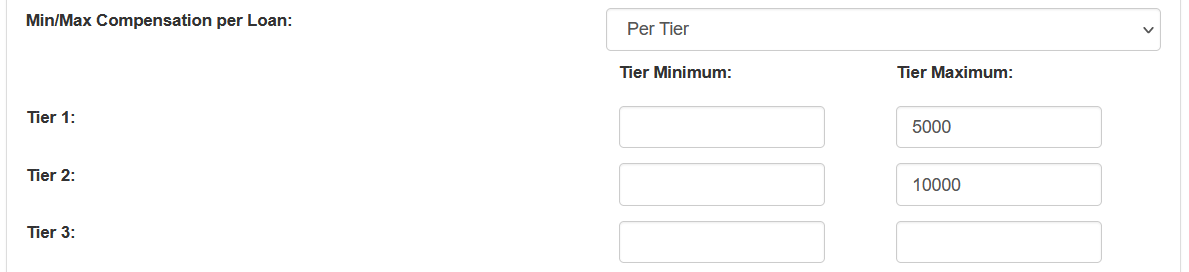
- If the assignment will have a minimum or maximum, select whether this min/max will be Per Tier or for All Tiers. Then, enter the minimums and maximums as needed.
If you are not using a minimum or maximum, leave it set to " N/A".For examples of how to use minimums and maximums, see Min/Max Examples.

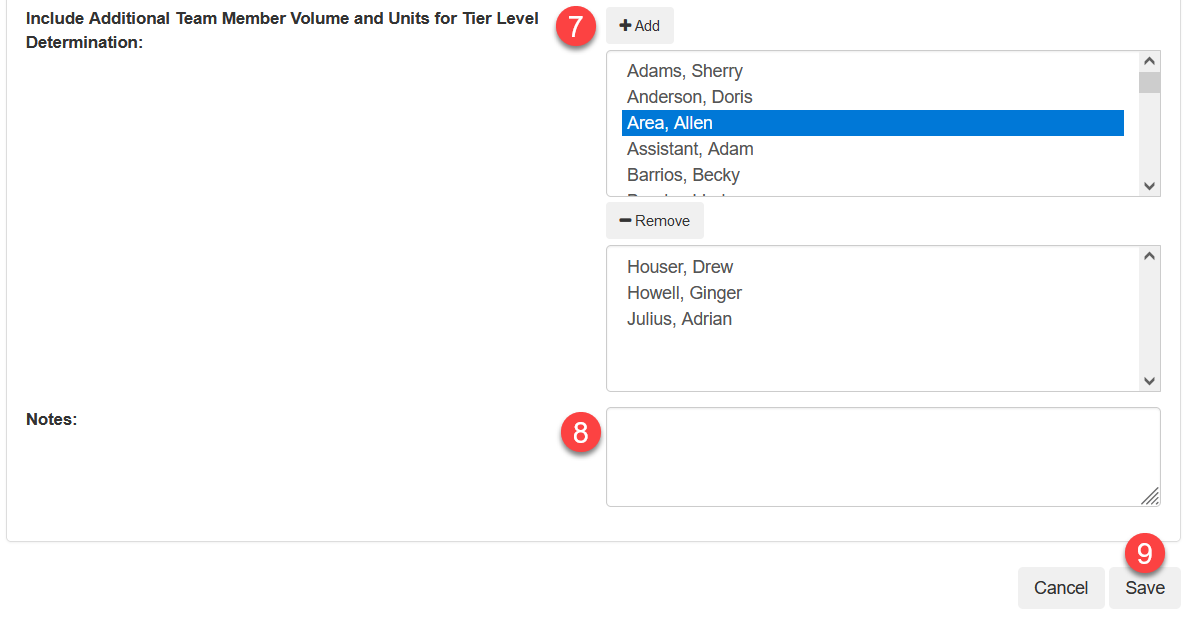
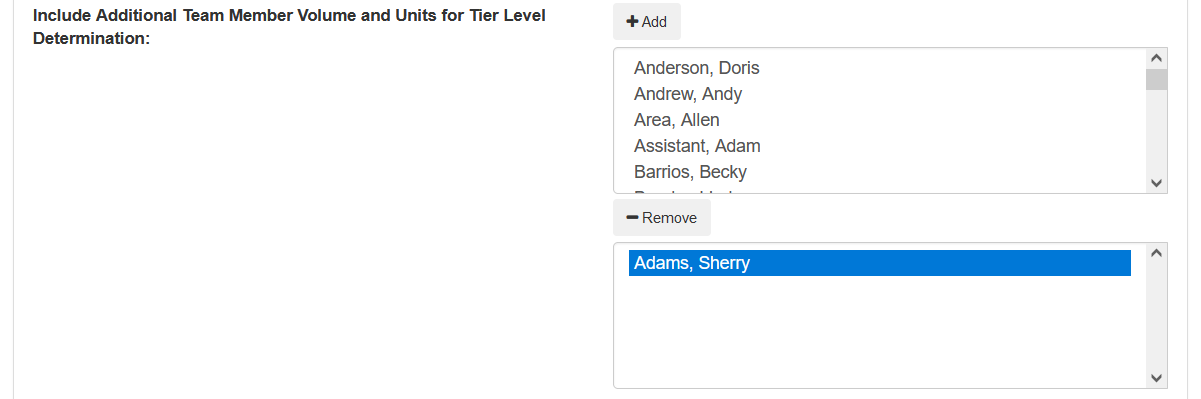
- If you are including the volume and units of additional team members to determine the schedule’s tier, use the "Include Additional Team Member Volume and Units for Tier LevelDetermination" tool.
To add an employee, click their name in the top list and click "+Add" . This will add them to the bottom list. You can remove an employee by clicking their name in the bottom list and clicking "-Remove".Doing this will add a team icon (
 ) to the employee’s Comp Plan tab.
For an example of this feature in action, see Using Additional Team Member Volume and Units.
- Finally, if you want to add any notes to the assignment, enter them into the field next to "Notes:".
- Click the Save button to save the assignment.
Editing Employee Compensation Schedule Agreements
The process of editing schedule assignments varies depending on if the schedule has paid the employee in the past.
Schedules That Have Not Paid
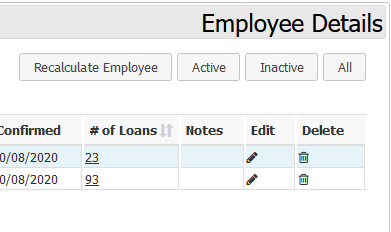
- In an employee’s Comp Tab, click the pencil icon next to the compensation schedule assignment you want to edit.
- From here, you can make changes to the assignment similarly to how it was created (see above).
- If you want to remove the employee from the schedule, you can either click the Remove Employee from Schedule button, or click the trashcan icon on the Comp Plan tab.
Schedules That Have Paid
Any schedule assignment that has paid employees in the past or is on a pay period that’s been locked can only have its Inactivation Date or Notes edited.
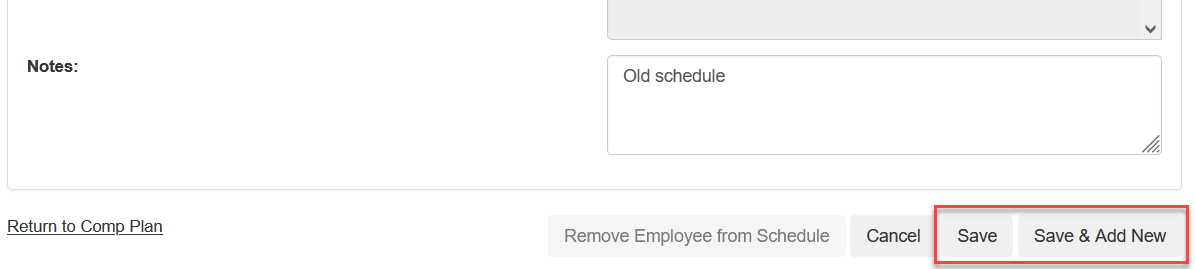
When you are done editing the assignment, you can either click Save to save the changes, or Save & Add New to start a new assignment with the same assignment settings.
Using Branch Restrictions
NOTE: The Branch Restriction does not restrict which loans are counted for tier units or volume. It only affects what branch loans must be in for the schedule to pay on them.
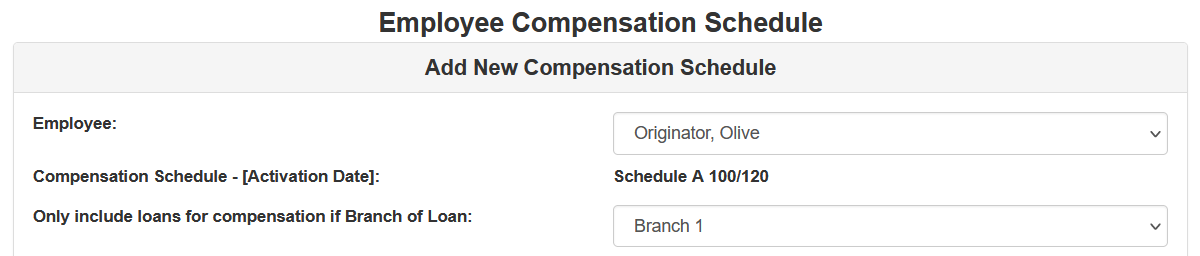
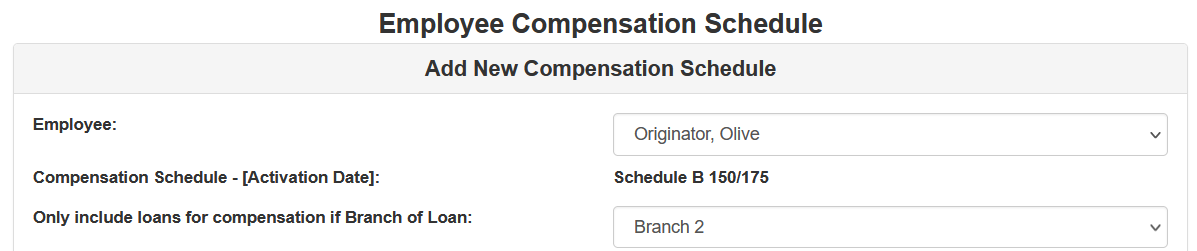
Example: Olive Originator should be paid on Schedule A 100/120 BPS for loans she originates in Branch 1, and she should be paid on Schedule B 150/175 BPS for loans she originates in Branch 2.
When assigning Schedule A, should be restricted to pay on Branch 1 loans, and Schedule B should be restricted to Branch 2 loans.
Loans from either branch will be counted toward the tier units or volume, but Schedule A will only pay on Branch 1 loans, and Schedule B will only pay on Branch 2 loans.
Examples
The following are a few examples of how certain features of the schedule assignment tool work.
Min / Max
When assigning minimums or maximums, you can assign a minimum / maximum for the schedules as a whole, or as minimums or maximums per-tier.
Example 1: Olive Originator should be paid no more than $5,000 on a schedule’s output.

Example 2: Olive Originator should be paid no more than $5,000 at Tier 1, and $10,000 at Tier 2.
Using Additional Team Member Volume and Units
If the you have employees working on a team where their volume or units are shared, you can add other employees’ production for tier consideration here.
Example 1: Olive Originator is on a team with Sherry Adams. They both will have schedules that determine the tier based on their shared volume.
See also: