Note: Schedules and Allocations were retired in March 2025. For more information, refer to Schedule and Allocation Retirement Next Steps.
Understand Compensation Schedules
This article provides an overview of Compensation Schedules. This includes what they are, how they are used, and how to access them.
Compensation Schedules pay exclusively when an employee is assigned to the loan. Additionally, only one Compensation Schedule will activate for each employee on a loan.
Compensation Schedules can pay a flat amount of dollars or BPS, or an amount based on the tier the employee has reached based on their production, metrics, or some combination of the two.
Compensation Schedules can be built so that they only pay on loans that fit certain criteria. Additionally, they can be built so that they only consider loans that fit certain criteria when determining tier level.
Because Compensation Schedules activate once per loan for each employee, they work best for employees paid a certain amount per loan.
Examples:
- Pay Loan Originator BPS based on a tiered plan for all of their loans
- Pay Processor $50 per loan processed
- Pay Underwriter flat BPS amount per loan underwritten
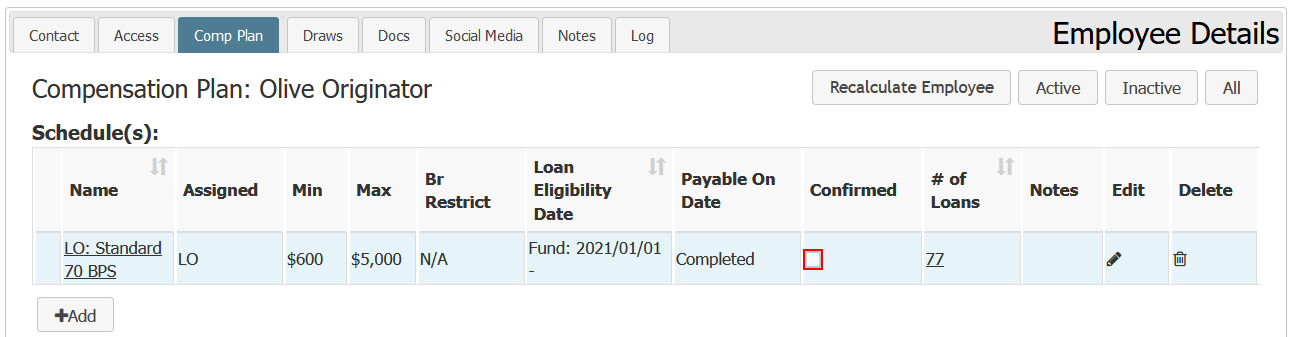
View Your Schedules
- Click the Person Icon(
 ) to go to your profile
 - Click the Comp Tab button.
- All schedules that you’re assigned to are under the Schedule(s) header.
View All Schedules
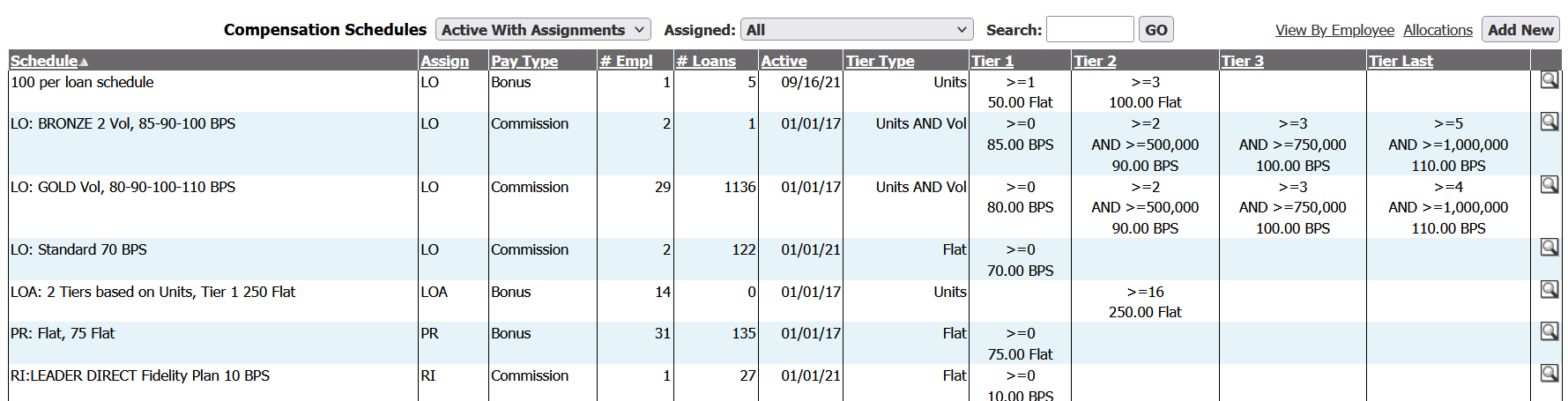
To view a list of all schedules:
- From the nCino Incentive Compensation menu, click “Payroll ▼“
- Click “Schedules“
- This will take you to a list of all active schedules.
Minimum Compensation Access Level Required: Executive
Here is an overview of how schedules calculate pay.
Determine which loans to consider for pay.
- Assigned To: This field in the Detail tab determines what loans will be considered for pay. To be considered for pay, the employee the schedule is assigned to must be in this position on the loan.
- Include: If there are any items checked in the Include tab, ONLY loans that match the checked criteria will be considered.
- Exclude: Any loans that match any items checked in the exclude tab will be excluded from consideration. However, depending on which exclude item is checked, they may still contribute toward volume or unit tier calculations.
Determine pay amount.
- Check the tier level, if any. This is done based on the pool of applicable loans, including loans that are able to contribute to the tier level per the items marked in the Include and Exclude tabs.
- Calculate the pay based on the tier level and the details in the Pay tab.
- At the end of each payroll period, add the payment to the employee's compensation.