Update Investors
When enabled, nCino Incentive Compensation allows you to track loan investors which can be used as a filter when creating Incentive Plans. This article details how to set up investors.
Minimum Compensation Access Level Required: Executive + Admin flag
Requirements
To use the investor field in nCino Incentive Compensation, you need to meet the following conditions:
-
Map the Investor field in your LOS to integrate with nCino Incentive Compensation.
-
Enable the Investor feature in nCino Incentive Compensation using the company parameter.
If you would like to enable Investor management and integration in the system, contact https://incentivehelp.ncino.com/hc/en-us.
Access the Manage Investor Tool
To access the Manage Investor tool from the nCino Incentive Compensation menu, click:
-
The gear icon (
 )
) -
System Admin
-
The Loans header
-
Update Investors
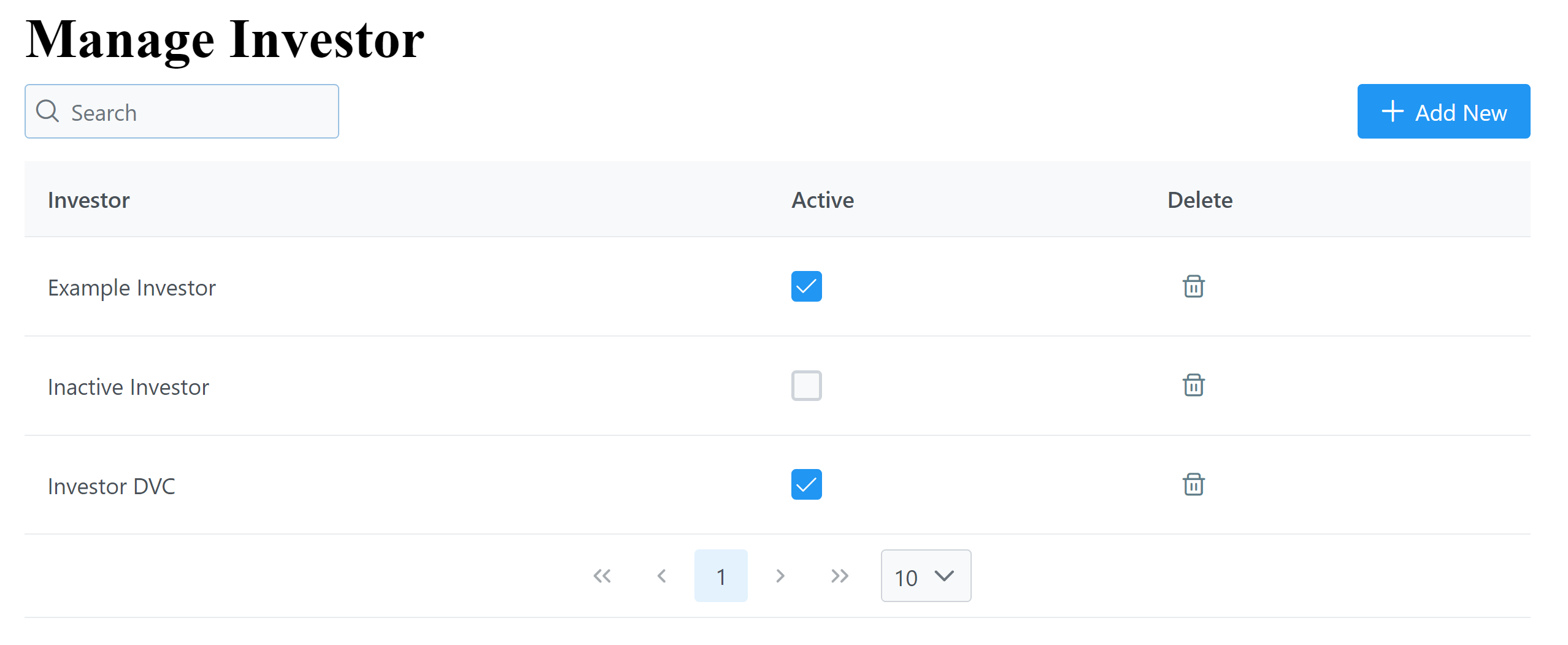
Update Investors
Add Investor
To add a new investor:
-
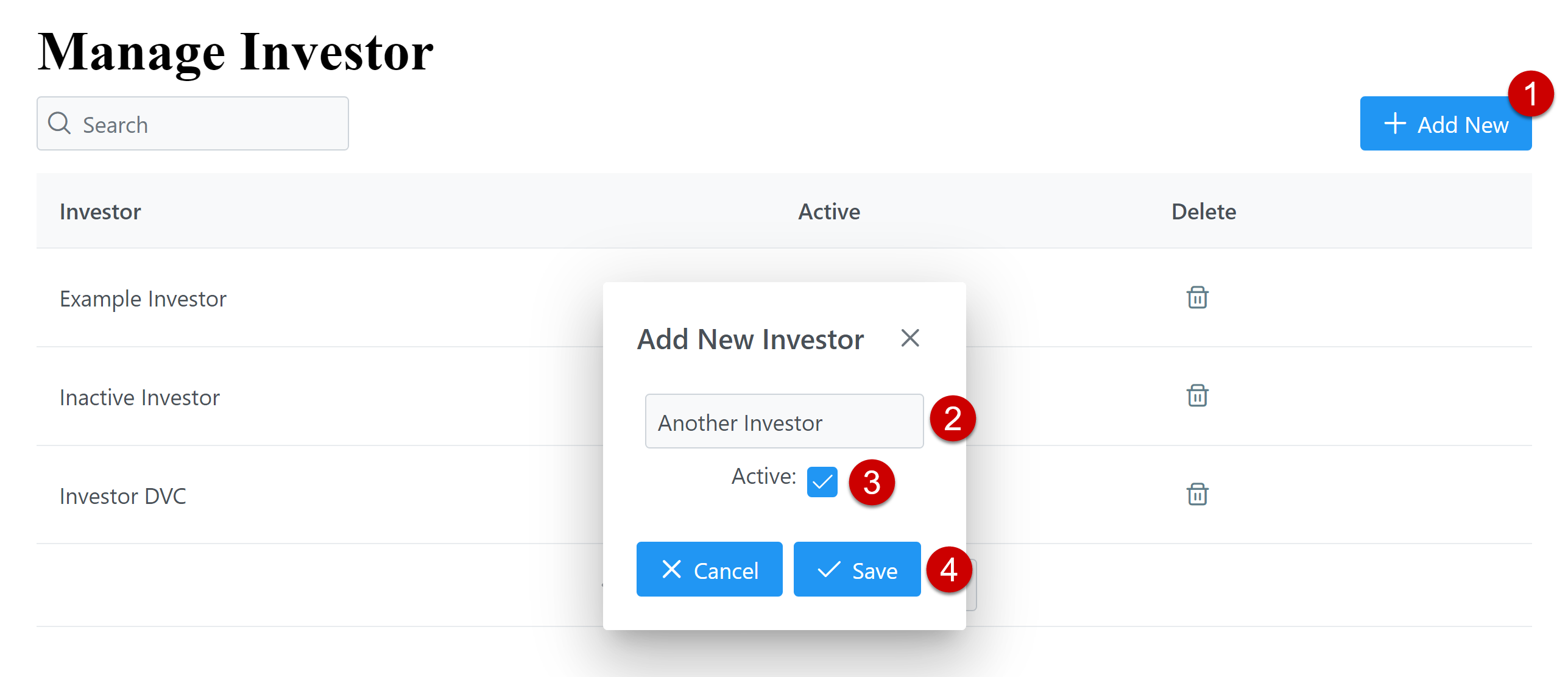
Click the + Add New button.
-
In the dialog box that appears, enter the investor name exactly as it appears in your LOS.
-
Use the Active checkbox to select if the investor is currently active.
-
Click Save to save the new investor.
Update Investor
To update an existing investor entry:
-
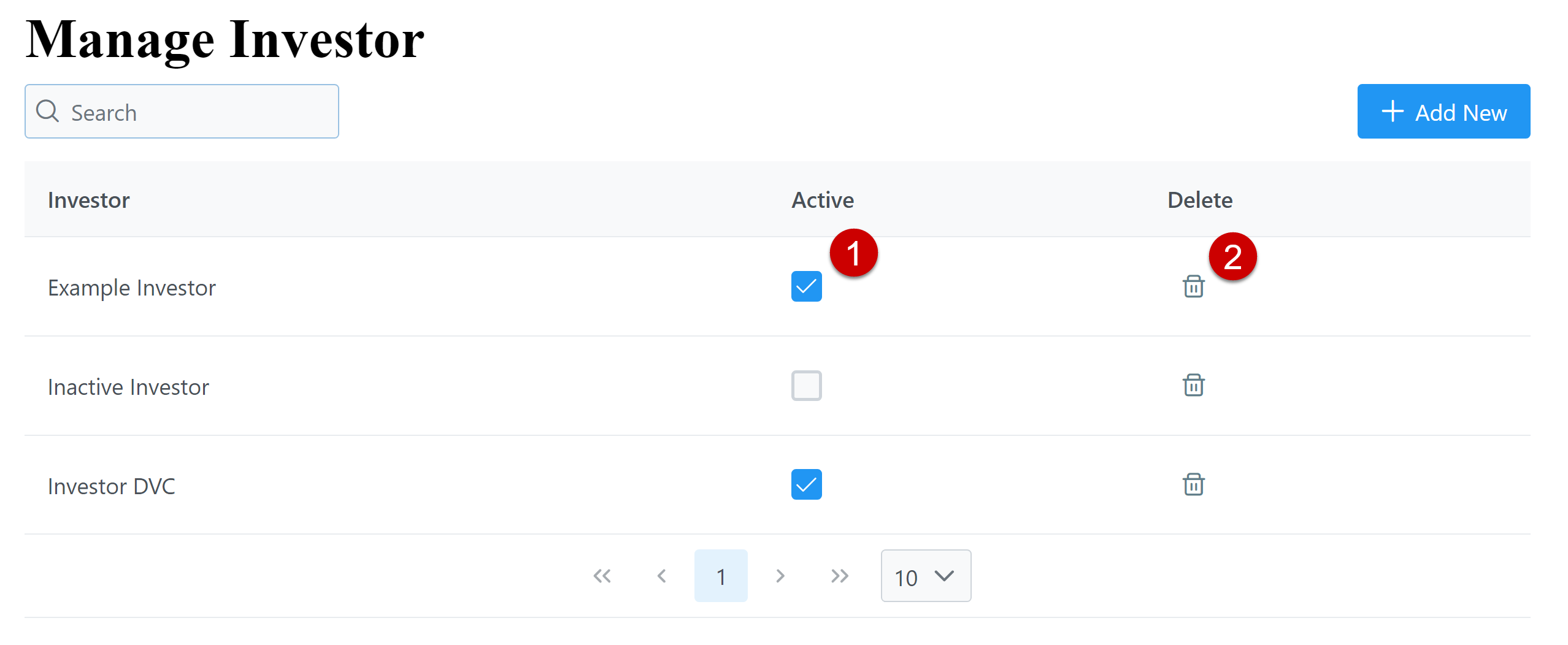
To toggle its active status, use the Active checkbox (1).
-
To delete an investor, click the trash can icon(2), then click Yes in the dialog box that appears.
See Also: