Manage Company Owned Domains
nCino Incentive Compensation uses a list of company owned domains to aid with the security of user accounts and communications. Executive-level users should review and manage this list to keep it updated and accurate.
Minimum Compensation Access Level Required: Executive
Background Information
- There is no restriction on how many email domains a company can have.
- Requirements for the company domains are as follows:
- Email domain must be owned by the client.
- Email domain must be on the approved domain list set up by the system administrator on the Company Domains page.
- If an employee is brought into the system with an email address that isn’t on this list, the system sends an automated email alert to the payroll admin.
Access the Tool
To access this tool from the nCino Incentive Compensation menu, click:
- The gear icon(
 )
) - System Admin
- The Company Profile header
- Company Owned Domains
Use the Tool
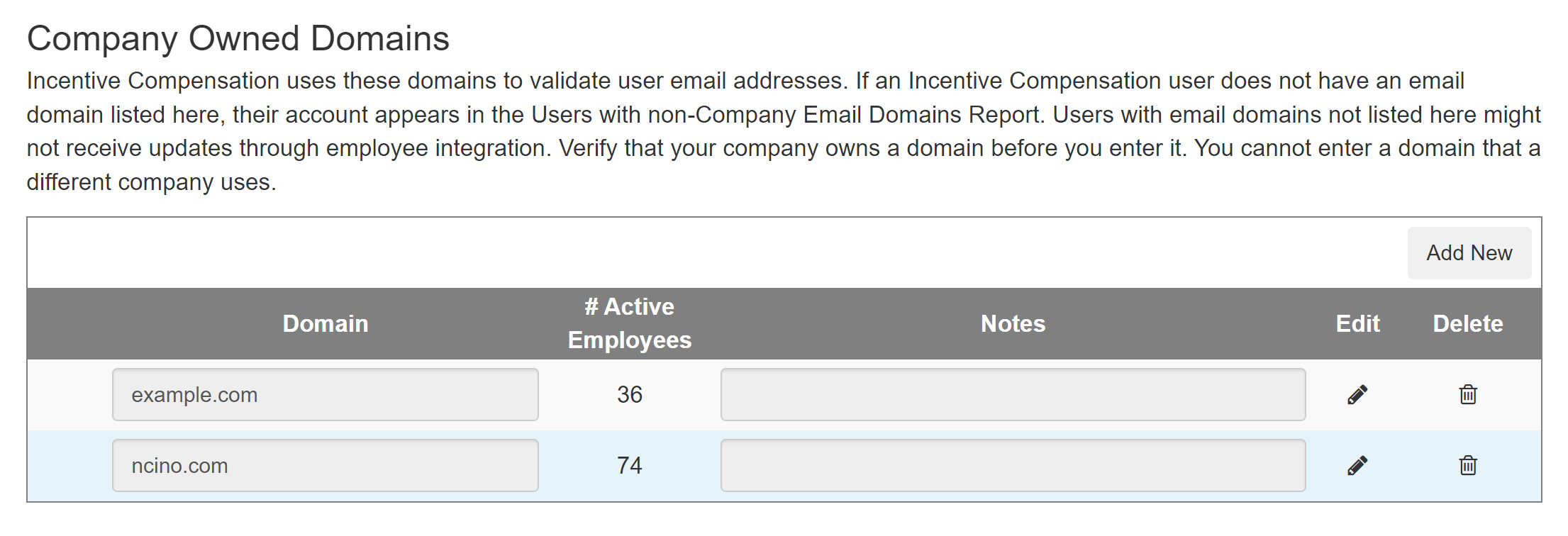
Add a Domain
To add a domain:
- Click the Add New button.
- Enter the domain in the field next to Domain.
- If you have any notes, enter them in the Notes field.
- Click the Save button.
You can now bring employees with the new email domain into nCino Incentive Compensation.
Edit a Domain
To edit a domain:
- Click the Pencil icon(
 ) in the row of the domain you want to edit.
 - Enter the domain in the Domain field .
- If you have any notes, enter them in the Notes field next to .
- Click the Save button.
Delete a Domain
To delete a domain:
- Click the trash can icon(
 ) in the row of the domain you want to delete.
 - In the confirmation dialog box that appears, click the Delete button.
Note: If you only have one domain, there is no trash can icon. You must always have at least one domain at all times.
See also: