Upload Pending Hours Through nCino Incentive Compensation
Pending Hours files for draws can be uploaded via secure FTP or directly through the nCino Incentive Compensation website. This article outlines the process of uploading Pending Hours files through the nCino Incentive Compensation website.
NOTE: This article assumes that there are existing plans that are marked for use with Pending Hours files.
If you are interested in uploading Pending Hours via secure FTP, please contact https://incentivehelp.ncino.com/hc/en-us.
Accessing the Upload Pending Hours Tool
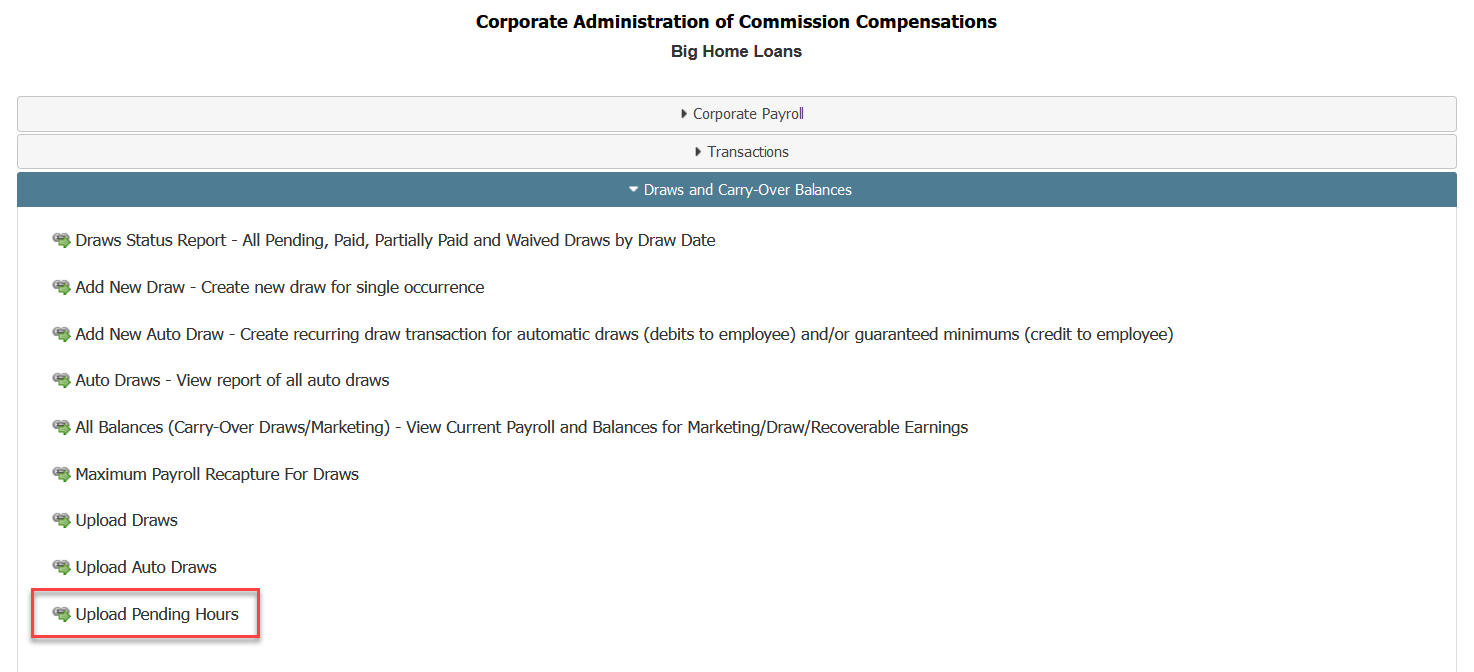
To access this tool,
-
From the nCino Incentive Compensation menu, click "Payroll ▼".
-
Click "Corp Payroll Menu".
-
Click the "Draws and Carry-Over Balances" section.
-
Click "Upload Pending Hours".
Using the Upload Pending Hours Tool
To upload pending hours files:
-
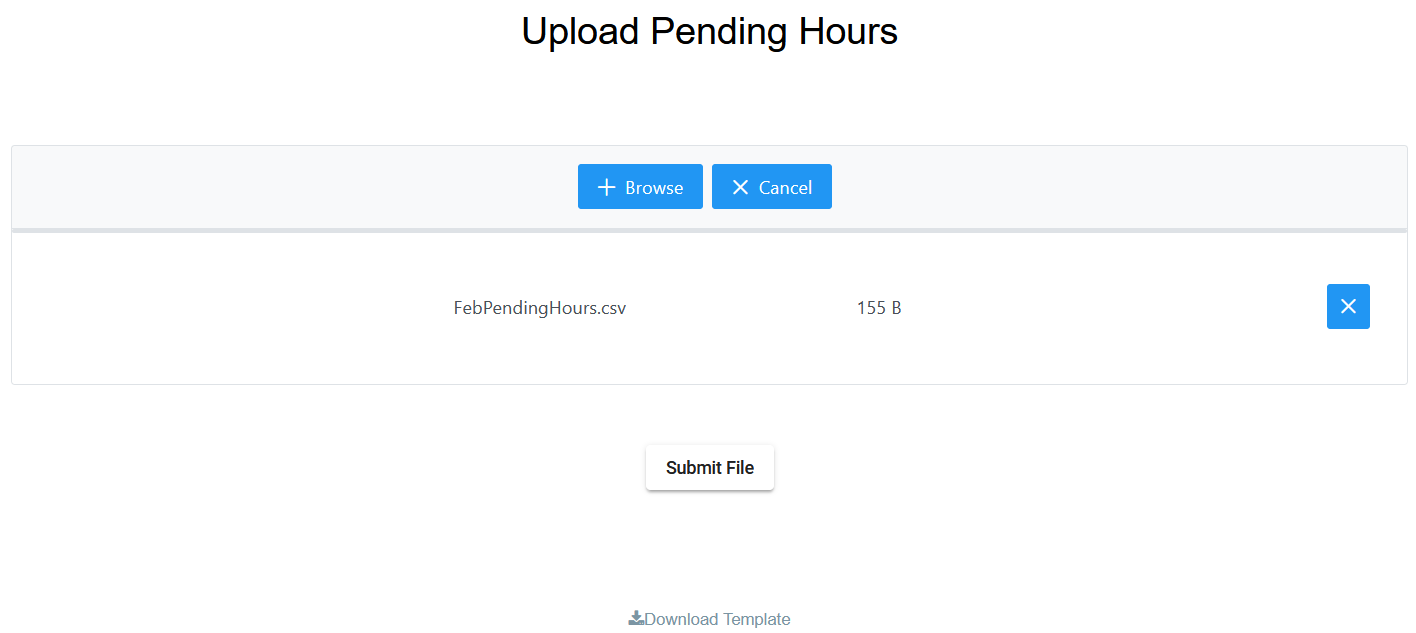
Download a copy of the template (at the bottom of the Upload Pending Hours page).
-
Enter pending hours information into the template. Do not alter the column headers.
-
When finished, save the file as a CSV.
-
On the Upload Pending Hours page, use the + Browse button to select the finished file. It will appear in the file list. You can click the X to the right to remove the file.
-
Click the Submit File button to upload the Pending Hours file(s). nCino Incentive Compensation will process the file within 30 minutes.
NOTE: nCino Incentive Compensation calculates using one Pending Hours file per payroll period. When a new Pending Hours file is uploaded, it will replace the existing file (if one exists) for the current payroll period. Make sure your Pending Hours files include information for all hours worked in the payroll period up to that point.
Pending Hours Template Outline
For each item on the Pending Hours file, all columns are required to be filled. The Pending Hours template contains the following columns:
-
EmpNo: Employee number of the employee to associate the pending hours with.
-
Pay Date: Pay date for the pay period. Pending Hours for a period cannot be uploaded after that period’s pay date.
-
Hours: Total number of hours the employee worked for the pay date above. Hours can include decimal amounts; however, commas cannot be entered into this field.
-
Dollars: Employee’s hourly pay rate for the entered pay date. Dollars can include decimal amounts; however, commas or dollar signs ($) cannot be entered into this field.
-
Description: Code that determines the type of pay the hours belong to. Examples include “Regular” and “Overtime”. Separate types of pay require separate entries.
See Also: