Pending Hours Feature Overview
The Pending Hours feature is a tool used to reduce commissions by the hourly rate that is paid to an employee outside of nCino Incentive Compensation. The Pending Hours feature processes the employee's hourly rate and number of hours worked to create a draw for the related payroll period.
Employee hours can be uploaded to nCino Incentive Compensation using the following frequencies:
- Daily
- Weekly
- Per payroll period
NOTE: When a new Pending Hours file is uploaded, it replaces the existing file for the current payroll period. The Pending Hours file should include information for total hours worked in the payroll period up to that point.
Once received, nCino Incentive Compensation will process the hours file and create draw records for employees with an active Auto Draw with Pending Hours enabled.
The Pending Hours file is processed as follows:
- If updated hours are on the file, the draw amount will be updated.
- If hours are not sent for an employee, no draw will be created.
- If only partial hours are sent for an employee, then only the hours received will be considered for the final draw amount for the payroll period.
The draw created by Pending Hours will not be reconciled against the employee’s compensation until the administrator uses the Process Unpaid Draws button, or the system processes draws automatically. For more information about this tool, read Why are my draws not recapturing?. An administrator can process draws multiple times within a payroll period to see the updated recapture amount. The draw record details will include the total hours worked in the Notes section, so administrators can quickly review and ensure the correct hours were sent.
Setting Up a Pending Hours Auto Draw
This section details what's different or noteworthy in an auto draw using the Pending Hours feature. For more information on setting up auto draws, see Build Auto Draws.
- Frequency: For most hourly wage draws, this should be set to Per Payroll Period.
- First Draw Date & Last Draw Date: Note that draws will not be created outside of this range, and that hours should not be loaded for dates outside of this range. The Last Draw Date can be left blank.
- Pending Hours: Mark this when using an auto draw with the pending hours feature. When checked, an amount does not need to be entered.
- Guarantee: Set the Guarantee type to "N/A".
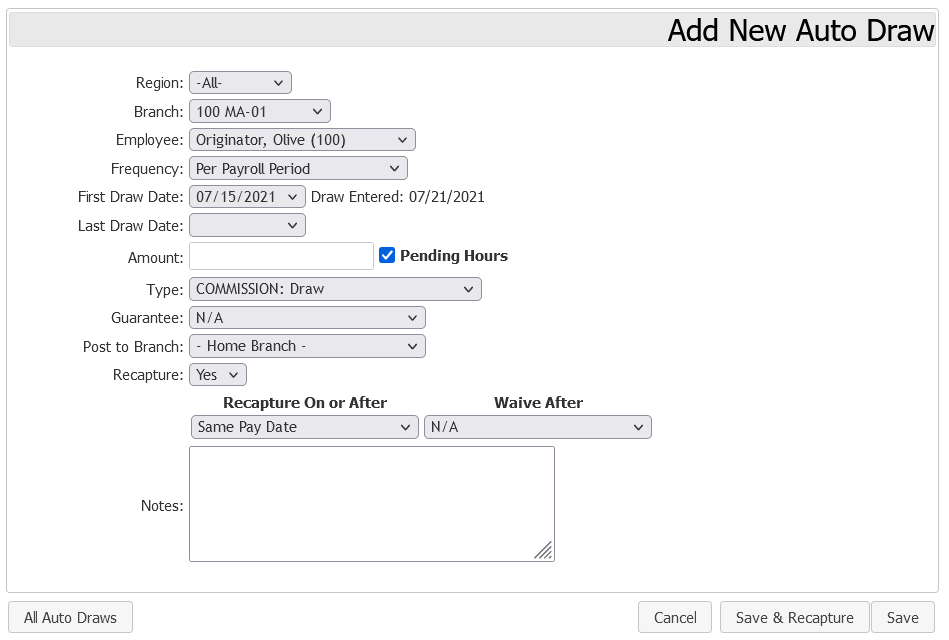
Patti Payroll needs to create a wage draw every payroll period for Olive Originator. The amount will differ each payroll period depending on the number of hours she worked, and if she worked overtime hours. Olive's draw should be reconciled against her pay every payroll period. If Olive does not have enough compensation to cover her hourly wage draw, then the remainder will be included in the draw balance. In this scenario, Patti Payroll would set up the following auto draw:
- Employee: Olive Originator
- Frequency: Per Payroll Period
- First Draw Date: 07/15/2021
- Last Draw Date: [Empty]
- Amount: [Empty]
- Pending Hours: Checked
- Type: Commission: Draw
- Guarantee: N/A
- Post to Branch: - Home Branch -
- Recapture: Yes
- Recapture On or After Date: Same Pay Date
- Waive After: N/A
Uploading a Pending Hours File
Pending Hours files submitted through nCino Incentive Compensation can be sent using a tool available in the Corp Admin Menu.
For more information on this process, refer to Upload Pending Hours Through nCino Incentive Compensation.
Once a Pending Hours file has been uploaded, use Push the Button.