Understand Draws and Auto Draws
The nCino Incentive Compensation system of draws and auto draws enables the creation of a variety of compensation plan elements. This article outlines how these items work in nCino Incentive Compensation to help users get the most out of them.
Overview
In nCino Incentive Compensation, draws are records that include transactional data, as well as information about when and how those transactions occur. This can include updates to an employee's compensation, and their draw balance. A user's draw balance is a ledger that tracks their ongoing debts that result from draws. Draws can be recoverable (recovered from the employee's compensation amount), or non-recoverable.
Admins can create draws create manually, or create automatically via auto draws. Auto draws build draws based on the rules described in the auto draw's template.
Draws
A draw (also known as a draw record) is an entry in nCino Incentive Compensation that includes information about transactions for the payroll and draw balance, as well as information about when the system should perform those transactions. You can recapture draw balance from compensation or waive it. You can make or exclude specific adjustment types from draw recapture or guarantee consideration.
Uses for individual draws include: recapturable credit, guaranteed minimums, or bonuses.
The system processes draws when an admin uses the Process Unpaid Draws button, or when the system automatically processes unpaid draws.
Create a Draw
Admins can create draw records in several ways:
- Individually add the draw.
- Upload the draw using the Upload Draws tool.
Additionally, the system can create draws in certain situations:
- When the employee meets conditions for an assigned auto draw
- When there is a net-negative transaction (refer to Draw Calculation)
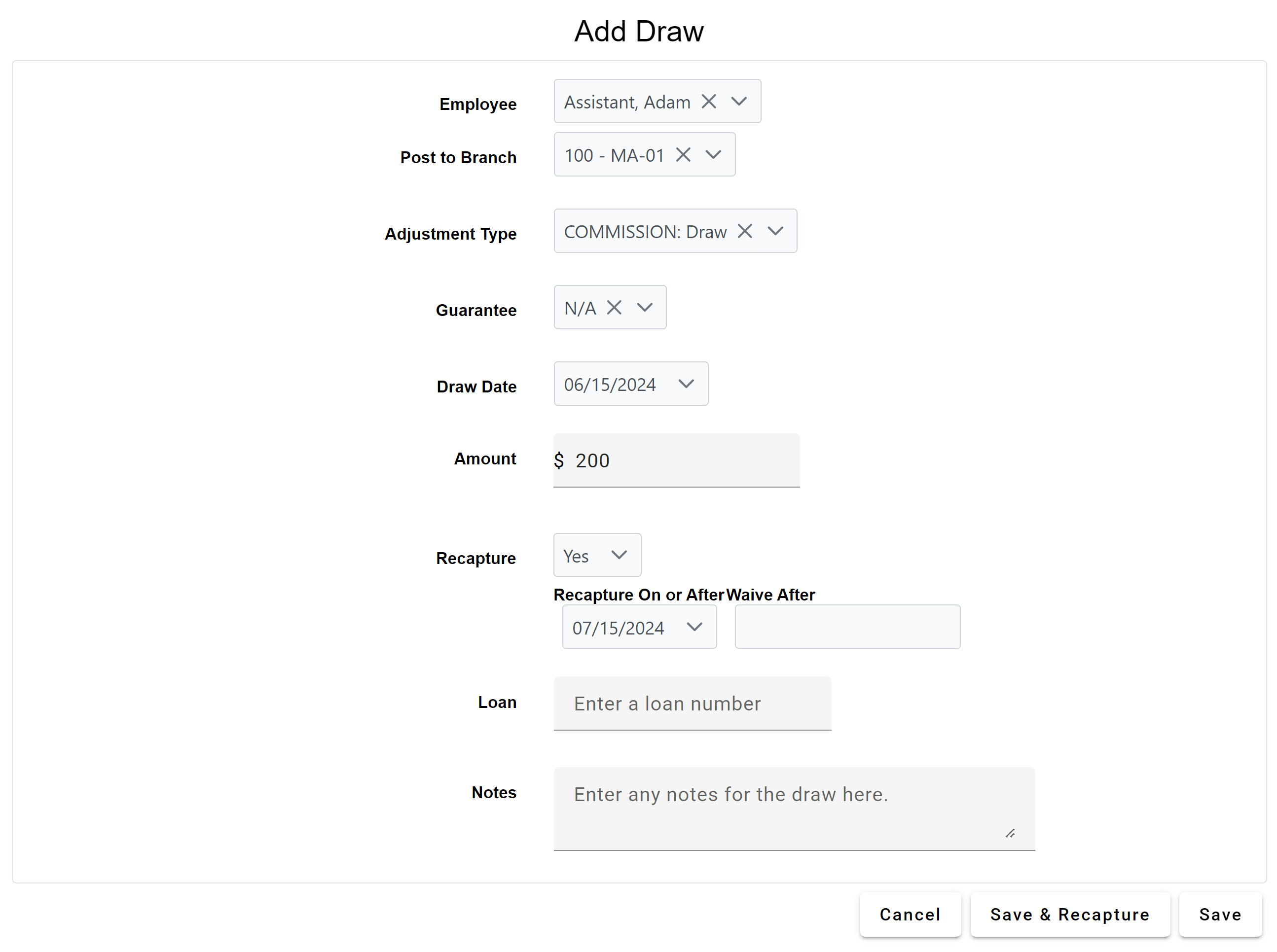
Example draw on the Add Draw tool:
See also:
- Build Draws
- Bulk Upload Draw Transactions
- View Draws
- Draw Details Page
- Employee Draws Status by Draw Date Report
- Employee Draws Unpaid Report
- Negative Net Pay Amounts for Payroll Report
Auto Draws
Definition
An auto draw is a template the system uses to automatically create draw records based on the settings entered.
You can use auto draws to create recurring draw records (such as ongoing bonuses, guaranteed minimums, desk fees, etc.).
Auto draws create their respective draws the day after the prior payroll period's "Pay Date - Actual". However, when a user creates a new auto draw, the system checks and create any corresponding draws shortly after it was entered.
Create an Auto Draw
Admins can create auto draws in several ways:
- Individually enter an auto draw
- Upload auto draws using the Upload Auto Draws Tool
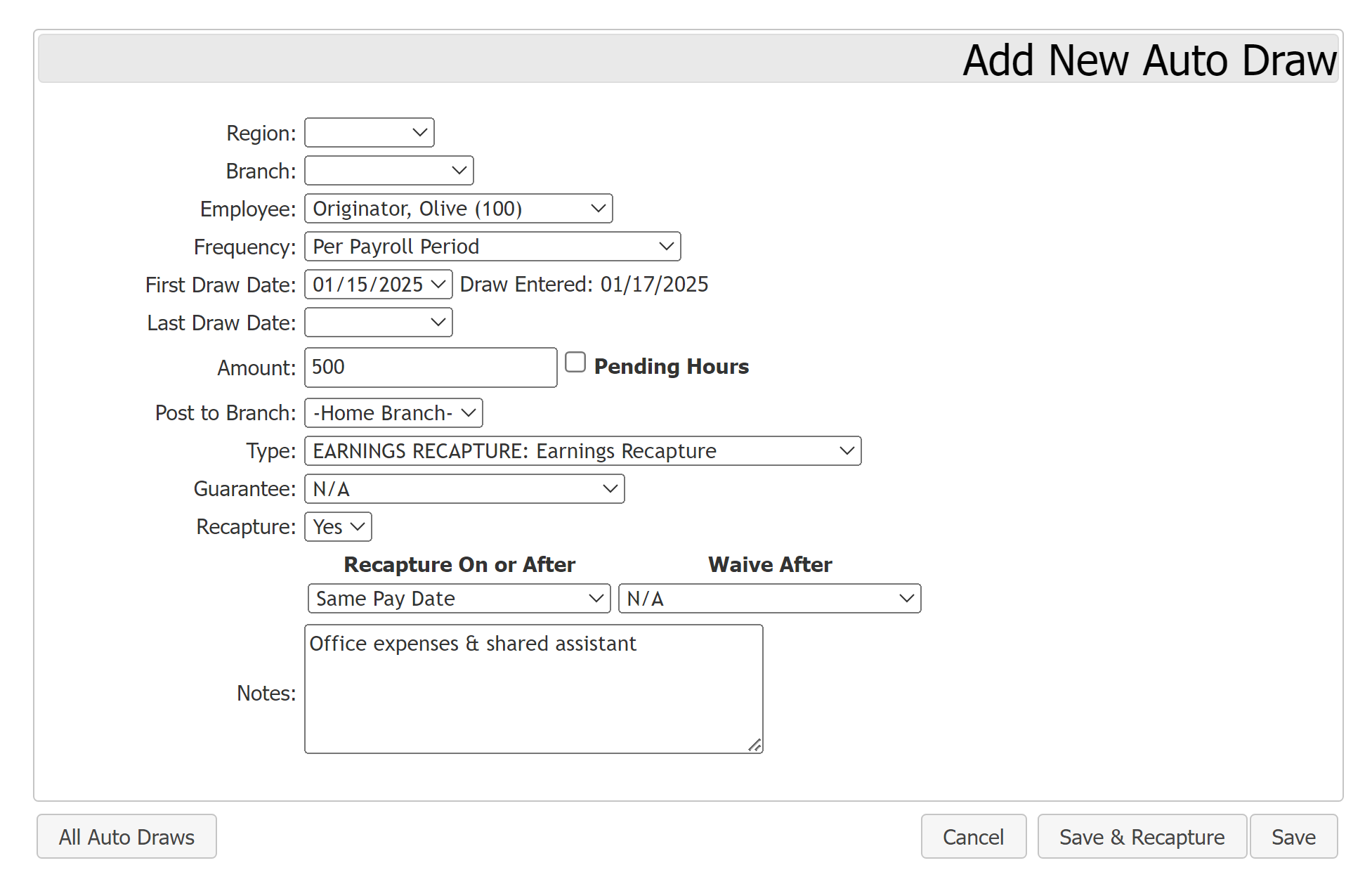
Example auto draw on the Add New Auto Draw tool:
See Also:
- Build Auto Draws
- Auto Draws Report
- Pending Hours Feature Overview
- Pending Upload Draw Amt Audit Report
- Understand Termination Rules
Overall Draw Process
This section provides a high-level overview of the processes nCino Incentive Compensation uses to compute draws and auto draws.
Draw Process
- The system creates draws based on auto draws prior to draw processing.
- For auto draws that existed prior to the current payroll period: The system creates draw records based on the auto draw's template the day after the "Pay Date - Actual" for the prior payroll period.
- For auto draws created during the current payroll period: If the auto draw has a draw date in the current payroll period, the system will create a draw record shortly after it is saved.
- When the system processes draws as a result of an admin using the Process Unpaid Draws tool or it activating automatically, draws calculate for the upcoming pay date. This occurs even if that payroll period is currently locked down. As part of that process, the system creates adjustments that affect the employee’s draw balance, payroll transactions, or a combination of the two.
- For more information, refer to Draw Calculation.
- nCino Incentive Compensation attempts to recapture draws that have met their "Recapture On or After" date, and waives draws that have a "Waive After" date prior to the upcoming pay date.
- Any remaining draw balance is carried to the next pay period.
Draw Calculation
- An admin or the system uses Process Unpaid Draws to start the draw calculation process.
- For each employee, the system does the following:
- If the employee had net negatives at some point during this period, and now has positive pay: remove any net negative draw entries.
- Evaluate the employee's guarantees, create a credit adjustment to meet them if necessary. This applies to the Guarantee types "Guarantee" and "Monthly Guarantee."
- Recapture draw balance(s) from available pay.
- Evaluate the employee's guaranteed minimums, create a credit adjustment to meet the minimums if necessary. This applies to the Guarantee types "Guaranteed Minimum" and "Monthly Guaranteed Minimum."
- If the employee has negative pay at this point, create a recoverable draw to credit the employee to bring the employee's net pay for the period to $0. This recoverable draw is set to recover starting next pay period, and to never waive. Admins can manually update these draws if needed.
Recapture Process
After the system has performed draw calculation, it does the following actions for each unpaid and unwaived draw record:
-
If the draw record has a "Waive After" date prior to the upcoming pay date, its draw amount is removed from the draw balance. That draw is considered waived.
-
If the draw record has reached its "Recapture On or After Date," the system will attempt to recapture the remaining balance in the order the draws were posted.
-
Any remaining balance is carried over to the next pay period.
Manage Draws & Auto Draws
Available Global Settings:
For help updating Company Parameters, please contact the nCino Incentive Compensation team at https://incentivehelp.ncino.com/hc/en-us.
- Maximum Payroll Recapture for Draws
- Company Parameters:
- Guarantee Recapture in Same Period: Determines whether or not draws can be recaptured in the same period they apply. Enables "Guarantee" option in Guarantee dropdown.
- Termed Employees (all) - Auto Draws: Number of days after termination an employee’s auto draws are automatically inactivated.
- Allow Net Pay Below Guaranteed Minimum: Allows adjustment types excluded from a guaranteed minimum to cause employee’s net pay to go below the guaranteed minimum.
- Date Offset for Payroll Period Draws: Requires additional developer work to enable. Represents number of days after a payroll period’s pay date that the draw date occurs. Only affects future years.
Edit Auto Draws
Admins can edit auto draws any time outside of when the system is processing draws. Editing an auto draw does not affect prior pay periods or any individual draw records on the current payroll period. Admins should delete draw records on the current payroll period before they update the related auto draws.
Edit Draws
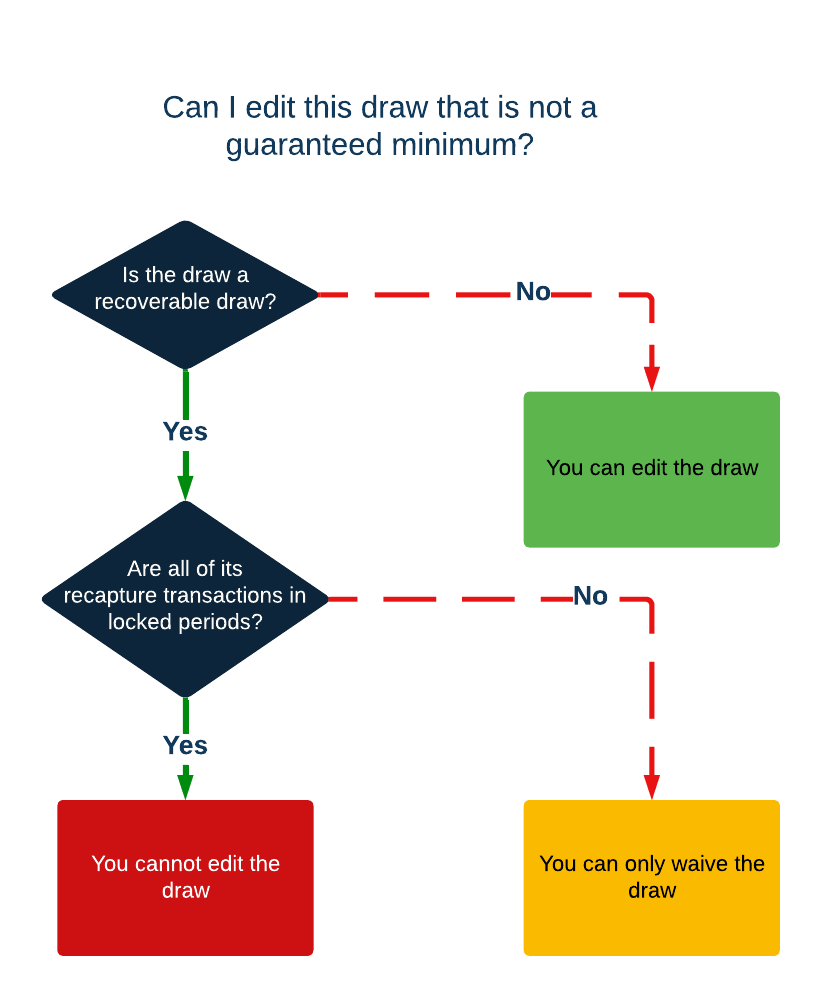
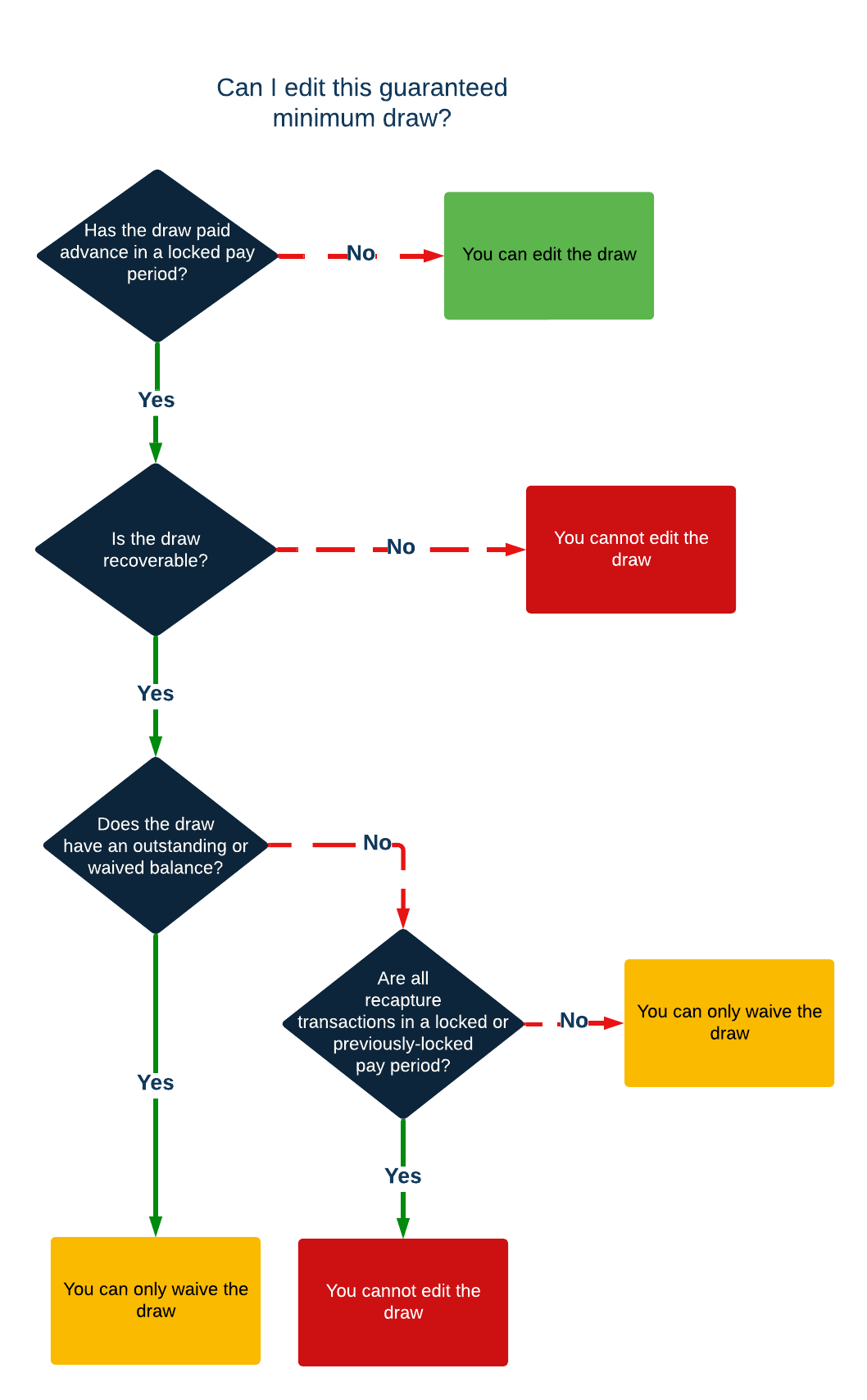
Like auto draws, admins cannot edit draws while the system is processing them. Additionally, whether or not an admin can edit a specific draw depends on several criteria. Use the following decision trees to determine if you can edit a draw.
For more details & examples, see Edit Draw Records.
For draws that are not Guaranteed Minimum or Guaranteed Monthly Minimum:
-
Is the draw a recoverable draw?
-
If yes, are all of its recapture transactions in locked periods?
-
If yes, you cannot edit the draw.
-
If no, you can only waive the draw.
-
-
If no, you can edit it.
-
For Guaranteed Minimum or Guaranteed Monthly Minimum Draws:
-
Has the draw paid advance in a locked pay period?
-
If yes, is the draw recoverable?
-
If yes, does the draw have an outstanding or waived balance?
-
If yes, you can only waive the draw.
-
If no, are all recapture transactions in a locked (or previously locked) pay period?
-
If yes, you cannot edit the draw.
-
If no, you can only waive the draw.
-
-
-
If no, you cannot edit the draw.
-
-
If no, you can edit the draw.
-
See Also: