Bulk Upload Draw Transactions
nCino Incentive Compensation allows users to upload individual draws in bulk from a file. This article details how to use the Upload Draws tool.
Minimum Compensation Access Level Required: Executive
Access the Upload Draws Tool
To access this tool:
- From the nCino Incentive Compensation menu, click Payroll▼.
- Click Corp Payroll Menu.
- Click the Draws and Carry-Over Balances header.
- Click the Upload Draws link.
Create the Draws File

Note: When editing the draws file, do not change the column headers. These are necessary for the system to process the file.
To create a draws upload file:
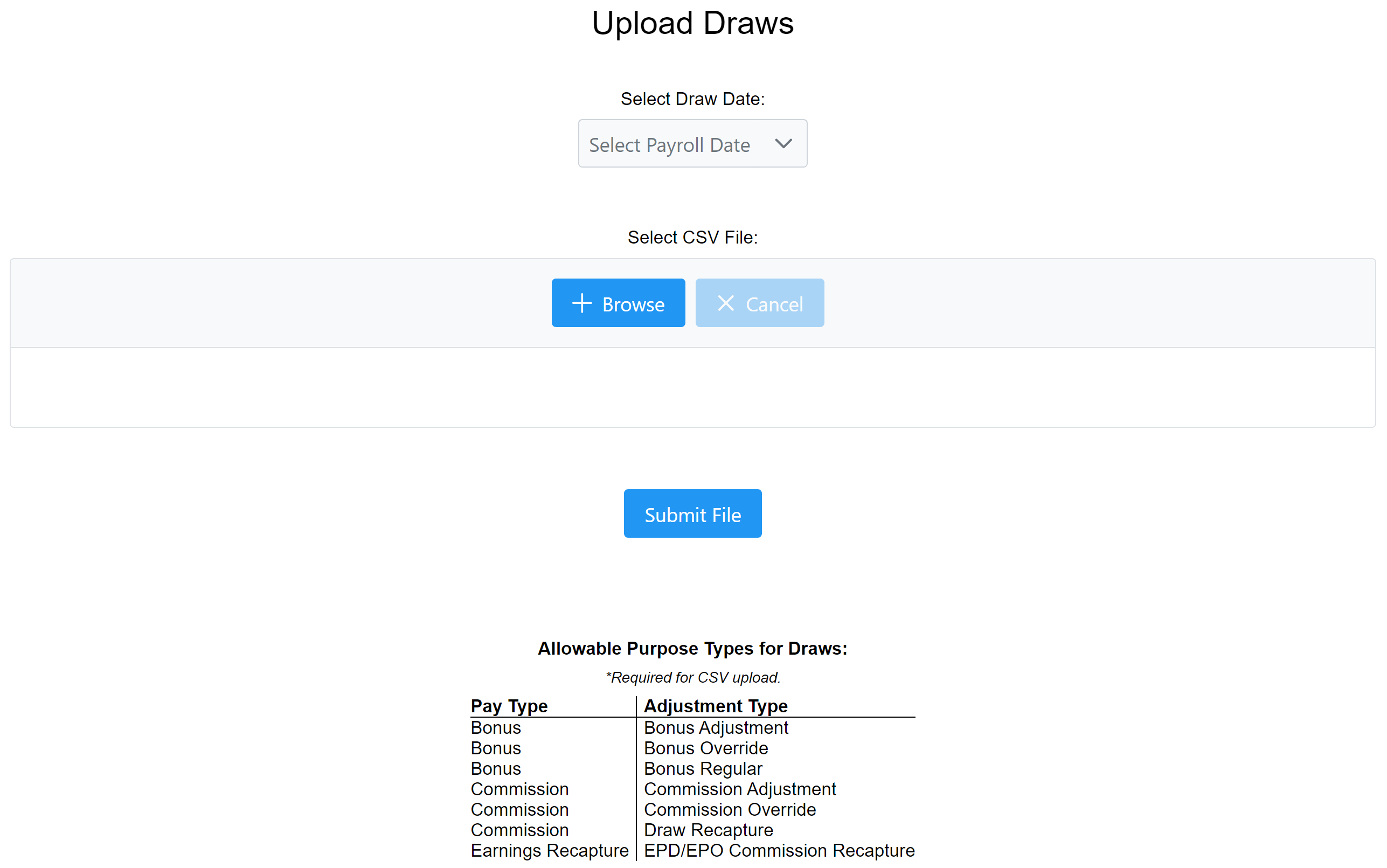
- Download the template from the Upload Draws page.
- Enter draw data into the template, one draw per row. Do not change the column headers. Each row includes the following columns:
- EmpNo (required): Employee number receiving the draw.
- BrNo: Branch number to post the draw to. If left blank, the draw will default to the employee’s home branch.
- LastName: Employee’s last name.
- FirstName: Employee’s first name.
- Amount(required): Dollar amount of the draw. Do not include commas in the number.
- Notes: Additional comments or notes regarding the draw record, used for reference purposes only.
- GuaranteedFloorYN (required): Only accepts values Y or N
- Y: Draw is a guaranteed minimum.
- N: Draw is not a guaranteed minimum.
- RecapturedYN (required): Only accepts values Y or N
- Y: Draw is recoverable.
- N: System will not attempt to recover draw.
- RecaptureAsOfDate (required if RecapturedYN = Y):First eligible draw recovery date. Must be in MM/DD/YYYY format or left blank. Entered dates only affect the draw if RecapturedYN is set to Y.
- ForgiveAsOfDate: Date the system will waive this draw amount. Any remaining draw amount on this date will be waived from the employee’s draw balance. Date the draw amount is waived. On this date, any remaining draw amount from this draw will be waived from the employee's draw balance. Must be in MM/DD/YYYY format or left blank.
- AdjustmentType (required): Pay type for the draw adjustment. This information is for reporting purposes only. Available types vary per company and display in the Allowable Purpose Types for Draws table on the Upload Draws page. These must be entered EXACTLY as they are on the table. We recommend the use of your computer’s copy and paste functions to prevent errors.
- LoanNumber: Loan number the draw is related to, if any.
- Save the file as a CSV.
Use the Upload Draws Tool
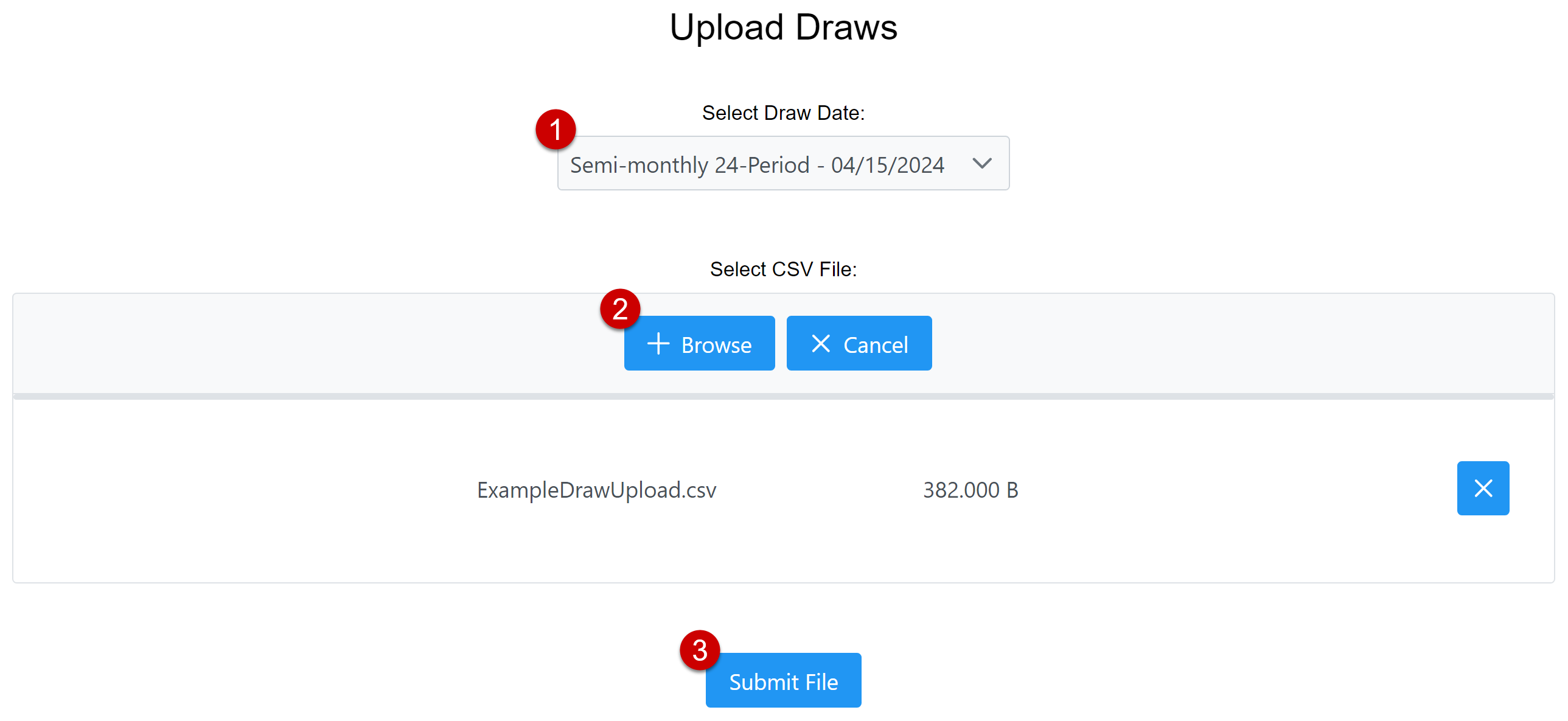
To upload the draws file:- Use the dropdown menu to select what draw date to post the draws to.
- Click the Browse button and select the CSV file of draws you created.
- Click Submit File to upload the file and begin processing.
- After the upload processes, nCino Incentive Compensation sends an email with one of the following subject lines:
- Draw Transactions file upload complete
- ERROR: Draw transactions file upload failed
Troubleshooting
Once you have uploaded the file, you will receive an email within 5 minutes if the file has failed to process. The most common issues for not processing are:- File not saved in correct format.
- Loan number not found.
- Employee number not found.
- Branch number not found.
If a file fails to load, check the following items:
- Review your CSV file's column headers and compare to the template you can download on the Upload Draws page. The headers must match exactly.
- Check your file and ensure it saves as a CSV file.
- Check that dates correctly formatted.
- Check that the loan numbers are accurate.
- Ensure the Amount values are correct and don't have extra symbols (no dollar signs, commas, or negative signs).
- Review employee numbers. Check to confirm that the employee has an account in nCino Incentive Compensation and the employee number listed in the CSV file matches the employee number on the Employee Details page.
- Review the branch number listed in the CSV file is correct.
- Ensure that the Purpose types in file match the Purpose types listed on the upload page.
After you check the CSV file and make any necessary changes, upload the file again following the steps above.
See also: