Bulk Upload Auto Draws
nCino Incentive Compensation allows users to upload and create individual auto draws in bulk from a file. This article details how to use the Upload Auto Draws tool.
Minimum Compensation Access Level Required: Executive
Access the Upload Auto Draws Tool
To access this tool from the nCino Incentive Compensation menu, click:
- Payroll▼.
- Corp Payroll Menu.
- The Draws and Carry-Over Balances header.
- The Upload Auto Draws link.
Create the Upload Auto Draws File
To create the Upload Auto Draws file:
-
Click the Download Template link to download a CSV file template.
-
Enter auto draws into the CSV file, one per row. Do not change the column headers.
Depending on how many pay calendars your company uses in nCino Incentive Compensation, the template will vary. Columns included in the template are described below:
Template - One Pay Calendar
-
EmpNo (required): Employee number of the employee receiving the auto draw.
-
LastName: Employee's last name.
-
FirstName: Employee's first name.
-
Frequency (required): Frequency of the auto draw. Use frequencies exactly as written in the Add New Auto Draw screen.
-
FirstDrawDate (required): First date when the auto draw will attempt to create a draw. Must be in MM/DD/YYYY format.
-
LastDrawDate: Last date when the auto draw will attempt to create a draw. Must be in MM/DD/YYYY format.
-
Amount (required): Dollar amount for each draw the auto draw creates. Do not include commas. Must be positive. If you create a Pending Hours auto draw, this field must be blank.
-
PendingHours: Whether or not the draw is based on pending hours. If left blank, defaults to "No".
-
PostToBrNo: Branch number the draws post to. If left blank, defaults to the employee's home branch.
-
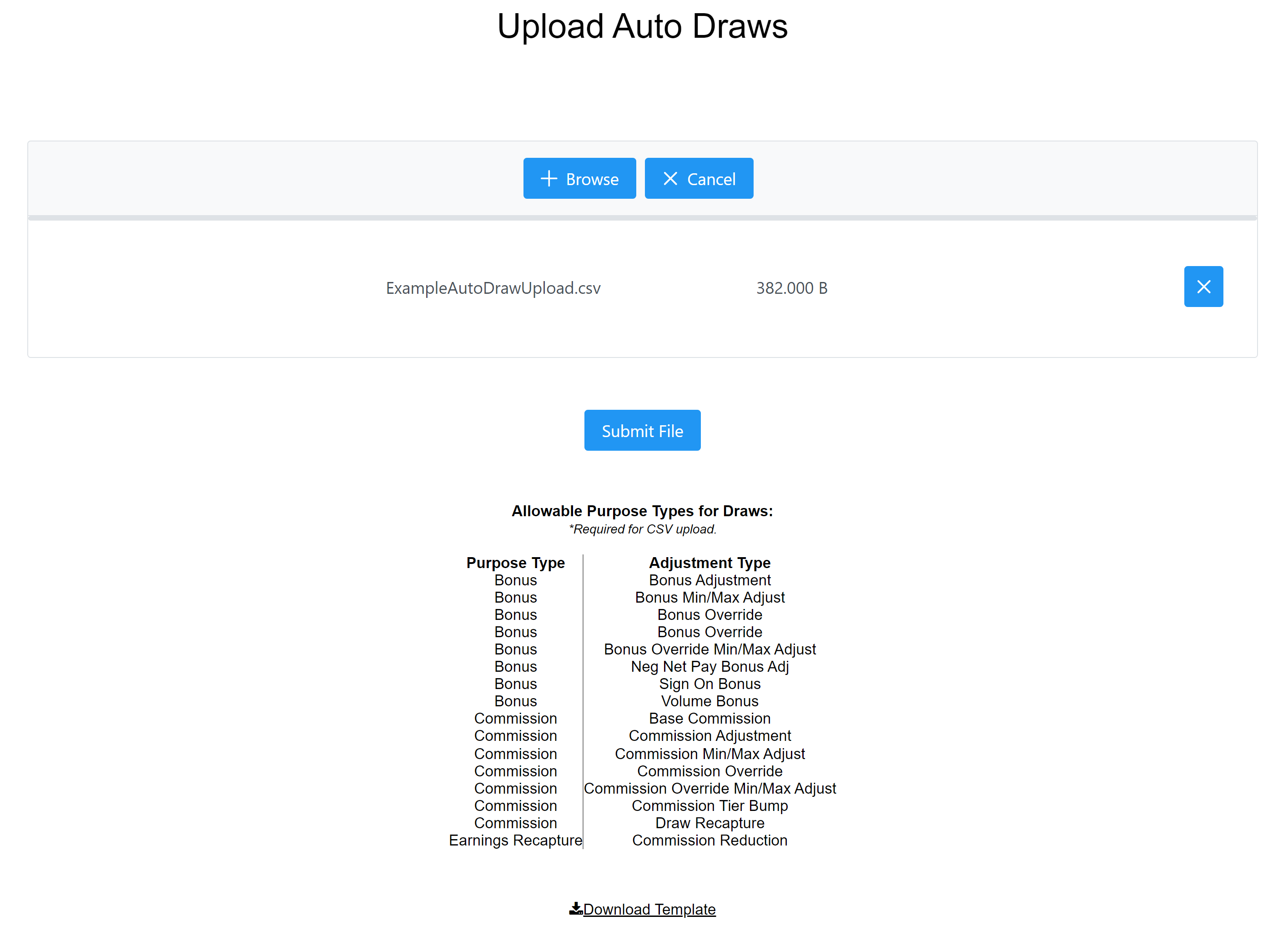
AdjustmentType (required): Adjustment type for draws posted by the auto draw. Must exactly match one of the allowed adjustment types listed on the Upload Auto Draws page.
-
Guarantee (required): Determines what type of guarantee the auto draw is. Enter "N/A" if it is not a guarantee.
-
Recapture (required): Whether or not the draws posted will attempt to recapture.
-
RecaptureOnOrAfter (required if Recapture = Yes): First date after which posted draws will attempt to recapture. Must exactly match one of the options on the Add New Auto Draw screen.
-
WaiveAfter (required if Recapture = Yes): First date after which posted draw amounts are waived. Must exactly match one of the options on the Add New Auto Draw screen.
-
Notes: Free text field for notes on the auto draw. Does not affect calculation.
Template - Multiple Pay Calendars
-
EmpNo (required): Employee number of the employee receiving the auto draw.
-
LastName: Employee's last name.
-
FirstName: Employee's first name.
-
PayCalendar (required): Name of the pay calendar this auto draw will post draws to. Must exactly match one of the options on the Add New Auto Draw Page.
-
Frequency (required): Frequency of the auto draw. Use frequencies exactly as written in the Add New Auto Draw screen.
-
FirstDrawDate (required): First date when the auto draw will attempt to create a draw. Must be in MM/DD/YYYY format.
-
LastDrawDate: Last date when the auto draw will attempt to create a draw. Must be in MM/DD/YYYY format.
-
Amount (required): Dollar amount for each draw the auto draw creates. Do not include commas. Must be positive. If you create a Pending Hours auto draw, this field must be blank.
-
PendingHours: Whether or not the draw is based on pending hours. If left blank, defaults to "No".
-
PostToBrNo: Branch number the draws post to. If left blank, defaults to the employee's home branch.
-
AdjustmentType (required): Adjustment type for draws posted by the auto draw. Must exactly match one of the allowed adjustment types listed on the Upload Auto Draws page.
-
Notes: Free text field for notes on the auto draw. Does not affect calculation.
-
Guarantee (required): Determines what type of guarantee the auto draw is. Enter "N/A" if it is not a guarantee.
-
Recapture (required): Whether or not the draws posted will attempt to recapture.
-
PayCalendar (required if Recapture = Yes): Name of the pay calendar this auto draw will attempt to recapture on. Must exactly match one of the options on the Add New Auto Draw Page.
-
RecaptureOnOrAfter (required if Recapture = Yes): Starting date after which posted draws will attempt to recapture. Must exactly match one of the options on the Add New Auto Draw screen.
-
WaiveAfter (required if Recapture = yes): First date after which posted draw amounts are waived. Must exactly match one of the options on the Add New Auto Draw screen.
-
PayCalendar: Name of an additional pay calendar this auto draw will attempt to recapture on. Must exactly match one of the options on the Add New Auto Draw Page.
-
RecaptureOnOrAfter: First date after which posted draws will attempt to recapture on the second recapture pay calendar. Must exactly match one of the options on the Add New Auto Draw screen.
-
WaiveAfter: Starting date after which posted draw amounts are waived for the second pay calendar. Must exactly match one of the options on the Add New Auto Draw screen.
Use the Upload Auto Draws Tool
To upload auto draws:
-
Download a copy of the template from the Upload Auto Draws page.
-
Enter auto draw information into the template. Do not alter the column headers.
-
Save the file as a CSV file.
-
On the Upload Auto Draws page, use the + Browse button to select the saved file. When selected, it will appear in the file list.
-
Click the Submit File button to upload the auto draws.
Troubleshooting
Once you have uploaded the file, you will receive an email within 5 minutes if the file has failed to process. The most common issues for not processing are:
- File not saved in correct format.
- Employee number not found.
- Branch number not found.
If a file fails to load, check the following items:
- Review your CSV file's column headers and compare to the template you can download on the Upload Draws page. The headers must match exactly.
- Check your file and ensure the it is saved as a CSV file.
- Check that dates correctly formatted.
- Ensure the Amount values are correct and don't have extra symbols (no dollar signs, commas, or negative signs).
- Review employee numbers. Check to confirm that the employee has an account in nCino Incentive Compensation and the employee number listed in the CSV file matches the employee number on the Employee Details page.
- Review the branch number listed in the CSV file is correct.
- Ensure that the adjustment types in file match the adjustment types listed on the upload page.
After checking your CSV file and making any necessary changes, upload the file again following the steps above.
See Also: