Edit Draw Records
nCino Incentive Compensationadmins can edit draw records as long as the records meet certain conditions. This article details what draws can be edited, and how to edit those draws.
Determine if a Draw Can be Edited
A draw record is either fully editable, can only be waived, or is not editable based on its status in nCino Incentive Compensation. Draws that are guarantees determine this status differently than draws that are not guarantees.
Non-Guarantee Draws
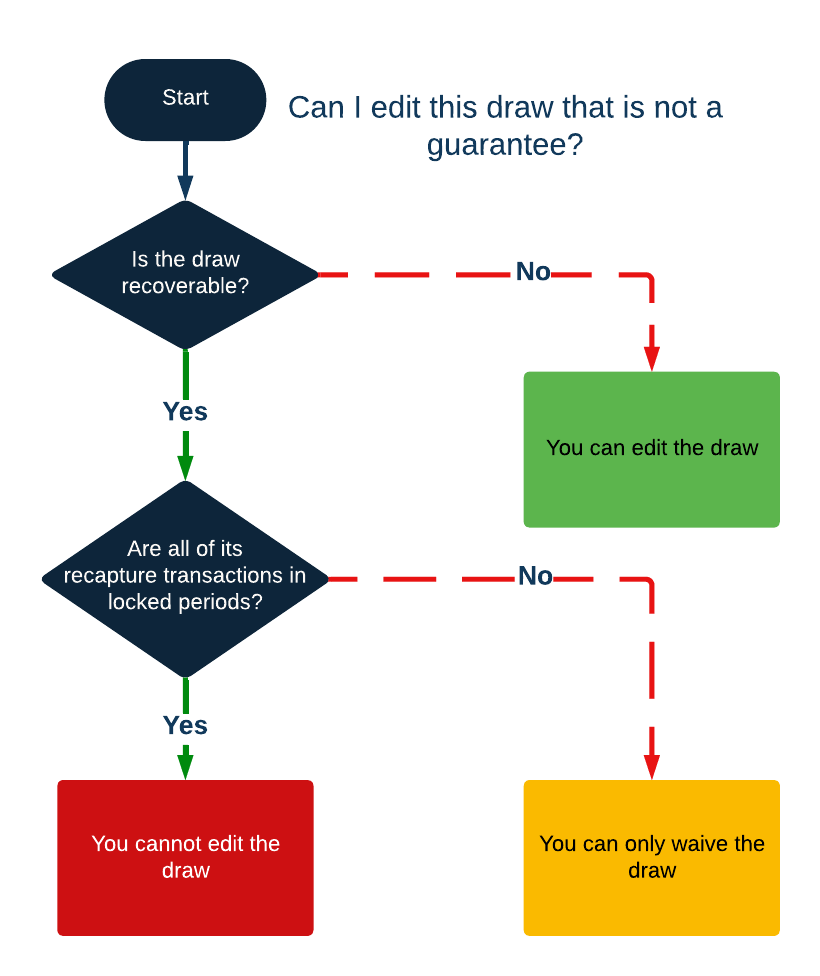
To determine if a draw that is not a guarantee can be edited, follow this series of numbered questions about the draw, or refer to the flow chart.

-
Is the draw recoverable?
-
Yes: Go to #2.
-
No: You can edit the draw.
-
-
Are all of its recapture transactions in locked pay periods?
-
Yes: You cannot edit the draw.
-
No: You can only waive the draw.
-
Guarantee Draws
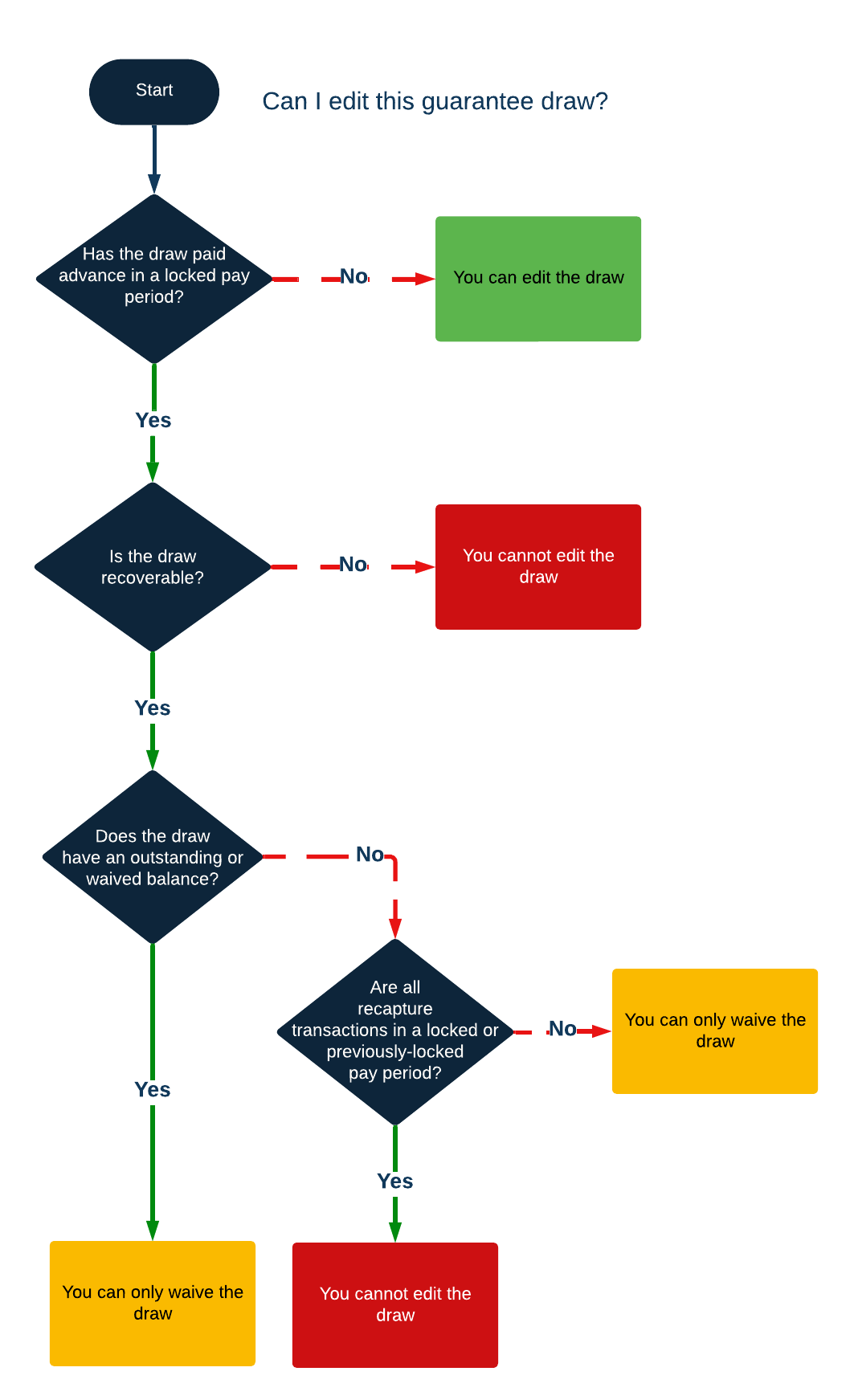
To determine if a guarantee draw can be edited, follow this series of numbered questions about the draw, or refer to the flow chart.
-
Has the draw paid an advance in a locked pay period?
-
Yes: Go to #2.
-
No: You can edit the draw.
-
-
Is the draw recoverable?
-
Yes: Go to #3.
-
No: You cannot edit the draw.
-
-
Does the draw have an outstanding or waived balance?
-
Yes: You can only waive the draw.
-
No: Go to #4.
-
-
Are all recapture transactions in a pay period that is locked or was locked in the past?
-
Yes: You can only waive the draw.
-
No: You cannot edit the draw.
-
Edit Draws
Users can view draw records from a variety of pages, including reports about draws (such as the Employee Draws Status by Draw Date Report) and on the comp snapshot.
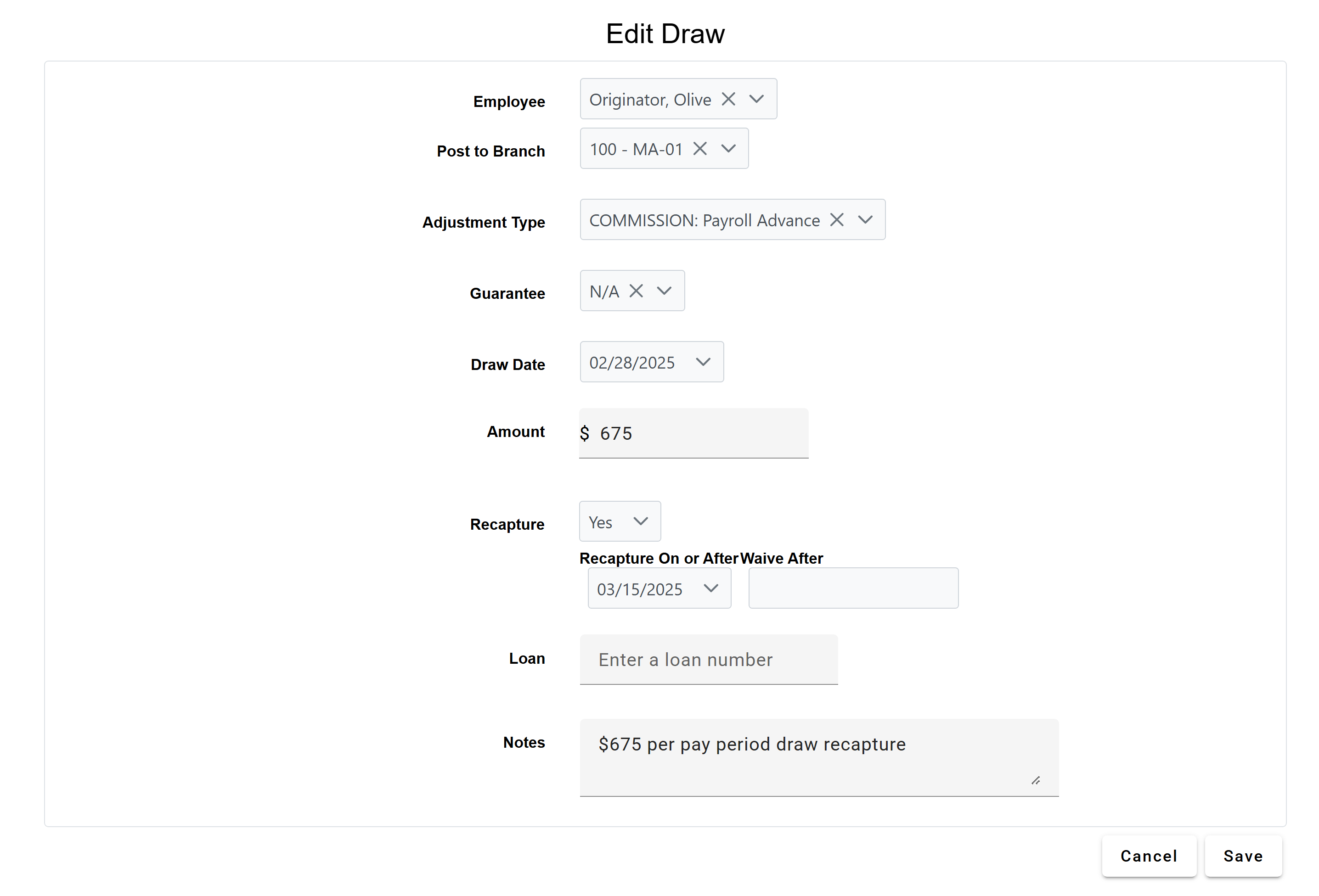
To edit a draw record from the Draw Detail page:
-
Click the Edit button. If there is no Edit button visible, you cannot edit the draw.
-
Edit the draw fields similar to how you create a draw. For more information, refer to Build Draws. Note: The fields you can edit are determined by the logic detailed in the Determine if a Draw Can be Edited section.
-
Click Save to save the changes.
Example
When Pamela Processor was hired, she received a draw to help cover her pay for the first month of her employment. This draw was set to attempt to recapture every pay period after the initial period. Last period, it recaptured some of Pamela's pay. However, as a reward for her performance, management has chosen to waive the rest of the draw.
-
Original draw amount: $3,000
-
Recaptured amount: $500
-
Remaining draw balance: $2,500
-
Locate the draw. You can use the Employee Draws Unpaid Report to locate this draw since it has a remaining balance.
-
Click Edit on the report to access the Edit Draw screen.
-
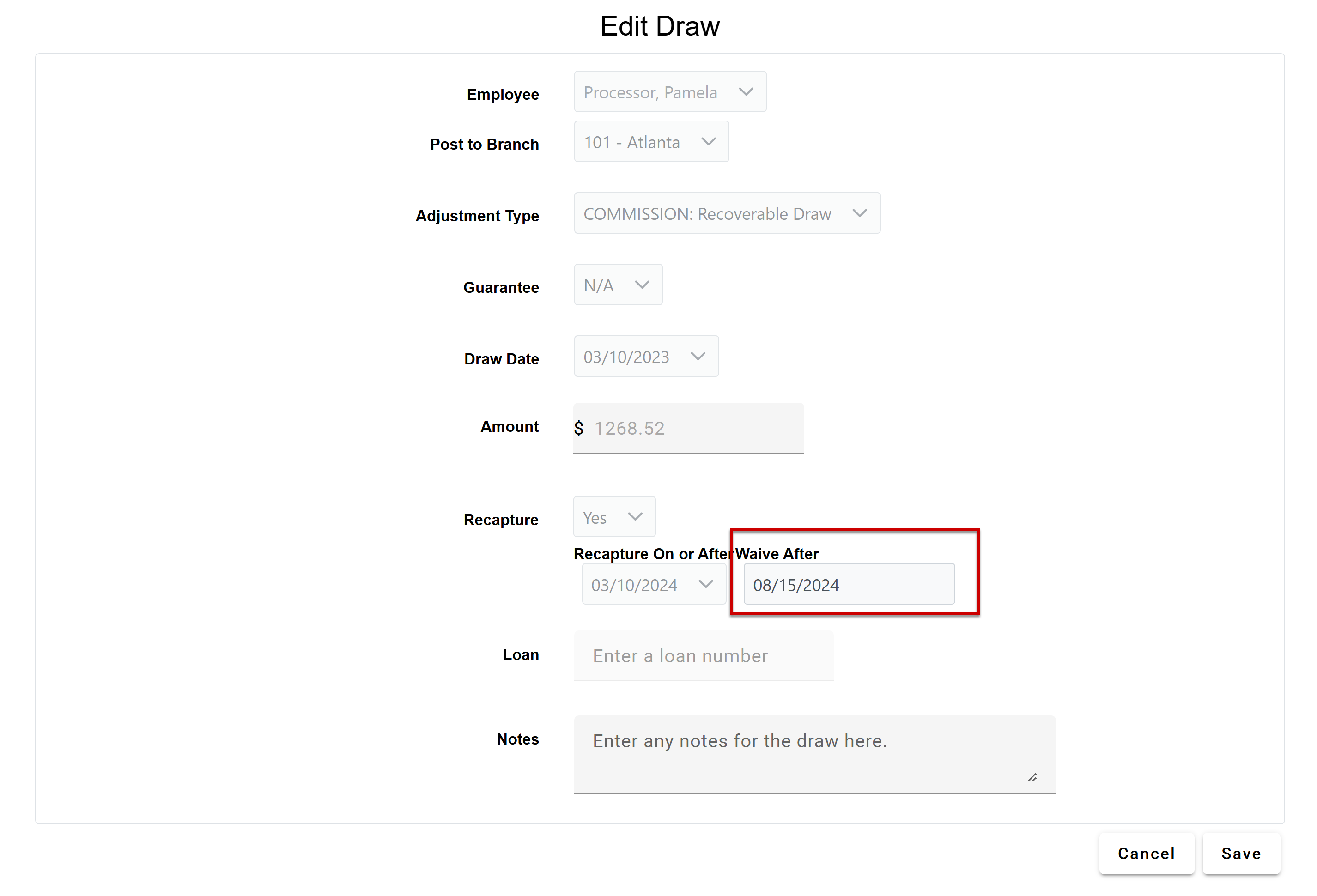
Because this draw can only be partially edited, you can only change its waive date. The rest of the items are grayed out. Set the waive date as on or before today's date.
-
Click Save.
See Also: