Draw Details Page
The Draw Details Page provides an overview of all aspects of an individual draw record. This includes details of the original draw posting, as well as its current balance and status.
This page is useful for verifying the information on a loan, to access the editing or creating new draws tools.
Accessing the Page
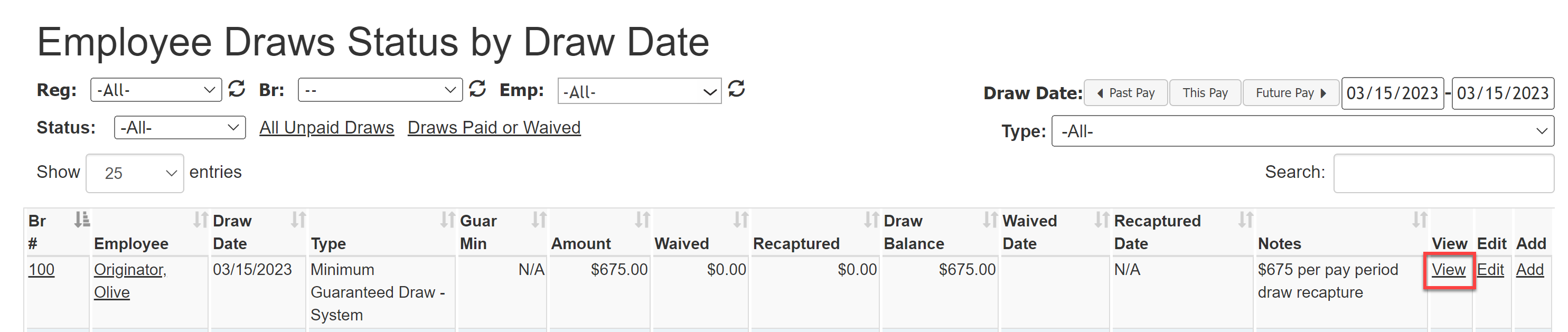
The draw details page for a specific draw can be accessed by clicking the View link for any draw record. For example, the you can use the View links on the Employee Draws Status by Draw Date Report.
Reading the Page
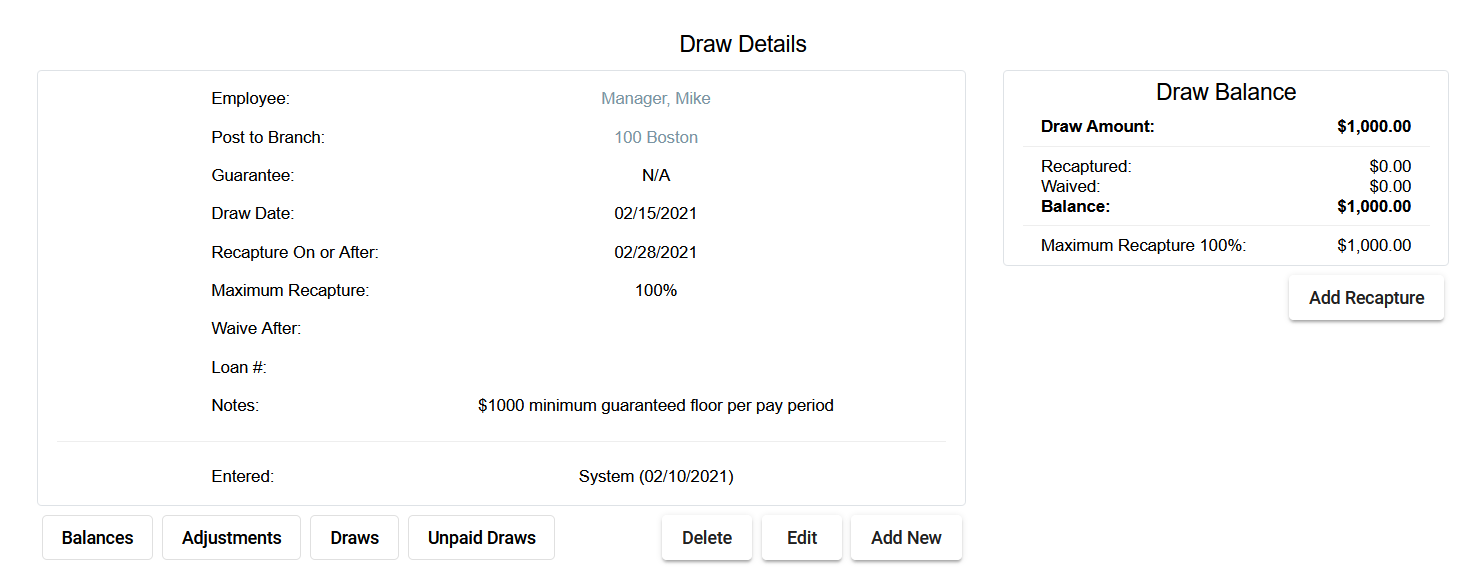
The Draw Details page is split into two main sections:
Details
- Employee: Employee assigned the draw. Click the employee's name to view their employee details.
- Post to Branch: Branch the draw was posted to. Click the branch name to view branch details.
- Guarantee: Type of guarantee the draw is, if any.
- Draw Date: Payroll date on which the draw was posted.
- Recapture On or After: Payroll date on which the draw will begin attempting to recapture.
- Maximum Recapture: Maximum percentage of compensation that is able to be recaptured from net pay per pay period, as assigned to the employee. Set on the Maximum Payroll Recapture For Draw tool in the Corporate Payroll menu. For more information, see Maximum Payroll Recapture for Draws.
- Waive After: Draw will be waived (no attempt to recapture) after this date.
- Loan #: Loan number associated with the draw.
- Notes: Notes entered during draw creation.
- Entered: User who entered the draw and the date the draw was entered into nCino Incentive Compensation.
Draw Balance
- Draw Amount: Amount of the initial draw.
- Recaptured: Amount recaptured. Includes date of recapture if already recaptured.
- Waived: Amount waived.
- Balance: Current balance of the draw.
- Maximum Recapture: Maximum possible recapture from employee's net pay.
Available Actions

The available actions on the Draw Details page are also split into the two sections:
Details
- Balances: Click to go to the "Payroll and Account Balance Summary" report.
- Adjustments: Click to go to the "Payroll Adjustments" report.
- Draws: Click to go to the "Employee Draws Status by Draw Date" report.
- Unpaid Draws: Click to go to the "Employee Draws Unpaid" report.
- Delete: Click to delete the draw (NOTE: This will NOT prevent an auto draw from re-creating the draw. You will need to also modify the auto draw.).
- Edit: Click to go to the "Edit Draw" page for this draw.
- Add New: Click to go to the "Add Draw" page.
Draw Balance
- Add Recapture: Click to go to the "Adjustment for Draw Amount" page to add a new adjustment.
See also: