Manual Disbursement Settings
The Manual Disbursement Settings page is available to system administrators to manage how their manual disbursement tool functions.
Note: Pages related to Manual Disbursements are only visible in your site if you have Manual Disbursements enabled. If you would like to enable Manual Disbursements, contact https://incentivehelp.ncino.com/hc/en-us.
Access the Manual Disbursement Settings
To access the settings page from the nCino Incentive Compensation menu, click:
- The Gear Icon
- System Admin
- The Company Profile header
- The Manual Disbursement Settings link
Disbursement Settings Section
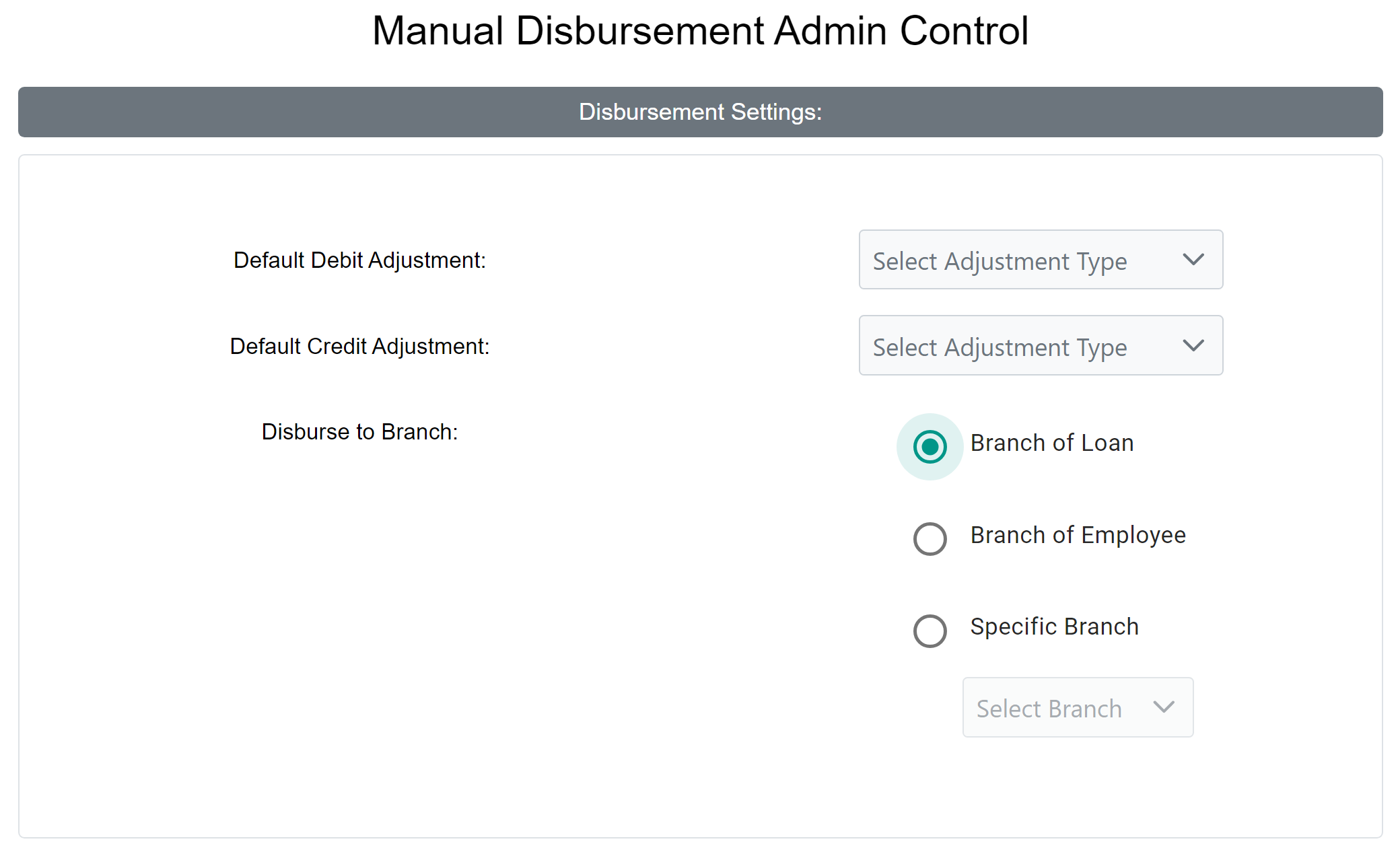
- Default Debit Adjustment: Default adjustment type for debit manual disbursements.
- List includes active manual adjustment types on the Adjustment Types page.
- For more information, refer to Set Company Adjustment Types.
- Default Credit Adjustment: Default adjustment type for credit manual disbursements
- List includes active manual adjustment types on the Adjustment Types page.
- For more information, refer to Set Company Adjustment Types.
- Disburse to Branch: Options for which branch the disbursement will post to
- Branch of Loan: Disbursement will post to the branch the loan is assigned to.
- Branch of Employee: Disbursement will post to the branch of the debited employee.
- Specific Branch: Disbursement will post to the branch chosen in the dropdown menu.
Workflow Settings Section
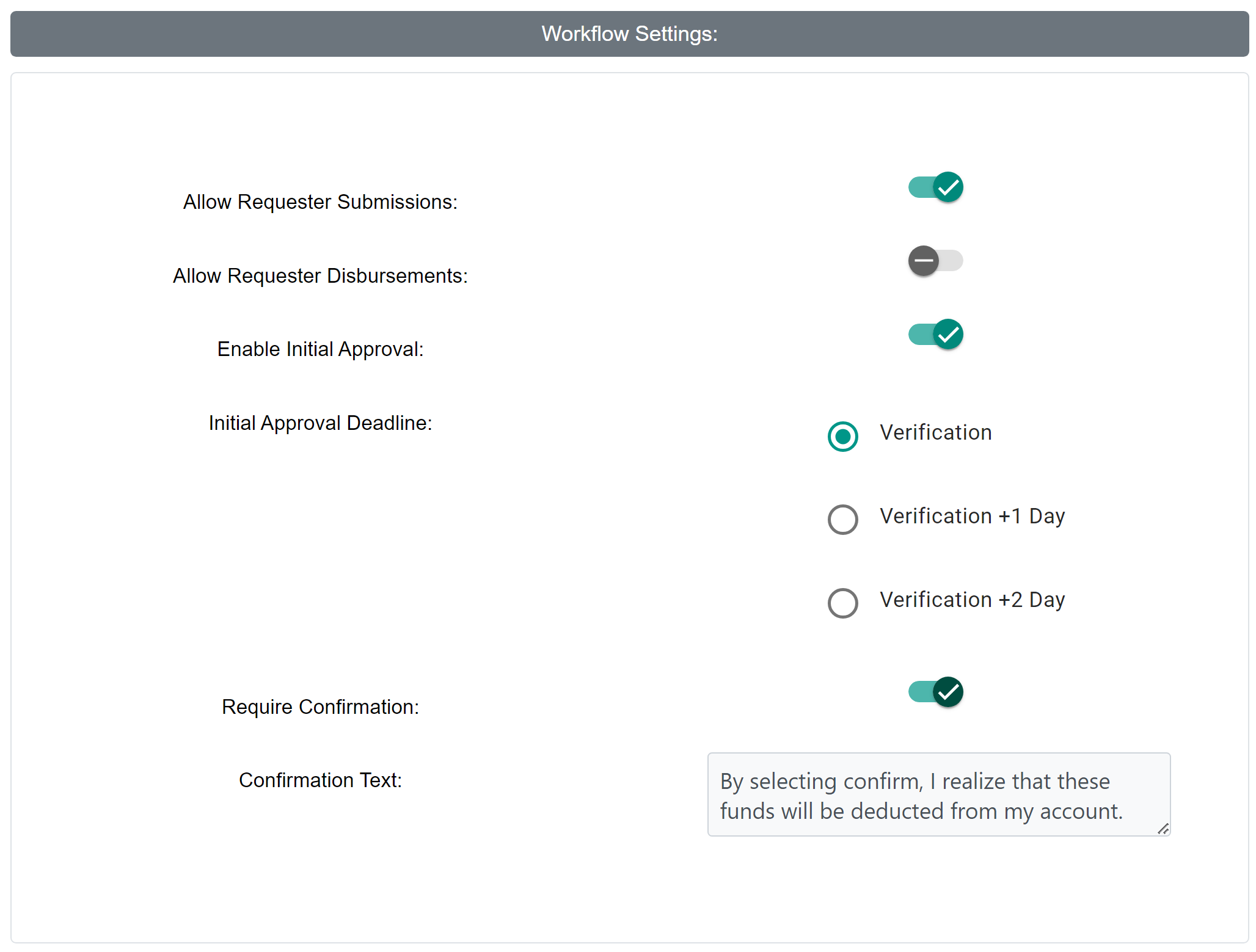
- Allow Requester Submissions: When enabled, all users can request disbursements. When disabled, only AL-5s can create disbursements.
- Allow Requester Disbursements: When enabled, disbursements can credit the user who requested them.
- Enable Initial Approval: When enabled, disbursement requests must be approved by managers before AL-5 review.
- Accessible only when Allow Requester Submissions is enabled.
- Initial Approval Deadline: Date the initial approving user must approve the disbursement for it to be valid for a certain payroll period.
- Options based on the payroll period's Verification Date.
- Require Confirmation: When enabled, requester must confirm when they enter a manual disbursement
- Confirmation Text: Text in the confirmation dialog box.
Authorized Users Section
Note: This section is only visible when Allow Requester Submissions is enabled.
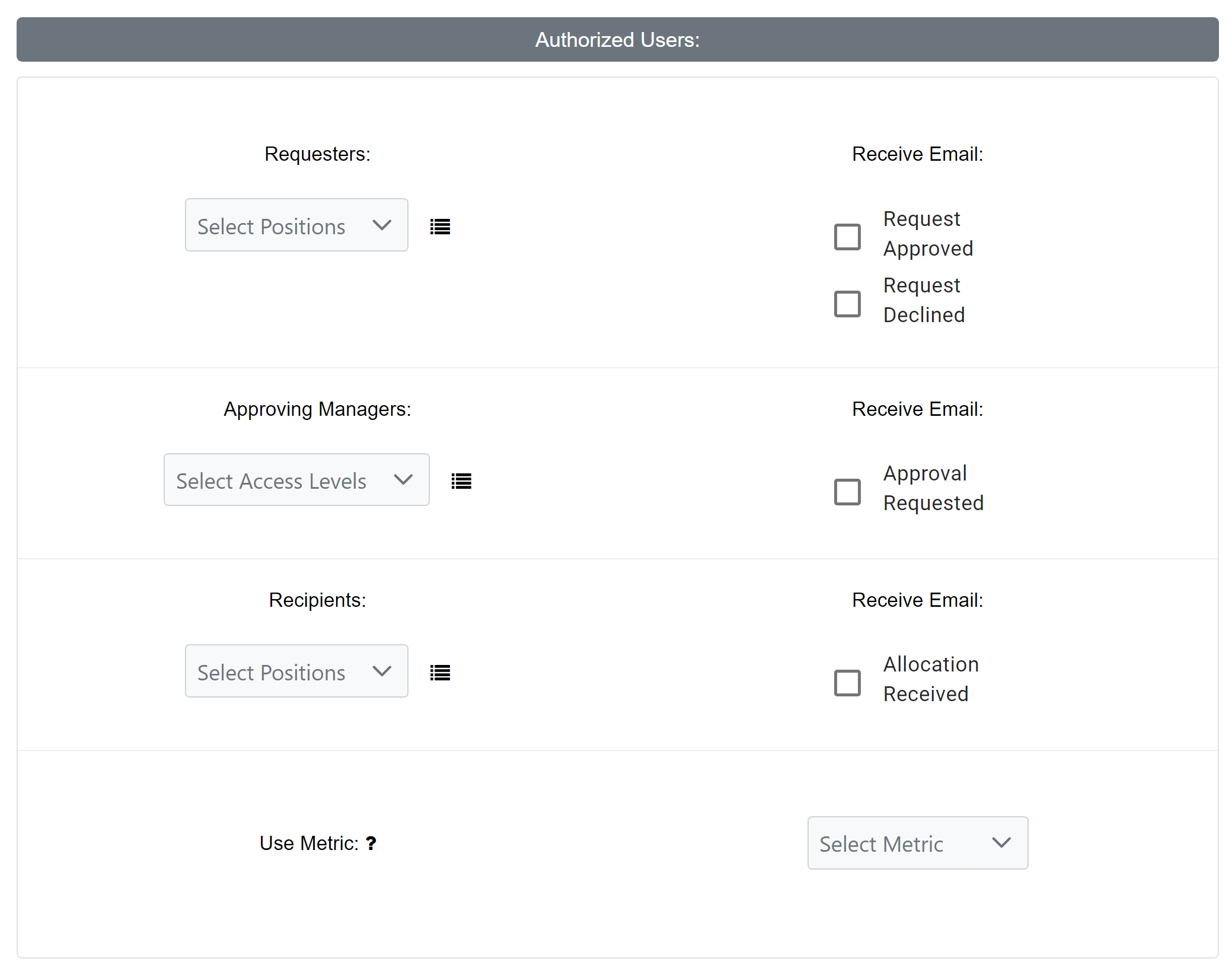
- Requesters: Select the nCino Incentive Compensation Positions who can request manual disbursements.
- Receive Email: Request Approved: If enabled, requester will receive an email when the disbursement is approved.
- Receive Email: Request Denied: If enabled, requester will receive an email when the disbursement is denied.
- Receive Email: Request Approved: If enabled, requester will receive an email when the disbursement is approved.
Note: The Approving Managers option is only visible when Enable Initial Approval is enabled.
- Approving Managers: Account access levels that are allowed to perform initial approval.
- Receive Email: Approval Requested: If enabled, managers will receive an email when a disbursement needs their approval.
- Receive Email: Approval Requested: If enabled, managers will receive an email when a disbursement needs their approval.
- Recipients: Select the nCino Incentive Compensation Positions to be allowed as manual disbursement recipients.
- Receive Email: Allocation Received: If enabled, recipient will receive an email when they receive an allocation.
- Use Metric: Employees assigned to a compensation plan that includes the selected metric will be allowed as a requester and recipient.
Additional Settings Section
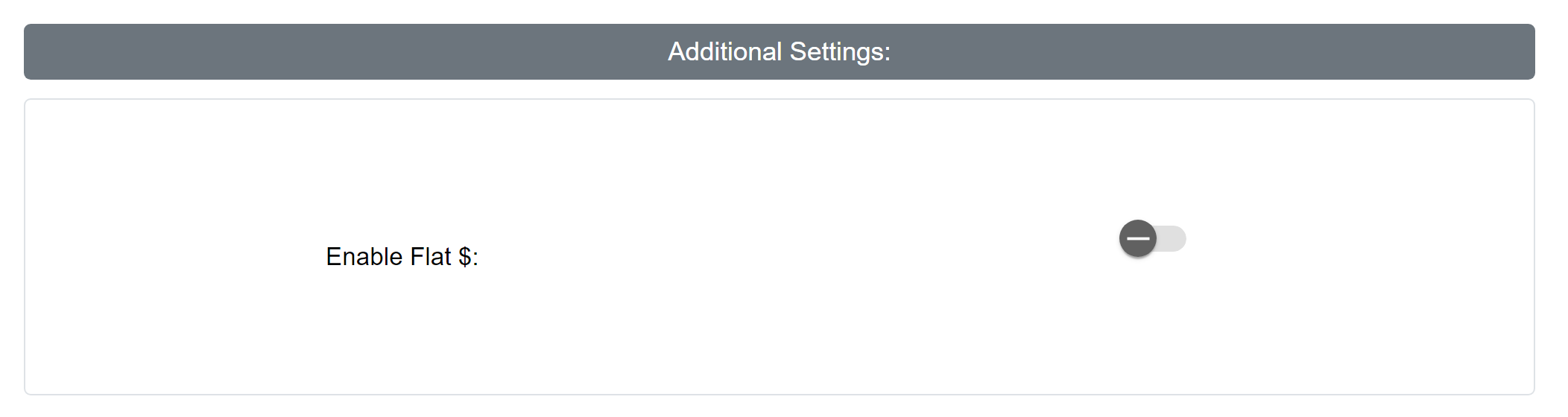
- Enable Flat $: When enabled, the Flat $ pay type will be available for manual disbursements.
- This option does not require any associated loans.
- This option does not require any associated loans.
See also: