Payroll Periods Report
The Payroll Periods report provides a list of your company's payroll periods and important dates. A loan that meets a payable on date (POD) between the Period Start date and the Period Stop date is eligible for pay on the "Pay Date - Actual" for the payroll period.
Minimum Compensation Access Level Required: Own Production
Access the Report
To access this report from the nCino Incentive Compensation menu, click:
-
Report ▼
-
All
-
The Payroll header
-
The Payroll Periods report
You can also access this report by clicking the Payroll Periods List button on the Pay Calendar Overview.
Read the Report
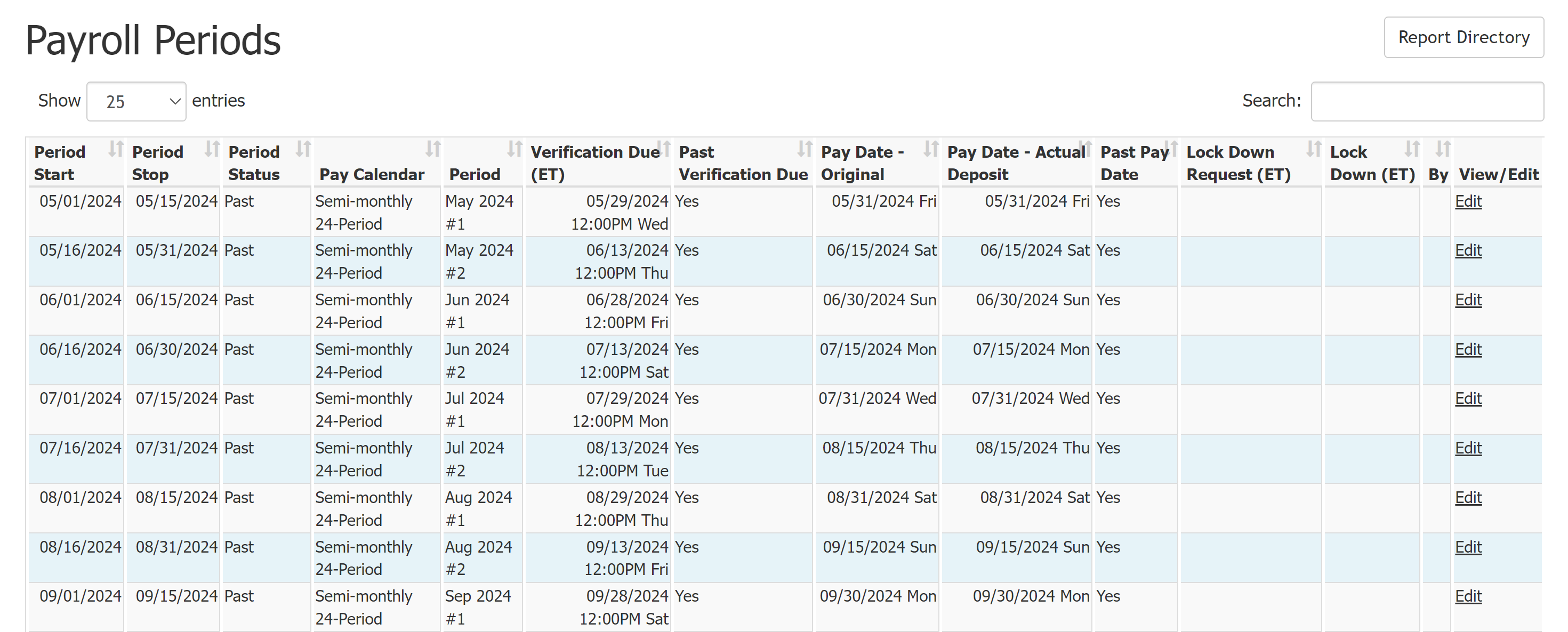
This report contains the following columns:
-
Period Start: First day of the payroll period. A loan that reaches a payable on date (POD) after this date and before Period Stop is eligible for pay.
-
Period Stop: Last day of the payroll period. A loan that reaches a payable on date (POD) before this date and after the Period Start date is eligible for pay.
-
Period Status: Whether the listed period is "Past", "Current", of "Future".
-
Pay Calendar: Name of the pay calendar.
-
Period: Number of the payroll period.
-
Verification Due (ET): Time and date verification is due for the period (Eastern Time).
-
Past Verification Due: Whether or not this period's verification date is in the past.
- Pay Date - Original: Pay date set for the period. Based on the pay frequency determined during company setup.
This date must always occur after Verification Due Date.
Payroll administrators cannot update this date on their own. For help, contact https://incentivehelp.ncino.com/hc/en-us.
-
Pay Date - Actual Deposit: Projected actual date that employees are paid. The date might be different from Pay Date - Original due to weekends and holidays.
-
This date can't be more than 7 days before or after the Pay Date - Original.
-
This is the date used for the Payroll Report Filters ("Last Pay", "This Pay", "Next Pay").
-
Payroll administrators can edit this date. For more information, refer to Edit Payroll Periods
-
-
Past Pay Date: Whether or not this pay date is in the past.
-
Lock Down Request (ET): Time and date a payroll period lockdown was requested.
-
Periods can be set to automatically lock down using the Corporate Payroll menu.
-
Lock down request date must be before the Pay Date - Actual.
-
If no lock down has been requested, nCino Incentive Compensation will automatically lock down on the Pay Date - Actual.
-
-
Lock Down (ET): Time and date the lock down completed.
-
By: Name of the user who requested lock down (if not done by the system).
-
View/Edit: Link to view or edit the payroll period. Past payroll periods are not editable.
Edit Payroll Periods
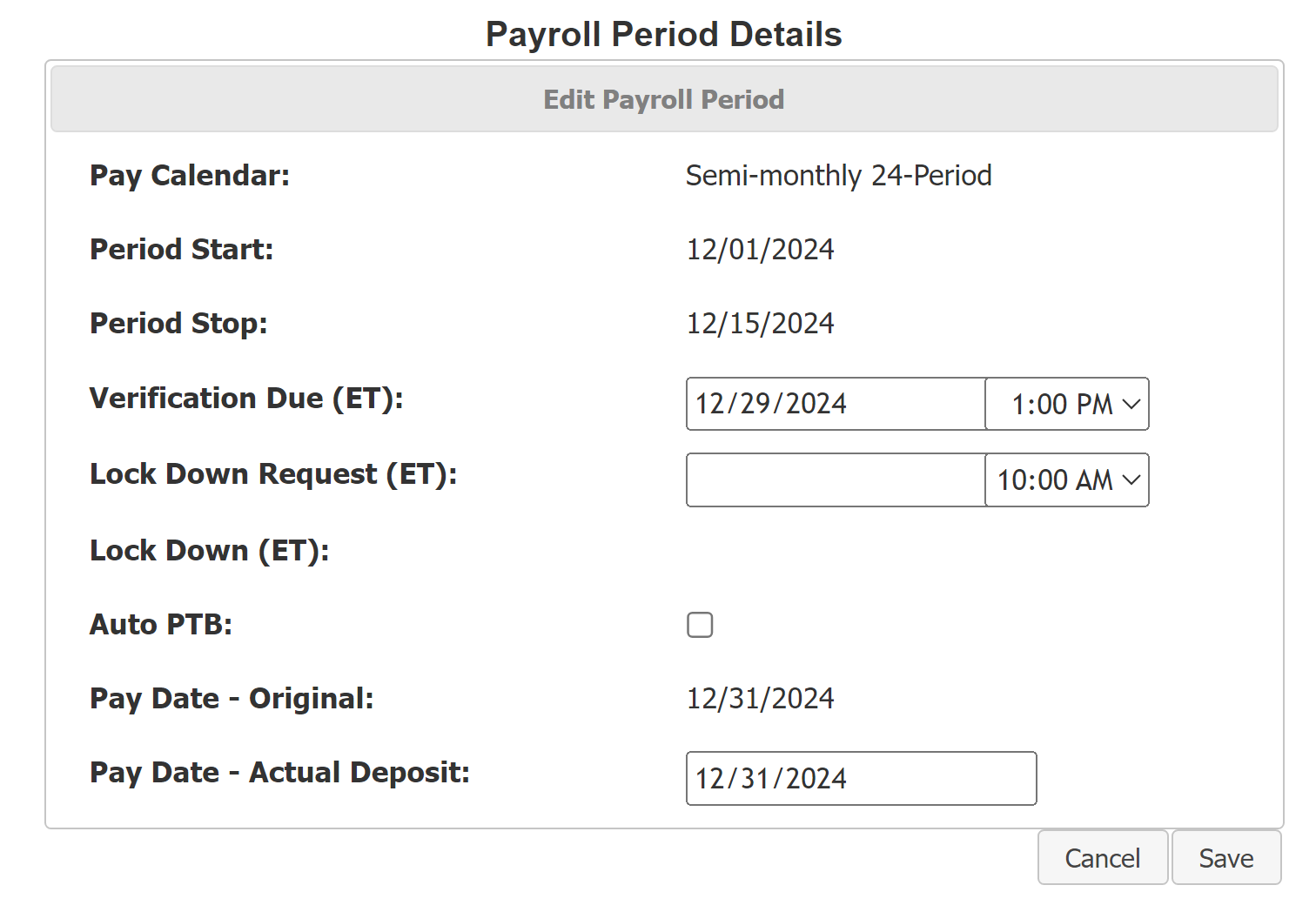
On the Edit screen, admins can edit these fields for current or future payroll periods:
-
Verification Due (ET): This must be prior to the Pay Date - Original.
-
Lock Down Request (ET): This must be before Pay Date - Actual Deposit. If it is left blank, nCino Incentive Compensation will send a request automatically based on the "Automatic Lockdown Offset" Company Parameter.
-
Auto PTB: Check to enable Auto Push the Button. For more information, see Understand Draws and Auto Draws.
-
Pay Date - Actual Deposit: This cannot be more than 7 days before or after Pay Date - Original.
Export the Report
To export this page, click the export icon.
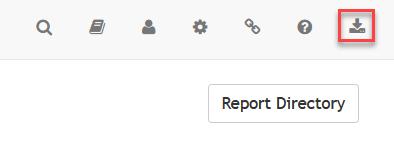
This export includes all columns on the online version of the report except for "Lock Down Request (ET)".
See Also: