Upload Credit/Debit Adjustments
nCino Incentive Compensation includes a tool that allows users to upload several credit and debit adjustments at once. Users can complete the template file to create a list of adjustments, and then upload them to post on a specific date. This article details how to use the tool.
Minimum Compensation Access Level Required: Executive
Access the Tool
To access this tool:
-
From the nCino Incentive Compensation menu, click Payroll ▼.
-
Click Corp Payroll Menu.
-
In the Corporate Payroll menu, click the Transactions header.
-
Click Upload Payroll Adjustments.
Use the Tool
To use this tool:
-
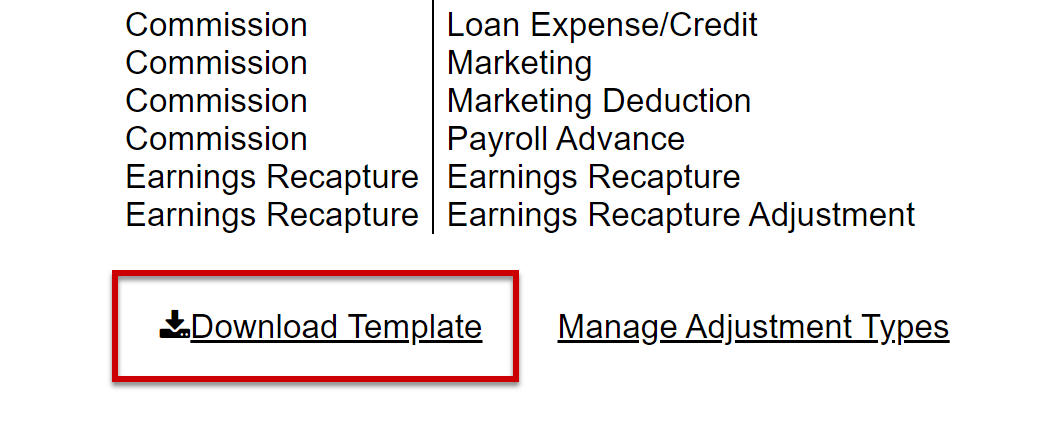
Click Download Template to receive a copy of the template file.
-
In the template file, replace the example data with adjustments you want to enter. Do not change the column headers. Save the file with a new name.
-
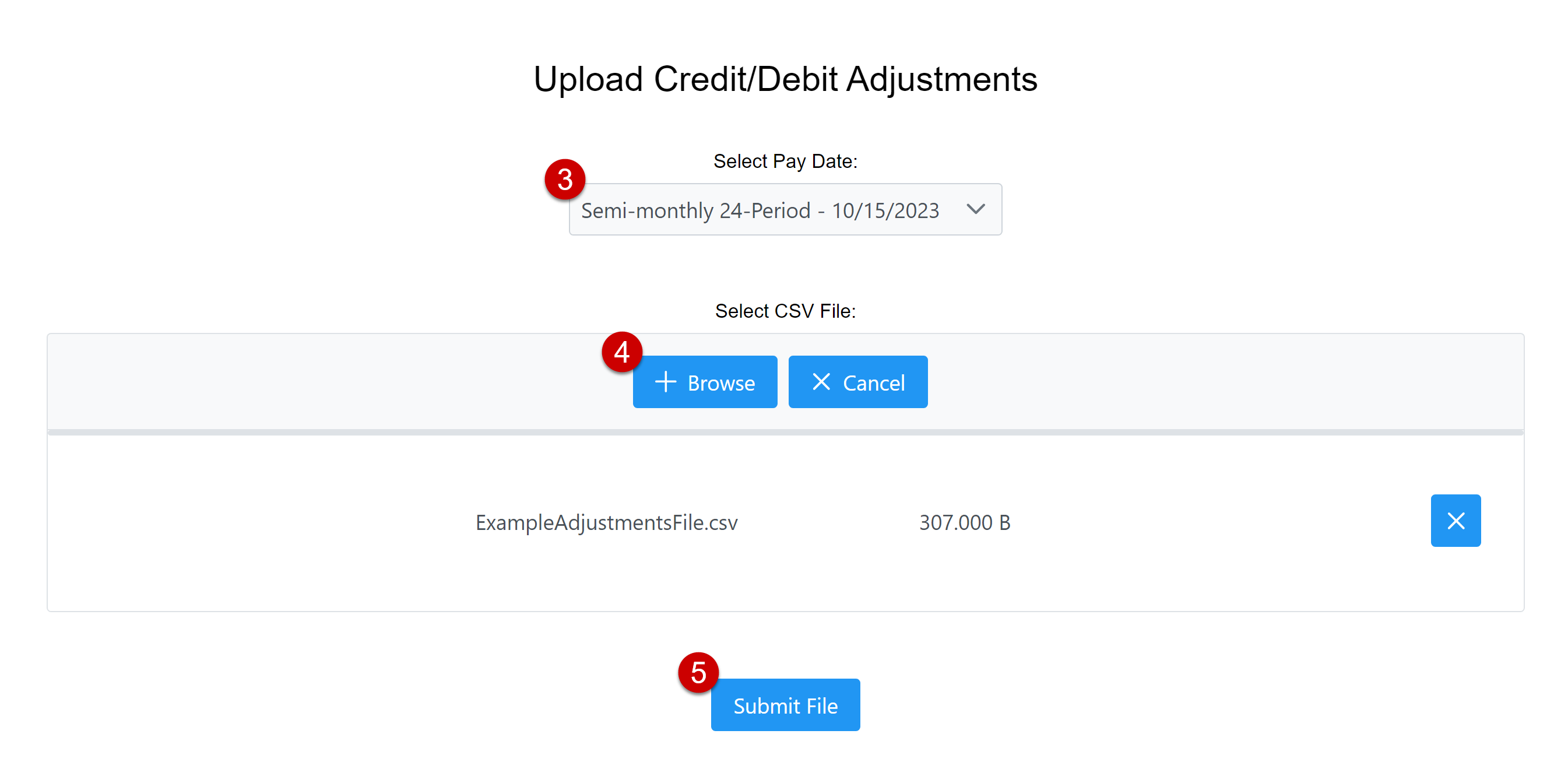
On the Upload Credit/Debit Adjustments page, use the dropdown to Select Pay Date. This is the date the adjustments will post to.
-
Select your file by using the +Browse button and navigating to the file. Alternatively, you can drag the file from your file browser into the tool.
-
Once you've selected your file, click Submit File to upload it.
-
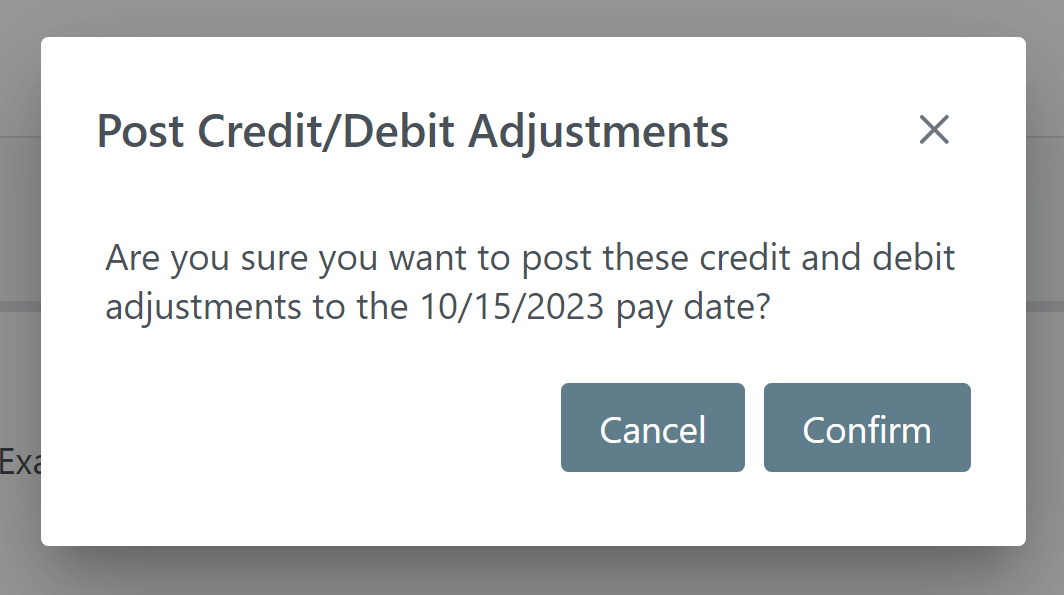
A window will appear which asks you to confirm that you want to post the adjustments to that date. If the date is accurate, click Confirm.
-
If the file is uploaded successfully, you will see a success message. nCino Incentive Compensation will email you when it is finished processing the file.
Upload File Requirements
Users can build Credit/Debit adjustment files using the template at the bottom of the upload page. These files must meet the following requirements:
- File type must be CSV.
- Column headers must match the template headers.
- Column data should be as follows:
- EmpNo: (Required) Employee number.
- BrNo: (Required) Branch number where the system posts the transaction.
- LastName: Employee's last name.
- FirstName: Employee's first name.
- Amount: (Required) Adjustment amount. Numeric values only.
- If positive, employee receives a credit adjustment.
- If negative, employee receives a debit adjustment.
- AdjustmentType: (Required) Adjustment type for the adjustment. The upload page lists allowed adjustment types. Must be typed exactly as they are listed on the page.
- LoanNo: If loan number entered, the system will associate the adjustment with that loan.
- Notes: Comments on the adjustment. Has no affect on calculations.
- IncludeInEmployeeMaxCap: (Required) Whether or not the adjustment is included in the employee's max cap calculations. Must be "Yes" or "No".
Troubleshooting
If the file cannot be uploaded successfully, check the following items and try again:
-
The file's headers must match the headers in the template file exactly.
-
The file must be saved as a CSV file.
-
Loan numbers in the file must match existing loans in the system.
-
Employee numbers in the file must match existing employees in the system.
-
Branch numbers in the file must match existing branches in the system.
See Also: