Payroll Adjustments Report
The Payroll Adjustment Report lists all manual adjustments for the selected pay period. This report is primarily intended for payroll administrators with the Executive Access Level.
All users can access this report, but the information displayed will be restricted by their Access Level. Only Executive Access Level users are able to edit or delete adjustments.
Minimum Compensation Access Level Required: Own Production
Access the Report
Users with the Executive Access Level:
- From the nCino Incentive Compensation menu, click Payroll ▼.
- Click Corp Payroll Menu.
- Click the Transactions header.
- Click the Payroll Adjustments Report.
All users:
- From the nCino Incentive Compensation menu, click Report ▼.
- Click All.
- Click the Payroll header.
- Click the Payroll Adjustments Report.
Read the Report
This report includes the following filters and display options:
- Region, Branch, and Employee Filtering Tool: Used to filter the information on the report. For information on using this tool, refer to How do I filter reports?.
- Payroll Period Selector: Used to select the payroll period shown on the report. For information on using this tool, refer to How do I use the date selectors?.
- Adjustment Type Selector: Used to filter the information on the report by adjustment type.
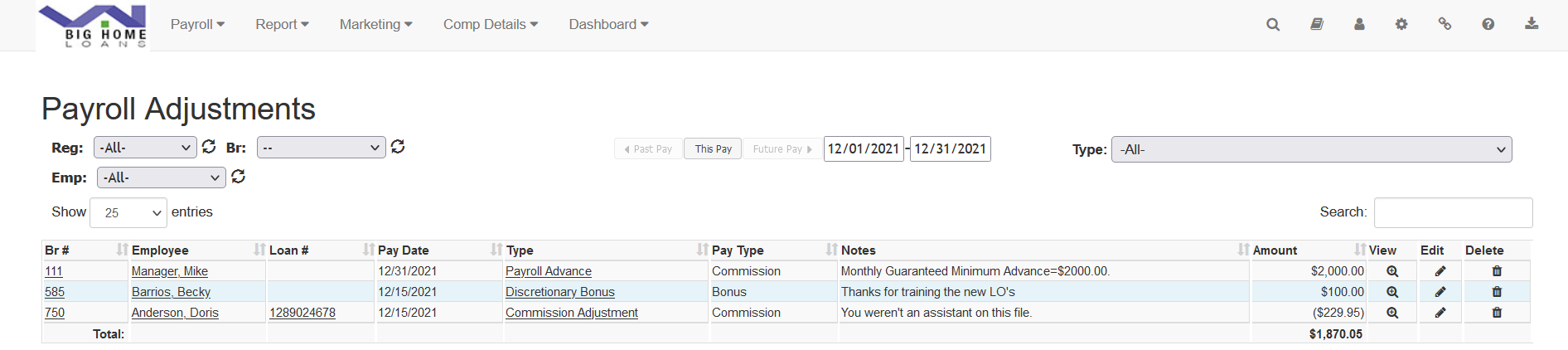
This report includes the following columns:
- Br #: Branch the adjustment is posted in. Click to view branch details.
- Employee: Employee affected by the adjustment. Click to view employee details.
- Loan #: Loan associated with the adjustment (if applicable). Click to view loan details.
- Pay Date: Pay date the adjustment is posted to.
- Type: Adjustment type. Click to view adjustment details.
- Pay Type: Payment type used for the transaction (e.g. Bonus, Commission, etc.).
- Notes: Notes on the adjustment.
- Amount: Amount of the adjustment.
- View: Click the magnifying glass icon to view the adjustment. (TODO add icons)
- Edit: Click the pencil icon to edit the adjustment. Only available for Executive Access Level users.
- Delete: Click the trashcan icon to delete the adjustment. Only available for Executive Access Level users.
Export the Report
To export this page, click the export icon.
The export includes all data available in the online version of the report as well as the following:
-
Region: Short name of the region in which the adjustment is posted.
-
Emp #: Employee number for the employee receiving the adjustment.
-
Entered By: User who entered the adjustment.
-
Entered Date: Date the adjustment was entered.
-
Last Updated By: User who updated the adjustment.
-
Last Updated Date: Date the adjustment was last updated.
See also: