Use the Manage File Uploads Tool
The Manage File Uploads tool allows system administrators to review uploaded files, and to delete files that were uploaded that are not a part of a locked payroll period.
Minimum Compensation Access Level Required: Executive
Accessing the Tool
To access the tool:
-
From the nCino Incentive Compensation menu, click the gear icon (
 ).
). -
Click "System Admin".
-
Click the "Company Profile" header.
-
Click "Manage File Uploads".
Using the Tool
Reading the Table
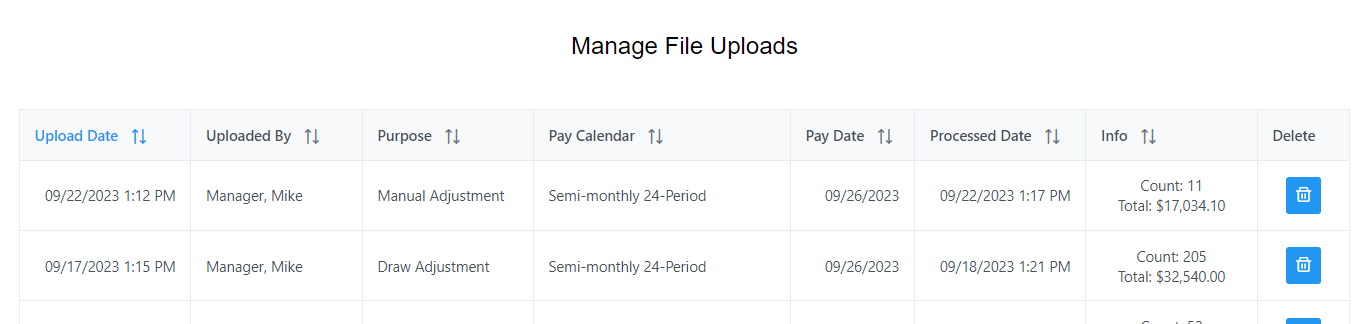
This table contains the following columns:
-
Update Date: Date the file was uploaded.
-
Uploaded By: User who uploaded the file.
-
Purpose: File purpose. Determined by the tool used to upload the file.
-
Pay Calendar: Pay calendar the uploaded file affects.
-
Pay Date: Pay date the uploaded file affects.
-
Processed Date: Date the file was processed.
-
Info: Brief summary of the file. Includes number of rows (count) and the sum of all transactions in the file.
-
Delete: Button to delete the uploaded file. Button will be grayed-out and not clickable if the file is for a locked payroll period and cannot be deleted.
Deleting Files
To delete a file:
-
Locate the file you want to delete in the table.
-
Click the Delete button. If the button is grayed-out and not clickable, the file cannot be deleted.
-
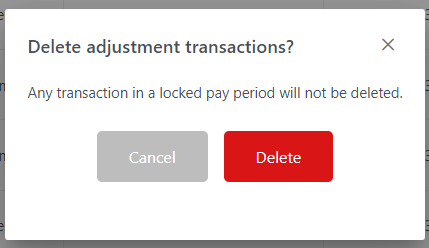
A confirmation window will appear. To confirm you want to delete the file, click the "Delete" button. To return without deleting the file, click "Cancel".
-
Once "Delete" is clicked, a success message will indicate that the file and related transactions are in the process of being deleted.

See Also: