Loan Compensation Verification Guide
This article is a detailed guide for the Verify Pay feature. For an introduction to Verify pay, see Verify Your Pay.
Minimum Compensation Access Level Required: Own Production
NOTE: If you are unable to see pay for an employee you manage, check to see if the loan is in your branch. If the loan is outside your branch, you may not have access based on the company parameters. For help with your company parameters, contact https://incentivehelp.ncino.com/hc/en-us.
Verify Pay Visibility
Information that users are able to see and interact with on the Verify Pay page is based on their Access Level and any branch or region assignments they have.
Generally speaking, all users are able to see and verify their own pay.
Managers
Managers include users with an Access Level of Sub-Branch, Master Branch, or Region who are assigned as Branch Manager for at least one branch.
All managers can view employee and compensation information for employees within their assigned branch(es). Depending on your company's settings, they might also be able to view some or all of the following:
-
Employees from other branches being paid in the manager's branch.
-
Employees from their branch being paid on other branches.
NOTE: If you are interested in changing manager access settings for the Loan Compensation Verification page, reach out to https://incentivehelp.ncino.com/hc/en-us.
Accessing the Loan Compensation Verification Page
To access this page:
-
In the nCino Incentive Compensation menu, click "Payroll ▼".
-
Click "Verify Pay".
Reading the Loan Compensation Verification Page
The very top of the page lists the pay date that is being displayed, the corresponding pay period (written in red), and when compensation verification is due for the period. The top of the page includes a link to the Verification Details report. Executive level users also have a link to the Verification Summary report. The total amount of Verified, Disputed, and Unhandled loans are displayed above the report.
Users are able to view their own pay, as well as the pay of employees in branches or regions they manage. The example below is the view an Executive-level user would see.
NOTE: Compensation verification policies and due dates vary by client. Contact your human resources or payroll department for information on your company's verification policy.
This report includes the following display / filter option:
-
Region, Branch, and Employee Filtering Tool: Used to filter the information on the report. For information on using this tool, refer to How do I filter reports?.
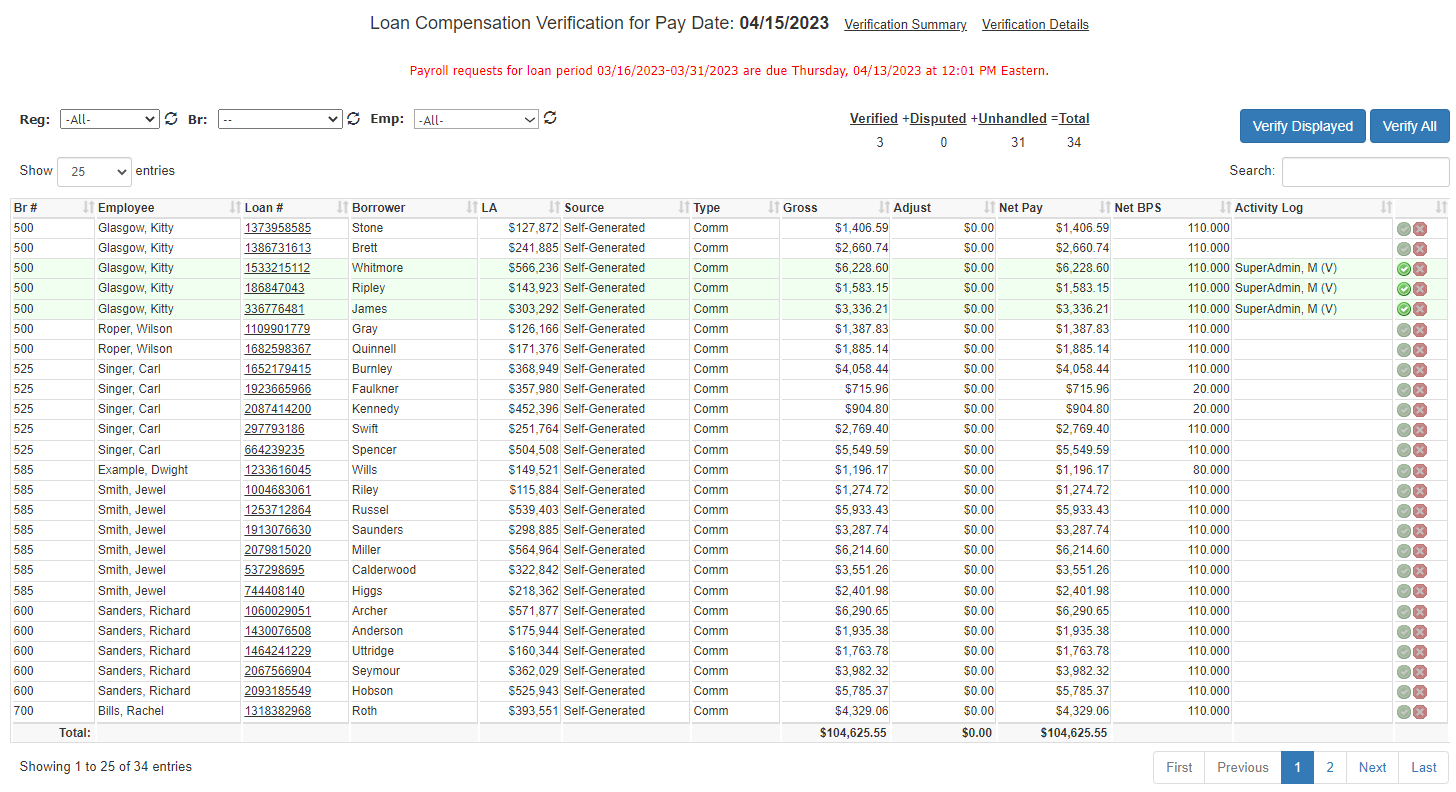
The report includes the following columns:
-
Br #: Branch of the employee.
-
Employee: Employee being compensated.
-
Loan #: Loan number. Click to view loan details.
-
Borrower: Borrower's last name.
-
LA: Loan amount in dollars.
-
Source: Loan source.
-
Type: Pay type. Typically, Comm, Bonus, or Earnings Recapture.
-
Gross: Dollar amount paid to the employee before any adjustments.
-
Adjust: Compensation adjustments on the loan, in dollars.
-
Net Pay: Amount paid to the employee in dollars after adjustments.
-
Net BPS: Amount paid to the employee in BPS.
-
Activity Log: Brief log of pay verification activities and comments.
-
[Verify / Dispute Buttons]: Buttons to verify or dispute the compensation.
Verifying and Disputing Loans
NOTE: Compensation verification policies and due dates vary by client. Contact your human resources or payroll department for information on your company's verification policy.
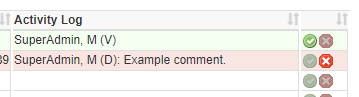
From this page, you can verify or dispute individual compensation items for the pay period.
-
To verify compensation, click the green checkmark button for each item.
-
To dispute compensation, click the red X button for each item.
-
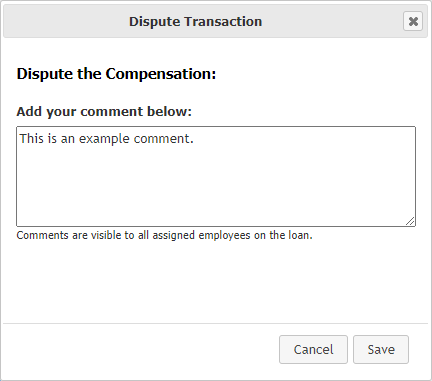
When disputing, a comment box will open as seen in the image below. Enter the reason for the dispute in the text box, then click Save. This comment will be visible to your Payroll Administrator.
-
Once a dispute is created, an email is sent to the Payroll Administrator with information about the disputed transaction. For more information, refer to Automated System Email Triggers.
-
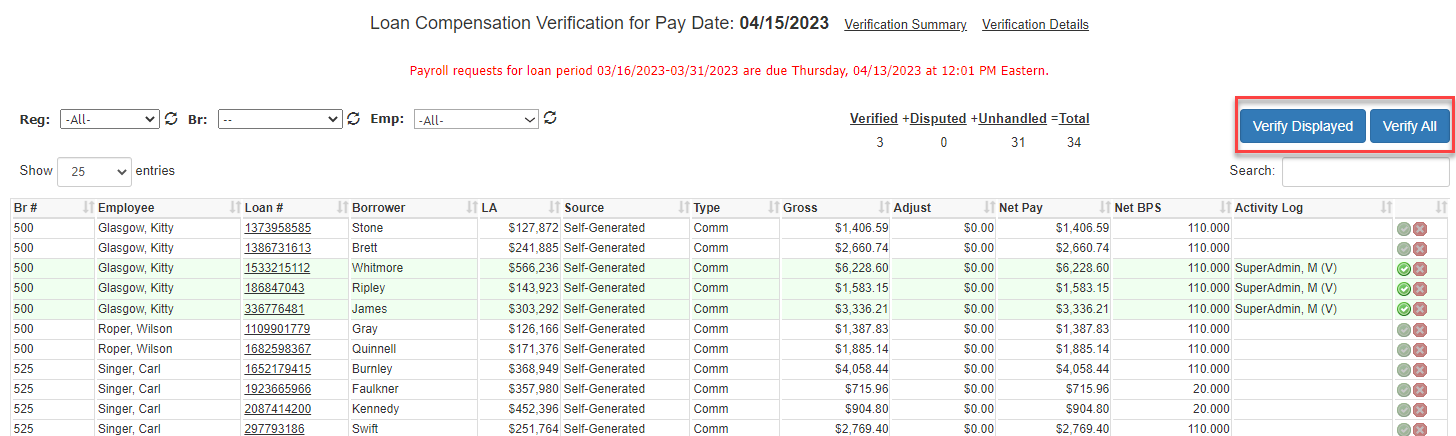
The two buttons at the top of the screen can be used to verify loan compensation for multiple commissions at once.
-
Current page: Click the Verify Displayed button to verify all of the compensation on the current page.
-
All compensation: Click the Verify All button to verify all compensation for the given pay date.
NOTE: These buttons will not change any loans previously marked as Disputed.
See Also: