Admin Payroll Process
This article details the typical payroll process in nCino Incentive Compensation, including some best practices to help make the most of the nCino Incentive Compensation tools.
NOTE: Your payroll process might look slightly different if any of the following are true:
- Your company uses multiple payroll calendars
- Your company has not yet fully launched in nCino Incentive Compensation
Overview
The payroll process takes place during a payroll period. Each payroll period has the following key dates:
- Period Start Date
- Period Stop Date
- Lock Down Date
- Verification Due Date
- Pay Date
- Pay Date - Original
- Pay Date - Actual
These dates can be found on the listing of payroll periods. See Payroll Periods Report for more information.
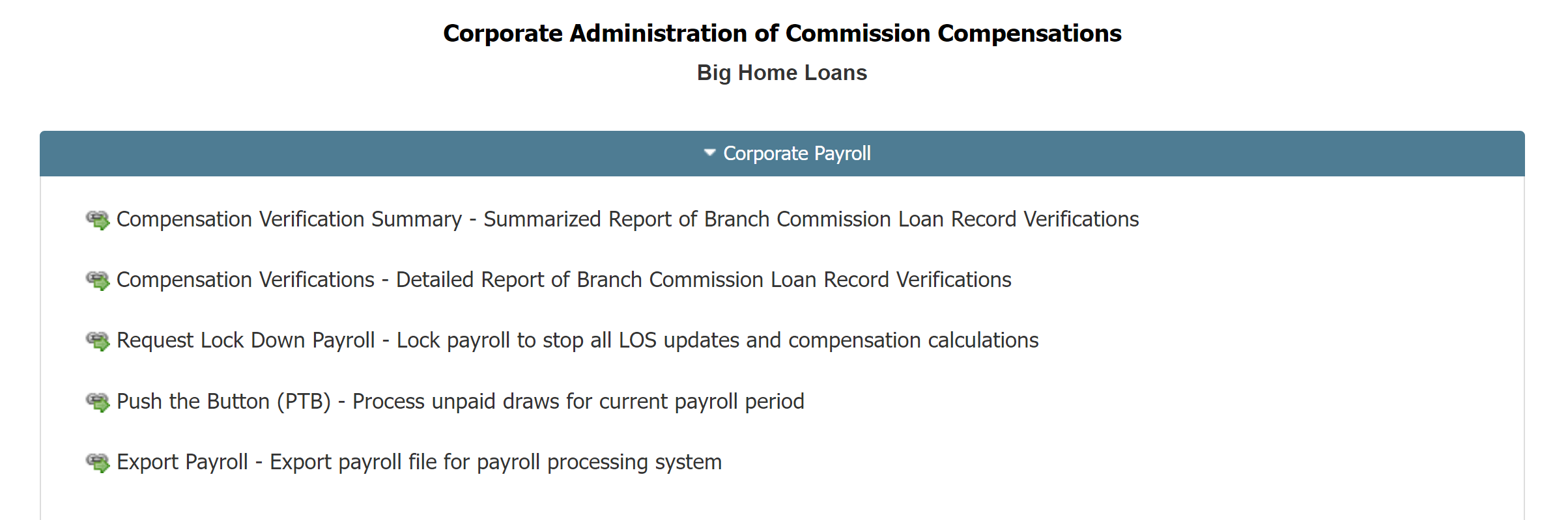
Administrators typically only need to begin the payroll process around the Verification Due date. There are tools in the Corporate Payroll Menu for each step in the process. This process includes the following five steps:
- Compensation Verification review
- Payroll Lock Down (if used manually)
- Push the Button (PTB) to process draws for the pay period (if Auto PTB is not enabled)
- Review payroll, make adjustments if needed
- Export the completed payroll
1. Compensation Verification Review
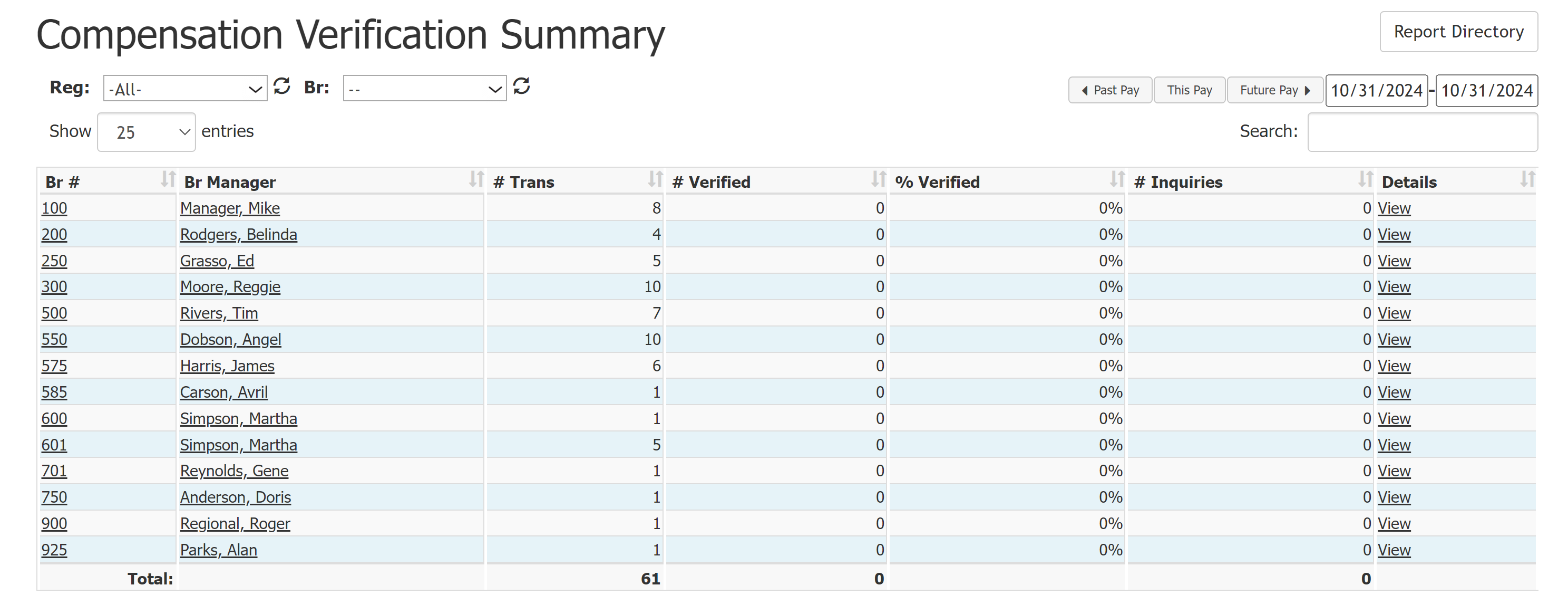
Verification is a tool that individual employees use to review their compensation and either confirm that it is correct, or flag it as disputed for further review. For more information on the verification process for employees, see Loan Compensation Verification Guide.
Payroll admins have access to the Compensation Verification Summary and Compensation Verifications reports. These reports verify to ensure pay on the current payroll.
NOTE: Administrators are still able to continue the payroll process even if pay is not verified.
While the verification tool can be a powerful part of the reconciliation process, not all companies use it. Verify Pay does not have any impact on calculations or pay. It is a tool for managers and employees to ensure their pay is accurate.
2. Payroll Lock Down
A key step in the payroll process is locking down all transactions. This ensures that transactions in the payroll period no longer changes due to loan updates.
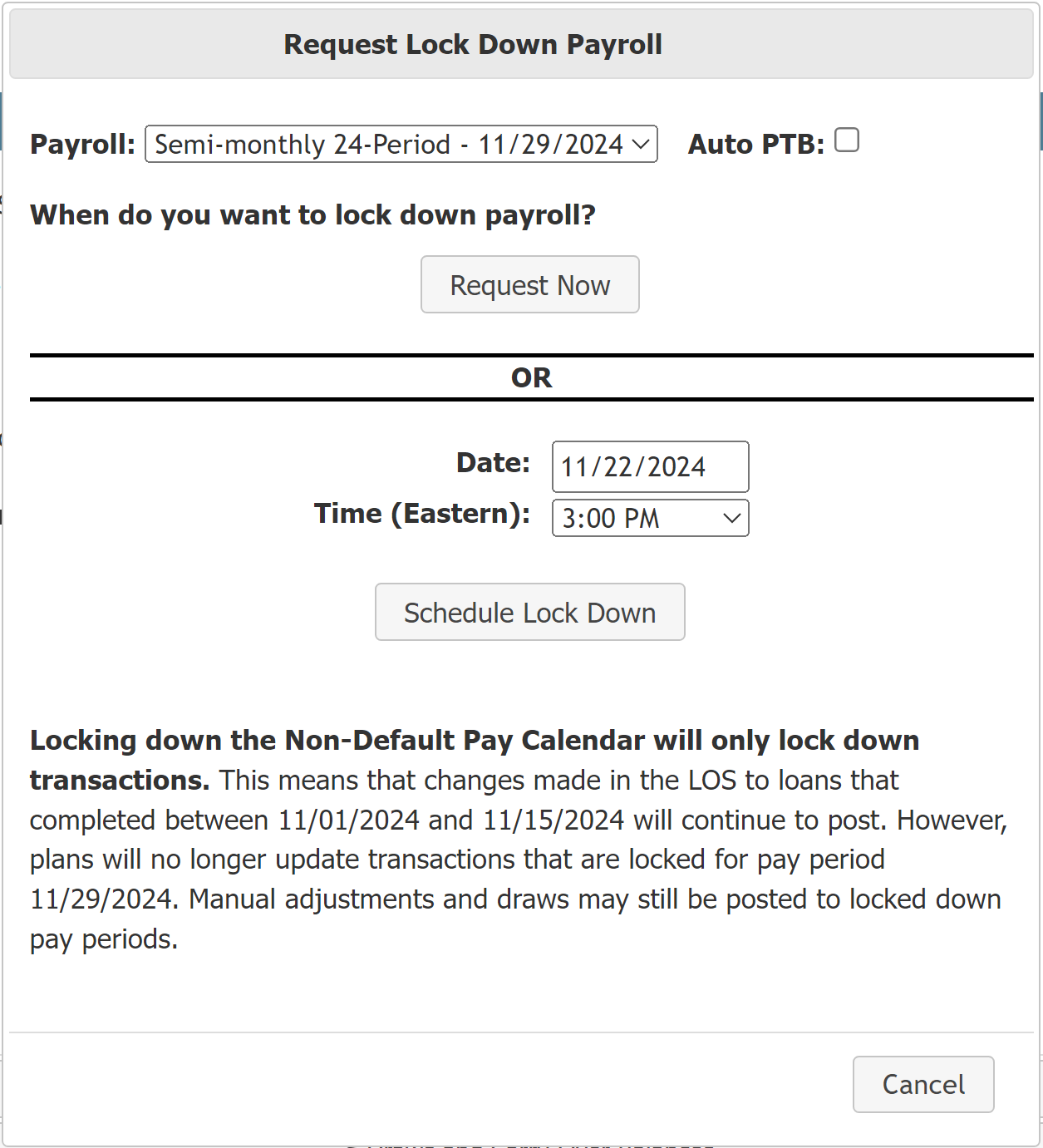
Loans automatically lock down on the Lock Down Date (if present), or at 2 AM ET on the Pay Date, if no Lock Down Date is present. Administrators can also lock down the payroll period manually using the tool in the Corporate Payroll menu.
If locking down the payroll period manually, keep the following in mind:
- Loans CANNOT be locked down prior to the period’s Verification Due date and time.
- On the Verification Due date, the loans can be locked AFTER the Verification Due time has passed.
- Loans CANNOT be edited or unlocked after the period's Payroll Date - Original.
NOTE: If adjustments need to be made to a locked payroll period, use manual Payroll Adjustments. See the following for more information: Payroll Adjustments.
3. Push the Button (PTB)
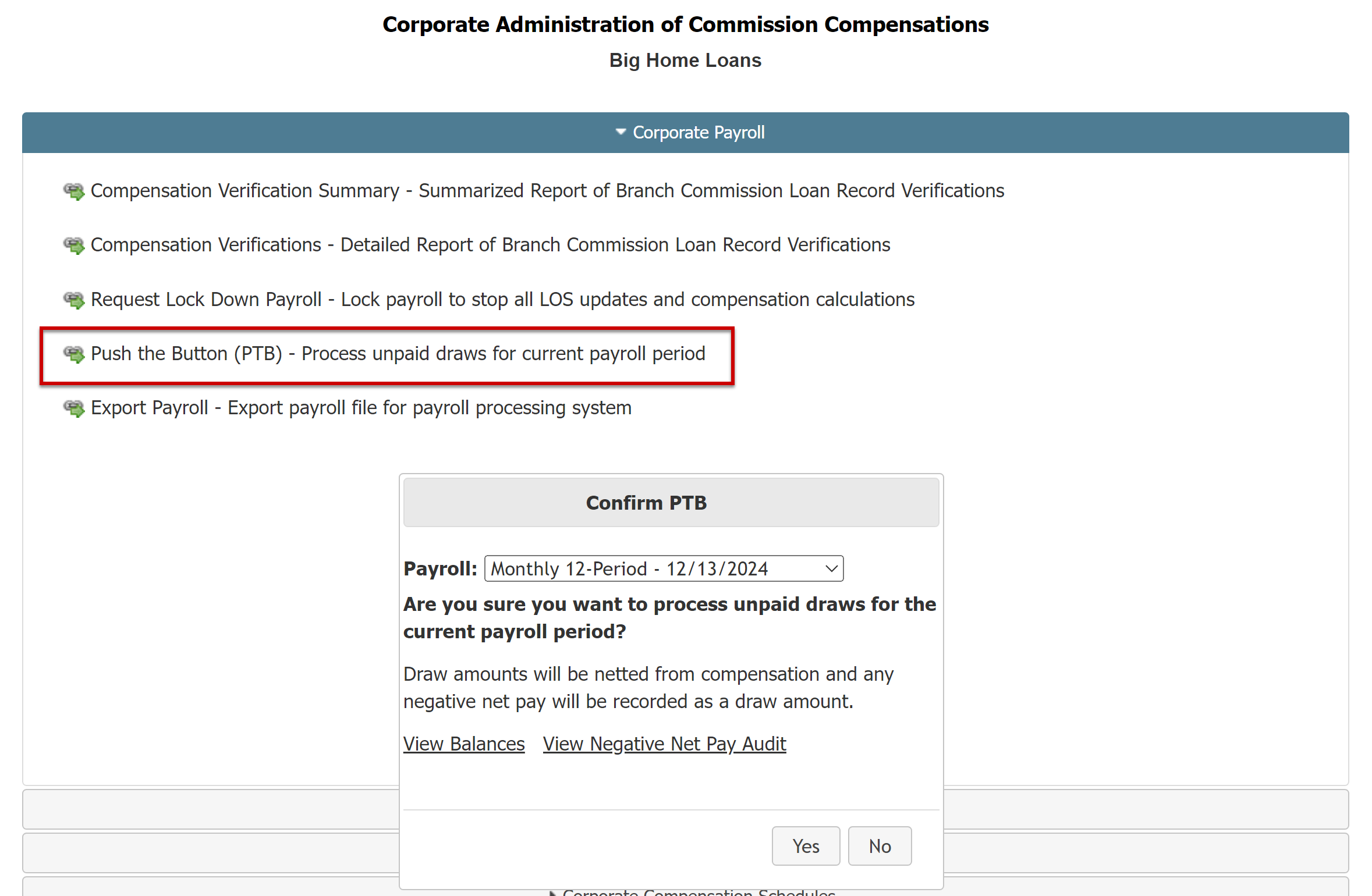
Push the Button (PTB) is a tool used to calculate draws based on employee commissions for the current payroll period. If Auto PTB is not set up, administrators must use the PTB tool in the Corporate Payroll Menu.
Administrators can PTB at any time during the payroll period, and can PTB multiple times. As a part of the payroll process, we recommend PTB AFTER locking down payroll, and prior to exporting payroll. This ensures that nCino Incentive Compensation recaptures from all qualifying employee compensation in the payroll period.
This tool includes links to the Compensation Snapshot Summary Report and the Negative Net Pay Amounts for Payroll Report. We recommend checking these reports to ensure everything is in order prior to PTB.
NOTE: If you are interested in activating Auto PTB, please contact https://incentivehelp.ncino.com/hc/en-us. Be sure to include how many days after the prior pay date the Auto PTB should activate.
4. Review Payroll and Adjust if Needed
Once draws have finished processing, we recommend reviewing the payroll period to ensure there are no discrepancies. Here are a few useful reports:
- Payroll Transaction Details Report
- Compensation Snapshot Summary Report
- Incentive Plan Pay Transactions
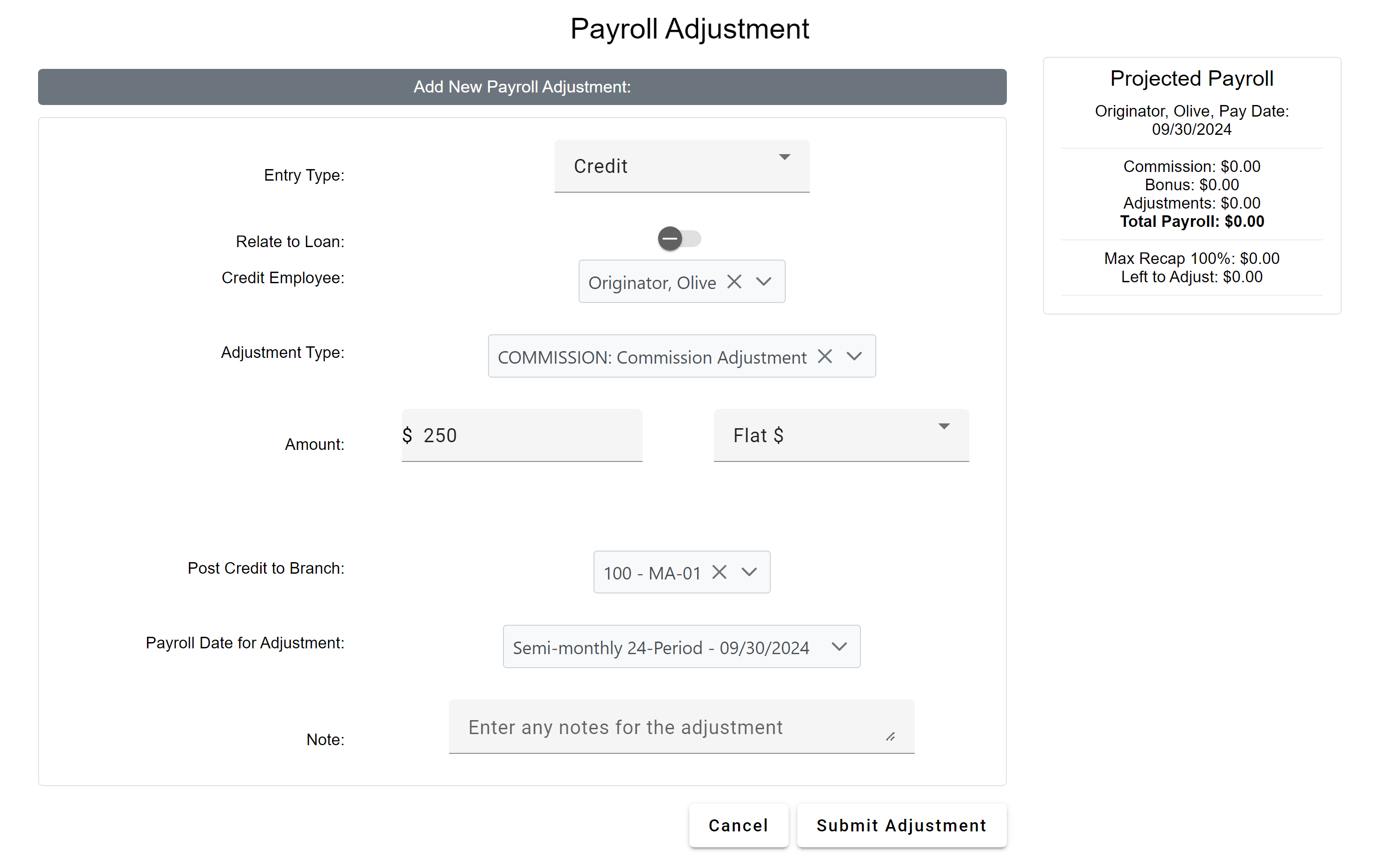
If you find any discrepancies, you can create one-time payroll adjustments in order to correct them. For more information, refer to Payroll Adjustments.
5. Export Payroll
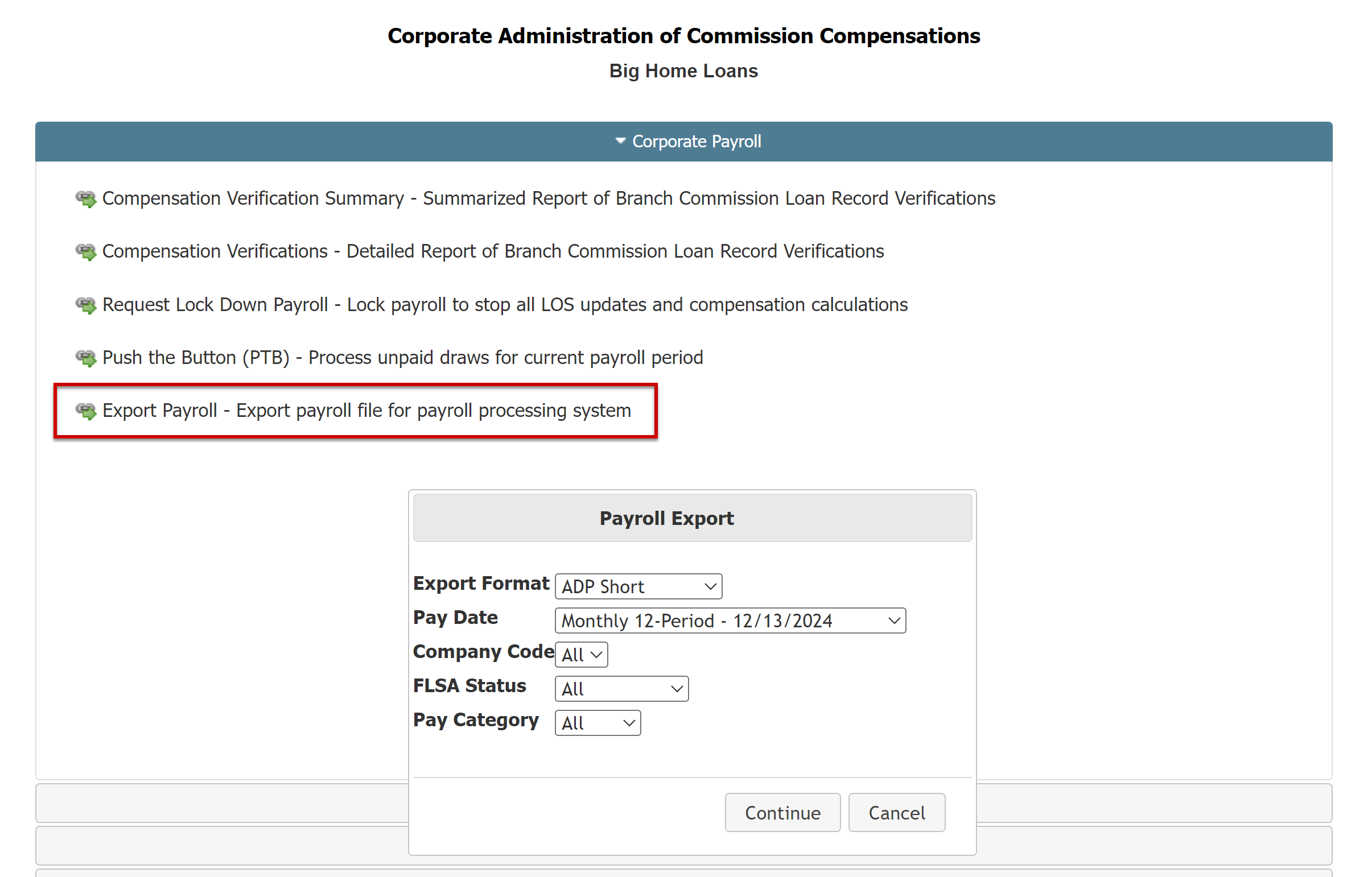
Once the payroll period has been locked down, draws have processed, and the payroll has been reviewed, you can export the final payroll file. The export format defaults to the option you chose. The payroll file can then be imported directly into your payroll system.
See also:
- Payroll Key Terms
- Branch Administration of Payroll – Guide to payroll for branch managers
- Understand Lockdown with Multiple Payroll Calendars – Payroll guide for companies using multiple payroll calendars
- Payroll Periods Report
- Lock Down & Unlock Payroll Periods