Quick Reference Guide: Managers
This article is a guide to direct managers to key parts of the nCino Incentive Compensation system. This includes information about the Branch Payroll menu, pay verification, and compensation plans in the system.
Incentive Compensation provides tools for branch managers, region managers, and other types of managers who work with employee compensation.
Select Branch to View
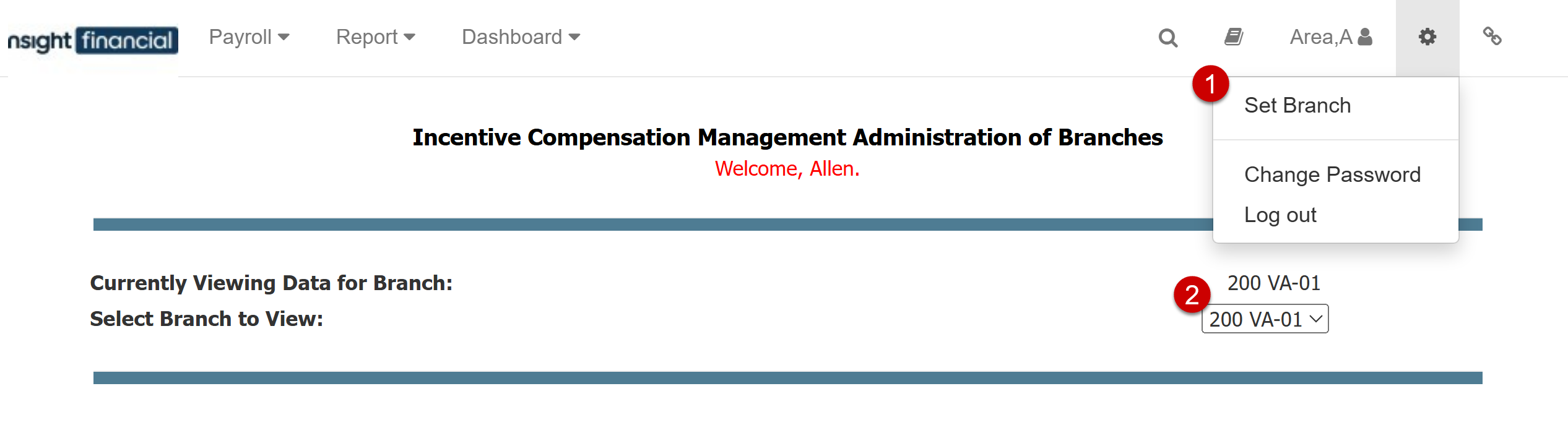
If you manage multiple branches, it can be useful to specifically view data from one of those branches. To set which branch is visible, click the gear icon ( ) > Set Branch (1). Then, use the dropdown menu to select which branch is visible (2).
Branch Payroll Menu
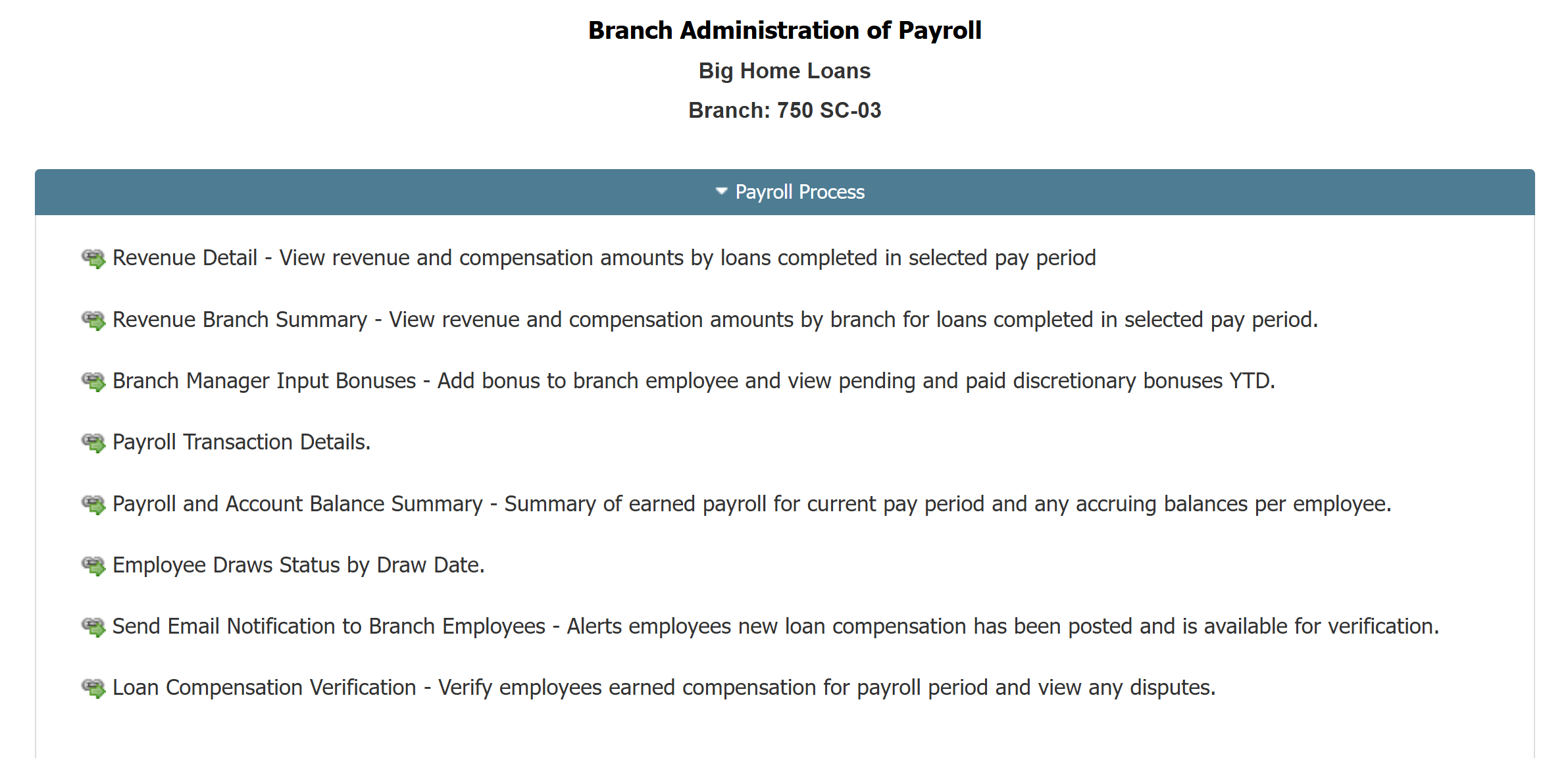
The Branch Payroll menu contains tools and reports that branch and region managers frequently use throughout the payroll process. To access this menu from the system menu, click Payroll ▼ > Br Payroll Menu.
Note: Your company's menu may contain different options.
Verify Branch Payroll
Some companies use the Verify Pay feature in nCino Incentive Compensation to allow users to view and verify their pay before the pay date. If a user believes a pay transaction is incorrect, they are able to submit a dispute or inquiry that the branch manager can view and correct if needed.
To access the Verify Pay page from the system menu, click Payroll ▼ > Verify Pay.
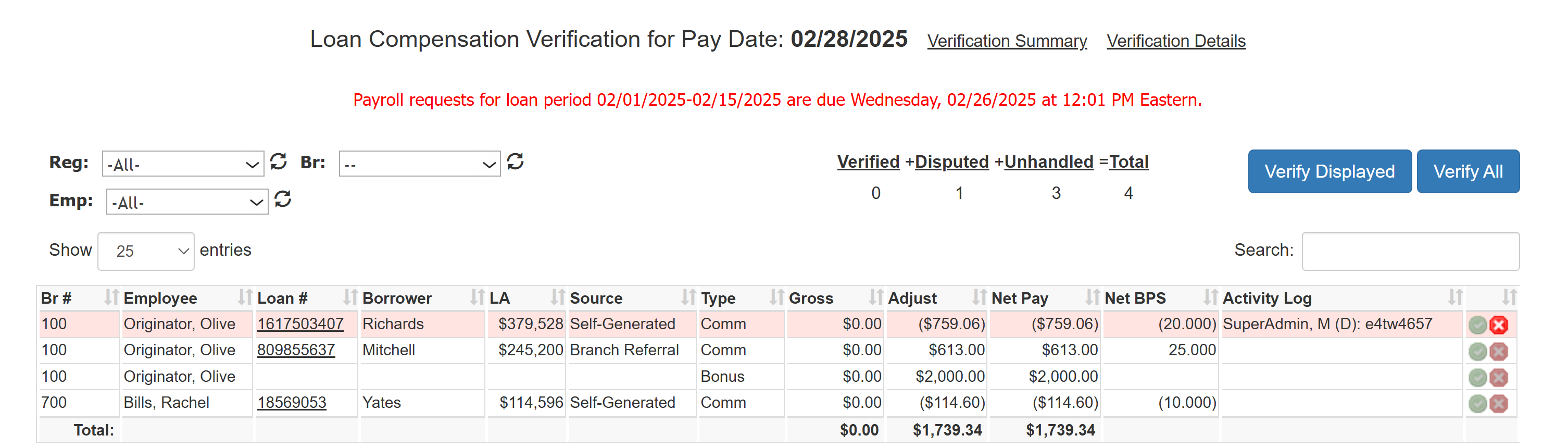
The Loan Compensation Verification for Pay Date page contains a list of pay transactions for your branch. This includes your pay transactions, and transactions for employees you manage. The system highlights transactions that a user has verified in green, and transactions that a user has disputed in red.
To learn more about compensation verification, refer to the Loan Compensation Verification Guide.
Loans Completed Report
The Loans Completed report provides a list of all loans marked as "completed and payable" according to the logic set up by your company. "Completed" is a milestone specific to nCino Incentive Compensation that indicates the loan is compensation payable for any employees assigned to it.
To access this report from the system menu, click Report ▼ > Completed.
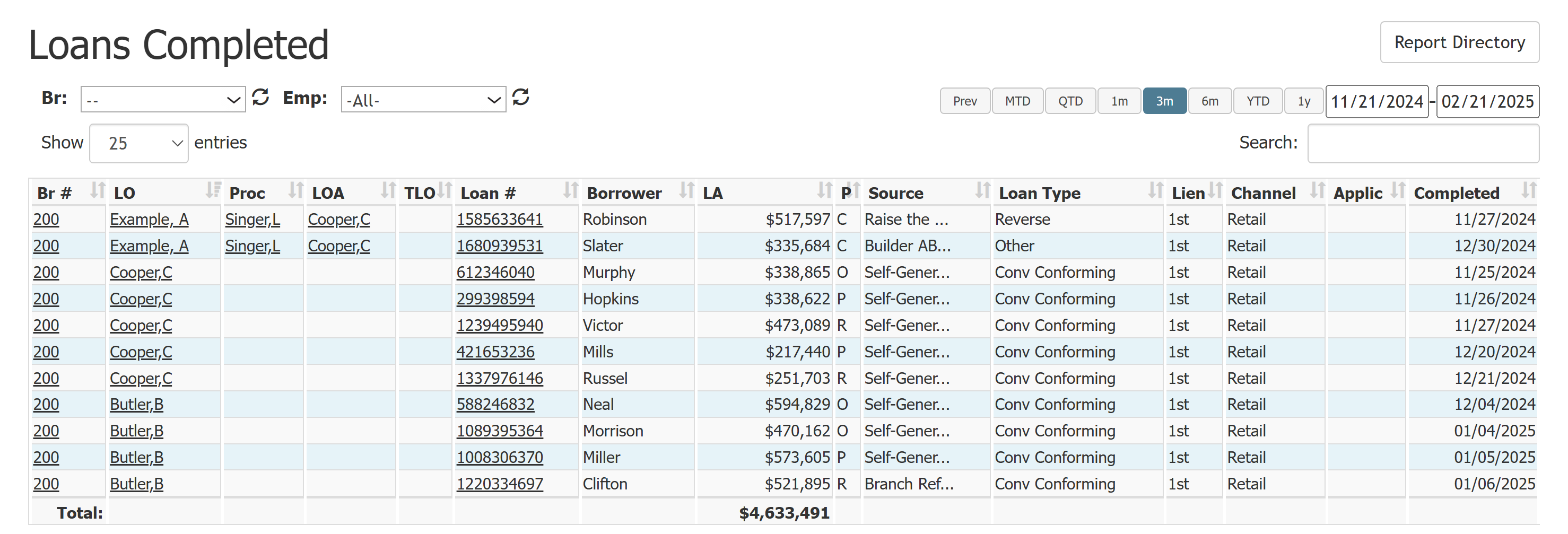
On the Loans Completed report, click any underlined text to view the details for that item. This is especially useful if you want to access loan details, such as the compensation paid for that
loan.
For more information, refer to:
Incentive Plans Overview
In nCino Incentive Compensation, a user's compensation is primarily composed of incentive plans. Incentive plans are a representation in the system of how and when a user receives pay.
You can view a user's incentive plan assignments, as well as incentive plans that calculate pay with that user's volume in the Comp Plan tab of their employee details. From this page, click an incentive plan name to view the employee assignment.
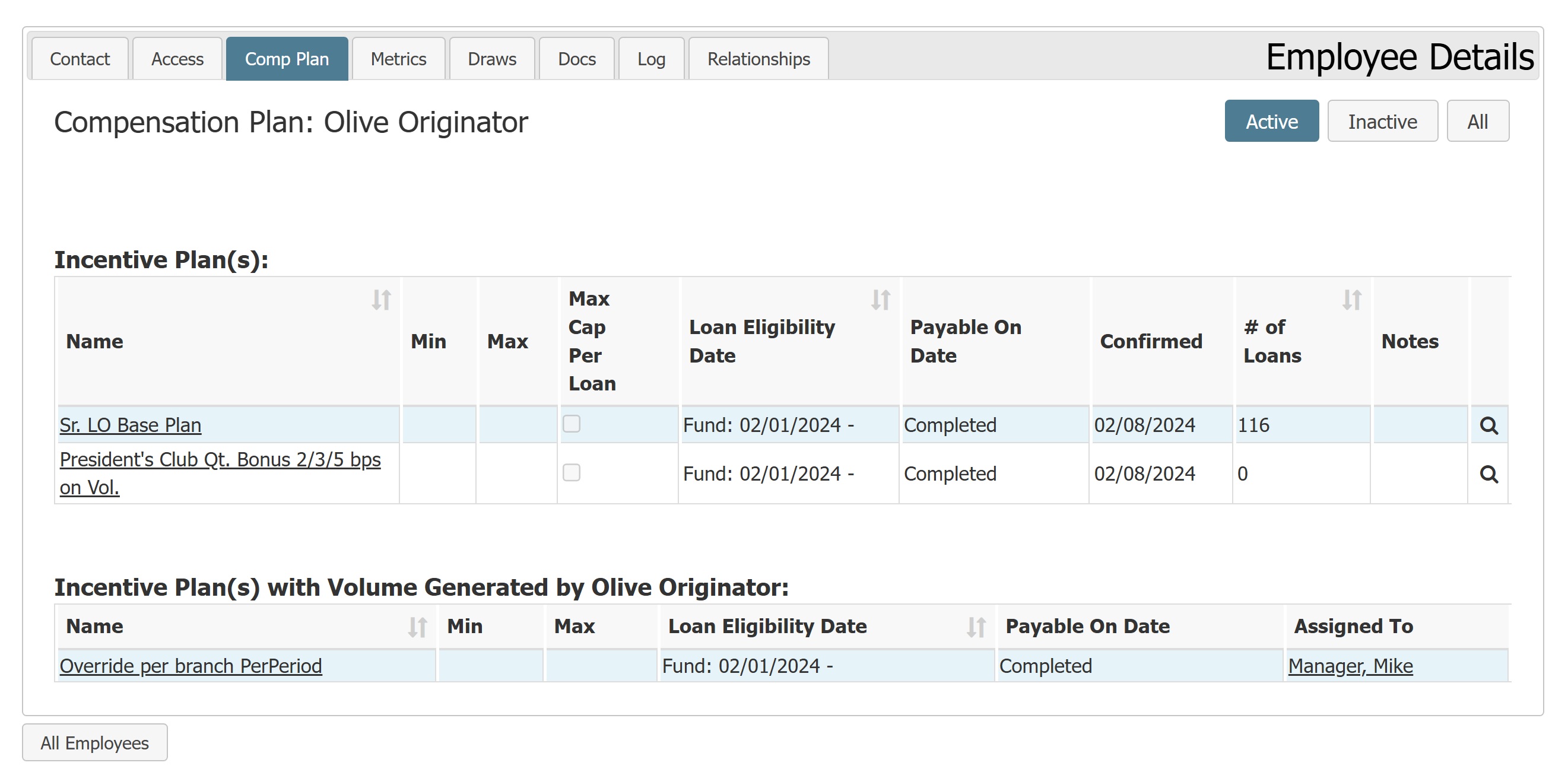
For more information on incentive plans, refer to:
Some companies also use draws and auto draws in their compensation. For more information on those, refer to Understand Draws and Auto Draws.
Report Directory
nCino Incentive Compensation includes a variety of reports that provide insight into loans and how the system calculates pay for them. To access the report directory from the system menu, click Report ▼> All.
Click the section headers to view all reports in a section. Use the search tool to search for a specific report. Click the flag next to a report name to toggle if it's included in your favorites section. When you view a report, it only shows data that you have access to view.
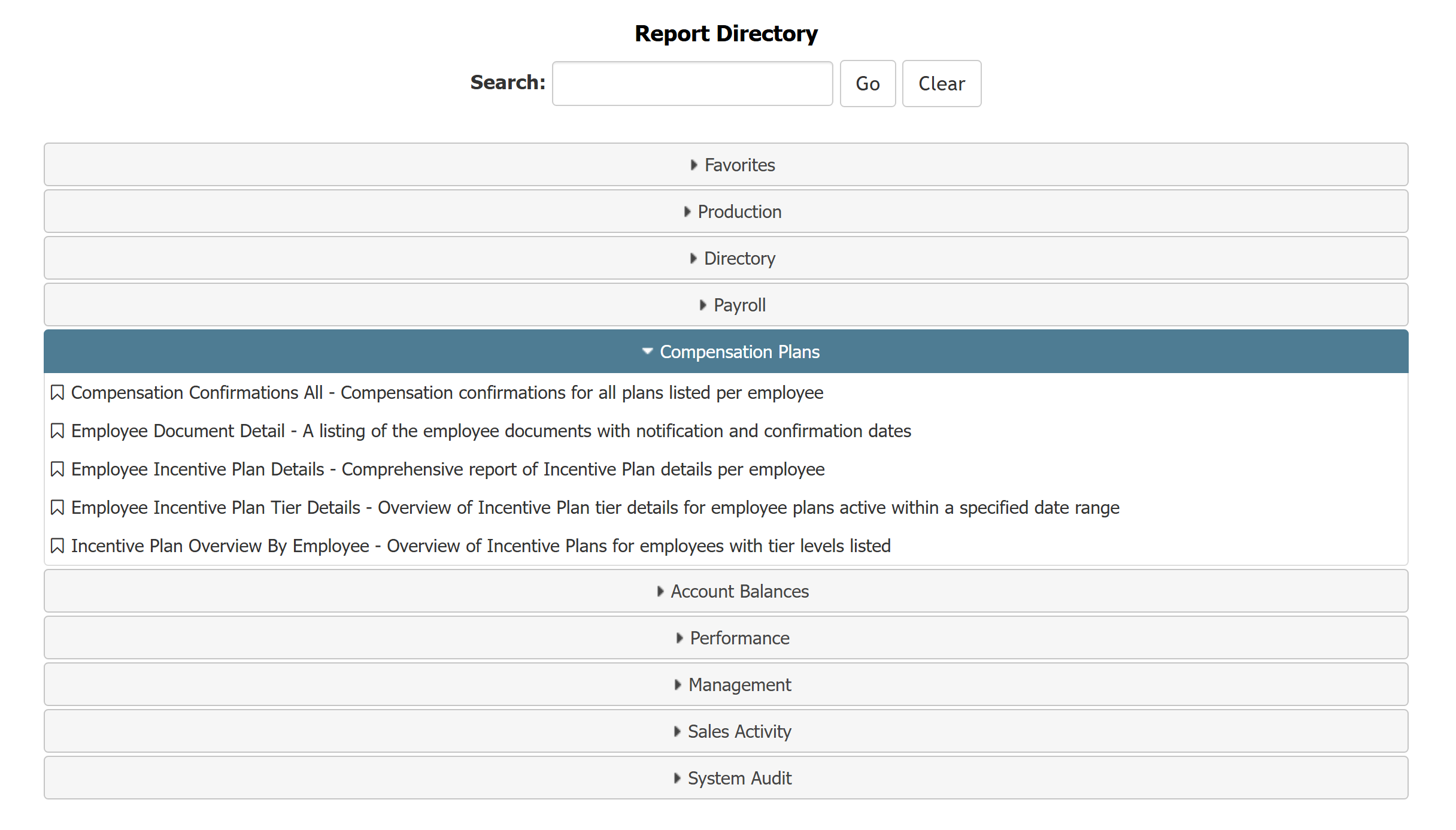
Here are some reports we recommend for branch and region managers:
For more information on reports, refer to Report Directory.
View or Edit Employee Details
Employee Details pages list information about a specific employee in nCino Incentive Compensation. This includes contact information, compensation plans, access levels, draws, and more. To access employee details pages, click an employee's underlined name anywhere in the system. To find a specific employee, we recommend you use the Company Directory or the site-wide search ( ).
).
To access your Employee Details page from the system menu, click the person icon ( )
)
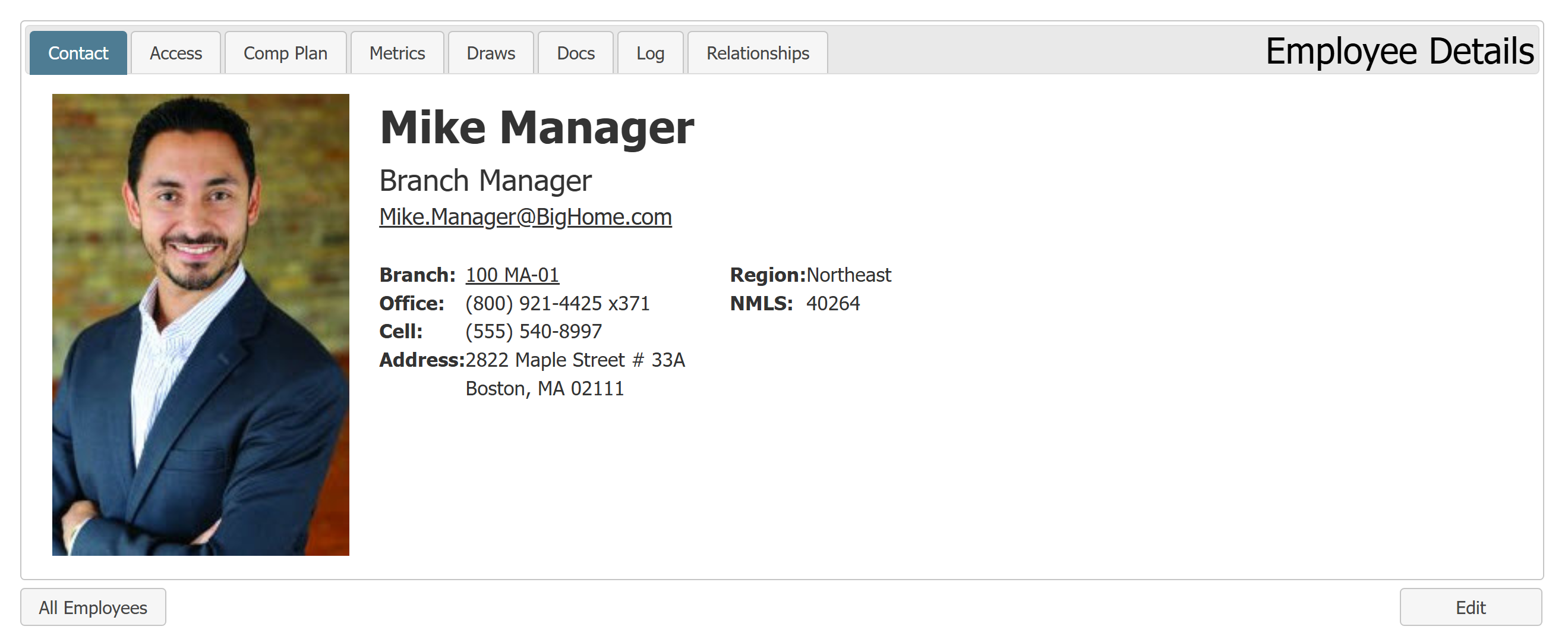
Click the tabs to view different sections of the Employee Details page. If you have access, you can edit the Employee Details. Click the Edit button to edit Employee Details information.
For more information, refer to Video: Employee Details for Managers and Employee Details - Overview.
Confirm Your Incentive Plans and Documents
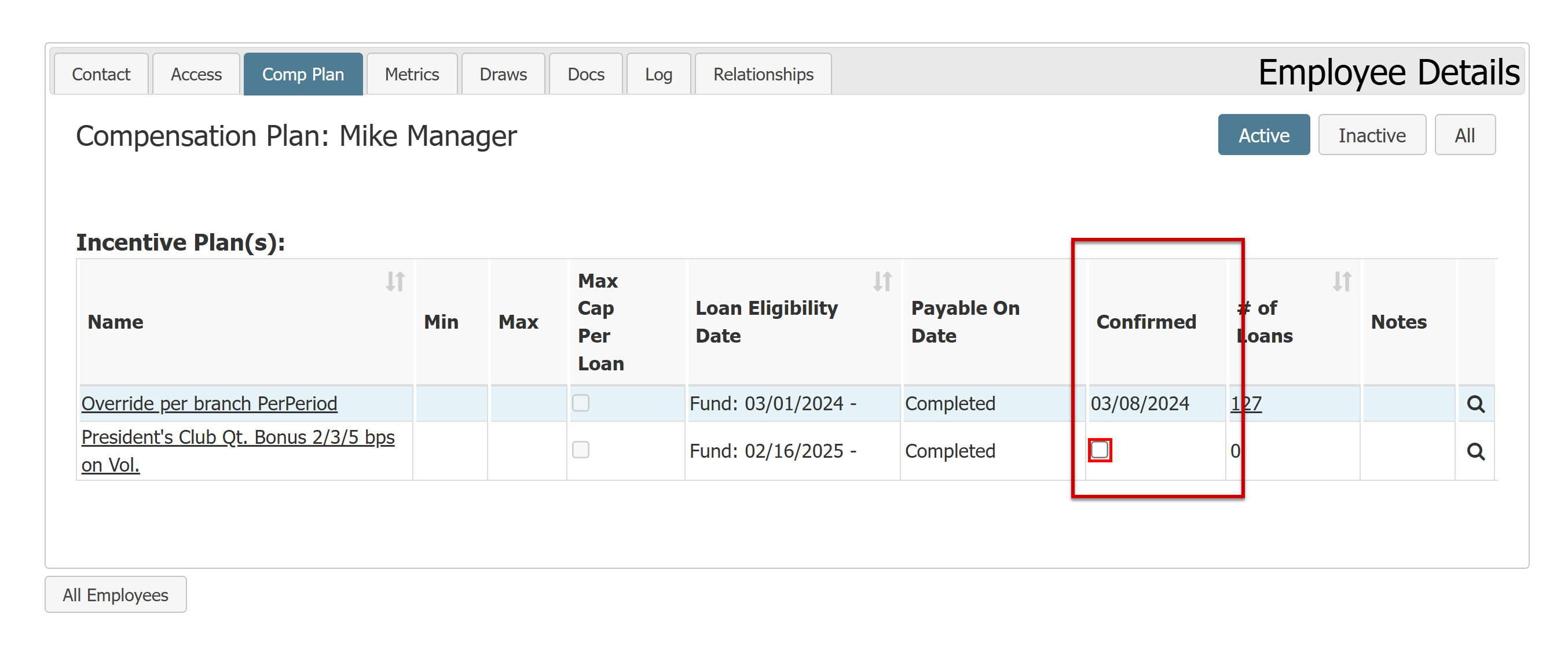
In the Comp Plan and Docs tabs of your Employee Details page, you can review and confirm that compensation plans and their associated documents are correct. If anything is incorrect, we recommend reaching out to your payroll admin.
Note: Incentive Plan and Document confirmation has no impact on pay calculations.
Employee Impersonation in nCino Incentive Compensation
nCino Incentive Compensation includes the ability for managers to "impersonate" users who report to them. With this tool, you can see exactly what other users see in the system. To begin impersonation, click the gear icon () > Impersonate. Then, use the tools to select an employee to impersonate.
While you impersonate a user, a red bar appears above the screen as a reminder. To end or switch impersonation, use the options available in the gear menu while you impersonate.
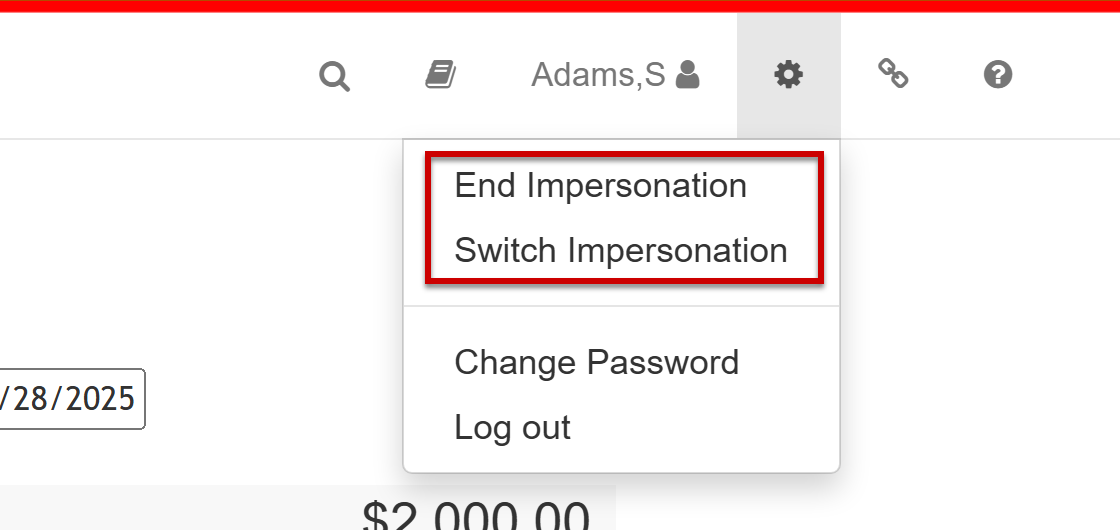
For more information on this tool, refer to How do I impersonate a user?.
Additional Resources
Here are a few articles we recommend to learn more about the system:
-
Pay Calendar Overview: View the key dates in the payroll process.
-
Menu for Master Branch & Region Access Level Users: Menu reference based on the user access level.
-
Menu for Sub-Branch Access Level Users: Menu reference based on the user access level.